
Introduction
This user manual provides comprehensive instructions for the safe and effective operation of your kokit 7-inch 1080P Full HD Video Baby Monitor, Model KK70. Please read this manual thoroughly before using the product and retain it for future reference. This system is designed to provide a secure, non-WiFi connection for monitoring your baby.
Product Overview
Package Contents
Verify that all components are present in the package:
- 1080P PTZ Camera x1
- 7-inch HD Display with Built-In 5000mAh Battery x1
- Power Adapter x1
- User Manual x1
- Wall Mount Screw Set x1
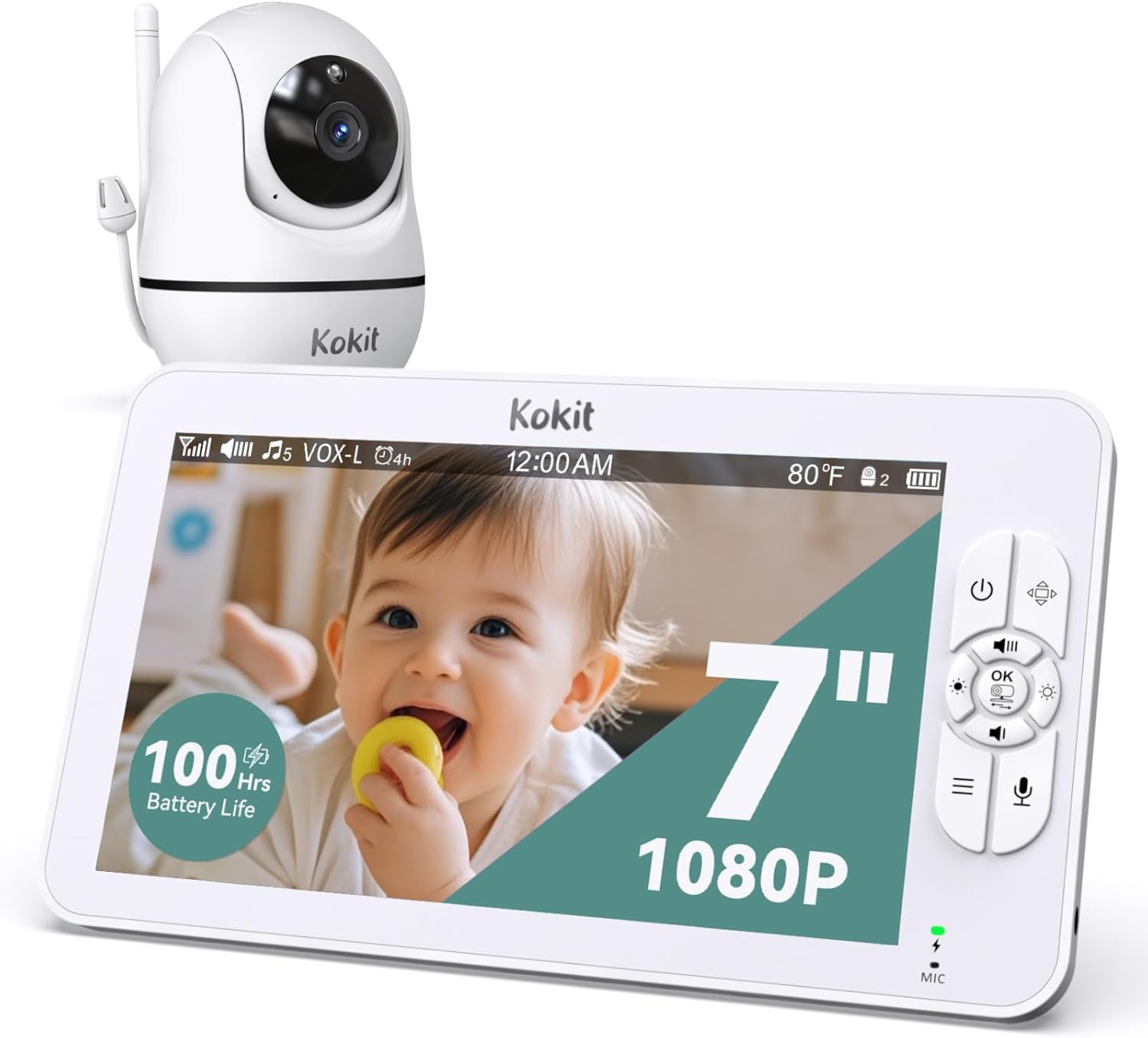
Image of the kokit 7-inch monitor and the camera unit. The monitor displays a baby, and the camera is a white, pan-tilt unit.
Key Features
- 7-inch Full HD Display: Provides a clear 1080P resolution view of the monitored area.
- Extended Battery Life: The monitor's 5000mAh battery offers up to 100 hours in audio-only mode or 22 hours with continuous screen display.
- Remote Pan-Tilt-Zoom: The camera can be remotely panned 355°, tilted 120°, and digitally zoomed up to 4X for comprehensive coverage.
- Secure FHSS Connection: Utilizes 2.4GHz FHSS technology for a private, hack-proof connection without requiring Wi-Fi or internet.
- VOX Mode: Voice Operated eXchange mode activates the screen and alerts when sound is detected, conserving battery.
- Infrared Night Vision: Automatic night vision provides clear visibility in low-light conditions.
- Two-Way Audio: Allows for two-way communication between the monitor and camera unit.
- Lullabies: Includes built-in lullabies to soothe the baby.
- Temperature Monitoring: Displays the room temperature and can alert if it goes outside a set range.

Collage of four images depicting key features: two-way talk, 178-degree wide-angle view, full HD clear night vision, and temperature sensor display on the monitor.
Setup Instructions
1. Initial Charging
Before first use, fully charge the monitor unit. Connect the power adapter to the monitor and a power outlet. The camera unit requires continuous power and does not have a built-in battery.

Image showing a person holding the monitor, with text indicating battery life: 22 hours with display on and 100 hours with display off (audio only).
2. Camera Placement
Position the camera in a location that provides a clear view of the desired monitoring area. Ensure it is out of reach of children. The camera can be placed on a flat surface or wall-mounted using the included screw set. Maintain a distance of at least 3 feet (1 meter) from the baby to avoid potential hazards.

Image showing two mounting options for the camera: attached to a crib with a silicone bracket and wall-mounted with screws.
3. Powering On
- Connect the camera to a power outlet using the provided power adapter.
- Press and hold the Power button on the monitor unit to turn it on.
4. Pairing (Pre-paired)
The camera and monitor units are pre-paired at the factory. Upon powering on both devices, they should automatically connect. If connection issues occur, refer to the Troubleshooting section.

Diagram illustrating the secure, non-WiFi connection using FHSS technology, highlighting no WiFi needed, FCC cleared, and close-loop security.
Operating Instructions
1. Basic Monitor Functions
- Power On/Off: Press and hold the Power button.
- Screen On/Off: Briefly press the Power button to toggle the screen display.
- Volume Control: Use the volume buttons on the monitor to adjust audio output.
2. Pan, Tilt, and Zoom
Use the directional buttons on the monitor to remotely adjust the camera's viewing angle:
- Pan: Move the camera horizontally (355°).
- Tilt: Move the camera vertically (120°).
- Zoom: Press the zoom button to digitally zoom in up to 4X.

Image showing the camera unit in a nursery setting, with arrows indicating its 355° pan and 120° tilt capabilities to cover the entire room.

Image illustrating the 7-inch screen size compared to smaller monitors, and examples of 2X and 4X digital zoom on a baby's face.
3. Two-Way Talk
Press and hold the microphone button on the monitor to speak to the camera's location. Release the button to listen.
4. VOX Mode
VOX mode conserves battery by turning off the monitor screen when no sound is detected. The screen will automatically activate when the camera detects sound above a set threshold. You can adjust the VOX sensitivity level through the monitor's menu settings.

Image demonstrating VOX mode, with the monitor screen off when the baby is sleeping quietly (left) and turning on when the baby is crying (right).
5. Lullabies
Access the monitor's menu to select and play built-in lullabies through the camera unit. You can typically adjust the volume and playback duration.
6. Temperature Monitoring
The monitor displays the ambient temperature detected by the camera. You can set temperature alert ranges in the menu to be notified if the room becomes too hot or cold.

Collage of four images depicting additional features: temperature monitoring, lullabies for sleep, two-way audio communication, and feeding time reminders.
Maintenance
Cleaning
Wipe the monitor and camera surfaces with a soft, dry, or slightly damp cloth. Do not use abrasive cleaners or solvents. Ensure the devices are powered off and unplugged before cleaning.
Battery Care
To prolong the monitor's battery life, avoid fully discharging it frequently. Charge the monitor regularly, especially if it will be stored for an extended period.
Troubleshooting
If you encounter issues with your baby monitor, please refer to the following common solutions:
- No Signal/Poor Connection:
- Ensure both the camera and monitor are powered on and within range (up to 1000 feet in open areas).
- Reduce obstacles between the camera and monitor, such as thick walls or multiple floors.
- Move the units away from other 2.4GHz devices (e.g., Wi-Fi routers, microwaves) to minimize interference.
- Try re-pairing the units if the connection is lost (refer to the device menu for pairing instructions if needed, though typically pre-paired).
- No Image/Black Screen:
- Check if the camera is properly powered.
- Ensure the monitor screen is not in VOX mode standby or manually turned off.
- Verify the camera lens is clean and unobstructed.
- No Sound/Poor Audio:
- Adjust the monitor's volume level.
- Ensure the camera's microphone is not obstructed.
- Check for signal interference as described above.
- Monitor Battery Not Holding Charge:
- Ensure the power adapter is correctly connected to both the monitor and a working power outlet.
- Allow sufficient time for charging (several hours for a full charge).
- If the issue persists, the battery may require replacement or further assistance may be needed.

Diagram illustrating the 1000-foot range of the monitor system, showing the monitor unit outdoors and the camera unit inside a house.
Specifications
| Feature | Specification |
|---|---|
| Model Name | KK70 |
| Display Size | 7 inches |
| Video Resolution | 1080P Full HD |
| Connectivity Technology | 2.4GHz FHSS (No WiFi) |
| Monitor Battery Capacity | 5000mAh |
| Monitor Battery Life (Audio Only) | Up to 100 hours |
| Monitor Battery Life (Screen On) | Up to 22 hours |
| Pan Angle | 355 degrees |
| Tilt Angle | 120 degrees |
| Digital Zoom | 4X |
| Night Vision Range | Up to 25 feet |
| Operating Range | Up to 1000 feet (line of sight) |
| Material | Acrylonitrile Butadiene Styrene (ABS), Plastic |
| Dimensions (L x W x H) | 7.05 x 5.83 x 2.76 inches |
| Item Weight | 1 pound |
Warranty and Support
Warranty Information
This kokit product is typically covered by a 1-year manufacturer's warranty from the date of purchase, covering defects in materials and workmanship. Please retain your proof of purchase for warranty claims. The warranty does not cover damage caused by misuse, accidents, unauthorized repairs, or normal wear and tear.
Customer Support
For technical assistance, troubleshooting, or warranty inquiries, please contact kokit customer support. Refer to the product packaging or the official kokit website for the most current contact information.