
1. Introduction
Thank you for choosing the INNOCN 27D1U 27-inch 4K UHD IPS Monitor. This manual provides essential information for the safe and efficient use of your new monitor. Please read it thoroughly before installation and operation, and keep it for future reference.
The INNOCN 27D1U offers a 27-inch 4K UHD (3840 x 2160) IPS display with HDR400 support, 100% sRGB color gamut, and blue light reduction technology. It features versatile connectivity including Type-C with 65W power delivery, DisplayPort, and HDMI 2.0, along with an adjustable stand for optimal viewing comfort.
2. Safety Information
- Always place the monitor on a stable, flat surface to prevent it from falling.
- Do not expose the monitor to rain or moisture to avoid electric shock or fire.
- Keep the monitor away from direct sunlight, heat sources, or extreme temperatures.
- Ensure proper ventilation around the monitor. Do not block ventilation openings.
- Use only the power adapter supplied with the monitor.
- Unplug the monitor from the power outlet before cleaning.
- Do not attempt to repair the monitor yourself. Refer all servicing to qualified service personnel.
3. Package Contents
Please check the package contents upon unpacking. If any items are missing or damaged, contact your retailer.
- INNOCN 27D1U Monitor
- Monitor Stand (Base and Neck)
- Power Adapter
- Power Cable
- HDMI Cable
- USB-C Cable
- User Manual
4. Setup
4.1. Monitor Assembly
Stand Assembly:
- Carefully remove the monitor and stand components from the packaging.
- Attach the stand neck to the monitor panel. Ensure it clicks securely into place.
- Attach the stand base to the stand neck and tighten the screw at the bottom of the base.
VESA Mount Installation (Optional):
The monitor supports VESA 100x100mm mounting. If you wish to use a VESA-compatible wall mount or desk arm, remove the stand from the monitor by pressing the quick-release button (if available) or unscrewing it. Attach your VESA mount using appropriate screws.

Image: Monitor stand adjustments and VESA mount points.
4.2. Connecting to Devices
Connect your computer or other devices to the monitor using the appropriate cables. The monitor supports HDMI 2.0, DisplayPort 1.4, and USB Type-C connections.
- HDMI Connection: Connect one end of the HDMI cable to your computer's HDMI port and the other end to the monitor's HDMI 2.0 port.
- DisplayPort Connection: Connect one end of the DisplayPort cable to your computer's DisplayPort and the other end to the monitor's DisplayPort 1.4.
- USB Type-C Connection: Connect one end of the USB-C cable to your computer's USB-C port and the other end to the monitor's USB-C port. This connection supports video, data transfer, and up to 65W power delivery to your laptop.
- Audio Output: Connect external speakers or headphones to the 3.5mm audio out port for sound.
- Power Connection: Connect the power adapter to the monitor's DC Power In port, then plug the power cable into a power outlet.

Image: Monitor ports and button descriptions.
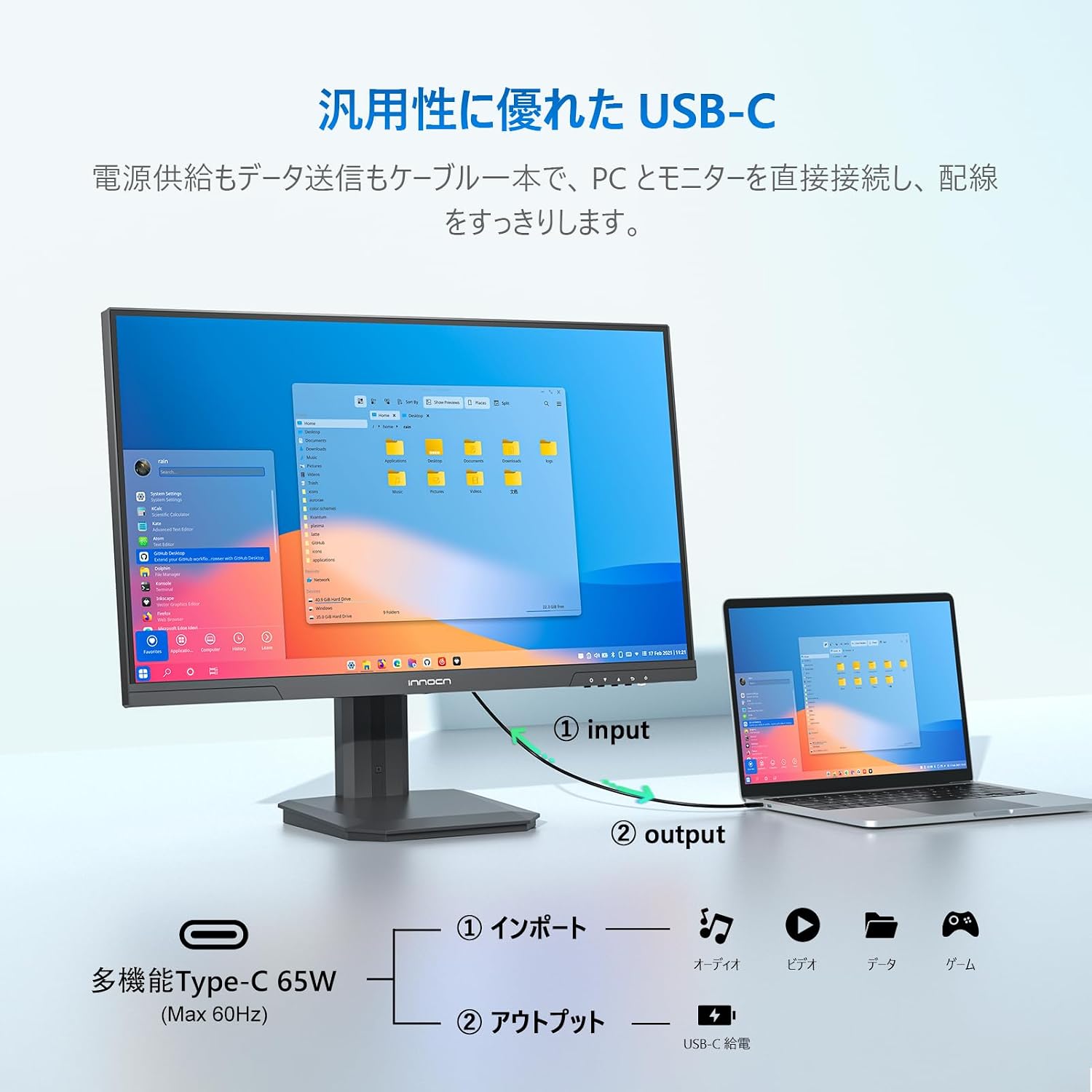
Image: USB-C connection for power and data.
5. Operating Instructions
5.1. Power On/Off
Press the Power button located on the back of the monitor to turn it on or off.
5.2. OSD Menu Navigation
The On-Screen Display (OSD) menu allows you to adjust various monitor settings. Use the control buttons on the back of the monitor to navigate the menu:
- Power Button: Press to turn on/off the monitor.
- Exit/Hot Key: Press to return to the previous menu or quickly switch input signals.
- Up Button: Press to move up in the menu or quickly adjust volume.
- Down Button: Press to move down in the menu or quickly adjust brightness.
- Menu Button: Press to enter sub-menus or enter the main menu.
5.3. Display Settings
- Brightness/Contrast: Adjust these settings to optimize image visibility.
- Color Settings: Fine-tune color temperature, hue, and saturation. The monitor offers 100% sRGB and 95% DCI-P3 color gamut for accurate color reproduction, ideal for photo and video editing.
- HDR400: Enable HDR400 for enhanced contrast and vibrant colors in compatible content.
- Blue Light Reduction: Activate this feature to reduce blue light emissions, minimizing eye strain during prolonged use.
- M.BOOK Mode: This mode is optimized for Mac devices, providing natural and consistent colors.

Image: High color accuracy for creative work.
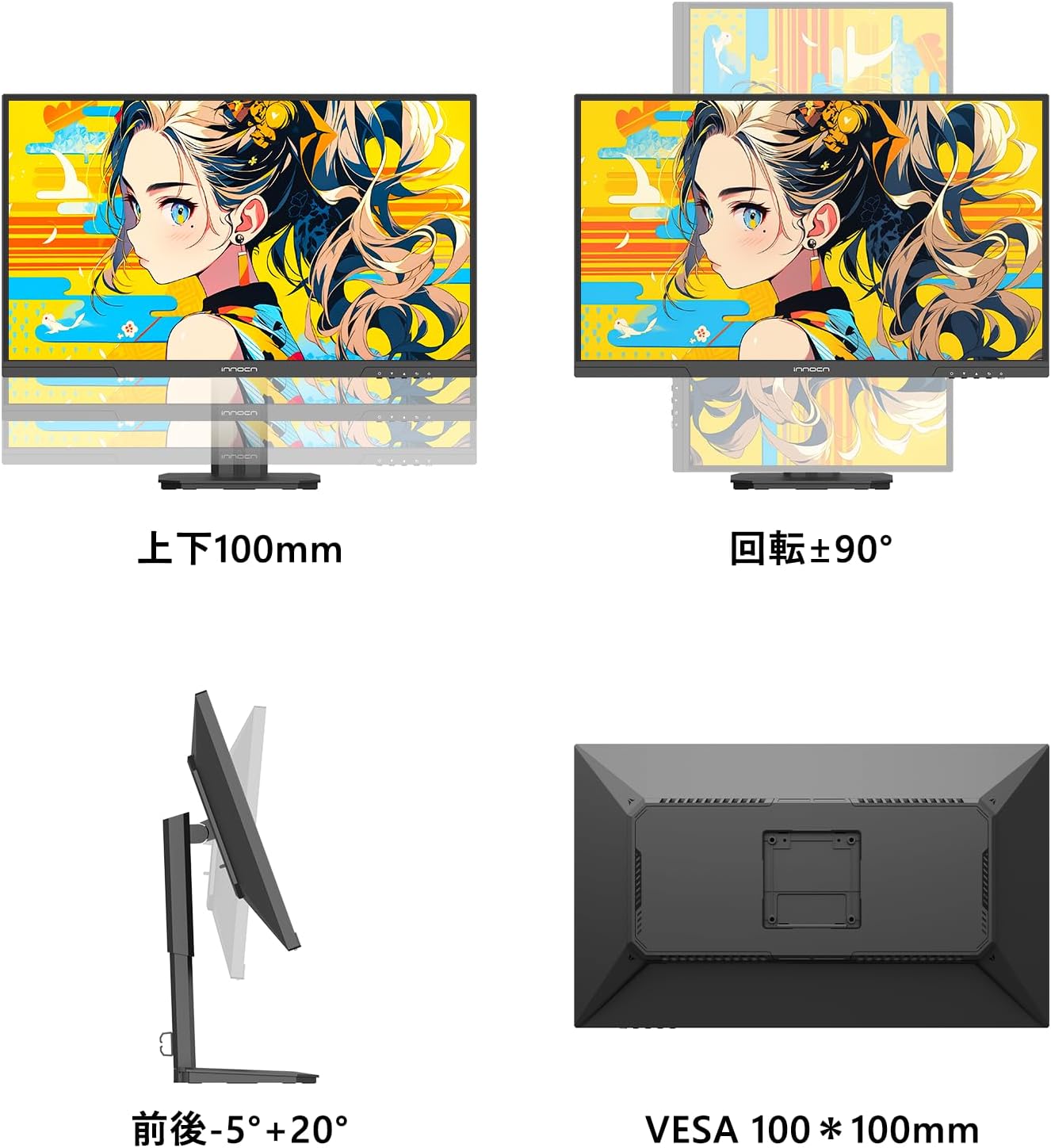
Image: HDR 400 effect comparison.

Image: M.BOOK Mode for Mac compatibility.
5.4. Monitor Adjustments
The monitor stand allows for various adjustments to achieve an ergonomic viewing position:
- Height Adjustment: Adjust the monitor height up to 100mm.
- Tilt: Tilt the screen from -5° to +20° for optimal viewing angles.
- Pivot (Rotation): Rotate the screen 90° for portrait mode viewing.
6. Maintenance
- Cleaning the Screen: Gently wipe the screen with a soft, lint-free cloth. For stubborn marks, use a monitor-specific cleaning solution applied to the cloth, not directly to the screen.
- Cleaning the Casing: Use a soft, dry cloth to wipe the monitor casing. Avoid using abrasive cleaners or solvents.
- Storage: If storing the monitor for an extended period, unplug it and cover it to protect it from dust. Store in a cool, dry place.
7. Troubleshooting
If you encounter issues with your monitor, refer to the following common problems and solutions:
| Problem | Possible Cause | Solution |
|---|---|---|
| No image on screen | No power; Incorrect input selected; Loose video cable | Check power connection; Select correct input source via OSD; Reconnect video cable securely. |
| Image is blurry or distorted | Incorrect resolution; Faulty video cable | Set display resolution to 3840x2160; Try a different video cable. |
| No sound from external speakers/headphones | Volume too low; Incorrect audio output selected | Adjust volume via OSD or connected device; Ensure audio output is selected correctly on your device. |
| Monitor not charging laptop via USB-C | Laptop not compatible with USB-C PD; Cable issue | Ensure laptop supports USB-C Power Delivery; Use the provided USB-C cable or a certified alternative. |
8. Specifications
| Feature | Specification |
|---|---|
| Brand | INNOCN |
| Model Number | 27D1U |
| Screen Size | 27 inches |
| Resolution | 4K UHD (3840 x 2160 pixels) |
| Display Type | IPS |
| Aspect Ratio | 16:9 |
| Refresh Rate | 60 Hz |
| Response Time | 6 ms |
| Brightness | 350 cd/m² |
| Viewing Angle | 178° (H/V) |
| Color Gamut | 100% sRGB |
| HDR Support | HDR400 |
| Connectivity | 1x HDMI 2.0, 1x DisplayPort 1.4, 1x USB Type-C (65W PD), 1x Audio Out |
| VESA Mount | 100 x 100 mm |
| Adjustments | Height, Tilt, Pivot |
| Product Dimensions (D x W x H) | 19.5 x 61.4 x 51.3 cm |
| Product Weight | 3.95 kg |
9. Warranty and Support
This INNOCN monitor comes with a 12-month manufacturer's warranty from the date of purchase. This warranty covers manufacturing defects and malfunctions under normal use.
The warranty does not cover damages caused by:
- Improper installation or use.
- Accidents, abuse, or neglect.
- Unauthorized repairs or modifications.
- Power surges or incorrect voltage.
For warranty claims, technical support, or any inquiries regarding your INNOCN 27D1U monitor, please contact our customer service team via email. Please have your purchase receipt and product model number ready when contacting support.


