
Product Overview
The NEWFAST AC1200 Long Range Outdoor Access Point NF-A882 is a robust, weather-resistant device designed to extend Wi-Fi coverage in outdoor environments. It supports dual-band operation (2.4GHz and 5GHz) and offers multiple operating modes, including Access Point, Router, Repeater, and Bridge. Equipped with Gigabit Ethernet ports and Power over Ethernet (PoE) capabilities, it provides a stable and high-speed network connection for various outdoor applications.

Image: The NEWFAST AC1200 Outdoor Access Point, a white rectangular device with two external antennas, shown with water splashing around its base, indicating its waterproof design.
Package Contents
Verify that all items listed below are included in your package:
- 1 * AC1200 Outdoor Access Point
- 1 * 48V 0.32A Power Adapter
- 1 * User Manual
- 1 * Installation package (2 * Tighten screws + 2 * Install zip ties + 2 * sealing ring)
Key Features
- IP66 Weatherproof Design: The device features an IP66-certified ABS shell, ensuring durability and reliable operation in various extreme outdoor conditions, including blizzards, sandstorms, and rainstorms. It is designed to withstand high and low temperatures, and offers thunderstorm, anti-wind, and sand protection.
- AC1200 Dual-Band Coverage: Supports simultaneous 2.4GHz (up to 300Mbps) and 5GHz (up to 867Mbps) bands, providing stable long-distance coverage and high-speed connections for activities like 4K streaming.
- Powerful External Antennas: Equipped with two 5dBi omnidirectional antennas and built-in Power Amplifiers (PAs) to expand signal coverage effectively, providing more stable network connections. Theoretical coverage can reach over 200 meters.
- Multiple Gigabit Ports: Features dual Gigabit LAN ports and one Gigabit WAN port, enabling high-speed wired backhaul for demanding applications like 4K IP cameras and multiple concurrent Zoom calls.
- Flexible Power Supply: Supports long-distance Power over Ethernet (802.3at/af PoE) from 0-100m, reducing wiring costs. Also supports 12V DC backup power.
- High Device Capacity: Capable of connecting up to 76 devices simultaneously, making it suitable for high-density environments.

Image: Diagram illustrating the professional outdoor weatherproof design, highlighting protection against rain, thunder (ESD & lightning), sand dust, and sun (high temperature resistance).

Image: Graphic showing the AC1200 dual-band capabilities, with 867 Mbps for 5.8GHz and 300 Mbps for 2.4GHz, emphasizing Gigabit Dual Band WiFi Access Point functionality.

Image: Illustration of the powerful external antennas, highlighting their 5dBi gain and theoretical signal coverage range of over 200 meters.

Image: Detailed view of the bottom of the access point, showing the +12V 1A DC Port, Reset Button, 1*10/100/1000Mbps RJ45 WAN Port, and 2*10/100/1000Mbps RJ45 LAN Ports.
Setup and Installation
1. Physical Installation
The NEWFAST NF-A882 is designed for flexible outdoor deployment, supporting both wall-mounted and pole-mounted installations. Ensure the chosen location provides optimal signal coverage and is within reach of power and network cables.
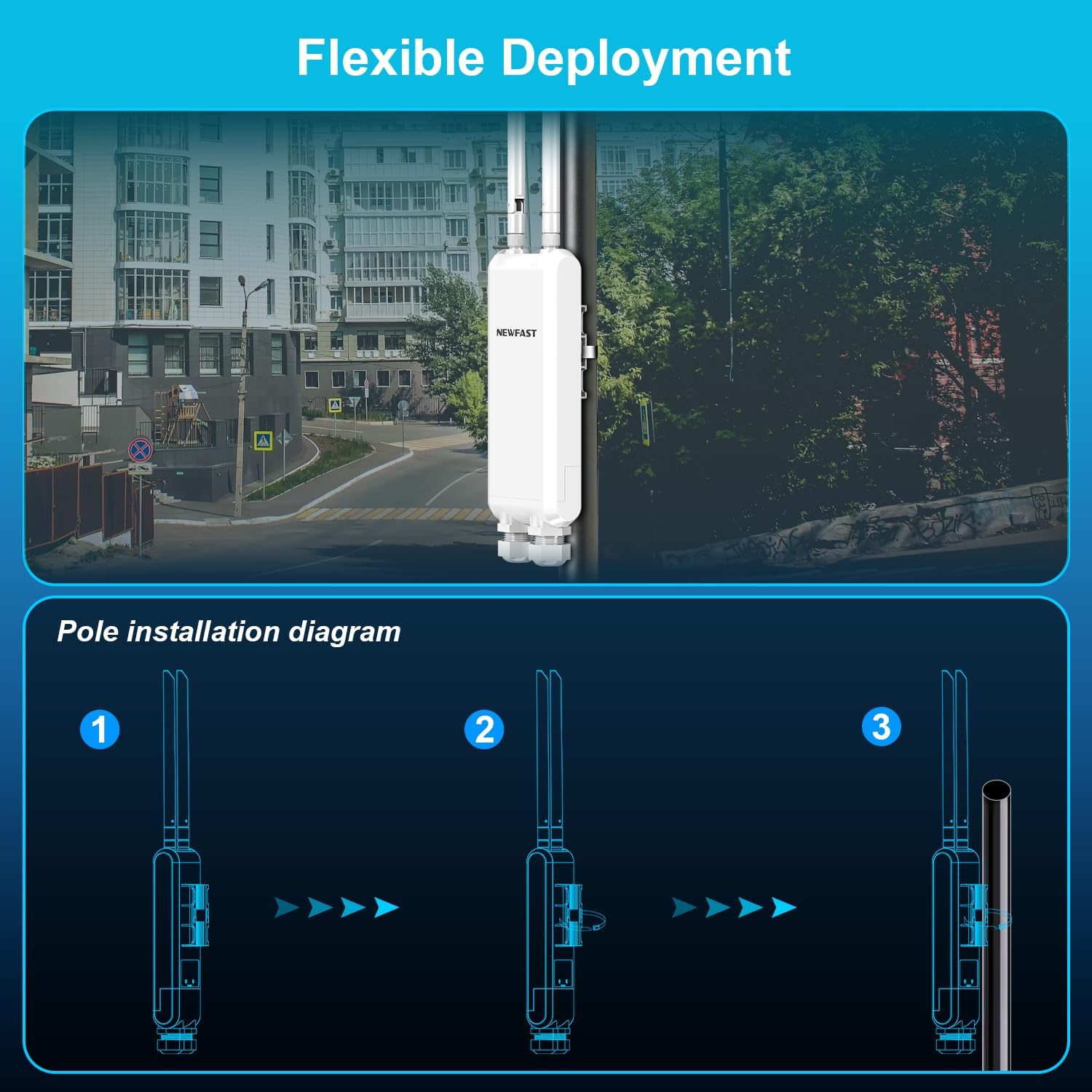
Image: Diagram illustrating the steps for pole installation of the access point, showing how the device attaches to a pole using the included mounting hardware.
- Attach the mounting bracket to the back of the access point.
- Secure the access point to a pole or wall using the provided screws and zip ties. Ensure it is firmly fixed to prevent movement in windy conditions.
- Adjust the antennas for optimal signal direction if needed.
2. Powering On and Initial Connection
The device can be powered via Power over Ethernet (PoE) or a 12V DC adapter (not included for DC). PoE is recommended for outdoor installations as it simplifies wiring.

Image: Diagram showing two power supply options: direct DC power (adapter not provided) and Power over Ethernet (PoE) using the included PoE adapter. It also highlights the DC Port, Reset Button, 1*1000Mbps RJ45 WAN Port, and 2*1000Mbps RJ45 LAN Ports.
- Using PoE: Connect an Ethernet cable from your PoE injector (included) or PoE-enabled switch to the WAN/PoE port on the access point. The PoE injector will then connect to a power outlet.
- Using DC Power (Optional): If not using PoE, connect a 12V 1A DC power adapter (not included) to the DC port.
- Connect a computer or network device to one of the LAN ports on the PoE injector or directly to a LAN port on the access point for initial configuration.
3. Web Interface Access
To configure the access point, access its web-based management interface:
- Ensure your computer is connected to the access point's network (either via Ethernet or its default Wi-Fi SSID).
- Open a web browser and enter the default IP address (refer to the Quick Installation Guide for the specific default IP and login credentials).
- Follow the on-screen setup wizard to configure your desired operating mode and network settings.
Operating Modes
The NEWFAST NF-A882 supports various operating modes to adapt to different network requirements:

Image: Diagram illustrating the four supported working modes: AP Mode, Router Mode, Bridge Mode, and Repeater Mode, showing their typical network configurations.
1. AP (Access Point) Mode
In AP mode, the device connects to an existing wired network (e.g., from a router or switch) and broadcasts a wireless signal, allowing wireless clients to connect to the network. This is ideal for extending an existing wired network wirelessly.
2. Router Mode
As a router, the device connects to a modem and creates a new private network, providing internet access to connected wired and wireless devices. It performs Network Address Translation (NAT) and acts as a DHCP server.
3. Repeater Mode
In Repeater mode, the device extends the coverage of an existing wireless network by receiving the signal and re-transmitting it. This is useful for eliminating Wi-Fi dead zones.
4. Bridge Mode
Bridge mode allows two or more access points to connect wirelessly, creating a single, extended network. This is often used to connect two wired networks wirelessly over a distance.
Maintenance
To ensure the longevity and optimal performance of your NEWFAST AC1200 Outdoor Access Point, follow these maintenance guidelines:
- Regular Cleaning: Periodically wipe the exterior of the device with a soft, damp cloth to remove dust and dirt. Do not use harsh chemicals or abrasive cleaners.
- Firmware Updates: Check the manufacturer's website regularly for firmware updates. Keeping the firmware updated ensures the latest features, security patches, and performance improvements.
- Environmental Checks: Although designed for outdoor use, periodically inspect the device and its cables for any signs of wear, damage, or loose connections, especially after severe weather conditions.
- Ventilation: Ensure that the device's ventilation areas are not obstructed to prevent overheating, even though it is designed for outdoor environments.
Troubleshooting
This section addresses common issues you might encounter with your NEWFAST AC1200 Outdoor Access Point.
No Power/Device Not Turning On
- Check Power Connection: Ensure the PoE injector or DC adapter is securely connected to the device and a working power outlet.
- Verify PoE: If using PoE, ensure your PoE injector or switch is functioning correctly and providing power. Check the Ethernet cable for damage.
No Internet Access
- Check WAN Connection: Ensure the WAN port is correctly connected to your modem or router.
- Verify Operating Mode: Confirm that the device is configured in the correct operating mode (e.g., AP, Router, Repeater) for your network setup.
- IP Address Conflict: If in Router mode, ensure there's no IP address conflict with your main network. If in AP/Repeater mode, ensure it's receiving a valid IP from your main router.
- DNS Settings: Check DNS settings in the web interface. Try using public DNS servers like 8.8.8.8 and 8.8.4.4.
Poor Wi-Fi Signal or Slow Speeds
- Antenna Orientation: Adjust the orientation of the external antennas for better signal reception and transmission.
- Interference: Identify and minimize sources of interference (e.g., other wireless devices, large metal objects).
- Channel Selection: In the web interface, try changing the Wi-Fi channel to a less congested one, especially for the 2.4GHz band.
- Distance and Obstacles: While designed for long range, extreme distances or dense obstacles (walls, trees) can still degrade performance. Consider repositioning the device.
Cannot Access Web Management Interface
- IP Address: Ensure you are using the correct IP address for the device. If you changed it, use the new one.
- Network Connection: Verify your computer is connected to the device's network.
- Firewall/Antivirus: Temporarily disable any firewall or antivirus software on your computer that might be blocking access.
- Reset: If all else fails, perform a factory reset by pressing and holding the reset button for about 10 seconds. This will revert all settings to default, including the IP address and login credentials.
Specifications
| Feature | Detail |
|---|---|
| Model Number | NF-A882 |
| Brand | NEWFAST |
| Product Dimensions | 3.54 x 1.65 x 15.94 inches |
| Item Weight | 1.3 pounds |
| Frequency Band Class | Dual-Band (2.4 GHz & 5 GHz) |
| Wireless Communication Standard | 802.11ac, 802.11n |
| Connectivity Technology | Ethernet, Wi-Fi |
| Special Features | Access Point Mode, Beamforming, Internet Security, LED Indicator, Weatherproof |
| Compatible Devices | Gaming Consoles, Laptops, Smart Television, Smartphone, Tablet |
| Recommended Uses | Access Point, Business, Gaming, Home |
| Color | White |
Warranty and Support
Information regarding the product warranty and customer support details is not provided in the available data. Please refer to the product packaging or the manufacturer's official website for warranty terms, technical support contacts, and service information.


