
1. Product Overview
The NEWFAST BE6500 USB WiFi 7 Adapter (NF-U373) is a tri-band wireless network adapter designed to provide high-speed internet connectivity for desktop PCs and laptops. It supports the latest WiFi 7 (IEEE 802.11be) wireless protocol, offering enhanced performance, lower latency, and improved efficiency for multiple devices.
Key Features:
- Tri-Band Connectivity: Operates on 2.4GHz, 5GHz, and 6GHz bands for a total bandwidth of up to 6500Mbps.
- WiFi 7 Technology: Utilizes IEEE 802.11be for advanced performance, including 4K-QAM and 160MHz channels.
- Low Latency: Optimized for gaming and real-time applications, significantly reducing network delay.
- Smart Antenna Matrix: Features dual 4dBi rotatable external antennas with Smart Beamforming and MLO (Multi-Link Operation) for improved signal reception and reliability.
- USB 3.0 Interface: Ensures high-speed data transfer up to 5Gbps, backward compatible with USB 2.0 and USB 1.1.
- WPA3 Encryption: Provides advanced security for your wireless network.
- Built-in Driver: Facilitates easy plug-and-play setup on compatible operating systems.
- AP Mode Support: Allows the adapter to function as a WiFi hotspot, sharing a wired internet connection wirelessly.
- Compact Design: Measures approximately 85.7 x 46.7 x 10mm, designed to not obstruct adjacent USB ports.

Image 1.1: The NEWFAST BE6500 USB WiFi 7 Adapter, showcasing its compact design and dual external antennas.

Image 1.2: Visual representation of the adapter's key features, including 6500Mbps speed, tri-band support, USB 3.0, and Windows compatibility.
2. Setup Instructions
Follow these steps to install and configure your NEWFAST BE6500 USB WiFi 7 Adapter.
System Requirements:
- Operating System: Windows 11 or Windows 10.
- Available USB port (USB 3.0 recommended for optimal performance).
- For 6GHz band connectivity, Windows 11 is required. Windows 10 supports 2.4GHz and 5GHz bands only.
Installation Steps:
- Prepare Your System: If you have an existing wireless adapter, it is recommended to uninstall its drivers via Device Manager before installing the NEWFAST BE6500. Shut down your computer after uninstalling.
- Insert the Adapter: Plug the NEWFAST BE6500 USB WiFi 7 Adapter into an available USB port on your desktop PC or laptop. For best performance, use a USB 3.0 port.
- Power On and Driver Installation: Restart your computer. The adapter features a built-in driver. Your operating system (Windows 11/10) should automatically detect the device and install the necessary drivers. A small window or notification might appear, indicating driver installation progress. If prompted, locate the virtual driver disk in 'This PC' or 'My Computer' and double-click to initiate installation.
- Connect to a Network: Once the drivers are successfully installed, click on the network icon in your system tray (usually in the bottom-right corner of the screen). Select your desired WiFi network (2.4GHz, 5GHz, or 6GHz if using Windows 11 and a compatible router) and enter the network password to connect.
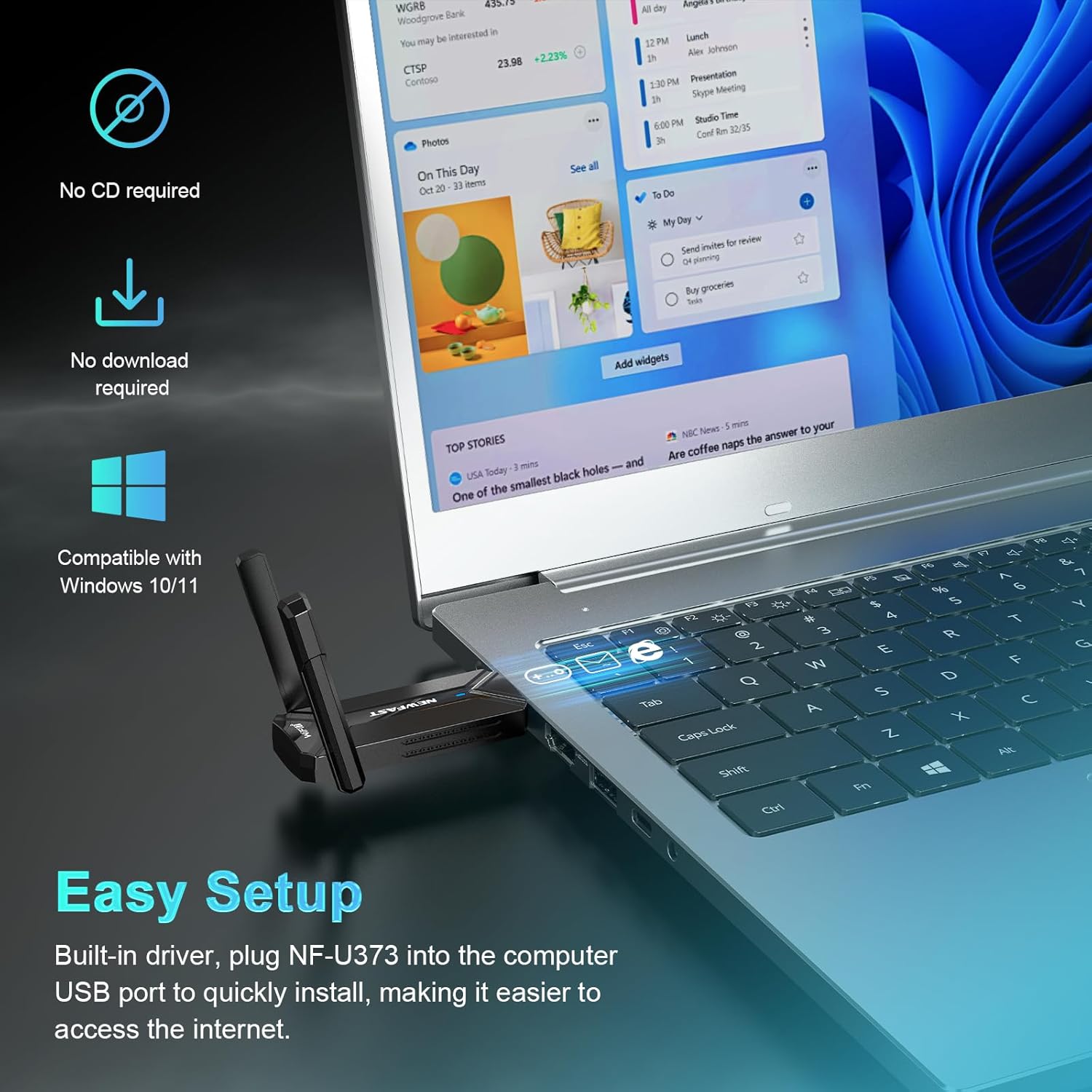
Image 2.1: The NEWFAST BE6500 adapter connected to a laptop, illustrating the easy setup process with Windows 11.

Image 2.2: A visual guide detailing the three simple steps for adapter installation: insert, install driver, and connect to WiFi.
3. Operating the Adapter
The NEWFAST BE6500 adapter offers two primary operating modes: receiving WiFi and launching a WiFi hotspot.
3.1. Receiving WiFi (Client Mode)
In client mode, the adapter connects your computer to an existing wireless network. This is the standard use case for accessing the internet.
- Ensure the adapter is properly installed as per Section 2.
- Access your operating system's network settings to view available WiFi networks.
- Select your preferred network (2.4GHz, 5GHz, or 6GHz) and enter the password.
- The adapter will automatically connect, providing high-speed internet access.
3.2. Launching WiFi (AP Mode)
The adapter can also function as a wireless access point (hotspot), allowing you to share a wired internet connection with other wireless devices.
- Connect your computer to the internet via an Ethernet cable.
- Navigate to your operating system's network settings (e.g., 'Mobile hotspot' in Windows 10/11).
- Enable the hotspot feature and configure the network name (SSID) and password.
- Other devices can now connect to your computer's shared internet connection via the adapter.
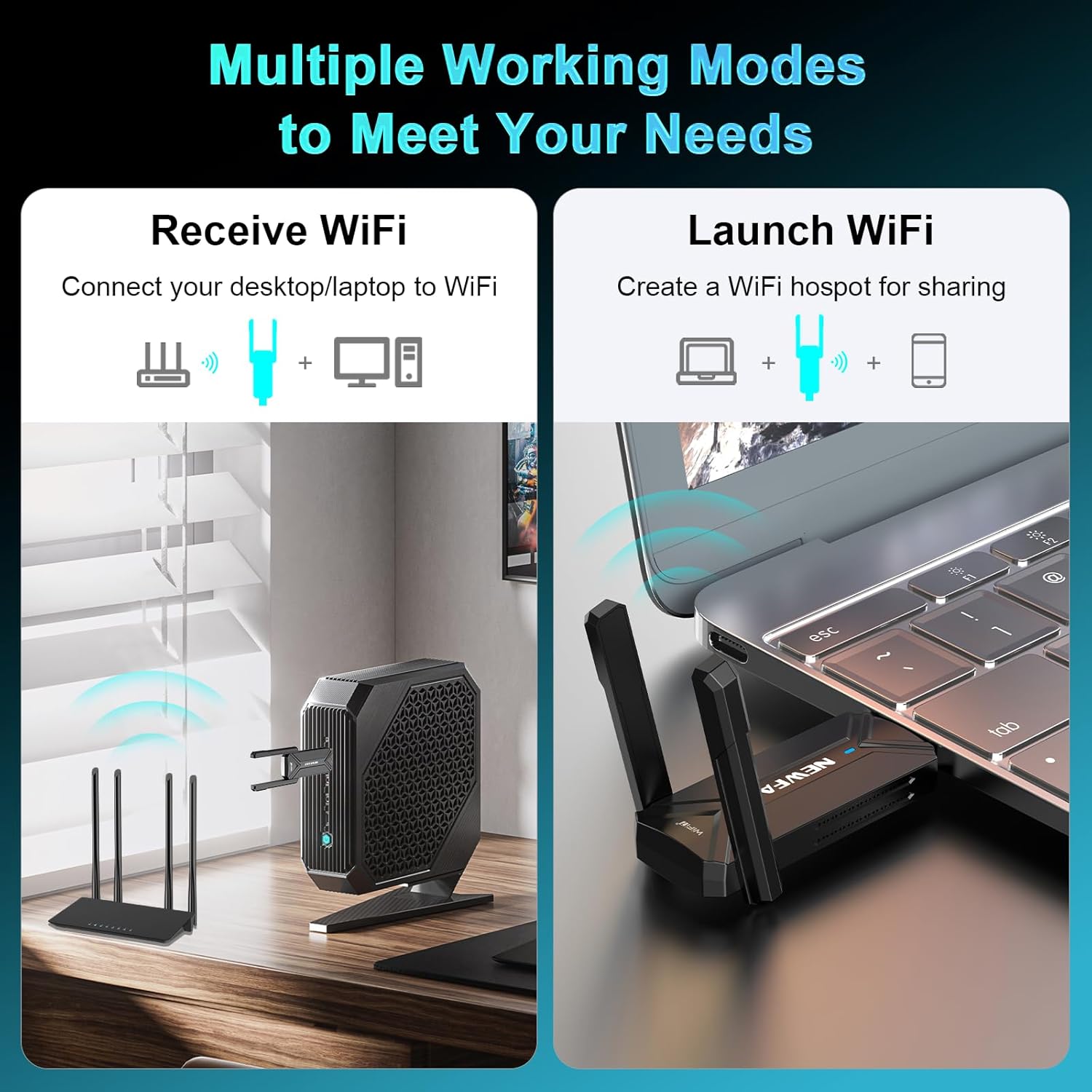
Image 3.1: Illustration of the adapter's dual functionality: receiving WiFi for a desktop and creating a WiFi hotspot from a laptop.
3.3. Performance Optimization
The adapter automatically manages bandwidth for various activities.

Image 3.2: The adapter's auto bandwidth control prioritizes different network activities for optimal performance.
4. Maintenance
Proper maintenance ensures the longevity and optimal performance of your NEWFAST BE6500 USB WiFi 7 Adapter.
- Driver Updates: Periodically check for updated drivers on the NEWFAST official website. Keeping drivers current can improve performance and compatibility.
- Physical Care: Keep the adapter clean and free from dust. Avoid exposing it to extreme temperatures or humidity.
- Secure Connection: Ensure the adapter is firmly seated in the USB port to prevent intermittent connections.
- Ventilation: While compact, ensure the adapter is not obstructed to allow for proper airflow, especially during extended use.
5. Troubleshooting
If you encounter issues with your NEWFAST BE6500 USB WiFi 7 Adapter, refer to the following common troubleshooting steps.
5.1. No Internet Connection / Slow Speeds
- Verify Adapter Installation: Ensure the adapter is correctly plugged into a USB port and its drivers are installed. Check Device Manager for any error indicators.
- Check Router: Confirm your WiFi router is powered on and broadcasting a signal. Try restarting your router.
- Signal Strength: Move closer to your WiFi router to improve signal strength. Obstacles like walls and large appliances can interfere with the signal.
- USB Port: Ensure the adapter is connected to a USB 3.0 port for maximum speed. Using a USB 2.0 port will limit performance.
- Band Selection: If using Windows 10, remember that the 6GHz band is not supported. Ensure you are connecting to a 2.4GHz or 5GHz network.
- Interference: Other electronic devices (e.g., microwaves, cordless phones) can cause interference. Try changing your router's WiFi channel.
5.2. Adapter Not Recognized
- Try Another USB Port: Test the adapter in a different USB port on your computer.
- Reinstall Drivers: Go to Device Manager, uninstall the adapter's driver, then unplug and replug the adapter to trigger automatic reinstallation.
- Restart Computer: A simple restart can often resolve recognition issues.
5.3. Dropped Connections
- Driver Update: Ensure you have the latest drivers installed.
- Power Management: In Device Manager, find the adapter, right-click, select 'Properties', go to the 'Power Management' tab, and uncheck 'Allow the computer to turn off this device to save power'.
- Router Stability: Check if other devices connected to your router are also experiencing drops. If so, the issue might be with the router or internet service provider.
6. Specifications
| Feature | Specification |
|---|---|
| Model | BE6500 (NF-U373) |
| Brand | NEWFAST |
| Wireless Standard | IEEE 802.11be (WiFi 7), IEEE 802.11ax/ac/a/b/g/n |
| Frequency Bands | 2.4GHz, 5GHz, 6GHz (Tri-Band) |
| Data Transfer Rate | Up to 6500 Mbps (688Mbps at 2.4GHz + 2882Mbps at 5GHz + 2882Mbps at 6GHz) |
| Hardware Interface | USB 3.0 (Backward compatible with USB 2.0, USB 1.1) |
| Antennas | Dual 4dBi Rotatable External Antennas |
| Security Encryption | WPA3 |
| Compatible Operating Systems | Windows 11, Windows 10 |
| Product Dimensions | 1.84 x 0.39 x 3.37 inches (approx. 85.7 x 46.7 x 10mm) |
| Item Weight | 1.6 ounces (approx. 0.1 lbs) |
| Color | Black |

Image 6.1: An exploded view of the adapter, highlighting the internal WiFi 7 chip and the dual 4dBi antennas.

Image 6.2: A comparison of key features across WiFi 7, WiFi 6E, and WiFi 5 standards.
7. Warranty and Support
For warranty information and technical support, please refer to the documentation included with your product or visit the official NEWFAST website. Contact details for customer service are typically available on the manufacturer's website.