
1. Introduction
This manual provides detailed instructions for the setup, operation, and maintenance of your Jugeman P99 Smart Watch. Please read this manual thoroughly to ensure proper use and to maximize the benefits of your device.

Image 1.1: Jugeman P99 Smart Watch with its main display showing various metrics.
2. Package Contents
Upon unboxing your Jugeman P99 Smart Watch, please verify that all the following items are included:
- Jugeman P99 Smart Watch (Main Unit)
- Silicone Watch Strap
- Magnetic Charging Cable
- User Manual

Image 2.1: Visual representation of the Jugeman P99 Smart Watch and its included accessories.
3. Setup Guide
3.1 Initial Charging
Before first use, fully charge your Jugeman P99 Smart Watch. Connect the magnetic charging cable to the charging points on the back of the watch and plug the USB end into a standard USB power adapter (not included).
- Charging Time: Approximately 1.5 hours for a full charge.
- Battery Life: Up to 7 days with normal use, 30 days standby.

Image 3.1: The Jugeman P99 Smart Watch being charged with its magnetic cable.
3.2 App Installation and Device Pairing
To unlock all features of your smart watch, download and install the "GloryFit" application on your smartphone.
- Turn on Bluetooth: Ensure the Bluetooth function on your smartphone is enabled.
- Download GloryFit App: Search for "GloryFit" in the Google Play Store (for Android) or Apple App Store (for iOS) and install it.
- Open App and Pair: Open the GloryFit app, navigate to the device section, and select "Connect device." The app will search for available devices. Find and select "P99" to bind your watch.
3.3 Enabling Bluetooth Call Function
After initial pairing, follow these steps to enable the call feature:
- Confirm Pairing: After selecting "P99" in the GloryFit app, a mobile phone system pop-up request for Bluetooth pairing will appear. Confirm this request.
- Activate Call Bluetooth: On your P99 Smart Watch, locate and turn on the "Call Bluetooth" switch. This is necessary for making and receiving calls.
- Grant Permissions: In your phone's system settings, ensure all necessary permissions for the P99 Bluetooth connection are granted.
- Ready for Calls: Once connected and permissions are granted, you can use your watch to answer or make calls.

Image 3.2: Visual instructions for app connection and Bluetooth call setup.
4. Operating Instructions
4.1 Basic Navigation and Display
The Jugeman P99 features a 1.96-inch HD full touch screen for intuitive navigation.
- Swipe Up/Down: Access quick settings or notifications.
- Swipe Left/Right: Navigate through various functions and widgets (e.g., heart rate, activity data, weather).
- Tap: Select an item or confirm an action.
- Side Button: Press to return to the home screen or wake the device.

Image 4.1: The 1.96" HD full touch screen showcasing different watch face options.
4.2 Customizing Watch Faces
Personalize your watch with over 220 cloud-based watch faces available through the GloryFit app, or upload your own photos.
- Via GloryFit App: Open the app, go to the "Dial Settings" or "Watch Faces" section, and browse the available options. Select and sync your preferred watch face.
- Custom Photos: Within the app, select the option to upload a custom photo from your phone's gallery to set as your watch background.

Image 4.2: Options for defining your watch style with various watch faces and custom wallpapers.
4.3 Bluetooth Call and Message Reminders
Once connected via Bluetooth, your watch can handle calls and display notifications.
- Answering/Making Calls: Use the built-in microphone and Hi-Fi speaker to answer incoming calls directly from your wrist. You can also dial numbers or access contacts from the watch.
- Message Notifications: Receive vibrating alerts for social media messages (e.g., Facebook, WhatsApp, Instagram, Twitter) and other app notifications.
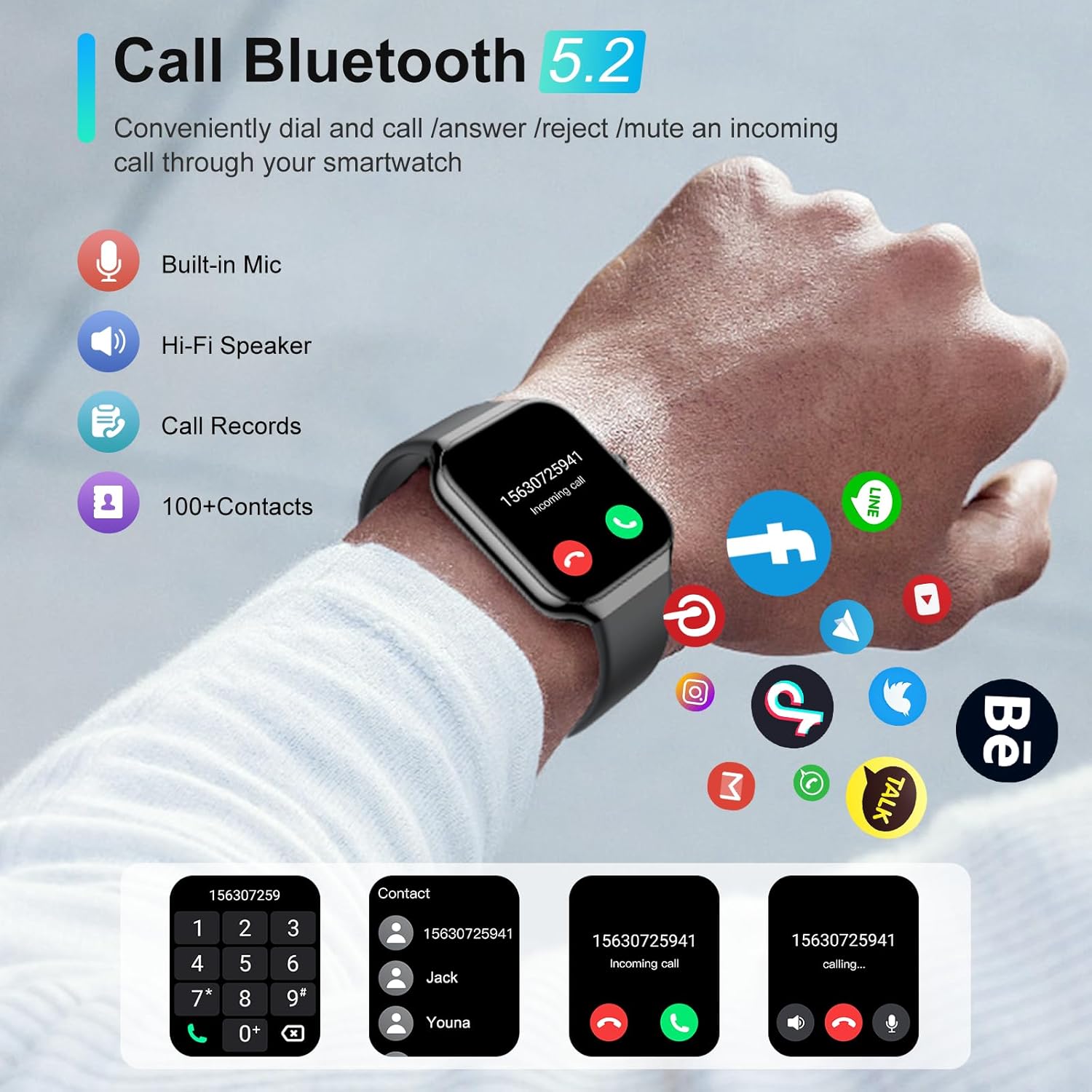
Image 4.3: The smart watch demonstrating its Bluetooth call capabilities and contact management.

Image 4.4: The smart watch displaying notifications from various social media applications.
4.4 Health Monitoring
The P99 Smart Watch continuously monitors key health metrics.
- Heart Rate Monitoring: Real-time heart rate tracking throughout the day. View data on the watch or in the GloryFit app.
- Sleep Tracking: Automatically monitors sleep status, including light sleep, deep sleep, and awake time, to help improve sleep habits.
- Pedometer: Tracks steps taken, distance covered, and estimated calories burned.

Image 4.5: Health data tracking on the smart watch during a hiking activity.

Image 4.6: Sleep monitoring interface on the smart watch and in the companion app.
4.5 Sport Modes
The watch offers over 113 indoor and outdoor sport modes to track your fitness activities.
- Accessing Modes: Swipe on the watch face to find the "Exercise" or "Sport Modes" menu.
- Available Modes: Includes running, cycling, skipping, walking, mountain climbing, rock climbing, basketball, football, badminton, Yoga, dance, and many more.
- Tracking: Select your desired activity to start tracking duration, calories, and other relevant metrics.

Image 4.7: The smart watch interface for selecting from over 128 sport modes.
4.6 Smart Assistant Features
The P99 Smart Watch includes several practical tools to enhance your daily life:
- Stopwatch & Timer: For timing activities or setting countdowns.
- Music Control: Control music playback on your connected smartphone.
- Weather Forecast: Get real-time weather updates.
- Sedentary Reminder: Alerts you to move after periods of inactivity.
- Alarm Clock: Set alarms directly from your wrist.
- Wrist Up Awake: Automatically wakes the screen when you raise your wrist.
- Find Your Phone: Helps locate your paired smartphone by making it ring.
- Calculator: A basic calculator function.

Image 4.8: Overview of the smart assistant features available on the watch.
4.7 Female Health Tracking
The watch supports tracking of menstrual cycles and provides access to educational materials related to exercise and nutrition for female users. This feature can be configured and monitored through the GloryFit app.

Image 4.9: Female health tracking feature displayed on the smart watch and app.
5. Maintenance
5.1 Cleaning Your Smart Watch
To maintain the appearance and functionality of your watch:
- Wipe the screen and strap regularly with a soft, damp cloth.
- Avoid using harsh chemicals or abrasive materials, as these can damage the watch's finish.
- Ensure the charging contacts are clean and dry before charging.
5.2 Water Resistance (IP68)
The Jugeman P99 Smart Watch is IP68 waterproof, meaning it is resistant to dust and can withstand immersion in water up to 1.5 meters for up to 30 minutes. This makes it suitable for:
- Rinsing hands
- Bathing (showering)
- Sweating during exercise
- Swimming in shallow water
Important Note: The IP68 rating does not apply to high-pressure water, hot water, or corrosive liquids. Avoid using the watch in saunas, hot tubs, or seawater, as these conditions can compromise the water resistance.

Image 5.1: The smart watch demonstrating its IP68 waterproof capabilities.
6. Troubleshooting
If you encounter issues with your Jugeman P99 Smart Watch, refer to the following common problems and solutions:
| Problem | Possible Solution |
|---|---|
| Watch not turning on | Ensure the watch is fully charged. Connect it to the charger for at least 30 minutes. |
| Unable to pair with phone | 1. Ensure Bluetooth is enabled on your phone and watch. 2. Make sure the GloryFit app is installed and open. 3. Restart both your phone and the watch. 4. Ensure the watch is not already paired with another device. |
| Call function not working | 1. Verify that the "Call Bluetooth" is enabled on your watch. 2. Check phone's Bluetooth settings to ensure P99 is connected for calls. 3. Grant all necessary permissions to the GloryFit app in your phone's settings. |
| Inaccurate health data | 1. Ensure the watch is worn snugly on your wrist, about one finger's width from the wrist bone. 2. Clean the sensor on the back of the watch. 3. Update the GloryFit app to the latest version. |
| Notifications not received | 1. Ensure the watch is connected to your phone via Bluetooth. 2. Check notification settings in the GloryFit app to ensure desired apps are enabled. 3. Verify that your phone's system settings allow the GloryFit app to send notifications. |
7. Specifications
Detailed technical specifications for the Jugeman P99 Smart Watch:
- Model Number: P99
- Brand: Jugeman
- Screen Size: 1.96 Inches HD Full Touch Screen
- Connectivity: Bluetooth 5.2
- Battery Type: Lithium Polymer
- Charging Time: Approximately 1.5 hours
- Battery Life: Up to 7 days (normal use), 30 days (standby)
- Water Resistance: IP68
- Sport Modes: 113+
- Compatibility: Android 5.0 and above, iOS 9.0 and above
- Item Weight: 3.2 ounces
- Package Dimensions: 6.42 x 3.74 x 0.75 inches
8. Warranty and Support
8.1 Warranty Information
Your Jugeman P99 Smart Watch is covered by a manufacturer's warranty against defects in materials and workmanship. Please refer to the warranty card included in your package for specific terms, conditions, and duration. Keep your proof of purchase for warranty claims.
8.2 Customer Support
For technical assistance, troubleshooting not covered in this manual, or warranty inquiries, please contact Jugeman customer support through the retailer where you purchased the product or visit the official Jugeman website for contact information.

