1. Introduction
This manual provides detailed instructions for the setup, operation, and maintenance of your WZATCO Yuva Vibe Smart Home Projector. Please read this manual thoroughly before using the product to ensure proper functionality and to maximize your viewing experience. Keep this manual for future reference.

Image 1.1: The WZATCO Yuva Vibe Smart Home Projector and its remote control.
2. What's in the Box
Verify that all the following items are included in your package:
- Yuva Vibe Projector
- Remote Control
- User Manual (this document)
- Warranty Card
- Power Cord
- Cleaning Kit
3. Product Features
The WZATCO Yuva Vibe Projector is designed to provide a premium home cinema experience with advanced features:
- Native 1080P Resolution with 4K HDR Support: Delivers rich colors and sharp details for an immersive viewing experience.
- 14,000 Lumens Brightness: Ensures clear viewing even in well-lit environments.
- Fully Automatic Setup: Features auto focus, auto keystone correction, auto screen fit, and auto obstacle avoidance for hassle-free image alignment.
- Certified Operating System: Includes built-in official OTT applications like Netflix and Prime Video for direct streaming.
- 270° Rotatable Design: Allows flexible positioning for optimal viewing angles on various surfaces or mounts.
- HDMI ARC Support: Enables seamless audio connectivity with external soundbars and home theater systems.
- Bluetooth Remote: Provides lag-free control from any direction.
- Dual-Band WiFi 6: Ensures smoother streaming and a lag-free gaming experience with high-bandwidth content.
- Bluetooth Connectivity: Allows pairing with wireless headphones, speakers, soundbars, keyboards, and other devices.
- Built-in Speakers: Provides clear, powerful sound without the need for external audio devices.
- Voice Assistant: Control functions and applications hands-free.
- Wireless Screen Sharing: Supports casting from phones, tablets, or laptops.
- ChatGPT Integration: Offers smart assistance, real-time information, and content suggestions.
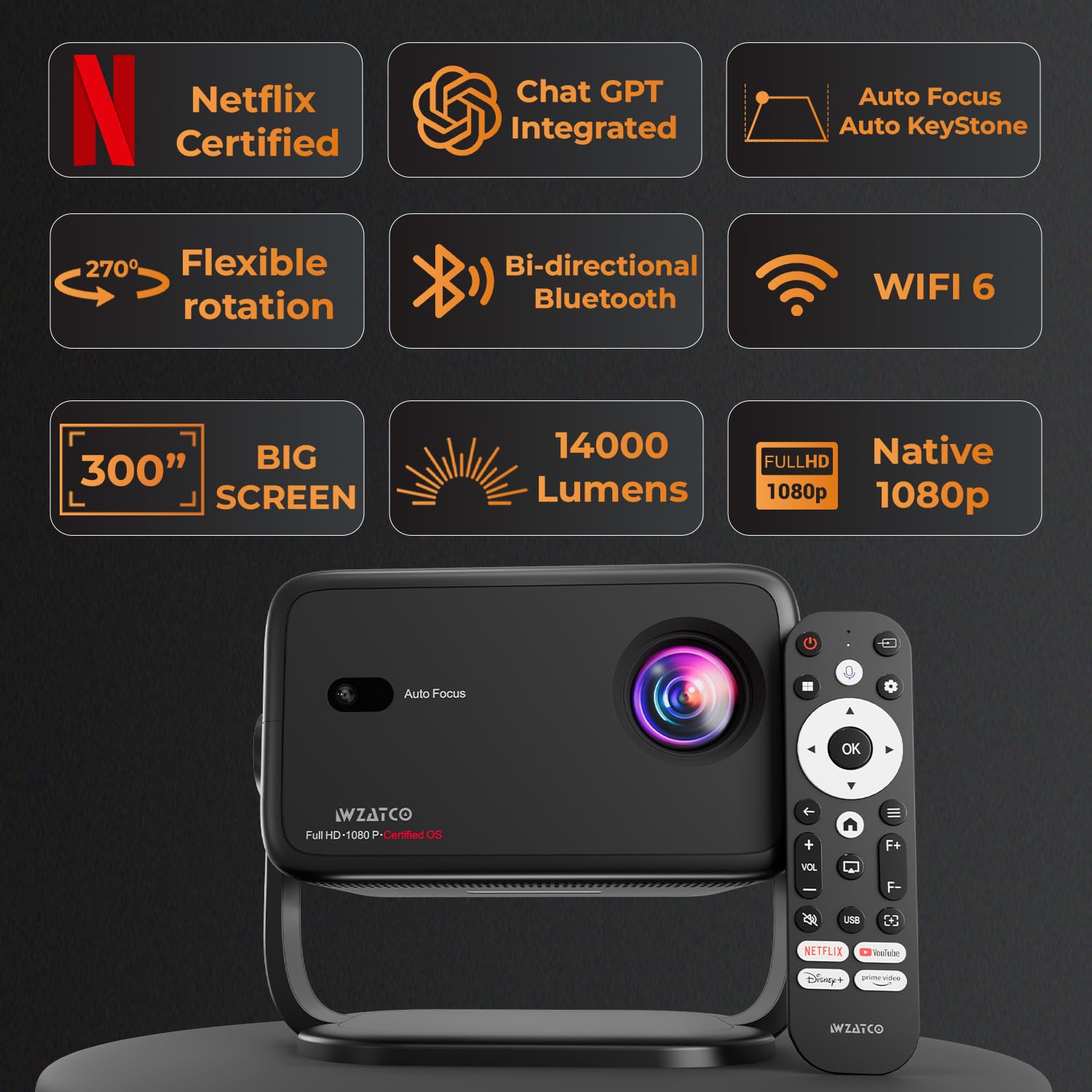
Image 3.1: Overview of key features including Netflix certification, ChatGPT integration, automatic adjustments, and connectivity options.
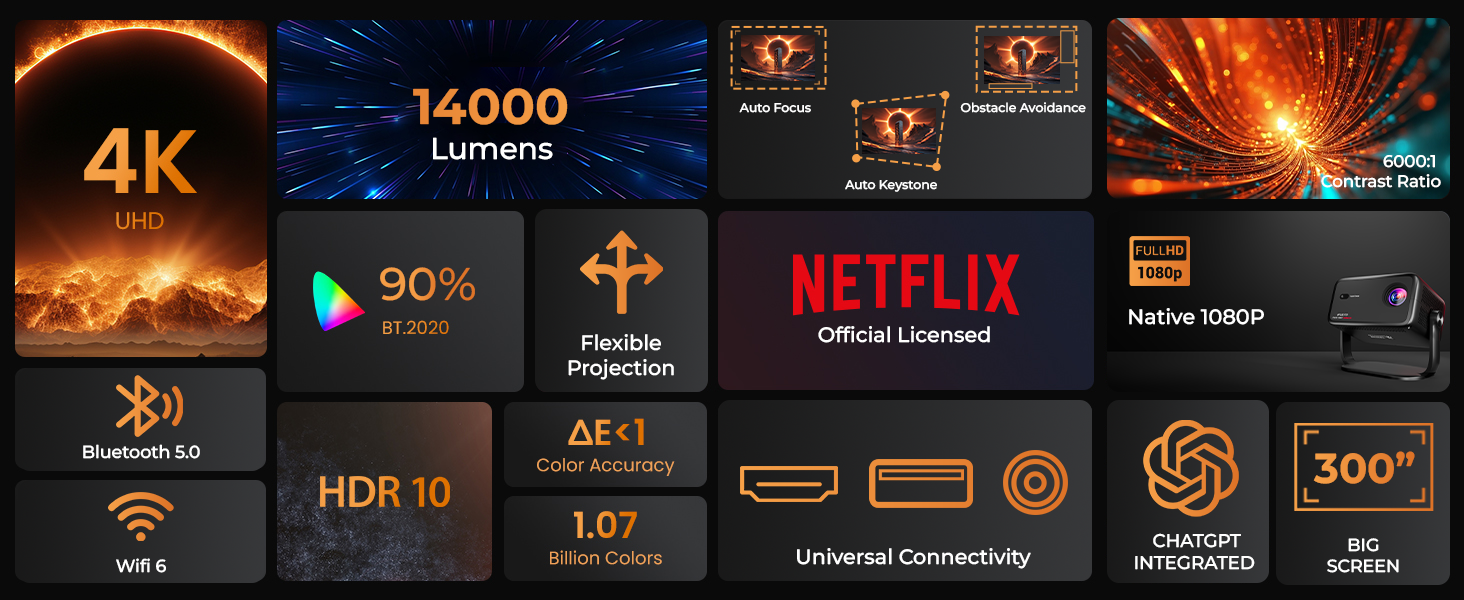
Image 3.2: Comprehensive feature set of the Yuva Vibe Projector.
4. Setup
4.1 Initial Placement
Place the projector on a stable, flat surface. Ensure there is adequate ventilation around the device. The 270° rotatable design allows for flexible positioning. You can place it on a table, tripod, or ceiling mount.

Image 4.1: The projector's 180-degree rotation capability for flexible projection.
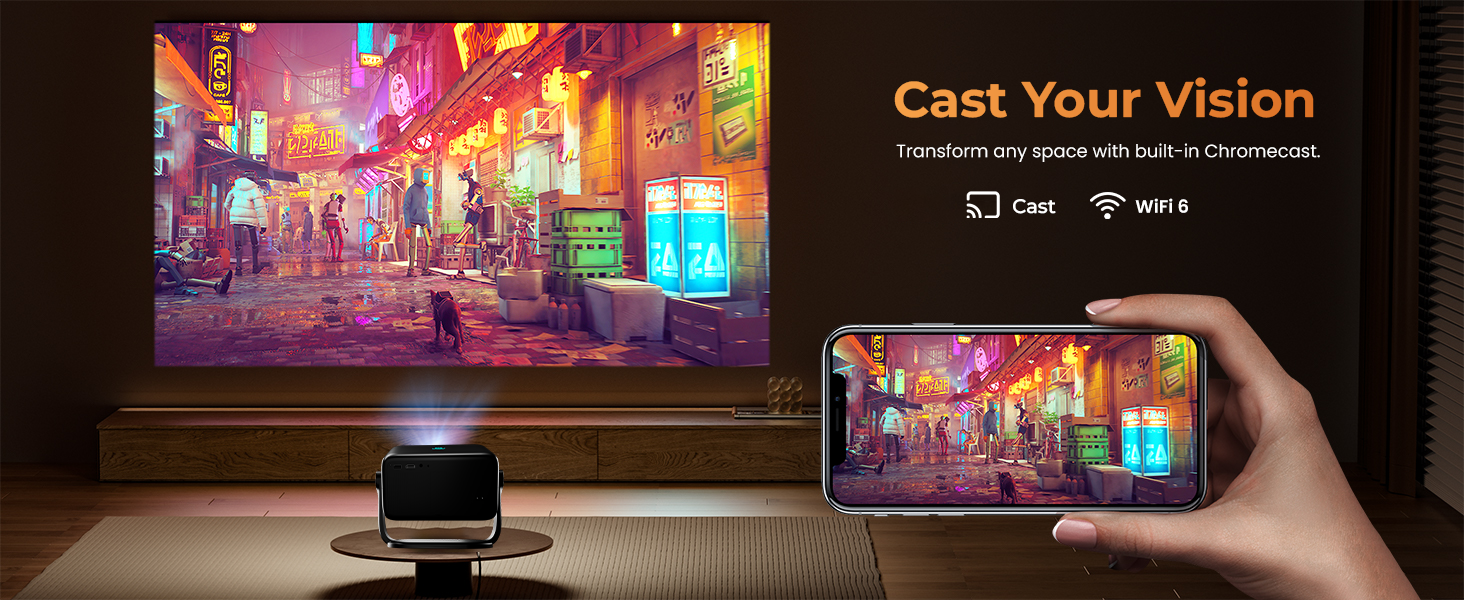
Image 4.2: Various mounting options for the projector, including ceiling, table, and floor placement.
4.2 Power Connection
Connect the provided power cord to the projector's power input and then to a suitable electrical outlet (220 Volts).
4.3 Initial Power On
Press the power button on the projector or the remote control to turn on the device. The projector will initiate its automatic setup sequence.
5. Operating Instructions
5.1 Automatic Adjustments
The Yuva Vibe Projector features intelligent screen adjustments for optimal image quality:
- Auto Focus: The projector automatically adjusts the image clarity.
- Auto Keystone Correction: Corrects distorted images to a perfect rectangle.
- Auto Screen Fit: Adjusts the image size to fit the projection surface.
- Auto Obstacle Avoidance: Detects and adjusts the image to avoid objects in the projection path.
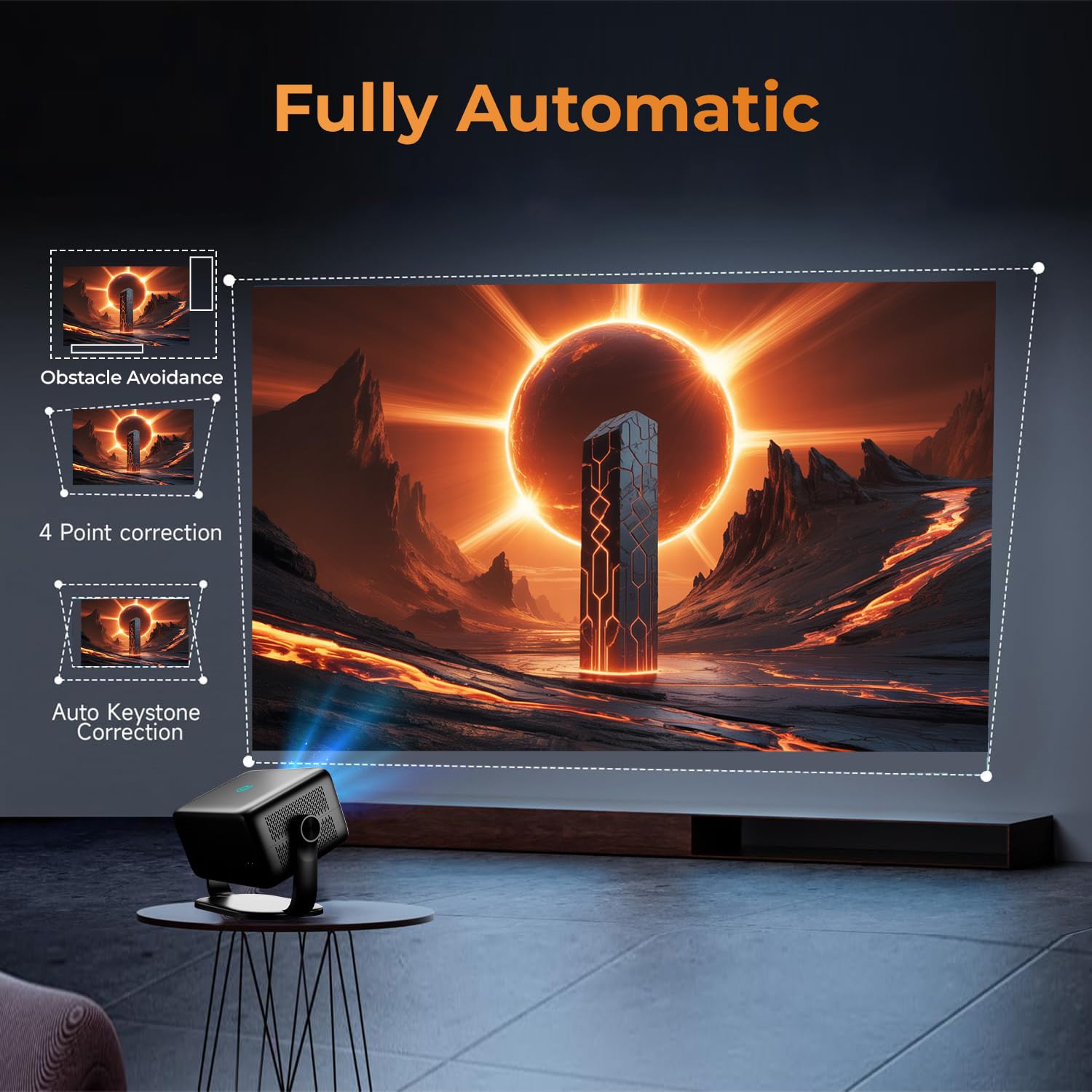
Image 5.1: Visual representation of the projector's fully automatic adjustment capabilities.
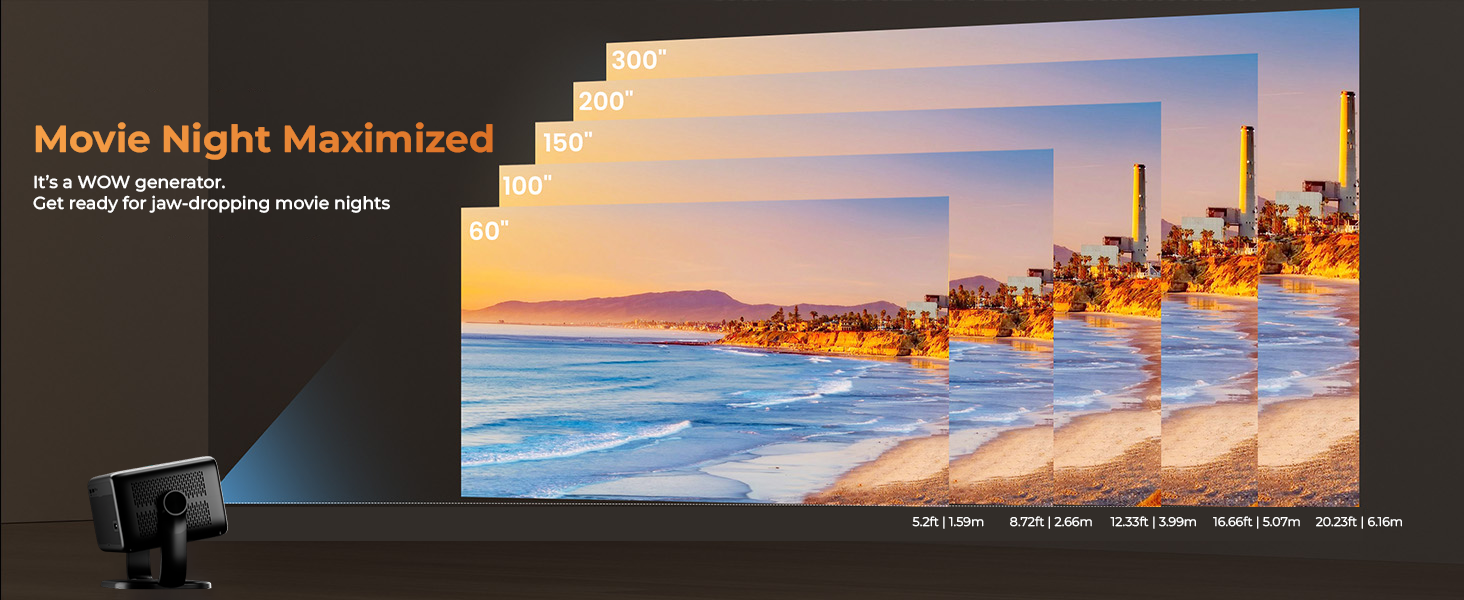
Image 5.2: Illustration of Auto Focus, Smart Object Avoidance, and Lossless Zoom functions.
5.2 Navigating the Certified OS
The projector runs on a certified operating system with pre-installed applications. Use the remote control to navigate the interface:
- Use the directional pad to move between icons and menus.
- Press the OK button to select an item.
- Press the Back button to return to the previous screen.
- Access streaming services like Netflix and Prime Video directly from the home screen.
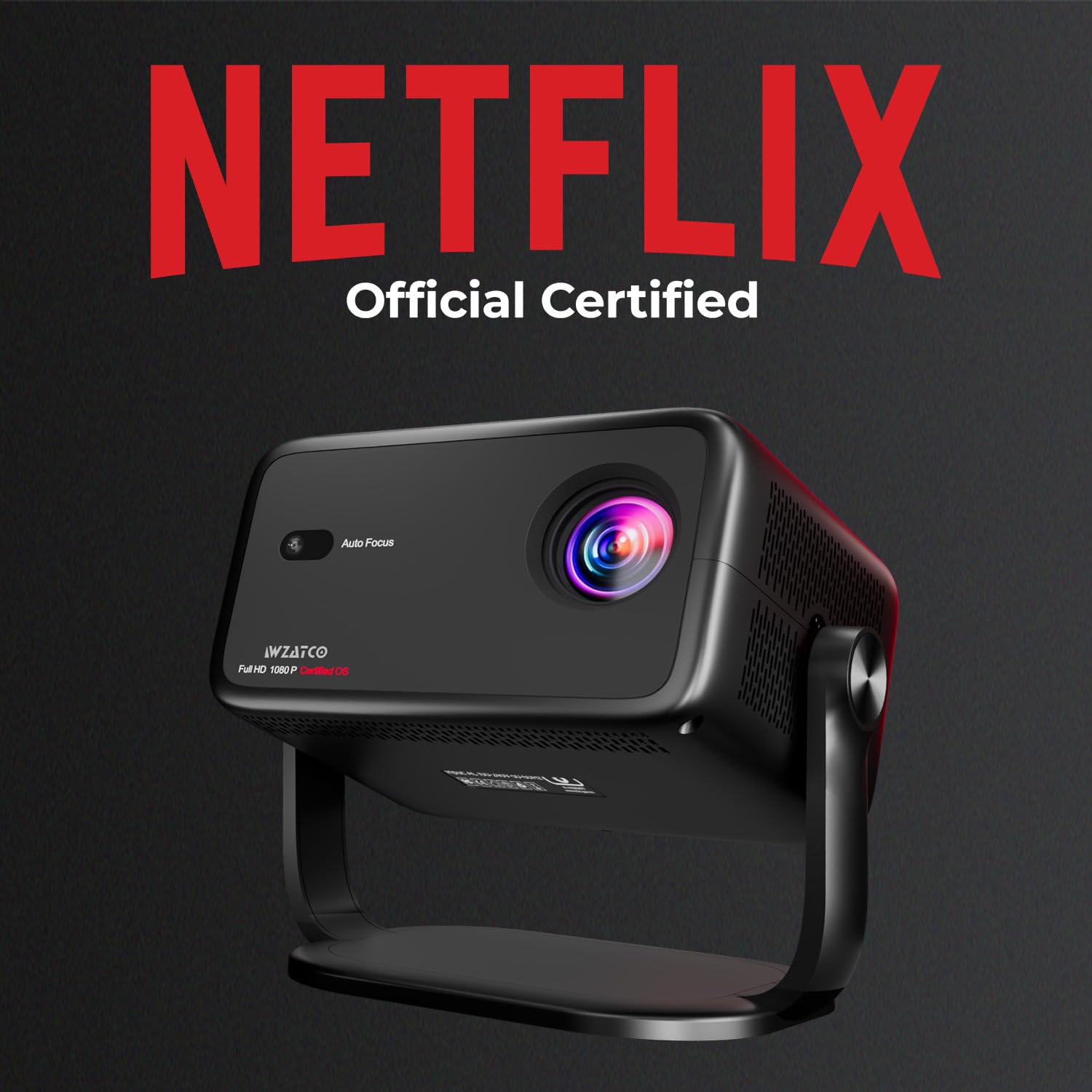
Image 5.3: The projector is officially certified for Netflix streaming.
5.3 Voice Assistant and ChatGPT
Activate the voice assistant by pressing the dedicated button on the remote. You can use voice commands to control the projector, search for content, or ask questions via ChatGPT integration.
6. Connectivity
6.1 Wi-Fi Connection
To connect to a Wi-Fi network:
- Go to Settings on the projector's home screen.
- Select Network & Internet.
- Choose your desired Wi-Fi network from the list.
- Enter the password if prompted and select Connect.
The projector supports Dual-Band WiFi 6 for stable and fast wireless connectivity.
6.2 Bluetooth Pairing
To pair Bluetooth devices (e.g., speakers, headphones, keyboards):
- Go to Settings on the projector's home screen.
- Select Bluetooth.
- Ensure Bluetooth is enabled on both the projector and the device you wish to pair.
- Select the device from the list of available devices and confirm pairing.
6.3 HDMI ARC
Connect an HDMI cable from the projector's HDMI ARC port to an HDMI ARC compatible port on your soundbar or AV receiver for enhanced audio output.
6.4 Screen Mirroring
The projector supports wireless casting from compatible phones, tablets, or laptops. Refer to your device's screen mirroring instructions and select the projector from the available devices.
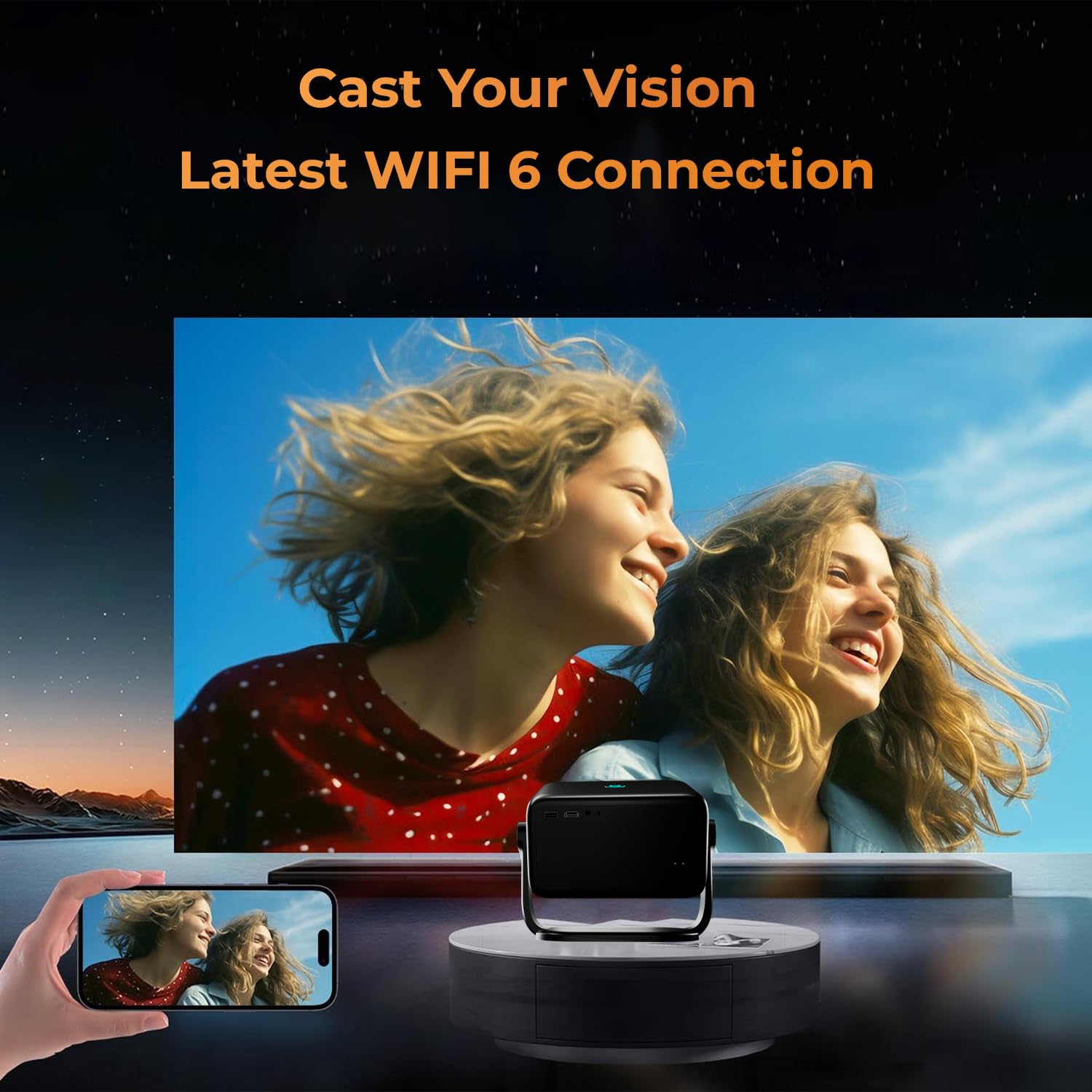
Image 6.1: Demonstrating screen mirroring from a smartphone to the projector using WiFi 6.
7. Maintenance
7.1 Cleaning the Lens
Use the provided cleaning kit or a soft, lint-free cloth specifically designed for optical lenses to gently wipe the projector lens. Avoid using abrasive materials or chemical cleaners.
7.2 Cleaning the Projector Body
Wipe the exterior of the projector with a soft, dry cloth. Do not use liquid cleaners directly on the device.
7.3 Ventilation
Ensure that the ventilation openings are not blocked to prevent overheating. Regular cleaning of dust from these vents is recommended.
8. Troubleshooting
- No Power:
- Check if the power cord is securely connected to both the projector and the power outlet.
- Ensure the power outlet is functional.
- No Image:
- Verify the projector is powered on.
- Check the input source settings if an external device is connected.
- Ensure the lens cap is removed.
- Blurred Image:
- Allow the auto-focus feature to complete its adjustment.
- Ensure the projection surface is flat and clear.
- No Sound:
- Check the volume settings on the projector and any connected audio devices.
- If using external speakers, ensure they are properly connected via Bluetooth or HDMI ARC.
- Remote Control Not Responding:
- Replace the batteries in the remote control.
- Ensure there are no obstructions between the remote and the projector.
9. Specifications
| Feature | Specification |
|---|---|
| Brand | WZATCO |
| Series | Yuva Vibe |
| Model Number | 86 |
| Form Factor | Portable |
| Resolution (Native) | 1920 x 1080 (Native 1080P) |
| Resolution (Supported) | Up to 3840 x 2160 Pixels (4K HDR Support) |
| Brightness | 14000 Lumens |
| Connectivity Technology | Wi-Fi (Dual-Band WiFi 6), Bluetooth |
| Special Features | Netflix Certified, HDMI ARC, Fully Automatic (Auto Focus, Auto Keystone, Obstacle Avoidance), 5 Watt HiFi Speakers, USB, HDMI, Certified OS, Voice Assistant, ChatGPT Integrated |
| Recommended Uses | Home Cinema |
| Voltage | 220 Volts |
| Wattage | 120 Watts |
| Product Dimensions (LxWxH) | 13 x 28 x 27.5 cm |
| Item Weight | 2.5 kg |
10. Warranty and Support
10.1 Warranty Information
WZATCO India provides a 1-Year warranty from the date of purchase. Product registration is mandatory to avail warranty benefits. Please visit the official WZATCO website for additional details and to register your product.
10.2 Customer Support
For any technical assistance, queries, or support, please contact WZATCO customer care:
- Customer Care Number: 80-7097-7097
- Email: support@wzatco.com


