Introduction
The Facmogu YU8 Dynamic Microphone is designed for high-quality audio capture in various applications, including streaming, podcasting, and gaming. It offers versatile USB and XLR connectivity, along with integrated controls for enhanced user experience. This manual provides detailed instructions for setting up, operating, and maintaining your microphone.
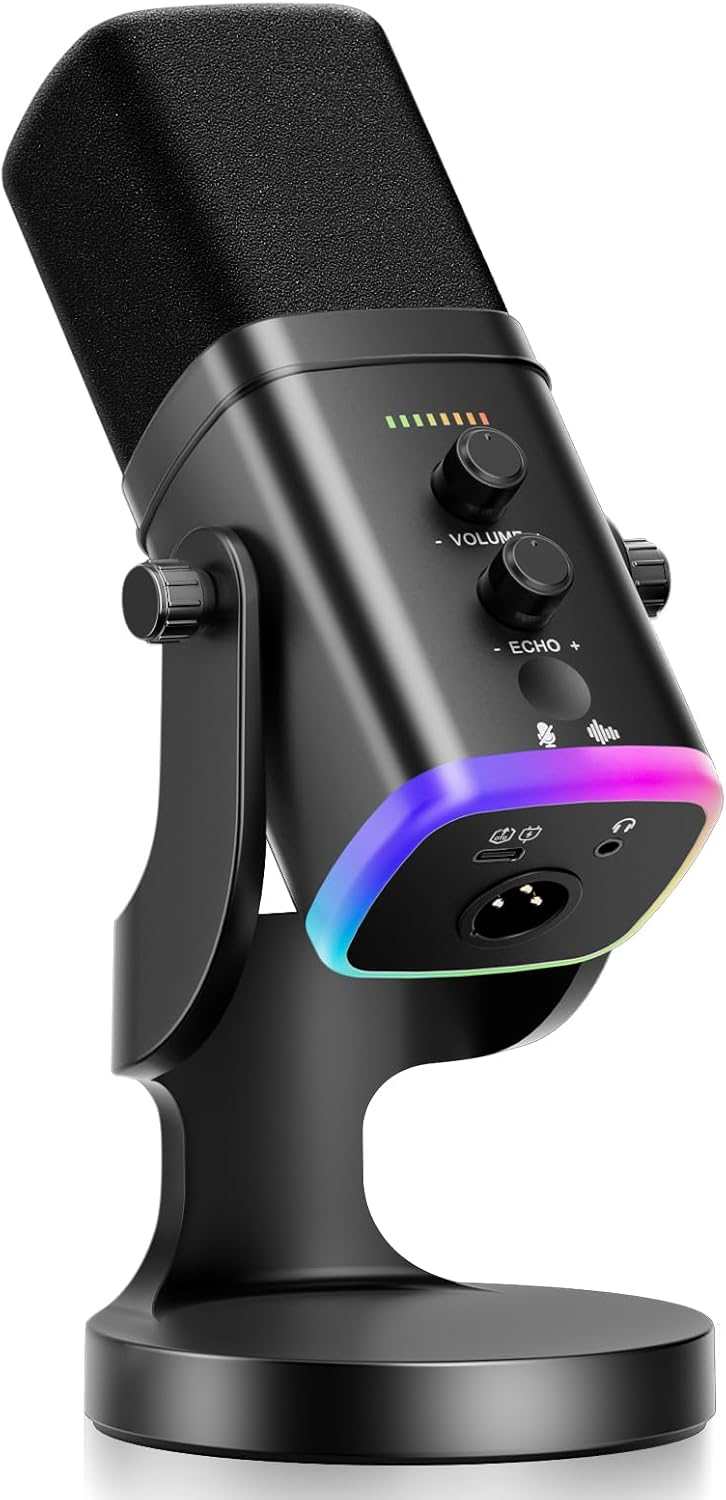
Image: The Facmogu YU8 Dynamic Microphone in black, featuring its integrated desktop stand and vibrant RGB lighting. The microphone has control knobs for volume and echo, and a mute button.
What's in the Box
- Facmogu YU8 Dynamic Microphone
- Desktop Stand
- USB-C to USB-A/C Cable
- User Manual
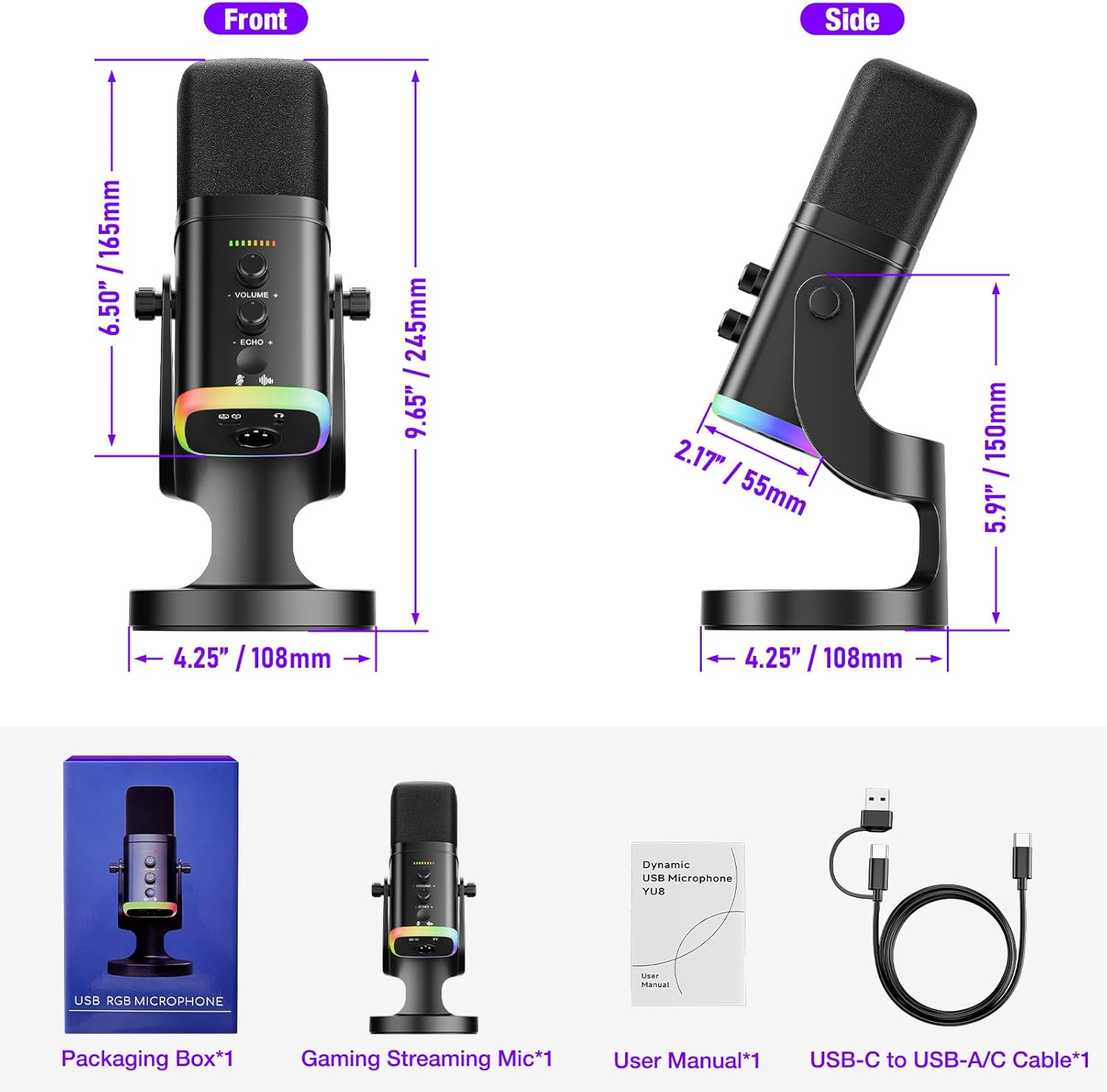
Image: An overview of the Facmogu YU8 microphone package contents, showing the microphone, its desktop stand, a USB-C to USB-A/C cable, and the user manual.
Setup
1. Assembling the Microphone
- Attach the microphone to the included desktop stand by aligning the mounting points and securing them.
- Ensure the microphone is stable on a flat surface.
2. Connecting the Microphone
The YU8 microphone offers two primary connectivity options: USB and XLR.
- USB Connection (Plug-and-Play):
Connect the provided USB-C to USB-A/C cable from the microphone's USB-C port to an available USB port on your computer (PC/Mac), PlayStation (PS4/PS5), or Xbox. The microphone will be automatically recognized by your device.
- XLR Connection (Professional Audio Interfaces):
For studio-quality audio with stable, balanced transmission, connect an XLR cable (not included) from the microphone's XLR port to a 48V mixer or audio interface. This allows for integration into professional audio setups.

Image: A visual representation of the Facmogu YU8 microphone's USB and XLR connectivity, illustrating connections to computers, tablets, smartphones, and gaming consoles.
Operating Instructions
1. Optimal Vocal Pickup
The YU8 features a top-addressed capsule design. For optimal vocal pickup, speak directly into the top of the microphone. Maintain a distance of approximately 2-6 inches from the microphone for clear and crisp audio.

Image: A user demonstrating the correct speaking position, directly into the top of the microphone, for best audio quality.
2. Controls and Features
- Gain Knob: Use the smooth-turning gain knob to precisely adjust your microphone input levels. This allows for voice attenuation or boosting to achieve optimal sound balance.
- Echo Volume Control: Built-in echo volume control enables real-time reverb adjustment, suitable for various recording or streaming effects.
- One Touch-to-Mute Button: Instantly silence your mic with a single tap on the front-panel touch sensor. The button glows red when muted. This feature is available in USB mode only.
- Noise Reduction: Long press the mute button to toggle noise cancellation on/off. The microphone will provide a visual confirmation (white or green light flash).
- Headphone Jack for Real-time Monitoring: A dedicated headphone jack allows for real-time audio monitoring, ensuring you hear exactly what your audience hears. Monitoring functions require a USB connection.
- RGB Lighting: Enjoy self-rotating color waves across the mic body. The touch button glows red when muted.

Image: Detailed view of the microphone's control panel, showing the gain and echo knobs, mute button, and noise reduction indicator.
Maintenance
- Keep the microphone clean by wiping it with a soft, dry cloth.
- Avoid exposing the microphone to extreme temperatures, humidity, or direct sunlight.
- Do not disassemble the microphone, as this may void the warranty.
- Store the microphone in its original packaging or a protective case when not in use to prevent dust accumulation and damage.
Troubleshooting
- No Sound/Low Volume:
- Check if the microphone is properly connected via USB or XLR.
- Ensure the mute button is not activated (red light indicates mute).
- Adjust the gain knob on the microphone and check your device's input volume settings.
- If using XLR, confirm your mixer/interface is providing 48V phantom power if required by your setup.
- Background Noise:
- Activate the noise reduction feature by long-pressing the mute button.
- Ensure the microphone is positioned correctly, speaking directly into the top.
- Avoid placing the microphone on surfaces that may transmit vibrations (e.g., directly on a desk where you type or move your mouse). Consider a boom arm for isolation.
- Monitoring Issues:
- Real-time monitoring via the headphone jack requires a USB connection.
- Adjust the monitoring volume control on the microphone.
Video: A demonstration of the Facmogu YU8 microphone's sound quality and how it picks up ambient noise, including desk taps and mouse movements, emphasizing the importance of proper placement for optimal audio.
Specifications
| Item Weight | 1.08 pounds |
| Package Dimensions | 8.54 x 5.16 x 5.16 inches |
| Item Model Number | A50609-FC-EU |
| Date First Available | June 25, 2025 |
| Material Type | Plastic |
| Recommended Uses | Gaming |
| Connectivity Technology | USB |
| Connector Type | Micro USB |
| Special Feature | Noise Reduction |
| Compatible Devices | Personal Computer |
| Manufacturer | Mo-gu |
Warranty and Support
For warranty information and technical support, please refer to the official Facmogu website or contact their customer service directly. Details can typically be found in the product packaging or on the manufacturer's website.

