
Lenovo Lenovo ThinkPad T14 Gen 2
Lenovo ThinkPad T14 Gen 2 Touchscreen Laptop User Manual
Model: Lenovo ThinkPad T14 Gen 2
Product Overview
The Lenovo ThinkPad T14 Gen 2 is a 14-inch Full HD (1920 x 1080) touchscreen laptop designed for productivity. It features an 11th Gen Intel Quad-Core i5-1135G7 processor, 16GB DDR4 RAM, and a 512GB Solid State Drive, running on Windows 11 Pro. This manual provides essential information for setting up, operating, and maintaining your device.

Figure 1: Front view of the Lenovo ThinkPad T14 Gen 2 laptop, highlighting its touchscreen display and keyboard.
What's in the Box
- Lenovo ThinkPad T14 Gen 2 Laptop
- Power Adapter (Charger)
Setup
1. Initial Power-On and Charging
Before first use, it is recommended to fully charge your laptop. Connect the provided power adapter to the laptop's power port and then to a power outlet.
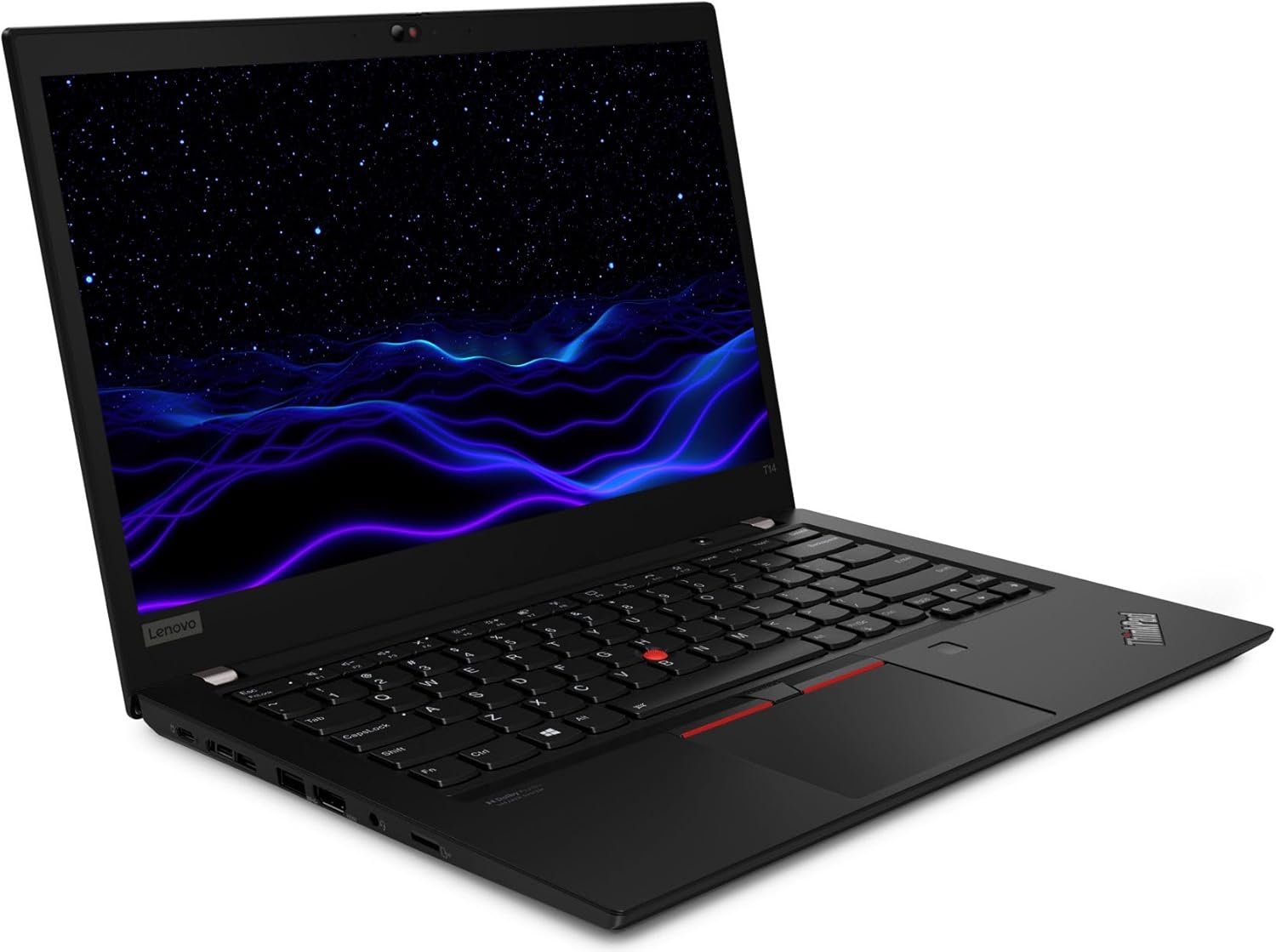
Figure 2: Side view of the laptop illustrating the placement of various ports, including the power input.
3. Connecting Peripherals
The laptop offers various ports for connecting external devices:
- USB Ports: 1x USB 3.2 Gen 1, 1x USB 3.2 Gen 1 (Always On), 2x Thunderbolt 4 / USB4 40Gbps. Use these for external drives, mice, keyboards, and other USB devices.
- HDMI: 1x HDMI 2.0 port for connecting to external displays or projectors.
- MicroSD Card Reader: 1x microSD card reader for accessing data from memory cards.
- Audio Jack: 1x Headphone / microphone combo jack (3.5mm) for audio input/output.

Figure 3: Detailed view of the laptop's left side, showcasing the Thunderbolt 4, USB, and HDMI ports.
Operating Instructions
1. Power On/Off
To power on, press the power button located on the side of the laptop. To power off, navigate to the Start Menu in Windows 11 and select "Power" > "Shut down".
2. Using the Touchscreen
The 14-inch Full HD display supports touch input. You can interact with the operating system and applications directly using your fingers. Common gestures include tapping to select, pinching to zoom, and swiping to scroll.
3. Keyboard and TrackPoint/Touchpad
The laptop features a backlit keyboard for comfortable typing in various lighting conditions. It also includes both a TrackPoint (red dot in the center of the keyboard) and a traditional touchpad for cursor control. The TrackPoint offers precise navigation, while the touchpad supports multi-touch gestures.

Figure 4: Overhead view of the laptop's keyboard, highlighting the TrackPoint and touchpad for user input.
4. Wireless Connectivity
The laptop supports Bluetooth and Wi-Fi for wireless connections. To connect to a Wi-Fi network, click the network icon in the taskbar, select your desired network, and enter the password if prompted. For Bluetooth devices, go to Windows Settings > Bluetooth & devices to pair and connect.
Maintenance
1. Cleaning the Laptop
- Screen: Use a soft, lint-free cloth slightly dampened with water or a screen-cleaning solution. Avoid harsh chemicals.
- Keyboard and Chassis: Use a soft, dry cloth. For stubborn dirt, a slightly damp cloth can be used, ensuring no liquid enters the device.
2. Battery Care
To prolong battery life, avoid extreme temperatures. It is recommended to occasionally discharge the battery below 20% and then fully recharge it. For long-term storage, charge the battery to about 50% and store the laptop in a cool, dry place.
3. Software Updates
Regularly check for and install Windows updates and driver updates from Lenovo's official support website to ensure optimal performance and security.
Troubleshooting
| Problem | Possible Solution |
|---|---|
| Laptop does not power on. | Ensure the power adapter is securely connected and the outlet is functional. Try a different power outlet. |
| Screen is blank or black. | Press the power button to ensure the laptop is on. Check display connections if using an external monitor. Try adjusting screen brightness. |
| Wi-Fi connection issues. | Restart the laptop and your Wi-Fi router. Check Wi-Fi settings to ensure the adapter is enabled and connected to the correct network. |
| Touchscreen not responding. | Restart the laptop. Check Device Manager in Windows for touchscreen driver issues. |
Specifications
- Processor: 11th Gen Intel Quad-Core i5-1135G7 (2.4GHz up to 4.2GHz)
- Operating System: Windows 11 Professional
- Screen: 14-inch FHD (1920x1080) IPS Anti-glare Touchscreen
- RAM: 16GB DDR4 RAM
- Hard Drive: 512GB Solid State Drive
- Wireless Connectivity: Bluetooth, Wi-Fi (802.11ac)
- Ports: 1x USB 3.2 Gen 1, 1x USB 3.2 Gen 1 (Always On), 2x Thunderbolt 4 / USB4 40Gbps, 1x HDMI 2.0, 1x microSD card reader, 1x Headphone / microphone combo jack (3.5mm)
- Item Weight: 4.64 pounds
- Product Dimensions: 12.95 x 8.94 x 0.7 inches
- Color: Black
Warranty and Support
This renewed product typically comes with a 90-day refund or replacement policy. For specific warranty details and support inquiries, please refer to the seller's information provided at the time of purchase or contact the Amazon Renewed Store directly.