
Introduction
This manual provides detailed instructions for the setup, operation, and maintenance of your ZealSound M19 Wireless Lavalier Microphone system. This system is designed for clear audio capture across various devices and applications.
Package Contents
Verify that all items listed below are included in your package:
- 2 x Wireless Microphones (Transmitters)
- 1 x Dual-Interface Receiver (USB-C & Lightning)
- 1 x USB-A Adapter
- 1 x Type-C to USB-A Charging Cable
- 2 x Black Foam Windshields
- 2 x Pink Furry Muffs
- 2 x Black Furry Muffs
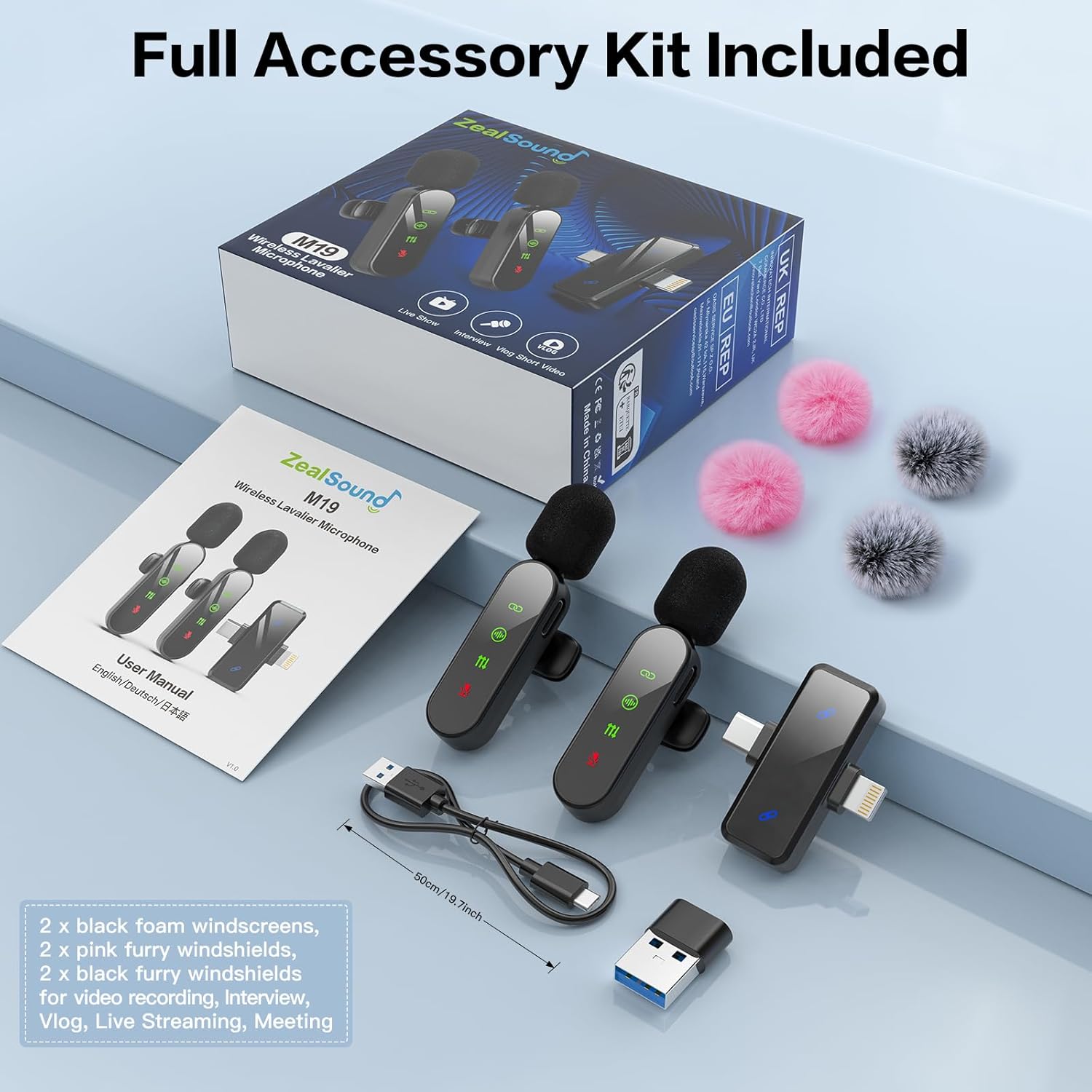
Product Overview
The ZealSound M19 system consists of two transmitters (microphones) and one receiver. The transmitters feature an LED display for status indication, while the receiver offers broad compatibility.
Transmitter (Microphone)
- Power Button: Controls power, mute, and reverb functions.
- LED Display: Shows connection status, noise cancellation, reverb mode, and mute status.
- Microphone Input: Omnidirectional pickup.
- Charging Port: USB-C for recharging.
- Clip: For attaching to clothing.
Receiver
- Dual Connector: Integrated USB-C and Lightning connectors for direct connection to compatible devices.
- USB-A Adapter: For connecting to computers or other devices with USB-A ports.
- Indicator Light: Shows connection status with transmitters.

Setup Instructions
- Charge the Transmitters: Before first use, fully charge both wireless microphones using the provided Type-C to USB-A charging cable. The LED display will indicate charging status.
- Connect the Receiver:
- For iPhone/iPad: Plug the Lightning connector of the receiver directly into your device's port.
- For Android/USB-C Devices: Plug the USB-C connector of the receiver directly into your device's port.
- For Laptops/PCs: Attach the USB-A adapter to the USB-C end of the receiver, then plug it into a USB-A port on your computer.
Note: If your phone has a protective case, it may need to be removed to ensure the receiver connects properly.
- Power On Transmitters: Press and hold the power button on each microphone until the LED display illuminates. The microphones will automatically pair with the receiver. A solid green connection indicator on the microphone's LED display confirms successful pairing.
- Device Recognition: Your device should automatically recognize the external microphone. For computers, you may need to select the ZealSound microphone as the input device in your sound settings.


Operating Instructions
Power On/Off
- To power on, press and hold the power button on the transmitter until the LED display lights up.
- To power off, press and hold the power button again until the LED display turns off.
Automatic Pairing
Once the receiver is plugged into your device and the transmitters are powered on, they will automatically pair. The connection indicator on the transmitter's LED display will show a solid green light when connected.
Noise Reduction
The microphone features built-in intelligent noise filtering to minimize ambient distractions. This feature is active by default. The LED display will show a specific icon for noise cancellation when active.

Reverb Echo Effect
- To activate the reverb mode, double-press the power button on the transmitter. The "Echo" LED display will light up.
- To deactivate, double-press the power button again. The "Echo" LED will turn off.
Mute Function
- To mute the microphone, single-press the power button on the transmitter. The mic icon on the LED display will turn red.
- To unmute, single-press the power button again. The red mic icon will turn off.
Battery Life and Charging
- Each microphone provides up to 4 hours of recording time. When using both microphones, the total system battery life is approximately 8 hours.
- Charging time is approximately 1.5 hours.
- The microphones can be used while charging for uninterrupted performance.

Wireless Range
The system operates on 2.4GHz transmission, providing a stable connection up to 100 feet (30 meters) with minimal latency.

Maintenance
- Cleaning: Use a soft, dry cloth to clean the microphone and receiver. Avoid using liquids or abrasive cleaners.
- Storage: Store the device in a cool, dry place away from direct sunlight and extreme temperatures.
- Windshields: Regularly clean or replace the foam and furry windshields to maintain optimal sound quality and protect the microphone capsule.
Troubleshooting
| Problem | Possible Cause | Solution |
|---|---|---|
| No sound recording. |
|
|
| Poor audio quality (muffled, distorted). |
|
|
| Microphone not charging. |
|
|
| Cannot use for phone calls or messenger apps. |
| This microphone system is designed for content recording (video, audio) and not for standard phone calls or voice chat in most messenger applications. |
Specifications
| Feature | Detail |
|---|---|
| Model Name | M19-CA |
| Item Model Number | H19 |
| Brand | ZealSound |
| Connectivity Technology | 2.4GHz Wireless, Lightning & USB-C, USB Adapter |
| Connector Type | Lightning & USB-C |
| Compatible Devices | iPhone/iPad, USB-C Smartphones/Devices, PC, Computers |
| Special Features | Noise Reduction, Upgraded Smart Display Screen, Reverb Echo Effect |
| Polar Pattern | Omnidirectional |
| Audio Sensitivity | 38 Decibels |
| Signal-to-Noise Ratio | 65 dB |
| Frequency Response | 48 KHz |
| Microphone Form Factor | Lavalier |
| Power Source | Battery Powered (2 Nonstandard Battery batteries included) |
| Product Dimensions | 5.89 x 0.99 x 1.09 cm; 60 g |
| Enclosure Material | Acrylonitrile Butadiene Styrene, Sturdy Material |
| Country of Origin | China |
Warranty and Support
Warranty: This product comes with a 365-day warranty from the date of purchase.
For technical support or warranty claims, please refer to the contact information provided with your purchase documentation or visit the official ZealSound website.


