
1. Introduction
The OBDMATE OM701 is a professional diagnostic scanner designed for Toyota, Lexus, and Scion vehicles manufactured between 1996 and 2023. It offers comprehensive system diagnostics and over 15 reset services, in addition to full OBDII functions.
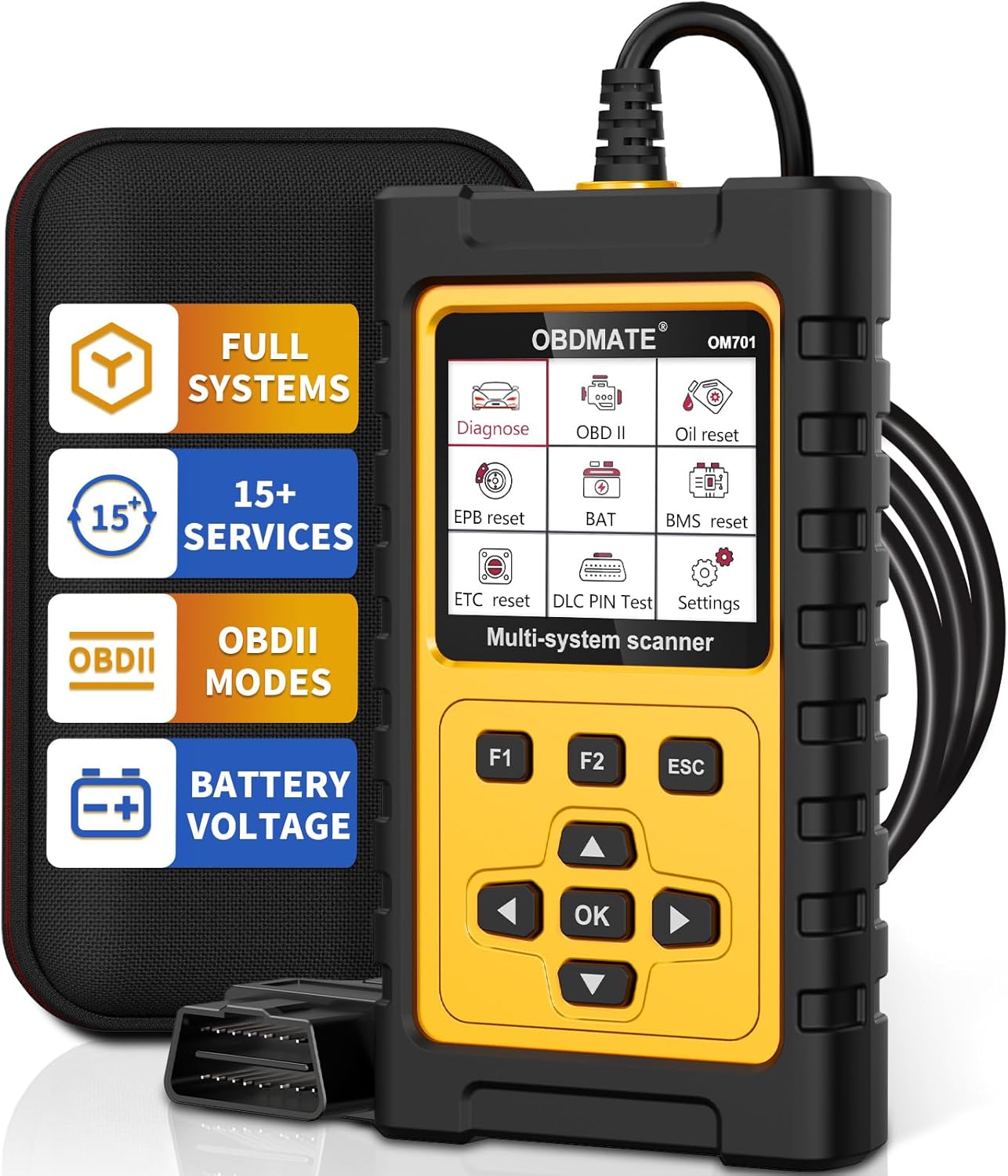
Figure 1.1: The OBDMATE OM701 OBD2 Scanner, showing its main unit, protective case, and OBDII connector.
1.1. Key Features
- Full System Diagnostics: Access and diagnose all major vehicle systems (e.g., Engine, ABS, SRS, Transmission, TPMS, Fuel System, SAS, ESP, BMS, Chassis).
- 15+ Reset Services: Includes Oil Reset, Throttle Reset, EPB Reset, SAS Airbag Reset, Battery Register, ABS Bleeding, Injector Coding, TPMS Reset, Transmission Self-learning, Clear PCM Adaptive Value, Suspension Calibration, Steering Angle Calibration, Damper Stroke Calibration, DPF Regeneration.
- Full OBDII Functions: Read & Clear Codes, I/M Readiness, Live Data Stream, Freeze Frame, O2 Sensor Test, On-Board Monitoring, EVAP Test, Vehicle Information (VIN).
- Compatibility: Specifically designed for Toyota, Lexus, and Scion vehicles (1996-2023) with OBDII protocols.
- User-Friendly Design: 2.8" LCD color display, plug-and-play operation, durable construction with a drop-resistant rubber case.
- Lifetime Free Updates: Continuous software updates available without subscription fees.
1.2. Package Contents
Verify that all items are present in the package:
- 1 x OBDMATE OM701 Diagnostic Scanner
- 1 x User's Manual (this document)
- 1 x Hard Carrying Case
- 1 x USB-Type C Cable
2. Setup
The OM701 scanner is designed for plug-and-play operation, requiring no batteries for basic functionality as it draws power directly from the vehicle's OBDII port.
2.1. Connecting the Scanner
- Locate the vehicle's 16-pin Data Link Connector (DLC). This is typically found under the dashboard on the driver's side.
- Ensure the vehicle's ignition is turned to the "ON" position (engine can be off).
- Connect the OM701 scanner's OBDII cable to the vehicle's DLC. The scanner will power on automatically.
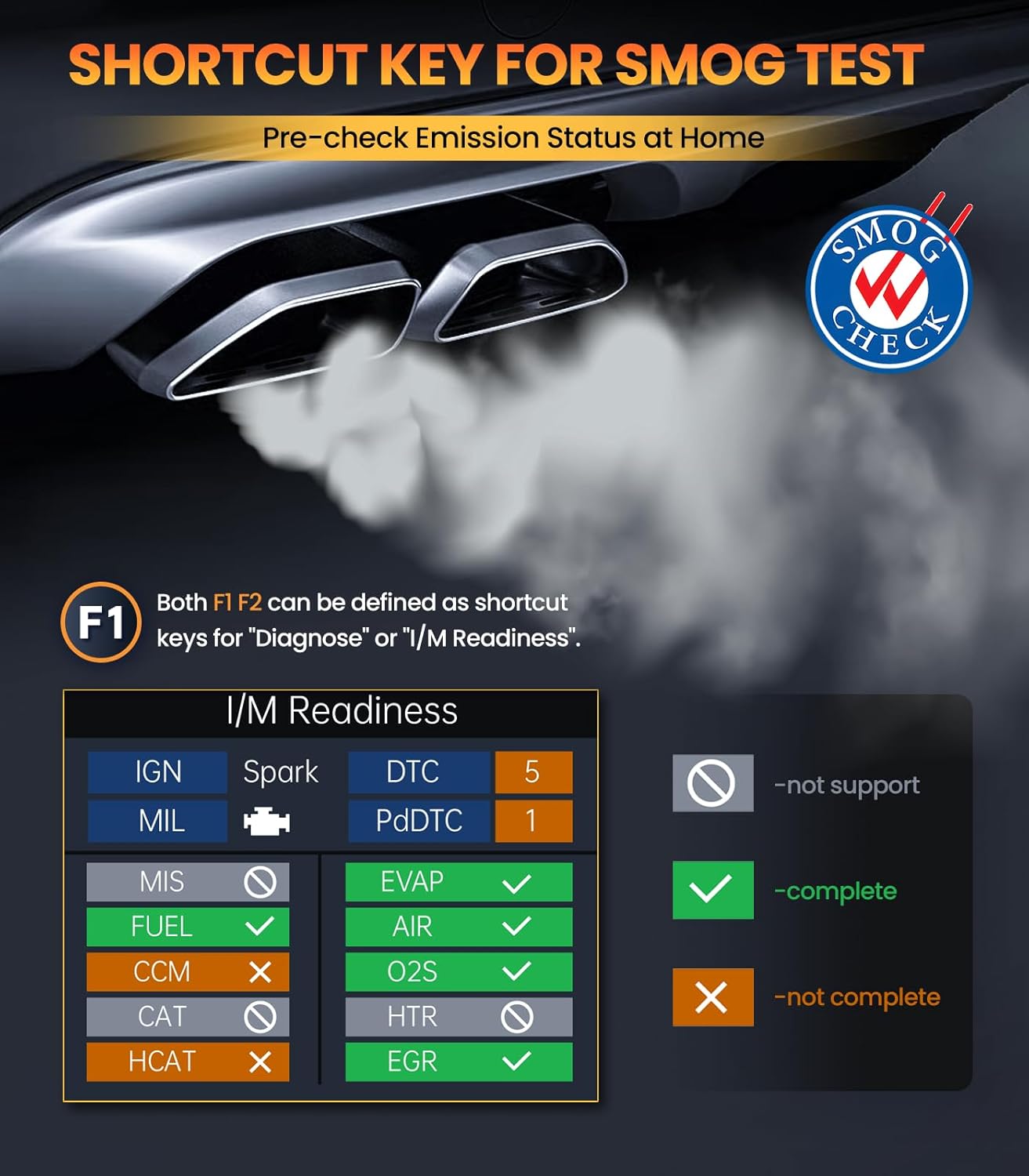
Figure 2.1: Connecting the OM701 scanner to the vehicle's OBDII port.
2.2. Initial Language Setting
Upon first use, or if the language needs to be changed, navigate to the "Settings" menu. The device supports English, French, Italian, German, and Spanish.
- From the main menu, select "Settings".
- Choose "Language" from the options.
- Select your desired language using the arrow keys and confirm with the "OK" button.
3. Operating Instructions
3.1. Navigation
The OM701 scanner features a 2.8" color LCD display and a button interface for navigation:
- Arrow Keys (Up/Down/Left/Right): Used to scroll through menus, select options, or navigate data streams.
- OK Button: Confirms a selection or enters a submenu.
- ESC Button: Returns to the previous screen or cancels an operation.
- F1/F2 Buttons: Customizable shortcut keys, typically for "Diagnose" or "I/M Readiness".
3.2. Full System Diagnostics for Toyota/Lexus/Scion
This function allows for in-depth diagnosis of all electronic control systems within compatible Toyota, Lexus, and Scion vehicles.

Figure 3.1: Overview of full system diagnostic capabilities.
- From the main menu, select "Diagnose".
- Choose your vehicle's make (Toyota, Lexus, or Scion).
- The scanner will automatically identify the vehicle's VIN and available systems.
- Select the desired system (e.g., Engine, ABS, SRS) to perform specific diagnostics.
- Options typically include:
- Read Fault Codes: Displays current, pending, and historic diagnostic trouble codes (DTCs).
- Clear Fault Codes: Erases DTCs from the vehicle's computer. This will also turn off the Malfunction Indicator Lamp (MIL).
- Live Data Stream: Displays real-time data from various sensors in text or graph format.
- Read VIN Information: Retrieves the Vehicle Identification Number.
3.3. Full OBDII Functions (for all OBDII compliant vehicles)
The OM701 supports all standard OBDII functions for any OBDII compliant vehicle (1996 and newer in the US, 2000 and newer in EU/Asia).

Figure 3.2: Main OBDII functions displayed on the scanner screen.
- Read & Clear Codes: Reads and clears generic and manufacturer-specific Diagnostic Trouble Codes (DTCs).
- I/M Readiness: Checks the status of emission-related monitors to determine if they have run and completed their diagnosis. This is useful for pre-smog checks.

Figure 3.3: I/M Readiness status display.
- Data Stream: Displays real-time operating parameters of the engine.
- Freeze Frame: Records a snapshot of sensor data when an emission-related fault occurs.
- O2 Sensor Test: Retrieves O2 sensor monitoring test results.
- On-Board Monitoring (Mode 6): Retrieves test results for emission-related powertrain components and systems that are not continuously monitored.
- EVAP Test (Mode 8): Initiates a test of the Evaporative Emission Control System.
- Vehicle Information (Mode 9): Retrieves the VIN, Calibration ID (CALID), and Calibration Verification Number (CVN).
3.4. Special Functions (Reset Services)
The OM701 provides over 15 commonly used maintenance and reset functions. Note: The availability of these features may vary depending on your vehicle's specific year, make, and model.

Figure 3.4: Overview of available reset services.
- OIL Reset: Resets the engine oil life system after an oil change.
- Throttle Reset (ETC Reset): Relearns the electronic throttle body position.
- EPB Reset: Resets the electronic parking brake system after brake pad replacement.
- SAS Airbag Reset: Resets the Steering Angle Sensor.
- Battery Register (BMS Reset): Registers a new battery with the vehicle's Battery Management System.

Figure 3.5: Battery Registration process on the OM701.
- ABS Bleeding: Performs bleeding of the brake system.
- Injector Coding: Codes new injector numbers into the ECU.
- TPMS Reset: Resets the Tire Pressure Monitoring System.
- Transmission Self-learning: Resets transmission adaptive values.
- Clear PCM Adaptive Value: Clears learned values in the Powertrain Control Module.
- Suspension Calibration: Adjusts vehicle ride height.
- Steering Angle Calibration: Calibrates the steering angle sensor.
- Damper Stroke Calibration: Calibrates damper stroke sensors.
- DPF Regeneration: Initiates the Diesel Particulate Filter regeneration process.
4. Maintenance
4.1. Software Updates
The OBDMATE OM701 scanner offers lifetime free software updates to ensure compatibility with new vehicle models and to add new features. Updates are performed via a Windows-based computer.
- Visit the official OBDMATE website to download the latest update tool and software package.
- Install the update tool on your Windows computer.
- Connect the OM701 scanner to your computer using the provided USB-Type C cable.
- Follow the on-screen instructions in the update tool to complete the software update.
4.2. Cleaning and Storage
- Clean the scanner's exterior with a soft, damp cloth. Avoid using abrasive cleaners or solvents.
- Store the scanner in its protective hard carrying case when not in use to prevent damage from drops or impacts.
- Keep the device in a dry environment, away from extreme temperatures.

Figure 4.1: The OM701 scanner, case, and cable for storage and updates.
5. Troubleshooting
This section addresses common issues you might encounter while using the OBDMATE OM701 scanner.
5.1. No Power
- Check OBDII Connection: Ensure the scanner's cable is securely plugged into the vehicle's 16-pin DLC.
- Vehicle Ignition: Confirm the vehicle's ignition is in the "ON" position.
- Vehicle Battery: Verify the vehicle's battery has sufficient charge.
- DLC Pin Test: The OM701 has a DLC Pin Test function. Use this to check if the vehicle's OBDII port is supplying power correctly.
5.2. Communication Error
- Vehicle Compatibility: Ensure your vehicle is OBDII compliant (1996+ for US, 2000+ for EU/Asia) and specifically compatible with the OM701 for advanced functions (Toyota, Lexus, Scion 1996-2023).
- Connection Check: Re-seat the OBDII connector firmly.
- Ignition Status: Confirm the ignition is "ON".
- Other Modules: If other diagnostic tools communicate, there might be an issue with the OM701. If no tools communicate, there might be a vehicle issue (e.g., blown fuse for the OBDII port).
5.3. Function Not Available
- Vehicle Support: Many advanced reset functions are vehicle-specific. The function may not be supported by your vehicle's ECU or model year.
- Software Version: Ensure your scanner's software is up-to-date. Refer to Section 4.1 for update instructions.
6. Specifications

Figure 6.1: Physical features and design of the OM701.
| Feature | Description |
|---|---|
| Model | OM701 |
| Display | 2.8" LCD Color Display |
| Compatibility | Toyota/Lexus/Scion (1996-2023), all OBDII compliant vehicles (US 1996+, EU/Asia 2000+) |
| Special Functions | 15+ Reset Services (e.g., Oil Reset, EPB Reset, ABS Bleeding, Battery Register) |
| Full System Diagnosis | 40+ systems (e.g., PCM, ABS, TPMS, SRS) |
| Battery Voltage Test | Supported |
| DLC Pin Test | Supported |
| Operating System | Plug and play; Upgrade via Windows only |
| Languages | English, French, Italian, German, Spanish |
| Cable Length | 43 inches (approx. 1.1 meters) |
| Item Weight | 1.85 pounds (approx. 0.84 kg) |
| Warranty Period | 3 Years |
7. Warranty and Support
7.1. Product Warranty
The OBDMATE OM701 Diagnostic Scanner comes with a 3-year warranty from the date of purchase, covering manufacturing defects and malfunctions under normal use. Please retain your proof of purchase for warranty claims.
7.2. Technical Support
For technical assistance, compatibility inquiries, or questions regarding software updates, please contact OBDMATE customer support. Refer to the official OBDMATE website for the most current contact information and support resources.
Website: www.obdmate.com


