
1. Introduction
The AIPER HydroComm Pro is an advanced 5-in-1 smart pool monitor designed to provide real-time water quality measurements for pools, hot tubs, and spas. It features app control and real-time underwater communication capabilities, especially with compatible AIPER pool cleaners. This manual provides detailed instructions for the proper setup, operation, and maintenance of your HydroComm Pro.
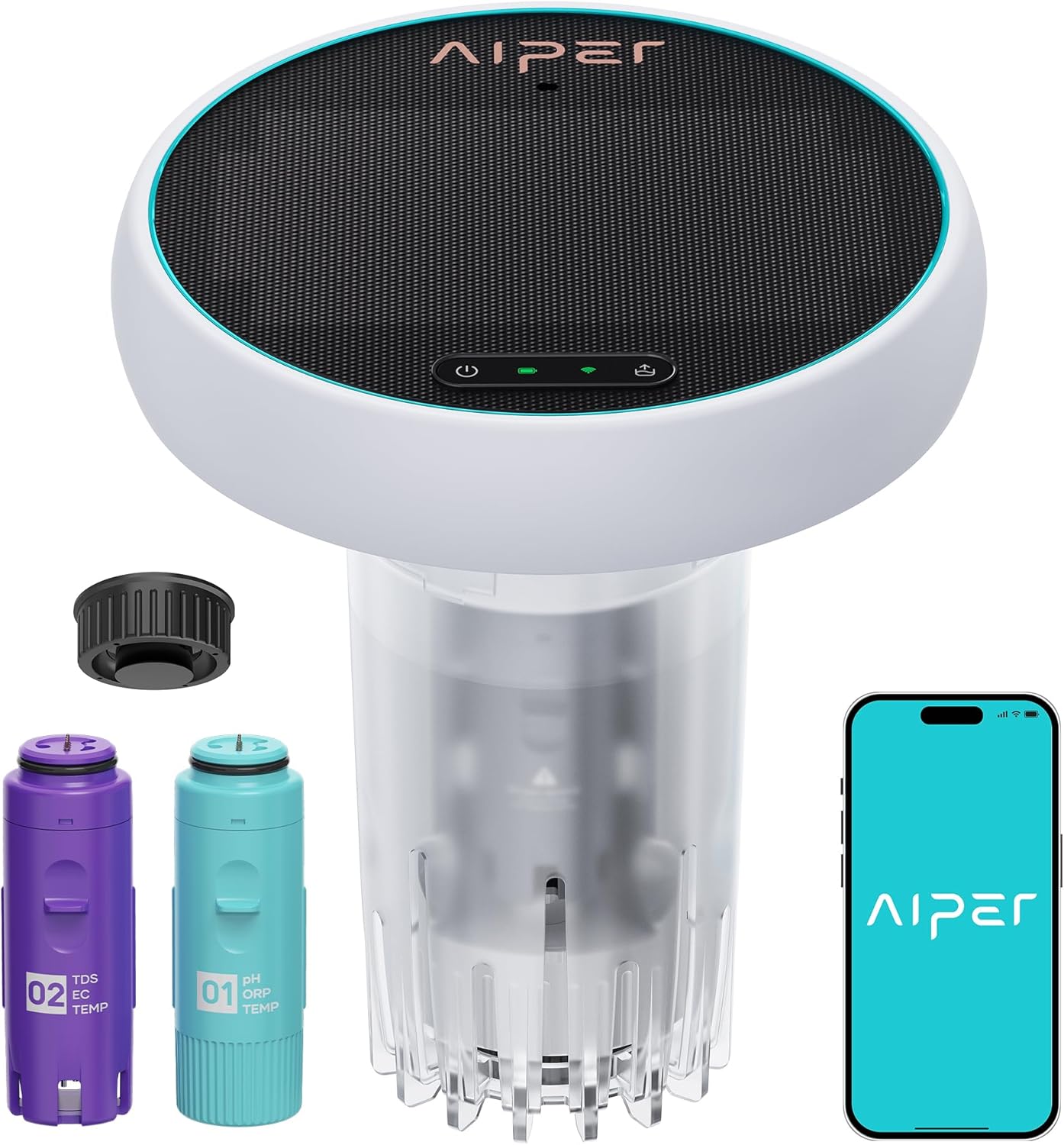
Figure 1.1: AIPER HydroComm Pro Smart Pool Monitor and Components
2. Product Overview
The HydroComm Pro integrates multiple functions to simplify pool maintenance:
- 5-in-1 Water Testing: Measures pH, ORP, EC, TDS, and temperature.
- Real-Time Underwater Communication: Enables control and retrieval of compatible AIPER robotic pool cleaners.
- App Control: Syncs with the AIPER app via WiFi and Bluetooth for real-time data, historical trends, and personalized tips.
- Continuous Monitoring: Operates 24/7, primarily solar-powered with DC charging backup.

Figure 2.1: 5-in-1 Water Testing Capabilities
3. Setup
3.1 Unboxing and Initial Inspection
Carefully remove all components from the packaging. Verify that all parts are present and undamaged. The package should include the HydroComm Pro main unit, two sensor modules (pH/ORP/TEMP and EC/TDS/TEMP), and a charging cable.
3.2 Charging the Device
Before first use, ensure the HydroComm Pro is fully charged. While it features solar charging for continuous operation, an initial charge via DC power is recommended, especially if used in cloudy conditions or indoors.
3.3 App Installation and Pairing
- Download the official AIPER app from your device's app store (iOS or Android).
- Create an account or log in if you already have one.
- Follow the in-app instructions to add a new device. Ensure your HydroComm Pro is powered on and within Bluetooth range of your smartphone for initial pairing.
- Connect the device to your home WiFi network through the app for continuous data synchronization and remote access.
4. Operating Instructions
4.1 Water Quality Monitoring
Once set up and placed in the pool, the HydroComm Pro will automatically begin monitoring water parameters. Real-time data for pH, ORP, EC, TDS, and temperature will be displayed in the AIPER app. The app also provides historical data and personalized recommendations based on the readings.

Figure 4.1: Data Tracking and Analysis in the AIPER App
4.2 Underwater Communication with AIPER Pool Cleaners
The HydroComm Pro facilitates enhanced control over compatible AIPER robotic pool cleaners (e.g., Scuba X Series). This feature allows for seamless interaction with your cleaner while it is submerged.
- Switch Cleaning Modes: Through the AIPER app, you can remotely switch cleaning modes (e.g., floor, waterline) of your connected pool cleaner.
- One-Tap Retrieval: Command your pool cleaner to surface for easy retrieval with a single tap in the app.

Figure 4.2: Compatibility with AIPER Scuba X Series
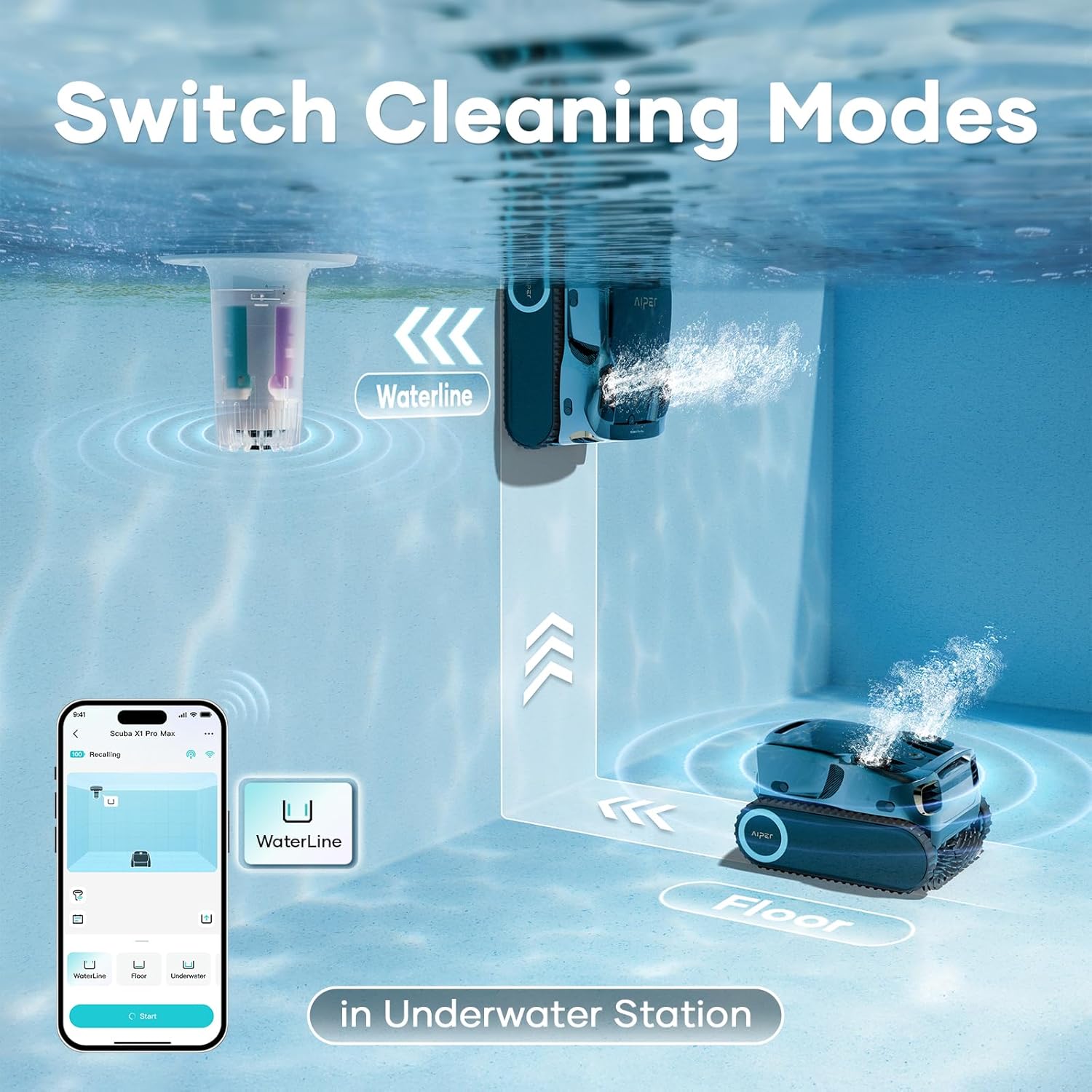
Figure 4.3: Switching Cleaning Modes Underwater

Figure 4.4: One-Tap Retrieval of Pool Cleaner
5. Maintenance
5.1 Sensor Cleaning
Regularly clean the sensor modules to ensure accurate readings. Rinse the sensors with clean water after removing the device from the pool. For stubborn deposits, gently wipe with a soft cloth. Avoid abrasive materials or harsh chemicals.
5.2 Calibration
Periodic calibration of the sensors is crucial for maintaining accuracy. The AIPER app will guide you through the calibration process. This typically involves using calibration solutions (not included) and following on-screen prompts.

Figure 5.1: Easy Calibration Process via App
5.3 Battery and Charging
The HydroComm Pro is designed for 24/7 continuous monitoring, primarily powered by its integrated solar panel. On cloudy days or when solar charging is insufficient, the device will switch to DC charging. Ensure the solar panel is clean and unobstructed for optimal performance.

Figure 5.2: 24/7 Continuous Monitoring with Solar Power
6. Troubleshooting
6.1 Inaccurate Readings
- Check Sensor Cleanliness: Ensure sensors are free from debris or buildup. Clean as per Section 5.1.
- Perform Calibration: Calibrate the sensors regularly as described in Section 5.2.
- Verify Water Flow: Ensure the device is placed in an area with adequate water circulation for representative samples.
6.2 Device Not Connecting to App
- Bluetooth/WiFi: Ensure Bluetooth is enabled on your smartphone and the device is within range for initial pairing. For continuous data, verify WiFi connectivity and signal strength.
- App Permissions: Check if the AIPER app has necessary permissions (e.g., location, Bluetooth) on your smartphone.
- Restart Device/App: Try restarting the HydroComm Pro and force-closing/reopening the AIPER app.
6.3 Poor Battery Life
- Solar Panel Obstruction: Ensure the solar panel is clean and not obstructed by leaves, debris, or shade.
- Initial Charge: Confirm the device received a full initial charge via DC power.
- Environmental Conditions: Prolonged cloudy weather will reduce solar charging efficiency, requiring more frequent DC charging.
7. Specifications
| Feature | Specification |
|---|---|
| Model Number | WTW2P |
| Control Method | App |
| Water Testing Parameters | pH, ORP, EC, TDS, Temperature |
| pH Measurement Range | 0-14 |
| ORP Measurement Range | 0-1000 mV |
| EC Measurement Range | 0-12000 µS/cm |
| TDS Measurement Range | 0-6000 mg/L |
| Temperature Measurement Range | 5°C-45°C |
| pH Accuracy | ±0.2 |
| ORP Accuracy | ±30mV |
| EC Accuracy | ±5 |
| TDS Accuracy | ±5% |
| Temperature Accuracy | ±0.5°C, ±1.0°F |
| Power Source | Battery Powered (Solar & DC) |
| Battery Type | Lithium-Ion |
| Number of Batteries | 1 (included) |
| Lithium Battery Energy Content | 37.44 Watt Hours |
| Product Dimensions | 10.2 x 9.2 x 9.2 inches |
| Item Weight | 8.6 pounds |
| Material | Plastic |
| Color | White |
Note: Specifications are subject to change without notice.
8. Warranty and Support
AIPER offers an extended one-year warranty for the HydroComm Pro. This warranty covers manufacturing defects and ensures the product functions as intended under normal use. Additionally, AIPER provides complimentary consumable replacements for certain parts during the warranty period.
For technical support, warranty claims, or to inquire about consumable replacements, please visit the official AIPER website or contact AIPER customer service through the contact information provided in the AIPER app or on their website.

Figure 8.1: AIPER Care Program


