
1. Introduction
This manual provides detailed instructions for the setup, operation, and maintenance of your NETUM NT-1200 and CS7501 QR Industrial Bluetooth Barcode Scanners. Please read this manual thoroughly before using the devices to ensure proper functionality and to maximize their lifespan. These scanners are designed for efficient and reliable barcode reading in various environments, supporting both 1D and 2D barcodes from physical labels and digital screens.
2. Product Overview
2.1 Key Features
- High-Resolution Scanning: Equipped with a megapixel (1280×800) CMOS sensor, the CS7501 scans 1D and 2D barcodes (QR, PDF417, Data Matrix, etc.) from paper or digital screens.
- Versatile Connectivity: Offers 3-in-1 connection options: Bluetooth, 2.4GHz Wireless Adapter, and Wired USB Connection for compatibility with smartphones, computers, POS systems, iPhones, iPads, and laptops.
- Extended Battery Life: Features a 2400mAh high-capacity battery for up to 12 hours of continuous operation, with real-time battery level indicators.
- Durable Construction: Built with ABS plastic and reinforced with TPU material, capable of withstanding drops from up to 4.92 feet (1.5 meters). Ergonomic design for comfortable, extended use.
- Multiple Scanning Modes: NT-1200 offers manual trigger, continuous scanning, and auto-sensing scanning modes.
- Storage Mode: Supports storage of up to 100,000 barcodes when out of wireless range.
2.2 Product Components
The package typically includes the barcode scanner(s), a charging dock (for NT-1200), a 2.4GHz wireless adapter, and USB cables.

Figure 1: NETUM NT-1200 (right, with dock) and CS7501 (left) Barcode Scanners.

Figure 2: NETUM CS7501 Barcode Scanner, showing its compact design, USB-C cable, and 2.4GHz wireless dongle.

Figure 3: NETUM NT-1200 Barcode Scanner securely placed in its charging and communication dock.
3. Setup
3.1 Initial Charging
Before first use, fully charge your scanner. Connect the USB cable to the scanner (CS7501) or its charging dock (NT-1200) and then to a power source (e.g., computer USB port, USB wall adapter). The battery indicator will show charging status.
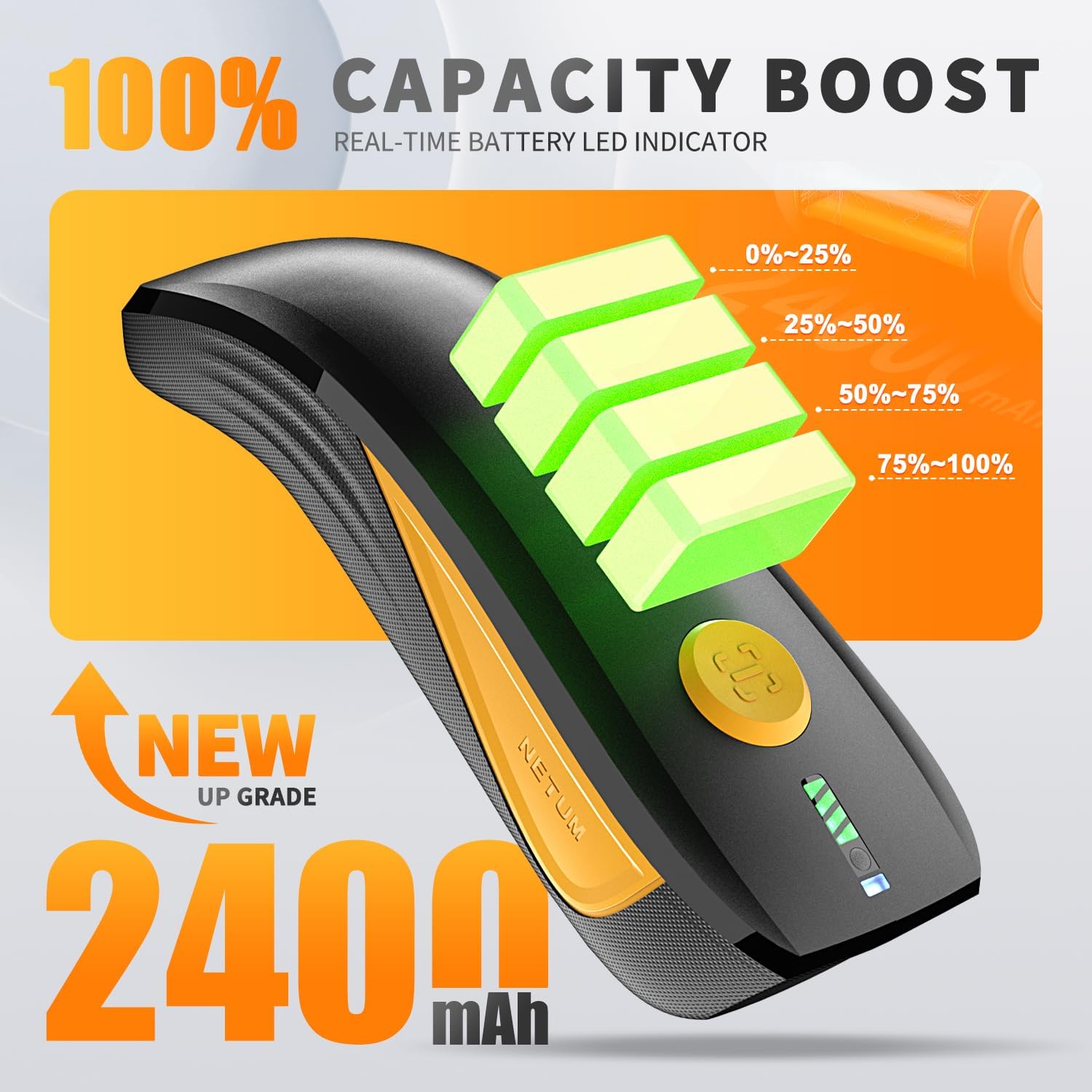
Figure 4: CS7501 scanner displaying real-time battery level indicators (0-25%, 25-50%, 50-75%, 75-100%).
3.2 Connectivity Options
Both scanners offer multiple connectivity options. Ensure the scanner is powered on before attempting to connect.
3.2.1 Bluetooth Connection
- Turn on the scanner and switch to Bluetooth mode (refer to the switch button image below).
- On your host device (smartphone, tablet, computer), enable Bluetooth and search for available devices.
- Select the scanner (e.g., "NETUM Barcode Scanner" or similar) from the list to pair.
- A successful connection will be indicated by a specific sound or LED light on the scanner.

Figure 5: The switch button on the CS7501 scanner, allowing selection between Bluetooth and 2.4GHz wireless connection modes. Bluetooth offers a range of up to 10m/33ft.
3.2.2 2.4GHz Wireless Connection
- Plug the 2.4GHz wireless adapter (dongle) into an available USB port on your computer.
- Turn on the scanner and switch to 2.4GHz wireless mode (refer to the switch button image above).
- The scanner should automatically connect to the adapter. A successful connection will be indicated by a specific sound or LED light. This mode typically offers a longer range, up to 100m/330ft.
3.2.3 Wired USB Connection
Connect the scanner directly to your computer using the provided USB cable. The scanner will function as a USB HID keyboard device, and no additional drivers are usually required. This mode also charges the scanner.
3.3 Initial Configuration (NT-1200)
For the NT-1200, specific settings like scanning modes or data transmission options may require scanning configuration barcodes found in the separate NT-1200 manual. Always refer to the dedicated manual for the NT-1200 for detailed setup barcodes.
4. Operating Instructions
4.1 Scanning Barcodes
Point the scanner's window at the barcode you wish to scan. Press the trigger button (for manual mode) or allow the scanner to detect the barcode automatically (in auto-sensing mode). A successful scan is usually indicated by a beep and/or a green LED light.

Figure 6: The CS7501 scanner demonstrating its 1MP high-resolution sensor's ability to capture various 1D and 2D barcodes, including QR codes, from different surfaces.
4.2 Scanning Modes (NT-1200)
- Manual Trigger Mode: Press the trigger button to scan each barcode.
- Continuous Scanning Mode: The scanner continuously emits a scan line, reading barcodes as they pass through the field of view without needing to press the trigger.
- Auto-Sensing Scanning Mode: The scanner automatically detects a barcode in its field of view and scans it without manual trigger activation.
To switch between these modes, you will need to scan specific configuration barcodes provided in the NT-1200's dedicated manual.
4.3 Storage Mode
When the scanner is out of Bluetooth or 2.4GHz wireless range, it can store scanned barcodes internally. The NT-1200 supports storage of up to 100,000 barcodes. To upload stored data, reconnect the scanner to your host device and scan the "Upload Data" configuration barcode (if applicable, refer to your specific model's manual).
5. Maintenance
- Cleaning: Use a soft, dry cloth to clean the scanner's exterior. For the scanning window, use a lens cleaning cloth and a mild, non-abrasive cleaner if necessary. Avoid harsh chemicals or abrasive materials.
- Storage: Store the scanner in a cool, dry place away from direct sunlight and extreme temperatures.
- Battery Care: For optimal battery life, avoid fully discharging the battery frequently. If storing for an extended period, charge the battery to about 50% and recharge every few months.
- Drop Protection: While designed to be rugged (withstanding drops up to 4.92 feet / 1.5 meters), avoid unnecessary drops to prolong the device's life.

Figure 7: The CS7501 scanner's robust construction, featuring ABS+TPU materials for enhanced durability and drop protection.
6. Troubleshooting
- Scanner Not Connecting:
- Ensure the scanner is powered on and fully charged.
- Verify the correct connectivity mode (Bluetooth, 2.4GHz, USB) is selected on the scanner.
- For Bluetooth, ensure your host device's Bluetooth is enabled and the scanner is paired.
- For 2.4GHz, ensure the dongle is securely plugged in.
- Try restarting both the scanner and the host device.
- Cannot Scan Barcodes:
- Ensure the barcode is clean, undamaged, and well-lit.
- Check the distance and angle between the scanner and the barcode.
- Verify the scanner is in the correct scanning mode (e.g., manual trigger if required).
- Ensure the barcode type is supported by the scanner (1D/2D).
- Clean the scanner's reading window.
- Scanned Data Not Appearing:
- Confirm the scanner is successfully connected to your host device.
- Ensure the cursor is in a text input field on your host device.
- Check if the scanner is in storage mode; if so, upload the data.
- Short Battery Life:
- Ensure the scanner is fully charged before use.
- Check the battery health indicators.
- Reduce screen brightness or disable unnecessary features if applicable.
7. Specifications
| Feature | Detail |
|---|---|
| Model Numbers | NT-1200, CS7501 |
| Sensor (CS7501) | Megapixel CMOS (1280×800) |
| Barcode Compatibility | 1D and 2D (QR, PDF417, Data Matrix, GS1 Code128, Aztec, Maxi, etc.) |
| Connectivity Technology | Bluetooth, 2.4GHz Wireless, USB |
| Bluetooth Range | Up to 10m / 33ft |
| 2.4GHz Wireless Range | Up to 100m / 330ft |
| Compatible Devices | Computer, Laptop, POS, Smartphone, iPad, iPhone |
| Power Source | Battery Powered |
| Battery Capacity (CS7501) | 2400mAh |
| Continuous Operation (CS7501) | Up to 12 hours |
| Drop Protection | Withstands drops from up to 4.92 feet (1.5 meters) |
| Storage Capacity (NT-1200) | Up to 100,000 barcodes |
8. Warranty and Support
NETUM products are designed for reliability and performance. For specific warranty details, please refer to the warranty card included with your product or visit the official NETUM website. For technical support, troubleshooting assistance, or service inquiries, please contact NETUM customer support through the contact information provided on their official website or product packaging.


