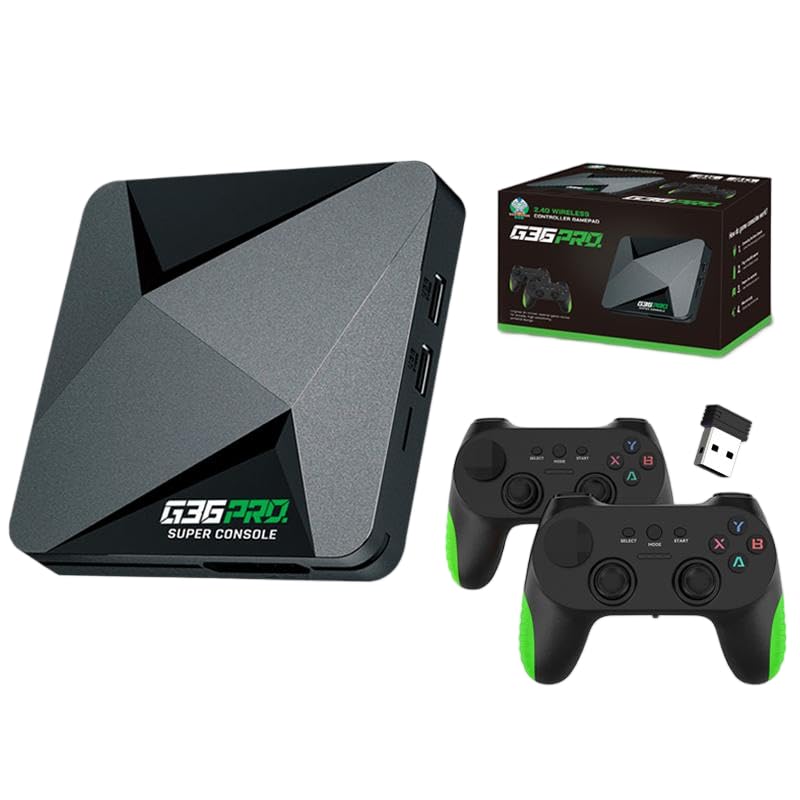
The ZWXYVUT G36 Pro Game Box Game Stick is a compact, plug-and-play retro gaming console designed for ease of use and high-definition entertainment. It features an advanced S905x2 processor, supports 4K HDMI output, and comes pre-loaded with a vast library of classic games across multiple emulators. This manual provides detailed instructions for setting up, operating, and maintaining your G36 Pro console to ensure an optimal gaming experience.
Image: The G36 Pro console with its two wireless controllers, showcasing the main components of the gaming system.
Package Contents
Please verify that all items listed below are included in your package:
1 x G36 Pro Super Console
2 x 2.4G Wireless Controllers
1 x USB Receiver (for wireless controllers)
1 x Game Card (TF card, 256GB, pre-loaded with games)
1 x Power Adapter
1 x HD Cable (HDMI cable)
1 x User Manual (this document)
1 x Remote Control
Image: A visual representation of all items included in the G36 Pro package, laid out for easy identification.
Setup Instructions
Follow these steps to set up your G36 Pro Game Box Game Stick:
Connect to TV: Insert one end of the provided HD Cable (HDMI cable) into the HDMI port on the G36 Pro console and the other end into an available HDMI input port on your television or monitor.
Connect Power: Plug the Power Adapter into the DC IN port on the G36 Pro console, then connect the adapter to a power outlet. The console should power on automatically or indicate power with an LED light.
Insert Game Card: Ensure the Game Card (TF card) is securely inserted into the TF card slot on the console. This card contains all the pre-loaded games and system software.
Connect Wireless Controllers: Insert the USB Receiver into one of the USB ports on the G36 Pro console. The wireless controllers should automatically pair with the console. If not, ensure the controllers have batteries and are powered on.
Select Input Source: On your television or monitor, use the remote control to select the correct HDMI input source that corresponds to the port where you connected the G36 Pro console.
Initial Boot: The console will boot up, and you should see the main menu on your screen.
Note: The G36 Pro console only supports HDMI output. Ensure your display device has an HDMI input port.
Operating Instructions
1. System Navigation
Use the wireless controllers to navigate the system menus. The directional pad (D-pad) or left analog stick moves the cursor, and the 'A' button (or equivalent) typically confirms selections. The 'B' button (or equivalent) usually acts as a back or cancel function.
Main Menu: Displays categories such as "Games," "Emulators," "Settings," etc.
Game List: Within an emulator or game category, you can browse the available games.
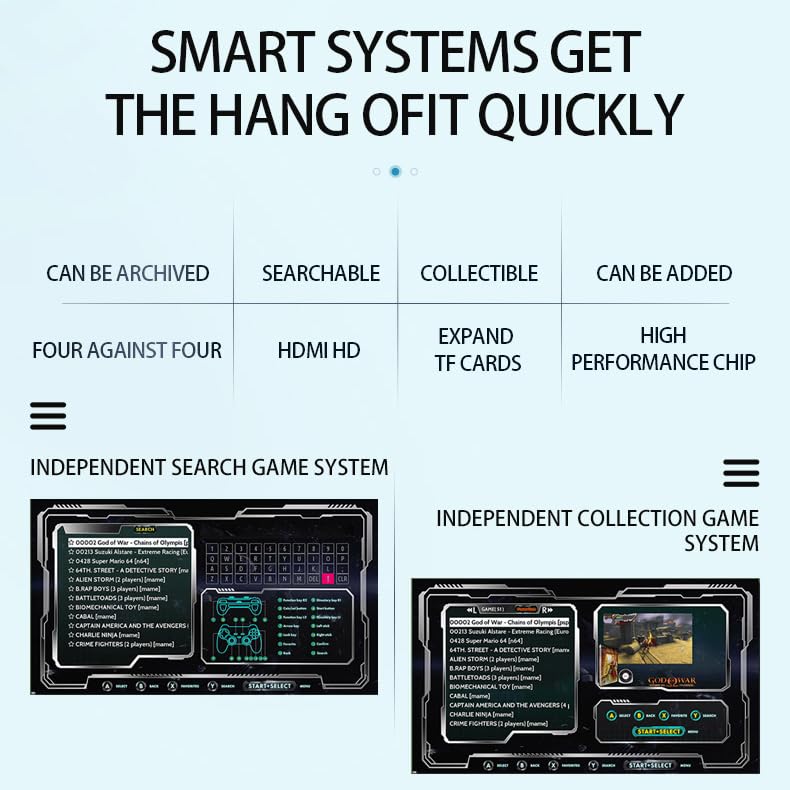
Search Function: The system includes a search feature to quickly find specific games.
Collection Function: You can add favorite games to a collection for easy access.
Image: The user interface demonstrating the independent search and collection systems for games.
2. Playing Games
Select a Game: Navigate to the desired game using the controllers and press the 'A' button to select it.
Start Game: The game will load. Follow any on-screen prompts to begin playing.
In-Game Menu: During gameplay, specific button combinations (often 'SELECT' + 'START' simultaneously) may bring up an in-game menu for options like saving, loading, or exiting the game. Refer to the specific emulator's documentation if available for exact controls.
Exiting a Game: To return to the main system menu, use the in-game menu option to exit, or a specific controller shortcut if available.
3. Saving and Loading Game Progress
Most emulators support save states, allowing you to save your progress at any point in a game, regardless of the game's built-in save features. Consult the in-game menu (usually accessed via a controller shortcut) for options to "Save State" and "Load State."
4. Adding New Games
The G36 Pro console allows users to add new games. This typically involves transferring game ROM files to the appropriate folders on the TF card using a computer. Detailed instructions for adding games may vary by emulator and are often found in online communities or advanced user guides. Ensure you only use legally obtained game files.
Maintenance
Cleaning: Use a soft, dry cloth to clean the console and controllers. Avoid using liquid cleaners or abrasive materials.
Storage: Store the console and accessories in a cool, dry place away from direct sunlight and extreme temperatures.
Power Off: Always power off the console correctly before disconnecting it from the power source to prevent data corruption.
TF Card Handling: When removing the TF card, ensure the console is powered off to avoid data loss. Handle the card carefully to prevent damage.
Troubleshooting
Problem
Possible Cause
Solution
No display on TV.
Incorrect HDMI input selected.
HDMI cable not properly connected.
Console not powered on.
Ensure your TV is set to the correct HDMI input source.
Check that the HDMI cable is securely connected to both the console and the TV.
Verify the power adapter is connected and the console's power indicator light is on.
Wireless controllers not responding.
USB Receiver not inserted.
Controllers not powered on or low battery.
Controllers not paired.
Ensure the USB Receiver is plugged into a USB port on the console.
Check controller batteries and power them on.
Some controllers may require a specific pairing process (refer to controller manual if provided).
Games are lagging or freezing.
Game file issue.
System overload (less likely with S905x2 chip).
Restart the console.
Ensure the TF card is properly inserted and not corrupted.
The S905x2 chip is designed for smooth performance, but very demanding 3D games might occasionally experience minor frame drops depending on the emulator.
Cannot find a specific game.
Game not included in the pre-loaded library.
Incorrect search terms.
Use the system's search function with various keywords.
Verify if the game is part of the 100,000+ pre-loaded titles.
Consider adding the game manually if it's not present (see "Adding New Games" section).
Specifications
Model: G36 Pro
Processor: Advanced S905x2 Chip
Output: 4K HDMI (60fps)
Storage: 256GB TF Card (pre-installed)
Pre-loaded Games: Over 100,000 classic games
Emulators Supported: Over 50
Controllers: 2 x 2.4G Wireless Controllers
Connectivity: HDMI, USB (for receiver)
Power Input: DC (via Power Adapter)
Image: A detailed view of the S905 high-performance chip, which powers the G36 Pro console.
Warranty and Support
For warranty information and technical support, please refer to the documentation provided with your purchase or contact the manufacturer, ZWXYVUT, directly through their official support channels. Keep your purchase receipt as proof of purchase for any warranty claims.