
Introduction
This manual provides detailed instructions for the setup, operation, and maintenance of your KUIIYER T700 2-in-1 Fingerprint and Password Time Clock. This device is designed to streamline employee attendance tracking for small to medium-sized businesses, offering both fingerprint and password verification methods.

Image: The KUIIYER T700 time clock, showcasing its display, keypad, and fingerprint scanner, along with included accessories like the power adapter and mounting bracket.
Product Features
- High Efficiency Biometric Identification: Equipped with a high-performance processor and biometric fingerprint module for rapid identification within 0.5 seconds.
- Dual Verification Methods: Supports both fingerprint and PIN identification.
- Capacity: Max 1000 user capacity, 3000 fingerprint capacity, 1000 password capacity, and 160,000 record capacity.
- Organizational Support: Configurable for 16 departments and 24 shifts, with integrated bell functions.
- Display and Interface: Features a 2.4-inch TFT color LCD display for clear navigation and a user-friendly interface.
- Multi-language and AI Voice: Supports 12 languages (including English, Spanish, French, German, Italian, Japanese, Chinese) and AI voice announcements for identity confirmation.
- Data Management: Secure and convenient data management via USB flash drive (FAT32 format recommended, not included). No internet connection or dedicated software required for data transfer.
- Power Loss Protection: Ensures data security during power interruptions.
- Applications: Suitable for various environments including offices, companies, factories, supermarkets, hotels, schools, restaurants, and hospitals.
Package Contents
Upon opening the package, verify that all items are present and in good condition:
- KUIIYER T700 Time Clock Unit
- Power Adapter
- USB Cable
- Wall Mounting Bracket
- Mounting Screws and Wall Anchors
- User Manual (this document)
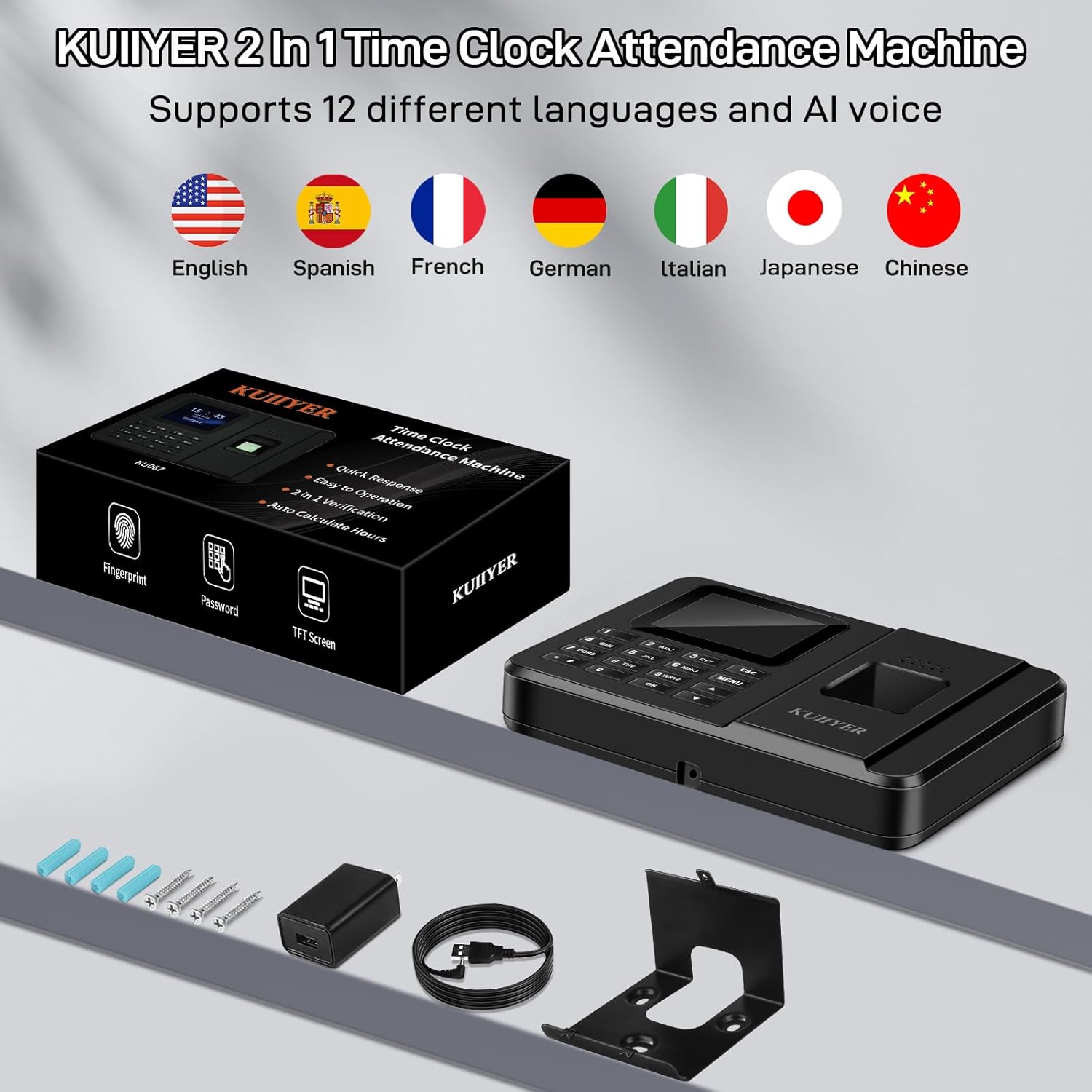
Image: The KUIIYER T700 time clock unit and its accessories, including the power adapter, USB cable, mounting bracket, and screws. The image also highlights the 12 supported languages.
Setup
1. Physical Installation
The KUIIYER T700 can be placed on a desktop or mounted on a wall.
- Desktop Placement: Simply place the device on a flat, stable surface.
- Wall Mounting:
- Secure the provided mounting bracket to the desired wall location using the screws and anchors.
- Align the time clock unit with the bracket's installation groove and slide it into place until secure.

Image: Diagrams illustrating how to place the KUIIYER T700 on a desktop or mount it securely to a wall using the provided bracket.
2. Power Connection
Connect the power adapter to the device's power interface and plug it into a standard electrical outlet. The device will power on automatically.
3. Initial Configuration
Upon first power-on, or after a factory reset, you may need to configure basic settings:
- Language Selection: Navigate through the menu to select your preferred language from the 12 available options.
- Date and Time: Set the current date and time to ensure accurate attendance records.
- Administrator Setup: It is recommended to set up an administrator account with a fingerprint and/or password for secure access to system settings.
4. User Enrollment
To enroll new employees:
- Press the MENU button.
- Navigate to Users and press OK.
- Select Enroll and press OK.
- Enter the employee's ID and name using the keypad.
- For fingerprint enrollment, place the employee's finger on the fingerprint scanner three times, lifting it slightly between each scan until confirmed.
- For password enrollment, enter a unique PIN using the keypad.
- Repeat for all employees.
Operating Instructions
1. Clocking In/Out
The device automatically records clock-in and clock-out times without requiring specific "In/Out" key presses.
- Fingerprint Verification: Place a registered finger on the scanner. The device will confirm the identity with an AI voice announcement and display the verified ID, name, and time.
- Password Verification: Enter the employee's ID using the keypad, then enter their registered PIN. The device will confirm the identity.

Image: The KUIIYER T700 demonstrating quick fingerprint recognition (less than 0.5 seconds) and immediate password recognition for employee clock-in/out.
2. Data Management (USB)
Attendance data can be easily managed using a USB flash drive (FAT32 format recommended, not included).
- Downloading Reports:
- Insert a FAT32 formatted USB flash drive into the device's USB port.
- Access the menu (requires administrator verification).
- Navigate to Reports or Download option.
- Select the desired report type (e.g., attendance summary) and confirm the download. The data will be saved to the USB drive in a readable format (e.g., Excel).
- Uploading Data:
- Prepare shift schedules or employee arrangements in the specified format on a FAT32 formatted USB flash drive.
- Insert the USB flash drive into the device.
- Access the menu and navigate to the Upload option.
- Select the file to upload and confirm.

Image: The KUIIYER T700 connected via USB to a laptop, illustrating the process of downloading attendance reports and managing data securely without network access.
Maintenance
- Cleaning: Regularly wipe the screen and fingerprint scanner with a soft, dry cloth. Avoid using abrasive cleaners or solvents.
- Data Backup: Periodically download attendance reports to a USB flash drive and store them securely on a computer or external storage device. This ensures data integrity and provides a backup in case of unforeseen issues.
- Power Supply: Ensure the device is connected to a stable power source. The built-in power loss protection helps safeguard data during outages.
Troubleshooting
- Fingerprint Recognition Issues:
- Ensure the finger and scanner surface are clean and dry.
- Try repositioning the finger on the scanner.
- If issues persist, re-enroll the fingerprint or use password verification as an alternative.
- Volume Adjustment Not Working: Some users have reported that volume settings may not always take effect immediately or as expected. If the device's voice prompts are too loud or too quiet, check for firmware updates or contact customer support for assistance.
- Inability to Edit Attendance Data: The system is designed for secure, unalterable record-keeping. Attendance data downloaded to a USB drive (e.g., Excel files) may be password-protected and not editable directly on the device or in the exported file. Manual adjustments to attendance records must be managed externally.
- Device Not Powering On: Check the power adapter and ensure it is securely connected to both the device and a working power outlet.
- USB Drive Not Recognized: Ensure the USB flash drive is formatted to FAT32. Try a different USB port or a different USB drive.
Specifications
| Brand | KUIIYER |
| Model Number | T700 |
| Item Weight | 7 ounces |
| Product Dimensions | 6.69 x 1.5 x 4.72 inches |
| Material Type | Premium ABS Plastic |
| User Capacity | Max 1000 |
| Fingerprint Capacity | 3000 |
| Password Capacity | 1000 |
| Record Capacity | 160,000 |
| Departments Supported | 16 |
| Shifts Supported | 24 |
| Display | 2.4-inch TFT Color LCD |
| Supported Languages | 12 (English, Spanish, French, German, Italian, Japanese, Chinese, etc.) |
| Data Transfer | USB Flash Drive (FAT32 recommended, not included) |

Image: A visual representation of the KUIIYER T700's large data record capacity, including user, fingerprint, password, department, and shift capacities.
Warranty and Support
KUIIYER offers the following support for your time clock:
- 90-Day Unconditional Return: For any reason, within 90 days of purchase.
- 24-Month Promise: For any quality-related issues.
- Customer Support: KUIIYER's professional customer team is available to handle your issues and provide assistance within 12 hours.
For support, please refer to the contact information provided with your purchase or visit the official KUIIYER website.
