
Introduction
This manual provides essential information for setting up, operating, maintaining, and troubleshooting your Omnica 2-in-1 Laptop Computer, Model G3. Please read this manual thoroughly before using your device to ensure proper function and longevity.

Figure 1: Omnica 2-in-1 Laptop Computer
Package Contents
Verify that all items are present in the package:
- Omnica 2-in-1 Laptop Computer (Model G3)
- Power Adapter
- User Manual (this document)
- Webcam
Setup
1. Initial Power-On and Charging
- Connect the power adapter to the laptop's power input port and then to a wall outlet.
- Allow the laptop to charge for at least 30 minutes before initial use, or until the battery indicator shows sufficient charge.
- Press the power button to turn on the device.
2. Operating System Setup (Windows 11 Pro)
Upon first startup, you will be guided through the Windows 11 Pro setup process. Follow the on-screen instructions to:
- Select your region and keyboard layout.
- Connect to a Wi-Fi network.
- Accept the license agreement.
- Create or sign in with a Microsoft account.
- Set up security features like a PIN or password.

Figure 2: Key Features Overview
Operating the Laptop
1. Understanding the 360° Convertible Design
Your Omnica laptop features a 360° hinge, allowing it to transform into four distinct modes:
- Laptop Mode: Traditional laptop configuration for typing and productivity.
- Stand Mode: Screen facing outwards, keyboard tucked underneath, ideal for presentations or media viewing.
- Tent Mode: Shaped like a tent, suitable for touch-based interaction or small spaces.
- Tablet Mode: Screen folded flat against the back of the keyboard, for full touchscreen interaction.
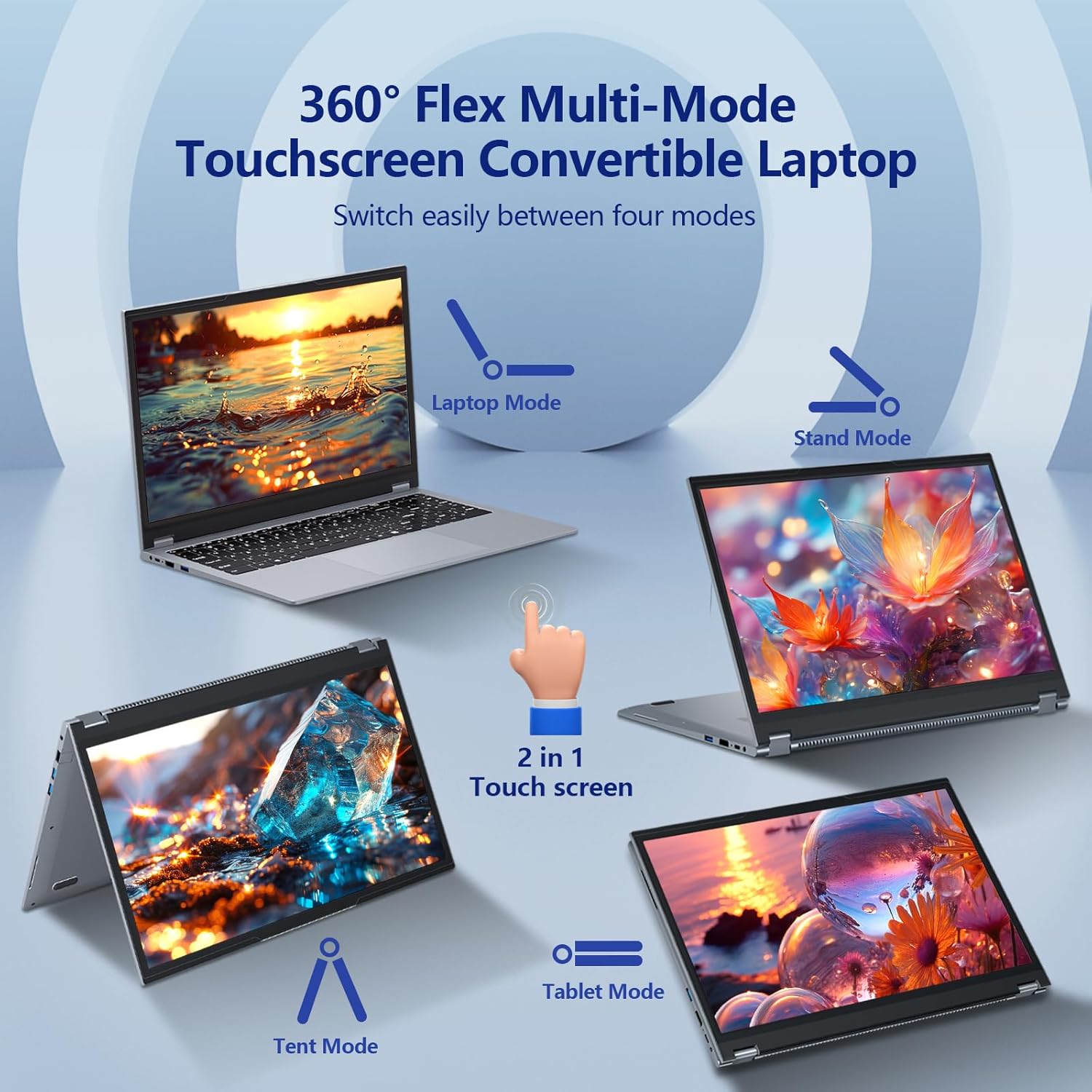
Figure 3: 360° Flex Multi-Mode Operation
2. Keyboard and Touchpad
- Backlit Keyboard: To turn the keyboard backlight on or off, press the Fn + F9 keys simultaneously.
- Touchpad: Supports multi-touch gestures for navigation. Refer to Windows settings for customization.
3. Touchscreen Functionality
The 15.6-inch Full HD (1920x1080) display is a multi-touch screen. Use gestures similar to a smartphone or tablet for navigation and interaction.

Figure 4: 15.6" Full HD Touchscreen Display
4. Connectivity
The laptop offers various ports and wireless options:
- USB Ports: 1x USB 3.0, 2x USB 2.0, 1x USB Type-C (3.2 Gen1)
- Video Output: HDMI 1.4
- Network: RJ45 Ethernet port, WiFi 5 (802.11ac)
- Wireless: Bluetooth 5.1
- Audio: 3.5mm audio jack
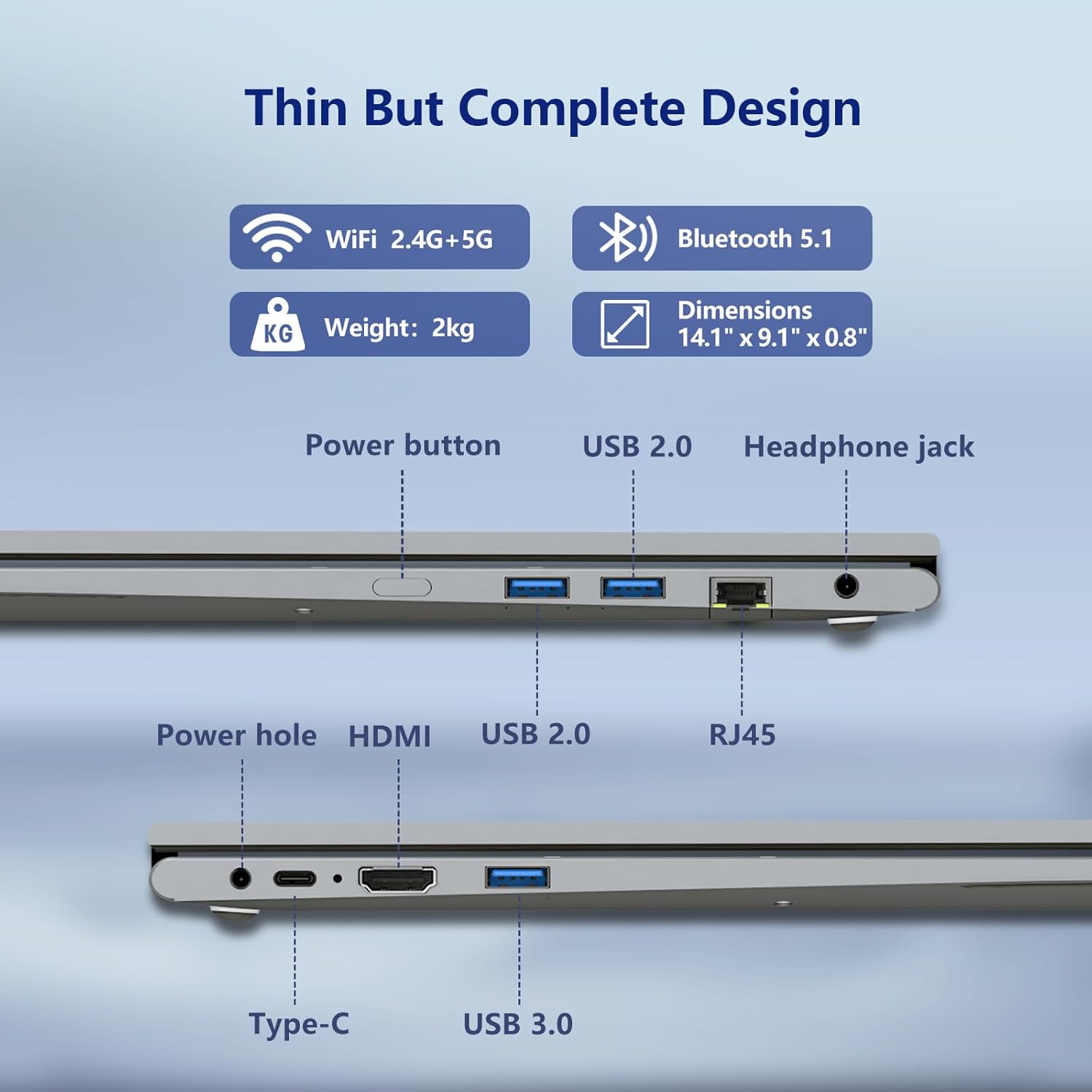
Figure 5: Laptop Ports and Connections
Maintenance
1. Cleaning
- Use a soft, lint-free cloth for cleaning the screen and exterior.
- For stubborn marks, slightly dampen the cloth with water or a screen-safe cleaner. Avoid harsh chemicals.
- Ensure the laptop is powered off and unplugged before cleaning.
2. Battery Care
- Avoid fully discharging the battery frequently.
- Store the laptop in a cool, dry place if not used for extended periods.
- Use only the provided power adapter or a compatible replacement.
3. Software Updates
Regularly check for and install Windows updates to ensure optimal performance and security. Go to Settings > Windows Update.
Troubleshooting
| Problem | Possible Cause | Solution |
|---|---|---|
| Laptop does not power on. | Low battery; power adapter issue. | Ensure power adapter is securely connected and wall outlet is functional. Charge the laptop for at least 30 minutes. |
| Screen is blank or unresponsive. | Sleep mode; display driver issue; hardware malfunction. | Press any key or move the mouse. Restart the laptop. If issue persists, contact support. |
| Wi-Fi connection issues. | Router problem; incorrect password; driver issue. | Restart your router. Verify Wi-Fi password. Check network adapter drivers in Device Manager. |
| Keyboard backlight not working. | Backlight is off. | Press Fn + F9 to toggle the backlight. |
| Slow performance. | Too many applications running; low storage; outdated software. | Close unnecessary applications. Free up disk space. Install Windows updates. |
If you encounter issues not listed here or if the suggested solutions do not resolve the problem, please contact Omnica customer support.
Specifications
| Feature | Detail |
|---|---|
| Model Name | G3 |
| Operating System | Windows 11 Pro |
| Processor | AMD Ryzen 3 3200U (up to 3.5GHz) |
| Graphics | AMD Radeon Graphics (Integrated) |
| RAM | 16GB DDR4 |
| Storage | 1TB SATA SSD |
| Display | 15.6-inch Full HD (1920x1080) Touchscreen |
| Wireless Connectivity | WiFi 5 (802.11ac), Bluetooth 5.1 |
| Ports | 1x USB 3.0, 2x USB 2.0, 1x USB Type-C (3.2 Gen1), HDMI 1.4, RJ45 Ethernet, 3.5mm Audio Jack |
| Battery | 38Wh (7.6V/5000MA) |
| Dimensions (LxWxH) | 14.13 x 9.25 x 0.8 inches |
| Weight | 5 pounds |
| Special Features | 360° Rotating Touch Screen, Backlit Keyboard, Webcam |
Warranty and Support
Warranty Information
Omnica provides a 2-year warranty for repairs. This warranty covers manufacturing defects and issues arising from normal use. Please retain your proof of purchase for warranty claims.
Customer Support
For technical assistance, warranty claims, or any questions regarding your Omnica 2-in-1 Laptop Computer, please contact our customer support team. We offer 24-hour customer service.
Contact information:
- Refer to the contact details provided in your product packaging or on the official Omnica website.
When contacting support, please have your product model (G3) and purchase details ready.