CEYOMUR 4G LTE Solar Trail Camera CY85 User Manual
Model: CY85
1. Product Overview
The CEYOMUR CY85 4G LTE Solar Trail Camera is a versatile outdoor surveillance device designed for wildlife monitoring, farm security, or remote property observation. It features 2K HD video, 360° pan-tilt-zoom (PTZ) capabilities, and advanced night vision. With its integrated solar panel and 8400mAh battery, it offers continuous power without the need for external electricity. The camera operates on a 4G LTE connection, allowing real-time monitoring and alerts via the UBox smartphone application, even in areas without Wi-Fi.
Key features include:
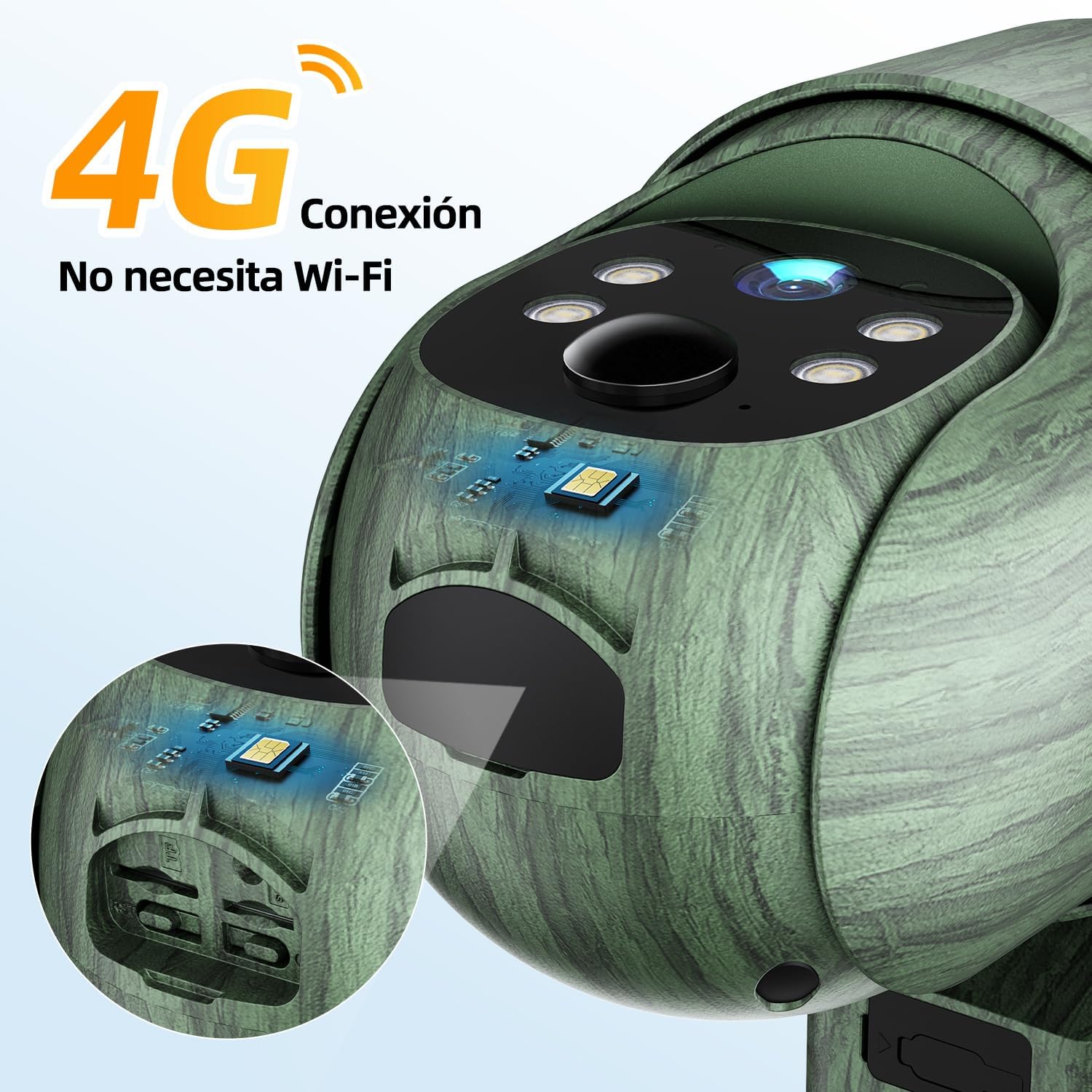
4G LTE Connectivity: Comes with a SIM card (300MB trial data included) for stable signal reception, compatible with major carriers. No Wi-Fi required.
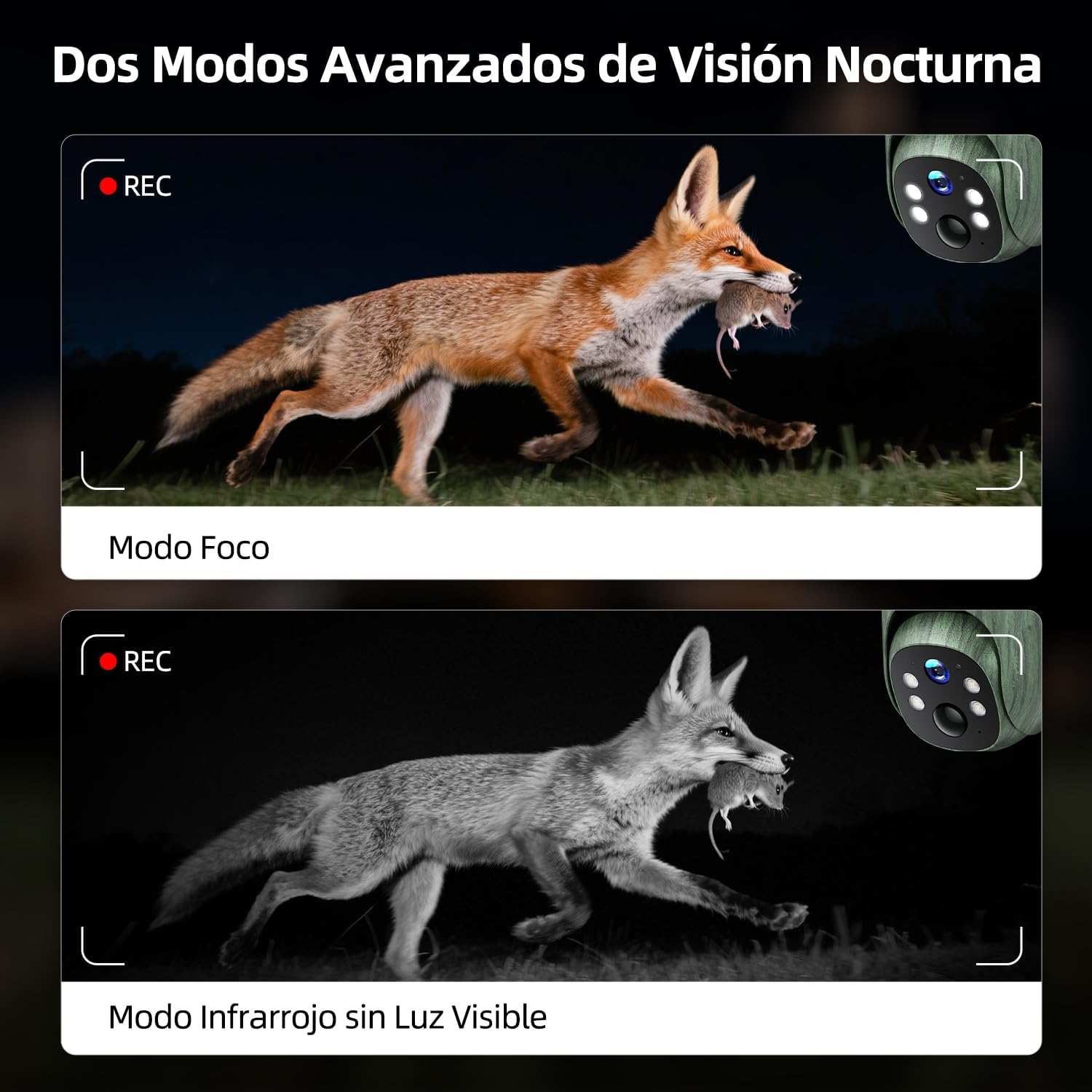
2K HD Video & 360° Live View: Captures moments in 2K HD. Features a controllable LED spotlight for color night vision and 940nm infrared for clear black and white night vision without disturbing animals. Offers 360° rotation, 85° tilt, and 4x digital zoom.
Continuous Solar Power: Equipped with a 3W solar panel and an 8400mAh rechargeable battery for uninterrupted operation.
Real-time Monitoring & Push Alerts: Sends immediate notifications upon motion detection. Live video, recordings, and two-way audio are accessible via the UBox app.
Flexible Storage: Includes a 32GB microSD card and offers a 30-day free trial for cloud storage. Supports up to 128GB TF cards (not included).
IP65 Water Resistance: Designed to withstand rain, snow, and adverse outdoor conditions.
Overview of CEYOMUR 4G LTE Solar Trail Camera features.
2. What's in the Box
Upon opening your CEYOMUR CY85 package, please ensure all the following components are present:
1 x CEYOMUR CY85 Wildlife Camera
1 x Solar Panel
1 x Mounting Bracket
1 x USB Cable
1 x SIM Card (with 300MB trial data)
1 x Micro SD Card (32GB)
1 x Positioning Sticker
1 x Screw Pack
1 x User Manual
3. Setup Guide
3.1 Initial Camera Preparation
Insert SIM Card: Open the camera's protective cover and insert the provided 4G LTE SIM card into the designated slot. Ensure it is correctly oriented.
Insert Micro SD Card: Insert the 32GB micro SD card into its slot. For optimal performance, format the TF card within the UBox app upon first use.
Power On: Press the power switch button. Check if the indicator light turns on.
Reset Camera: Press and hold the reset button until you hear a confirmation sound, indicating the camera has been reset.
Wait for Indicator: Wait until the camera's blue indicator light remains solid, signifying it's ready for app connection.
Ensure the 4G SIM card is correctly inserted for network connectivity.
3.2 App Connection (UBox App)
Follow these steps to connect your camera to the UBox app for remote control and monitoring:
Download UBox App: Download and install the "UBox" app from your smartphone's app store (iOS or Android).
Add Device: Open the UBox app and tap "Add Device".
Allow Permissions: Grant all necessary pop-up permission requests (e.g., Bluetooth, Camera access).
Select 4G Device Setup: Choose the option to set up a 4G device.
Scan QR Code: Use your phone's camera to scan the QR code located on the trail camera.
Confirm Connection: Allow any further permission requests and tap "Finish" once the device is found and configured. The connection should now be successfully established.
Video tutorial: How to connect the CEYOMUR trail camera to the UBox app.
3.3 Physical Installation
The camera and solar panel can be mounted together or separately. Choose a location that provides optimal solar exposure for the panel and a clear view for the camera.
Solar Panel Placement: Install the solar panel in a location with sufficient direct sunlight to ensure continuous charging of the 8400mAh battery.
Camera Mounting: Use the provided mounting bracket and strap to securely attach the camera to a tree, pole, or wall. The camouflage design helps it blend into natural environments.
The solar panel provides continuous power, ensuring 365 days of operation.The camera offers flexible installation on various surfaces like posts, trees, or walls.
4. Operating Instructions
4.1 Live View and PTZ Control
Once connected to the UBox app, you can access a live 2K HD video feed from your camera. Use the app's controls to:
Pan and Tilt: Rotate the camera 360° horizontally and tilt it 85° vertically to cover a wide surveillance area.
Digital Zoom: Utilize the 4x digital zoom feature to get a closer look at specific areas.
Activate Spotlight: Turn on the LED spotlight for color night vision when needed.
The camera provides 360-degree panoramic coverage with horizontal and vertical rotation.Stream crystal-clear 2K video directly to your phone.
4.2 Motion Detection and Alerts
The camera's intelligent detection system minimizes false alarms and provides timely notifications:
Real-time Alerts: Receive immediate push notifications on your smartphone when motion is detected.
Adjustable PIR Sensitivity: Customize the Passive Infrared (PIR) sensor sensitivity to suit your monitoring environment.
Review Recordings: Access and review recorded videos and images directly from the app.
The camera detects movement and sends real-time alerts to your phone.Receive notifications as soon as motion is detected, ensuring you don't miss key moments.
4.3 Night Vision Modes
The camera offers two advanced night vision modes:
Spotlight Mode: Activates the LED spotlight for full-color night vision, illuminating the area.
940nm Infrared Mode: Provides clear black and white vision without visible light, ensuring animals are not disturbed.
Choose between color night vision with spotlight or invisible 940nm infrared for discreet monitoring.Monitor wildlife in complete darkness without disturbing them, thanks to anti-glare 940nm night vision.
4.4 Two-Way Audio and Multi-User Access
Two-Way Intercom: Communicate in real-time through the camera using the app.
Multi-User Sharing: Share camera access with family or friends through the UBox app.
Engage in real-time conversations or warn intruders using the two-way audio feature.
4.5 Storage Options
Recordings can be saved locally or to the cloud:
Micro SD Card: The camera comes with a 32GB micro SD card. It supports TF cards up to 128GB (not included).
Cloud Storage: A 30-day free trial of cloud storage is available. Subsequent plans can be purchased through the UBox app.
Flexible storage options include a 32GB micro SD card and a 30-day free trial of cloud storage.Data plans for the SIM card can be managed directly through the UBox app after the initial 300MB trial.
5. Maintenance
Solar Panel Cleaning: Regularly clean the solar panel to ensure optimal sunlight absorption and charging efficiency.
Battery Monitoring: Monitor the battery level via the UBox app. Although solar-powered, prolonged periods of low light may require manual charging via the USB cable.
SD Card Management: Periodically check the micro SD card for storage space. Format the card through the app as needed to maintain performance.
Firmware Updates: Check the UBox app for any available firmware updates for your camera to ensure it has the latest features and security enhancements.
Environmental Protection: The camera is IP65 water-resistant, but avoid submerging it in water. Ensure all covers and seals are properly closed to protect against moisture and dust.
The camera is IP65 water-resistant, designed to withstand rain, snow, and harsh outdoor conditions.
6. Specifications
Feature
Detail
Brand
CEYOMUR
Model Number
CY85
Connectivity Technology
4G LTE (Cellular), Wireless
Video Capture Resolution
2K
Effective Video Resolution
1296p
Frame Rate
15 frames per second
Night Vision Range
65 Feet (approx. 20 meters)
Viewing Angle
360 Degrees (PTZ)
Power Source
Solar Power (3W Solar Panel)
Battery
8400mAh Lithium Ion (built-in)
Water Resistance Level
IP65 (Water Repellent)
Material
Plastic
Dimensions (L x W x H)
14.8 x 11 x 13.8 cm
Weight
580 g
Special Features
Remote access via phone, Solar power, PTZ technology, 2K live streaming, Real-time alerts, Glare-free night vision, Two-way audio
Compatible Devices
Smartphone
7. Troubleshooting
Camera Not Powering On:
Ensure the power switch is in the ON position.
Check the battery level in the UBox app or connect the camera to a USB power source to charge.
No 4G Signal:
Verify the SIM card is correctly inserted.
Check if the SIM card has an active data plan. The included 300MB is trial data.
Relocate the camera to an area with better cellular reception.
App Connection Issues:
Ensure Bluetooth is enabled on your smartphone during the setup process.
Perform a factory reset on the camera by pressing and holding the reset button.
Restart the UBox app and try adding the device again.
Poor Night Vision:
Ensure the camera lens and infrared sensors are clean and free from obstructions.
Check if the night vision mode (Spotlight or Infrared) is correctly selected in the app.
False Motion Alerts:
Adjust the PIR sensitivity settings in the UBox app to a lower level.
Ensure the camera is not pointed at moving branches, reflective surfaces, or busy roads if not intended for such monitoring.
8. Customer Support & Warranty
For technical assistance, warranty claims, or any questions regarding your CEYOMUR CY85 Trail Camera, please contact CEYOMUR customer support through their official website or the contact information provided in your product packaging.
CEYOMUR is committed to providing high-quality digital imaging solutions and professional service.
Please refer to the official CEYOMUR website for the most up-to-date warranty information and support resources.
Related Documents - CY85
CEYOMUR CY95 Trail Camera User Manual User manual for the CEYOMUR CY95 Trail Camera, covering setup, operation, Wi-Fi connection, playback, troubleshooting, and regulations.
CEYOMUR CY60 Trail Camera User Manual User manual for the CEYOMUR CY60 Trail Camera, covering setup, operation modes, menu settings, file transfer, and troubleshooting.
CEYOMUR CY65 Trail Camera User Manual User manual for the CEYOMUR CY65 Trail Camera, covering product introduction, camera overview, app installation, quick start instructions, product operation, menu settings, technical specifications, and warranty information.
CEYOMUR Trail Camera CY65 User Manual User manual for the CEYOMUR Trail Camera CY65, covering setup, operation, menu settings, and Wi-Fi connection.
CEYOMUR CY50 Trail Camera User Manual User manual for the CEYOMUR CY50 Trail Camera, covering setup, operation, menu settings, and mounting instructions.
CEYOMUR Trail Camera CY95 User Manual User manual for the CEYOMUR CY95 Trail Camera, covering setup, operation, and troubleshooting. Learn how to power the device, insert an SD card, configure settings, and use Wi-Fi connectivity.
Ask a question about this manual
Ask about setup, troubleshooting, compatibility, parts, safety, or missing instructions. Manuals+ will review the question and use this page’s manual context to help answer it.