
1. Product Overview
The KCEVE HDMI KVM Switch is designed to streamline your workspace by allowing up to four computers to share a single HDMI monitor and four USB 3.0 devices. This device supports high-resolution video output, including 8K@60Hz and 4K@144Hz, ensuring a crisp and lifelike visual experience. It complies with HDMI 2.1 and HDCP 2.3 standards, making it suitable for a wide range of modern devices and applications.
- Efficient Workspace: Control 4 computers with 1 monitor, keyboard, and mouse.
- High Resolution: Supports up to 8K@60Hz and 4K@144Hz, backward compatible with lower resolutions.
- Fast Data Transfer: USB 3.0 ports offer speeds up to 5Gbps, 10 times faster than USB 2.0.
- Versatile Connectivity: Connect keyboards, mice, printers, USB flash drives, scanners, and other USB devices.
- Dual Switching Modes: Easily switch between computers using panel buttons or the included 1.5m wired remote.
- Wide Compatibility: Compatible with Windows, Vista, Chrome, Linux, and Mac OS, and various HDMI devices like PCs, laptops, PS5, HDTVs, and projectors.

Figure 1: Illustration of the KCEVE HDMI KVM Switch sharing one monitor and four USB devices among four computers.
2. Package Contents
Please verify that all items are present in the package:
- 1 x KVM Switch (4 PC, 1 Monitor)
- 4 x USB 3.0 Cables
- 1 x Wired Remote (1.5m)
- 1 x DC 12V Charger
- 1 x User Manual
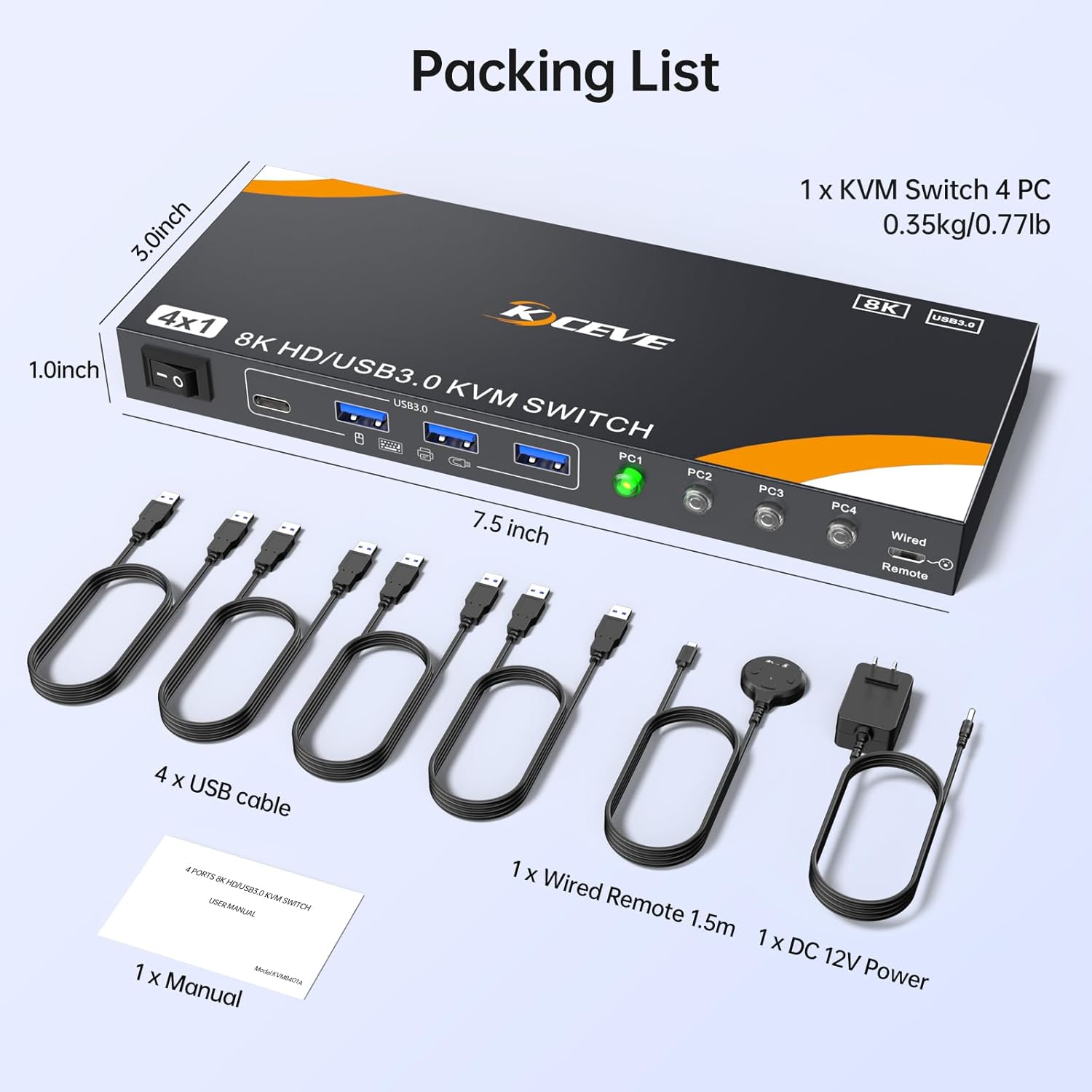
Figure 2: All components included in the KCEVE HDMI KVM Switch package.
3. Setup Instructions
Follow these steps to connect your KCEVE HDMI KVM Switch:
- Connect Computers to KVM Switch: For each of the four computers (PC1, PC2, PC3, PC4), connect one HDMI cable from the computer's HDMI output to the corresponding HDMI input port on the KVM switch. Additionally, connect one USB 3.0 cable from each computer's USB port to the corresponding USB 3.0 input port on the KVM switch.
- Connect Monitor to KVM Switch: Connect an HDMI cable from the KVM switch's HDMI output port to your monitor's HDMI input port.
- Connect USB Devices: Plug your keyboard, mouse, and other USB 3.0 devices (e.g., printer, USB flash drive) into the USB 3.0 output ports on the front of the KVM switch.
- Connect Wired Remote: If desired, plug the wired remote into the designated port on the KVM switch.
- Power On: Connect the DC 12V charger to the KVM switch and plug it into a power outlet. Turn on the KVM switch using the ON/OFF button.
Important: For optimal performance and to avoid flickering or black screen issues, use high-quality 8K HDMI cables that are 1 meter or shorter. If using high-performance USB devices, ensure the DC 5V power supply is connected to the KVM switch.

Figure 3: The KVM switch simplifies your setup by allowing multiple PCs to share a single monitor and peripherals.
4. Operating Instructions
The KCEVE HDMI KVM Switch offers two convenient methods for switching between connected computers:
- Panel Button Switching: Press the corresponding PC selection button (PC1, PC2, PC3, PC4) on the front panel of the KVM switch to switch to the desired computer. LED indicators will show which computer is currently active.
- Wired Remote Switching: Press the button on the 1.5m wired remote control to cycle through the connected computers. This allows for flexible placement of the KVM switch while keeping the control easily accessible.
The switch operates in a plug-and-play manner, requiring no additional driver software.

Figure 4: The KVM switch provides both direct button and wired remote control for switching between computers.
5. Maintenance
To ensure the longevity and optimal performance of your KCEVE HDMI KVM Switch, please follow these maintenance guidelines:
- Cleaning: Use a soft, dry cloth to clean the exterior of the device. Avoid using liquid or aerosol cleaners, as they may damage the unit.
- Ventilation: Ensure the device is placed in a well-ventilated area to prevent overheating. Do not block any ventilation openings.
- Power Off: When not in use for extended periods, it is recommended to turn off the KVM switch using the power button.
- Cable Management: Keep cables organized and free from kinks or excessive bending to prevent damage to the cables and ports.
6. Troubleshooting
If you encounter issues with your KCEVE HDMI KVM Switch, refer to the following common problems and solutions:
- No Display/Flickering/Black Screen:
- Ensure all HDMI cables are securely connected.
- Verify that you are using high-quality 8K HDMI cables, preferably 1 meter or shorter, especially for high-resolution outputs.
- Try restarting the KVM switch and the connected computers.
- Check your monitor's input settings to ensure the correct HDMI input is selected.
- USB Devices Not Working:
- Ensure all USB 3.0 cables are securely connected from the computers to the KVM switch.
- If using high-performance USB devices (e.g., external hard drives), connect the DC 5V power supply to the KVM switch.
- Try connecting the USB device directly to the computer to confirm it is functional.
- Restart the KVM switch and the computers.
- Switching Issues:
- Ensure the wired remote (if used) is properly connected.
- Confirm that the LED indicators on the KVM switch respond to button presses.
- If using a keyboard hotkey (not supported by this model, use physical buttons or wired remote), ensure the keyboard is connected to the designated USB 1.1 port for hotkey functionality (if applicable to other KVM models). This model uses physical buttons or wired remote.
7. Specifications
| Model Number | KC-8401AX-CA |
| Product Dimensions | 20.32 x 7.62 x 2.54 cm (8 x 3 x 1 inches) |
| Item Weight | 295 g (0.65 lbs) |
| Material | Metal |
| Wattage | 12 watts |
| Operating Voltage | 12 Volts |
| Current Rating | 1 Amps |
| Switch Type | Push Button (2-way) |
| Video Resolution Support | 8K@60Hz, 4K@144Hz, 4K@120Hz, 4K@60Hz |
| USB Transfer Speed | Up to 5Gbps (USB 3.0) |
| HDMI Standard | HDMI 2.1, HDCP 2.3 |
| Compatibility | Windows, Vista, Chrome, Linux, Mac OS |
8. Warranty and Support
KCEVE is committed to providing high-quality products and excellent customer service. Your KVM switch comes with comprehensive after-sale support and lifetime technical assistance.
- After-Sale Support: We offer dedicated support for any issues or questions you may have regarding your KVM switch.
- Lifetime Technical Support: Our technical team is available to provide assistance throughout the lifespan of your product.
- Contact Us: If you have any questions or require technical support, please do not hesitate to contact us. We aim to provide a response and technical assistance within 24 hours.


