
1. Introduction
This user manual provides comprehensive instructions for the safe operation, setup, and maintenance of your FINOTI K19 MAX GPS Drone. Please read this manual thoroughly before operating the drone to ensure proper function and to prevent damage or injury. The K19 MAX GPS Drone is equipped with advanced features including an 8K camera, GPS intelligent positioning, obstacle avoidance, and a dedicated remote control with an integrated screen for an enhanced flight experience.
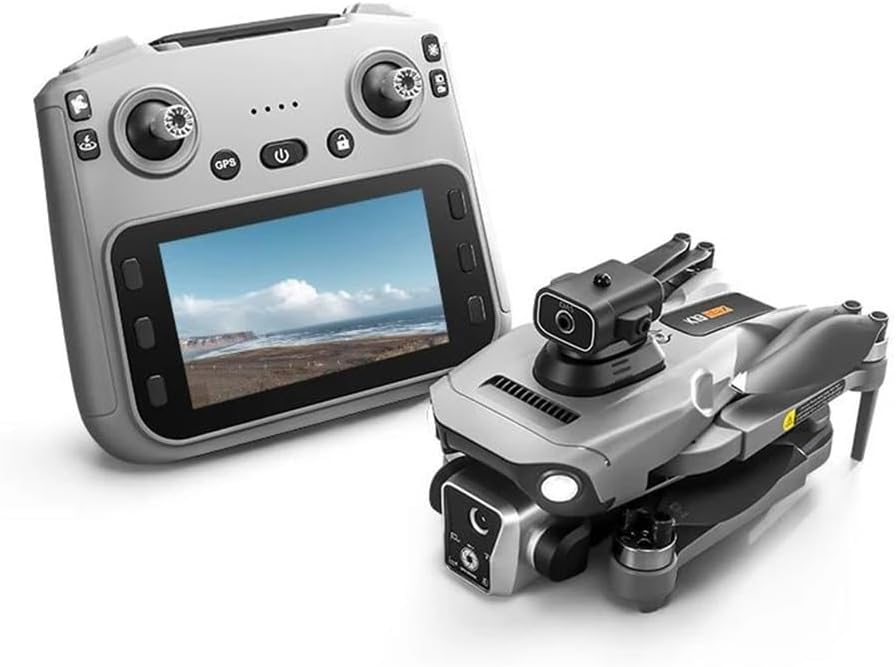
Image: The K19 MAX GPS Drone and its dedicated remote control with an integrated screen.
2. Package Contents
Verify that all items listed below are included in your package:
- K19 MAX GPS Drone (1)
- 4.5-inch Screen Remote Control (1)
- Infrared Obstacle Avoidance Head (1)
- Body Battery (3.7V 2200mAh) (1 or 2 depending on variant) - Note: This specific product is "Dual Battery" variant, so 2 batteries are included.
- Storage Bag (1)
- Color Box (1)
- Memory Card (1)
- Card Reader (1)
- Instruction Manual (2) - Note: This refers to the physical manuals included.
- Spare Fan Blades (4)
- USB Charging Cable (2)
- Screwdriver (1)
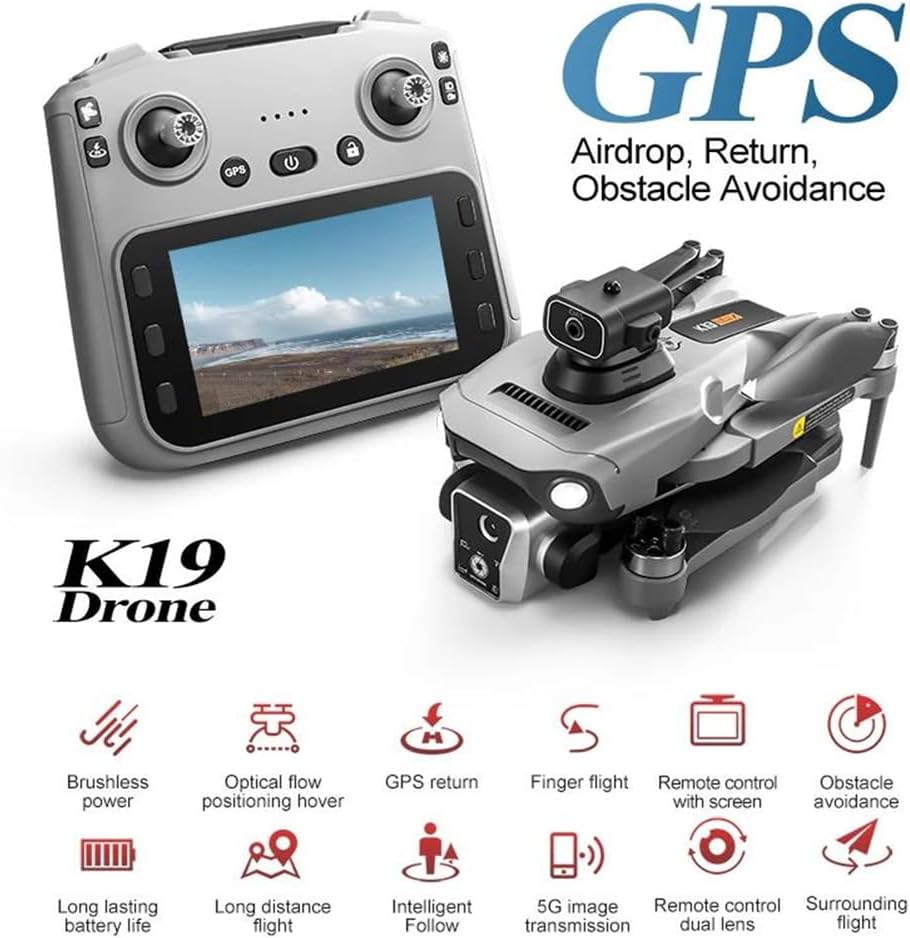
Image: Overview of K19 MAX Drone features including brushless power, optical flow positioning, GPS return, and obstacle avoidance.
3. Product Overview
3.1 Drone Components
- 8K Camera: High-resolution camera for photo and video capture. Features 2-axis gimbal with Electronic Image Stabilization (EIS).
- Obstacle Avoidance Sensor: 360° laser obstacle avoidance for enhanced flight safety.
- Brushless Motors: Provide powerful and efficient flight performance.
- GPS Module: Enables precise positioning and intelligent flight modes.
- Optical Flow Sensor: Assists with stable hovering, especially indoors or at low altitudes.
- Battery Compartment: Houses the removable 3.7V 2200mAh flight battery.
- Foldable Arms: Allow for compact storage and portability.
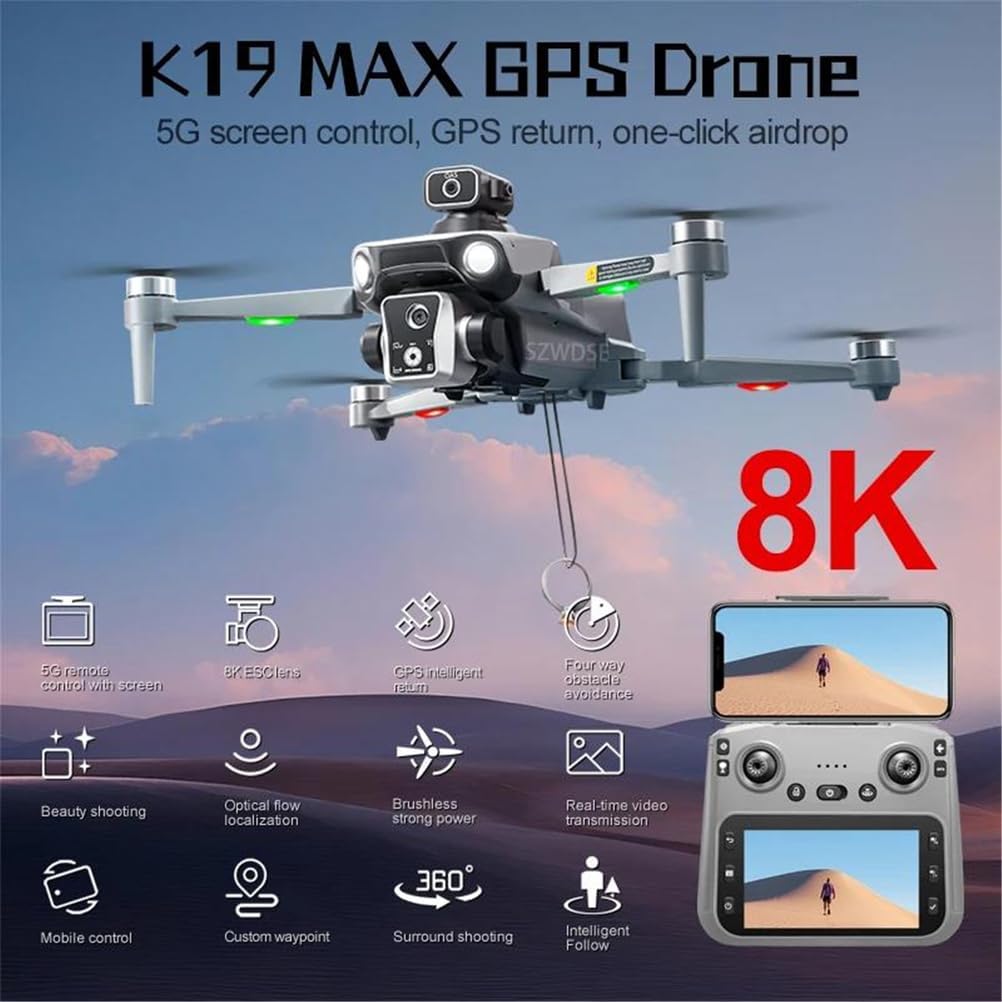
Image: The K19 MAX GPS Drone highlighting its 8K camera, 5G screen control, GPS return, and obstacle avoidance capabilities.
3.2 Remote Control Features
- 4.5-inch HD Screen: Provides real-time FPV (First Person View) from the drone's camera.
- Control Sticks: For flight control (Throttle, Yaw, Pitch, Roll).
- Function Buttons:
- Power Switch
- One-Click Return
- GPS Switch
- Obstacle Avoidance Switch
- One-Click Airdrops
- Speed Switching
- Unlock
- Photograph / Video Recording
- Lens Adjustments (90° ESC camera)
- Gyroscope Calibration
- Geomagnetic Calibration
- Mobile Phone Holder: Allows for optional use of a smartphone for FPV and control via app (phone not included).

Image: Detailed guide to the remote control buttons and their functions, including the integrated screen and optional phone holder.
4. Setup
4.1 Battery Installation and Charging
- Insert the fully charged 3.7V 2200mAh flight battery into the drone's battery compartment until it clicks securely into place.
- To charge the battery, connect the USB charging cable to the battery and a suitable USB power source (e.g., computer USB port, USB wall adapter). The charging time is approximately 60 minutes.
- Ensure the remote control is also charged. Connect its USB charging cable to a power source.
4.2 Propeller Installation
The drone comes with foldable arms. If propellers are not pre-installed or need replacement:
- Identify the correct propeller for each motor. Propellers are typically marked (e.g., A or B, or with a dot) to match the corresponding motor.
- Carefully attach each propeller to its motor shaft, ensuring it is firmly secured. Use the provided screwdriver if necessary.
4.3 Remote Control Setup
- Ensure the remote control is fully charged.
- Press and hold the power button on the remote control to turn it on.
- Turn on the drone by pressing its power button.
- The drone and remote control should automatically pair. If not, refer to the pairing instructions in the troubleshooting section.
5. Operating Instructions
5.1 Pre-Flight Checklist
- Ensure both drone and remote control batteries are fully charged.
- Check that propellers are securely attached and undamaged.
- Select an open area free from obstacles, people, and animals.
- Ensure weather conditions are suitable (no strong winds, rain, or snow). The drone can fly confidently in winds under 10km/h.
- Perform Gyroscope and Geomagnetic Calibration as instructed in the remote control guide.
5.2 Takeoff and Landing
- Place the drone on a flat, level surface.
- Power on the drone and remote control. Wait for successful pairing and GPS signal acquisition (if flying outdoors).
- One-Key Takeoff: Press the One-Key Takeoff button (refer to remote control guide) to automatically lift off.
- Manual Takeoff: Push both control sticks outwards and downwards to arm the motors. Then, slowly push the left stick (throttle) upwards to take off.
- One-Key Landing: Press the One-Key Landing button to automatically land the drone.
- Manual Landing: Slowly pull the left stick (throttle) downwards until the drone lands. Once landed, push both control sticks outwards and downwards to disarm the motors.
5.3 Flight Modes and Features
- GPS Intelligent Positioning: Utilizes GPS for stable hover and precise positioning, especially outdoors.
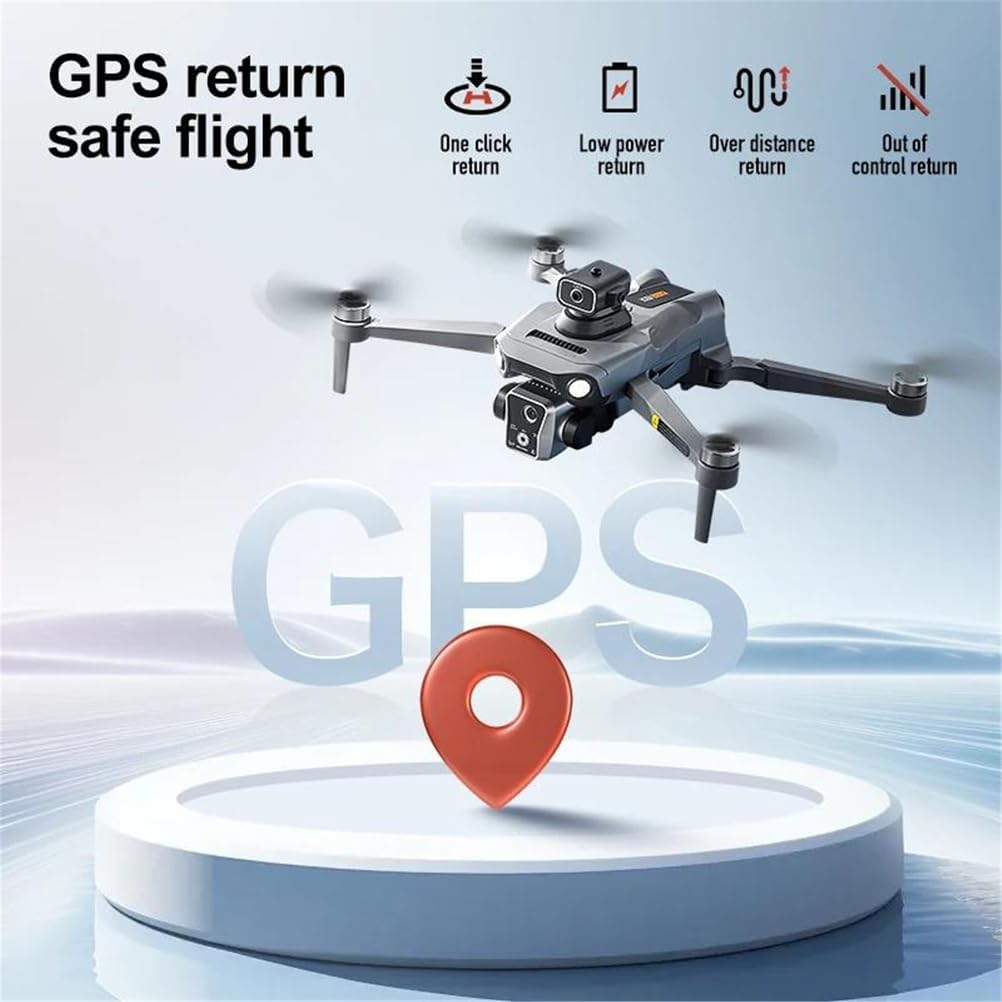
Image: Illustrates GPS return features including one-click return, low power return, over distance return, and out of control return.
- Optical Flow Positioning: Provides stable hovering indoors or when GPS signal is weak.
- 360° Laser Obstacle Avoidance: The drone is equipped with sensors to detect and avoid obstacles in all directions, enhancing flight safety. Activate via the remote control.
Video: Demonstrates the K19 MAX GPS Drone's features, including GPS intelligent positioning, real-time picture transmission, airdrop mode, 90° ESC camera, three speed adjustments, high definition display, surround mode flight, long life battery, omni-directional obstacle avoidance, smart follow mode, and one-click GPS intelligent return.
- Smart Follow Mode: The drone can automatically follow a designated subject.
- Airdrop Mode: Allows the drone to carry and release small items. Maximum load capacity is approximately 20 grams.

Image: Shows the drone performing a one-click airdrop, with a note about the maximum load capacity.
- Surround Mode Flight: The drone can orbit around a point of interest.
- One-Click GPS Intelligent Return: Automatically returns the drone to its takeoff point. This feature activates in cases of low battery, loss of signal, or manual activation.
- 5G HD Image Transmission: Provides real-time video feed to the remote control screen or connected smartphone.

Image: Highlights the 5G remote control with its 4.5-inch HD screen for real-time viewing.
5.4 Camera Operation
- Photo Capture: Press the dedicated photo button on the remote control to take 8K resolution still images (7680x4320).
- Video Recording: Press the dedicated video button to start/stop recording 4K/1080p HD video at 60fps.
- Lens Adjustment: Use the lens adjustment dial/button on the remote control to change the camera angle (90° ESC camera).
- Zoom: Utilize the 50x zoom feature for detailed shots from a distance.

Image: Details the 8K HD main camera with features like 25fps HDR video, multiple zoom shooting, 90° remote control, and 120° wide angle.
5.5 Speed Adjustments
The drone offers multiple speed modes (e.g., three speed adjustments) to suit different flying environments and pilot skill levels. Use the speed switching button on the remote control to cycle through available speeds.
6. Maintenance
6.1 Battery Care
- Always use the original charging cables and adapters.
- Do not overcharge or over-discharge batteries.
- Store batteries in a cool, dry place away from direct sunlight and extreme temperatures.
- If storing for extended periods, charge batteries to approximately 50-60% capacity.
6.2 Cleaning
- Gently wipe the drone and remote control with a soft, dry cloth after each use.
- Remove any debris from the motors and propellers.
- Do not use harsh chemicals or abrasive materials for cleaning.
6.3 Storage
- Fold the drone arms for compact storage.
- Store the drone and all accessories in the provided storage bag or a protective case.
- Keep out of reach of children and pets.
7. Troubleshooting
| Problem | Possible Cause | Solution |
|---|---|---|
| Drone does not power on. | Battery is not charged or not properly installed. | Charge the battery fully. Reinstall the battery securely. |
| Remote control does not connect to drone. | Drone and remote control not paired or out of range. | Ensure both devices are powered on and within range. Re-pair by turning both off, then on, and following pairing sequence (refer to quick start guide if specific sequence is needed). |
| Drone drifts during flight. | Gyroscope or geomagnetic calibration needed. | Perform gyroscope and geomagnetic calibration on a flat surface. |
| Poor image/video quality. | Camera lens dirty, poor lighting, or unstable flight. | Clean the camera lens. Fly in well-lit conditions. Ensure stable flight. |
| Obstacle avoidance not working. | Sensor obstructed or feature not activated. | Ensure sensors are clean and unobstructed. Activate obstacle avoidance mode via remote control. |
8. Specifications
| Parameter | Value |
|---|---|
| Brand | FINOTI |
| Model Name | K19 MAX GPS Drone (Airplanes & Jets) |
| Folding Size | 17 x 10 x 9 CM |
| Expansion Size | 25 x 20 x 9 CM |
| Receiving Frequency | 5G |
| Battery Capacity | 3.7V 2200mAh |
| Usage Time | 25 minutes |
| Charging Time | 60 minutes |
| Remote Control Distance | Up to 5000 meters (distance), 500 meters (height) |
| Return Distance | 2000 meters |
| Video Resolution | 1920Px1280P (4K/1080p HD at 60fps mentioned in feature bullets) |
| Image Resolution | 7680x4320 (8K) |
| Max Airdrop Load Capacity | 20 grams |
| Wind Resistance | Under 10km/h |
| Item Model Number | DUALBATTERY-66495549 |
9. Warranty and Support
For warranty information, technical support, or service inquiries, please refer to the contact details provided with your product packaging or visit the official FINOTI website. Keep your purchase receipt as proof of purchase for warranty claims.
For additional assistance, you may contact the seller, AOPMLR, through the Amazon platform.