
Introduction
This manual provides detailed instructions for the ATTACK SHARK G3 Tri-Mode Wireless Gaming Mouse. Please read this manual thoroughly before use to ensure proper operation and to maximize your experience with the product.
The ATTACK SHARK G3 is a high-performance gaming mouse designed for versatility and precision. It offers three connectivity modes: 2.4GHz wireless, Bluetooth 5.2, and wired USB-C, allowing seamless switching between various devices and setups. Featuring a lightweight design, a high-precision PAW3311 sensor, and programmable buttons, the G3 is engineered for both gaming and productivity.
Package Contents
- ATTACK SHARK G3 Wireless Gaming Mouse
- USB-C Charging/Data Cable
- 2.4GHz USB Receiver
- User Manual
Product Overview
Familiarize yourself with the components of your ATTACK SHARK G3 mouse.

Image: Top-down view of the ATTACK SHARK G3 Wireless Gaming Mouse in Berry Red, showing the left and right click buttons, scroll wheel, and two side buttons on the left.
- Left Click Button: Standard primary mouse function.
- Right Click Button: Standard secondary mouse function.
- Scroll Wheel: For scrolling and middle-click function.
- Side Buttons (x2): Default to Forward/Backward, programmable via software.
- DPI Button (underside): Cycles through preset DPI levels.
- Mode Switch (underside): Toggles between 2.4GHz, Bluetooth, and Wired modes.
- USB-C Port: For wired connection and charging.
- 2.4GHz USB Receiver Storage: Located on the underside of the mouse.

Image: A collage showcasing key features of the G3 mouse, including its 59g ultra-light design, 500mAh battery, PixArt PAW3311 sensor, 25000 DPI capability, Huano Blue Shell Pink Dot Switches, and Tri-mode connectivity.
Setup
1. Wired Mode Connection
- Connect the USB-C end of the provided cable to the mouse.
- Connect the USB-A end of the cable to an available USB port on your computer.
- Ensure the mode switch on the underside of the mouse is set to the "Wired" position.
- The mouse will be recognized by your computer and is ready for use.
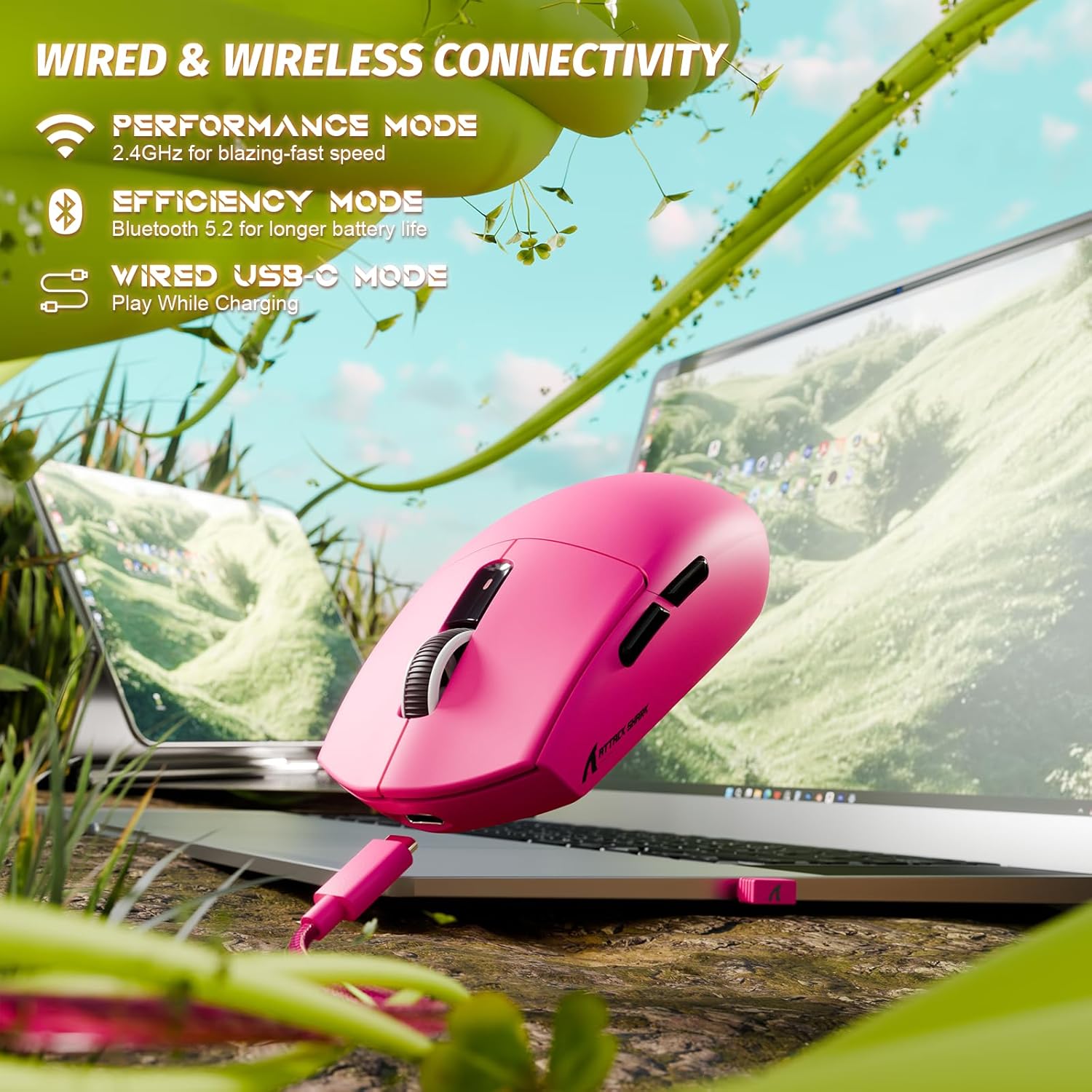
Image: The ATTACK SHARK G3 mouse connected to a laptop via its USB-C cable, illustrating the wired connectivity option.
2. 2.4GHz Wireless Mode Connection
- Locate the 2.4GHz USB receiver stored on the underside of the mouse.
- Plug the USB receiver into an available USB port on your computer.
- Set the mode switch on the underside of the mouse to the "2.4G" position.
- The mouse should automatically connect to the receiver. If not, press and hold the DPI button and a side button simultaneously for 3 seconds to initiate pairing.
3. Bluetooth 5.2 Mode Connection
- Set the mode switch on the underside of the mouse to the "BT" (Bluetooth) position.
- The mouse will enter pairing mode, indicated by a blinking LED light.
- On your computer or device, navigate to Bluetooth settings.
- Search for new devices and select "ATTACK SHARK G3" from the list.
- Follow any on-screen prompts to complete the pairing process.
Operating Instructions
DPI Adjustment
The ATTACK SHARK G3 features a PAW3311 sensor with adjustable DPI settings. You can cycle through preset DPI levels by pressing the DPI button located on the underside of the mouse. For fine adjustments and custom DPI profiles, use the dedicated driver software.

Image: A close-up view of the PixArt PAW3311 sensor inside the mouse, highlighting its capabilities such as 1000Hz polling rate, 25000 DPI max, and 40G acceleration.
Programmable Buttons and Software
The G3 mouse includes 5 programmable buttons. To customize button functions, create macros, and adjust settings like polling rate and Lift-Off Distance (LOD), download and install the official ATTACK SHARK driver software from the manufacturer's website. The software allows for personalized configurations to suit your specific needs.

Image: A screenshot of the ATTACK SHARK G3 customization software interface, showing options for mouse settings, DPI settings, parameter settings, macro editing, and personal center.
Charging the Mouse
The mouse is equipped with a built-in 500mAh rechargeable lithium-ion battery. When the battery is low, the LED indicator will signal. Connect the mouse to your computer using the provided USB-C cable to charge. The mouse can be used normally while charging in wired mode.

Image: The ATTACK SHARK G3 mouse in a natural setting, emphasizing its 500mAh battery capacity for extended use.
Maintenance
- Cleaning: Use a soft, dry cloth to clean the mouse surface. For stubborn dirt, a slightly damp cloth can be used, ensuring no moisture enters the internal components.
- Sensor Care: Keep the optical sensor on the underside of the mouse clean and free from dust or debris to ensure accurate tracking.
- Battery Longevity: To prolong battery life, avoid fully discharging the mouse frequently. Charge it when the low battery indicator appears.
- Storage: When not in use for extended periods, store the mouse in a cool, dry place.

Image: An inverted view of the ATTACK SHARK G3 mouse, showcasing its double-layer mouse feet for smooth gliding and stability.
Troubleshooting
- Mouse not responding:
- Ensure the mouse is charged.
- Check the mode switch (2.4G, BT, Wired) is set correctly.
- For 2.4GHz, ensure the USB receiver is securely plugged in. Try a different USB port.
- For Bluetooth, ensure Bluetooth is enabled on your device and the mouse is paired.
- Try connecting in wired mode to confirm functionality.
- Inaccurate tracking:
- Clean the optical sensor on the underside of the mouse.
- Ensure you are using the mouse on a suitable surface (e.g., a mouse pad).
- Adjust DPI settings via the DPI button or software.
- Connectivity issues:
- Move the mouse closer to the receiver/device to reduce interference.
- Avoid using the 2.4GHz receiver near other wireless devices that may cause interference.
- Re-pair the mouse in 2.4GHz or Bluetooth mode if connection is lost.
- Software not detecting mouse:
- Ensure the mouse is connected in wired or 2.4GHz mode (Bluetooth may not be supported by all software).
- Restart the software and/or your computer.
- Reinstall the driver software.
Specifications
| Feature | Detail |
|---|---|
| Model | G3 |
| Connectivity | 2.4GHz Wireless, Bluetooth 5.2, USB-C Wired |
| Sensor | PixArt PAW3311 Optical Sensor |
| DPI Range | 800 - 25,000 DPI (adjustable) |
| Tracking Speed | 400 IPS |
| Acceleration | 40G |
| Polling Rate | 1000Hz (Wired/2.4GHz) |
| Buttons | 5 Programmable Buttons |
| Switches | Huano Blue Shell Pink Dot Switches (80 million clicks) |
| Battery | 500mAh Rechargeable Lithium-ion |
| Mouse Weight | Approximately 59g (2.08 oz) |
| Compatibility | PC, Mac (Windows/macOS) |
Warranty and Support
ATTACK SHARK products are designed and manufactured to the highest quality standards. For warranty information and technical support, please refer to the official ATTACK SHARK website or contact their customer service directly. Keep your proof of purchase for warranty claims.
For further assistance, visit the official ATTACK SHARK store: ATTACK SHARK Store


