Introduction
This manual provides detailed instructions for the VEVOR GPS Navigator S900. Please read this manual thoroughly before using the device to ensure proper operation and to maximize its features. The VEVOR GPS Navigator S900 is a versatile navigation system designed for various vehicle types, offering advanced features like a built-in dash cam, voice guidance, and custom routing.

Figure 1: VEVOR GPS Navigator S900 with suction mount.
Safety Information
Always prioritize safety while operating your vehicle. Do not operate the GPS device in a manner that distracts you from driving. Ensure the device is securely mounted and does not obstruct your view of the road. Adhere to all local traffic laws and regulations. Keep the device away from extreme temperatures and direct sunlight for prolonged periods.
Package Contents
Verify that all items listed below are included in your package:
- 1 x VEVOR GPS Navigator S900 Unit
- 1 x Car Charger (Cable Length: 1.5m, DC 12-40V to 5V/2.5A)
- 1 x Suction Mount
- 1 x Type-C Data Cable (Cable Length: 50cm)
- 1 x User Manual
- 1 x Cloth Bag
- 1 x Round Pad
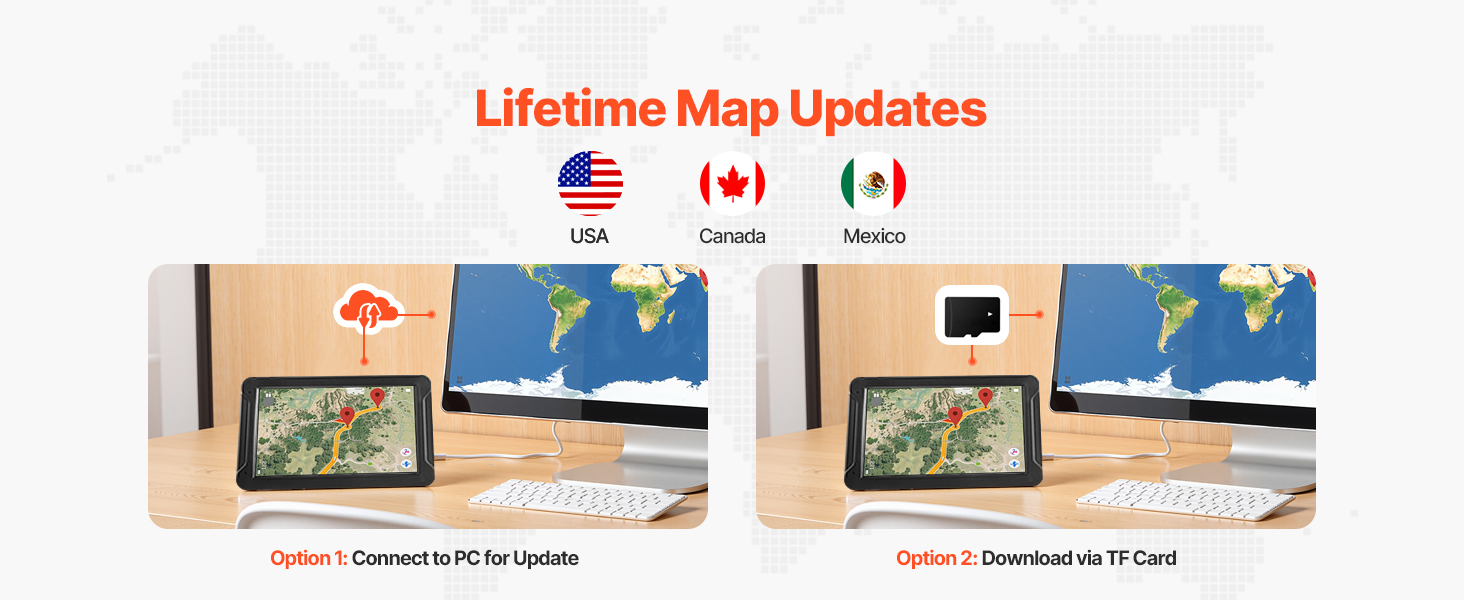
Figure 2: Included accessories and device dimensions.
Setup
1. Mounting the Device
The VEVOR GPS Navigator S900 can be mounted using the provided suction mount. For optimal stability, attach the suction mount to a clean, smooth surface on your dashboard or windshield. Use the round pad if mounting on a textured surface.
- Confirm the mounting holes of the bracket align with the device.
- Insert the device into the slot of the suction mount until it clicks securely.
- Wipe the installation area on your dashboard or windshield clean.
- Press the suction cup firmly onto the cleaned surface and engage the lever to secure it.

Figure 3: Mounting instructions for the GPS Navigator.
2. Initial Charging
Before first use, fully charge the device using the provided car charger. Connect the car charger to your vehicle's 12V-40V power outlet and the Type-C data cable to the GPS unit.
3. Powering On/Off
Press and hold the power button located on the device to turn it on or off. A short press will typically put the device into sleep mode or wake it up.
Operating the Device
1. Touch Screen Usage
The 9-inch anti-glare HD screen (800x480) is touch-sensitive. Navigate menus and input information by tapping or swiping on the screen.
2. Navigation Features
The device offers comprehensive navigation capabilities:
- Destination Search: Supports searching by zip code, address, coordinates, saved favorites, and Points of Interest (POI).
- Route Planning: Provides various route planning options to optimize your journey.
- Voice Guidance: Features clear, multi-language voice guidance for turn-by-turn directions.
- Alerts: Includes overspeed alerts, speed camera warnings, and traffic light warnings.
- Lane Assist: Helps you navigate complex intersections by indicating the correct lane.
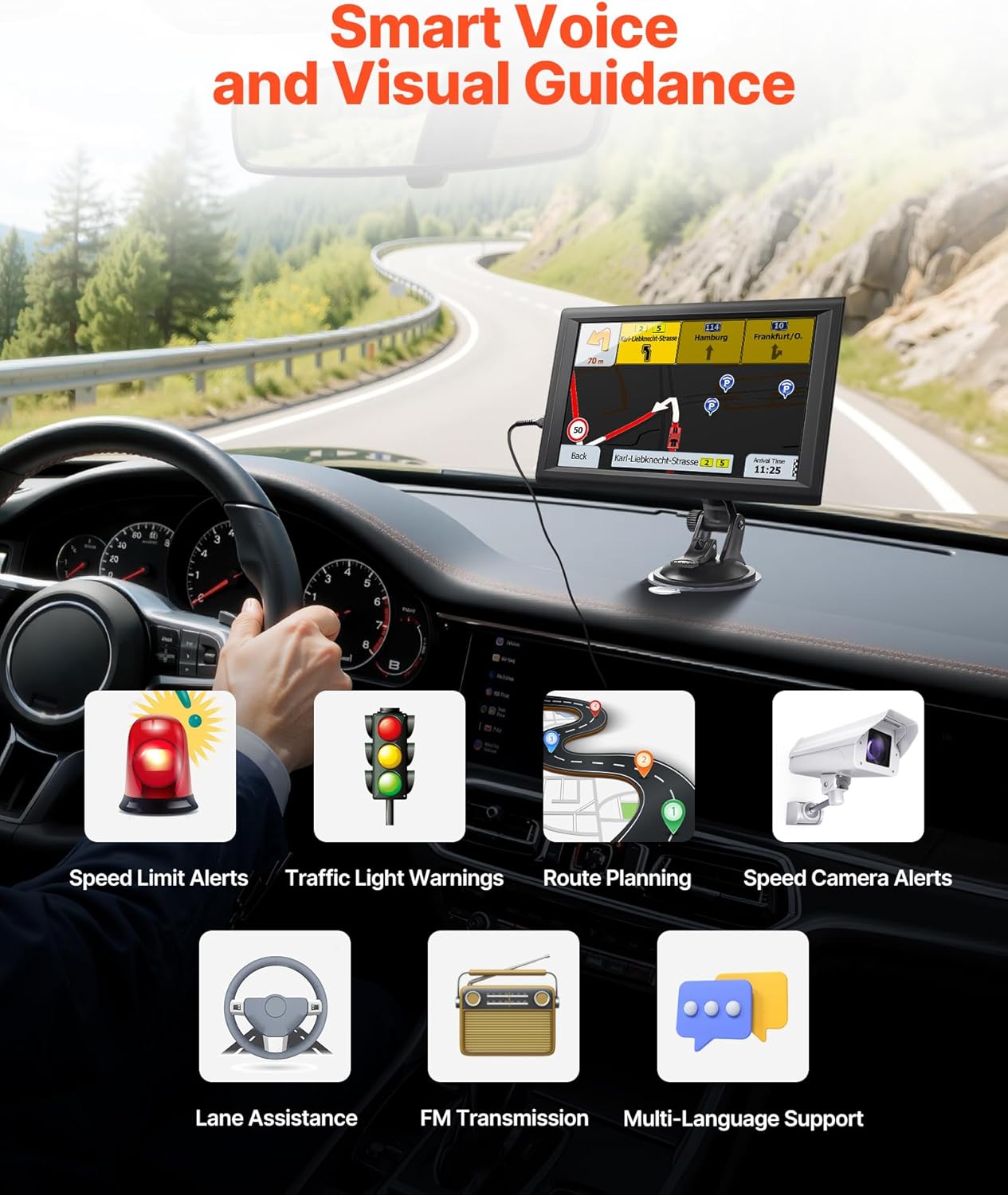
Figure 4: Smart voice and visual guidance features.

Figure 5: Precision truck navigation with restricted road avoidance.
3. Built-in Dash Cam
The integrated dash cam provides an additional layer of security by recording your journey. Refer to the on-screen menu for dash cam settings and recording options.
4. FM Transmission
The device supports FM transmission to your car stereo, allowing navigation audio to play through your vehicle's speakers. This is not an FM radio function but a way to broadcast audio from the GPS to your car's radio frequency.
5. Multiple Vehicle Modes
The GPS Navigator supports 7 different vehicle modes to provide tailored routing:
- Car
- Pedestrian
- Bicycle
- Emergency
- Bus
- Taxi
- Truck
To switch to "Truck" mode, navigate to Navigation > Settings > Route Settings > Vehicle > Truck. This mode allows for custom truck routing, considering vehicle dimensions and weight to avoid restricted roads.

Figure 6: Versatile use across 7 vehicle types.
6. Map Updates
The device comes with preloaded maps and supports lifetime map updates. Updates can be performed via two methods:
- Option 1: Connect to PC via USB: Connect the device to a computer using the provided USB cable and follow the instructions for map updates.
- Option 2: Download via TF Card: Download map updates to a TF card (expandable storage) and insert it into the device.

Figure 7: Lifetime map updates and custom experience.
Maintenance
1. Cleaning the Screen
Use the provided cloth bag or a soft, lint-free cloth to gently wipe the screen. Avoid using abrasive cleaners or solvents that could damage the display.
2. Battery Care
To prolong battery life, avoid fully discharging the battery frequently. Charge the device regularly, especially before long trips. Store the device in a cool, dry place when not in use.
Troubleshooting
| Problem | Possible Cause | Solution |
|---|---|---|
| Device does not power on | Low battery; faulty charger/cable | Ensure the device is fully charged. Check car charger and Type-C cable for damage. |
| No GPS signal | Obstructed view of sky; device not acquiring satellites | Move to an open area with a clear view of the sky. Allow several minutes for the device to acquire satellites. |
| Touch screen unresponsive | Software glitch; screen protector interference | Restart the device. Ensure any screen protector is properly applied or remove it to test. |
| Voice guidance not working | Volume too low; FM transmission not configured | Check volume settings. Ensure FM transmission is correctly set up with your car stereo. |
Specifications
- Model Name: S900
- Screen Size: 9.06 Inches
- Display Resolution: 800 x 480
- Storage: 16GB (with 1GB RAM), TF card expandable
- Battery: Built-in 2500mAh (Nonstandard Battery required, included)
- Connectivity: USB
- Operating System: Windows
- Special Features: Touchscreen, Built-in Dash Cam, Voice Turn-by-Turn Guidance, Speed and Red Light Warning, Custom Truck Routing
- Vehicle Service Type: Car, Pedestrian, Bicycle, Emergency, Bus, Taxi, Truck
- Map Type: Street
- Item Weight: 1.48 pounds
- Package Dimensions: 10.24 x 10.24 x 6.1 inches
- Manufacturer: VEVOR
Warranty and Support
For warranty information and technical support, please refer to the official VEVOR website or contact VEVOR customer service. Keep your purchase receipt as proof of purchase for any warranty claims.


