
1. Introduction
Thank you for choosing the GEEKOM Mini PC IT8 SE. This compact and powerful mini computer is designed for various tasks, from daily browsing and office work to 4K video streaming and light multitasking. This manual provides essential information for setting up, operating, maintaining, and troubleshooting your device to ensure optimal performance and longevity.
2. Safety Information
- Always use the provided power adapter to prevent damage to the device.
- Do not expose the Mini PC to water, moisture, or extreme temperatures.
- Avoid placing the device in direct sunlight or near heat sources.
- Ensure proper ventilation; do not block the cooling vents.
- Do not attempt to open or repair the device yourself. Refer to qualified service personnel.
- Keep the device away from strong magnetic fields.
3. Package Contents
Please check the package for the following items:
- GEEKOM Mini PC IT8 SE
- Power Adapter
- HDMI Cable
- VESA Mount with Screws
- User Manual (this document)
4. Product Overview
The GEEKOM Mini PC IT8 SE features a compact design with various ports for connectivity and expansion. Understanding the layout of your device will assist in proper setup and usage.
Front and Rear Ports

Image: Front and rear view of the GEEKOM Mini PC IT8 SE, highlighting its diverse port selection for connectivity.
The front panel typically includes USB ports (including USB-C), an audio jack, and the power button. The rear panel provides additional USB ports, HDMI, Mini DisplayPort, and an Ethernet port for comprehensive connectivity.
Internal Components

Image: An exploded view illustrating the internal architecture of the GEEKOM Mini PC IT8 SE, including the CPU, cooling system, RAM, and SSD.
The internal design includes an Intel Core i3-8109U processor, DDR4 RAM, an M.2 SSD, and an efficient cooling system, all housed within a durable metal frame.
5. Setup
5.1 Connecting Peripherals
- Connect Display: Use an HDMI or Mini DisplayPort cable to connect your monitor(s) to the corresponding ports on the Mini PC. The device supports multiple 4K displays.
- Connect Keyboard and Mouse: Plug your USB keyboard and mouse into any available USB 3.2 ports.
- Connect Network (Optional): For a wired connection, connect an Ethernet cable from your router to the Gigabit Ethernet port on the Mini PC.
- Connect Power: Plug the power adapter into the DC-in port on the Mini PC, then plug the adapter into a power outlet.
5.2 Powering On
Press the power button located on the front panel of the Mini PC. The power indicator light will illuminate, and the system will begin to boot.
5.3 Initial Windows Setup
Upon first boot, you will be guided through the Windows 11 Pro setup process. Follow the on-screen instructions to configure your region, language, network, and user account settings.
5.4 VESA Mount Installation (Optional)
The GEEKOM Mini PC IT8 SE includes a VESA mount, allowing you to attach it to the back of a compatible monitor or to a wall mount. Secure the VESA bracket to your monitor or wall using the provided screws, then slide the Mini PC into the bracket until it clicks into place.
6. Operating Instructions
6.1 Power On/Off and Restart
- Power On: Press the power button.
- Shut Down: Click the Start button in Windows, then select Power > Shut down.
- Restart: Click the Start button in Windows, then select Power > Restart.
6.2 Network Connectivity
- Wi-Fi: The Mini PC supports dual-band Wi-Fi. To connect, click the network icon in the Windows taskbar, select your desired Wi-Fi network, enter the password, and click Connect.
- Ethernet: If you connected an Ethernet cable during setup, your Mini PC should automatically connect to the wired network.
6.3 Connecting External Displays

Image: The GEEKOM Mini PC IT8 SE supporting multiple 4K displays, illustrating its capability for extended workspaces.
The Mini PC supports up to two 4K displays via its HDMI and Mini DisplayPort outputs. To configure display settings, right-click on the desktop, select 'Display settings', and adjust resolution, orientation, and multiple display modes (extend, duplicate, second screen only).
6.4 Multitasking and Productivity
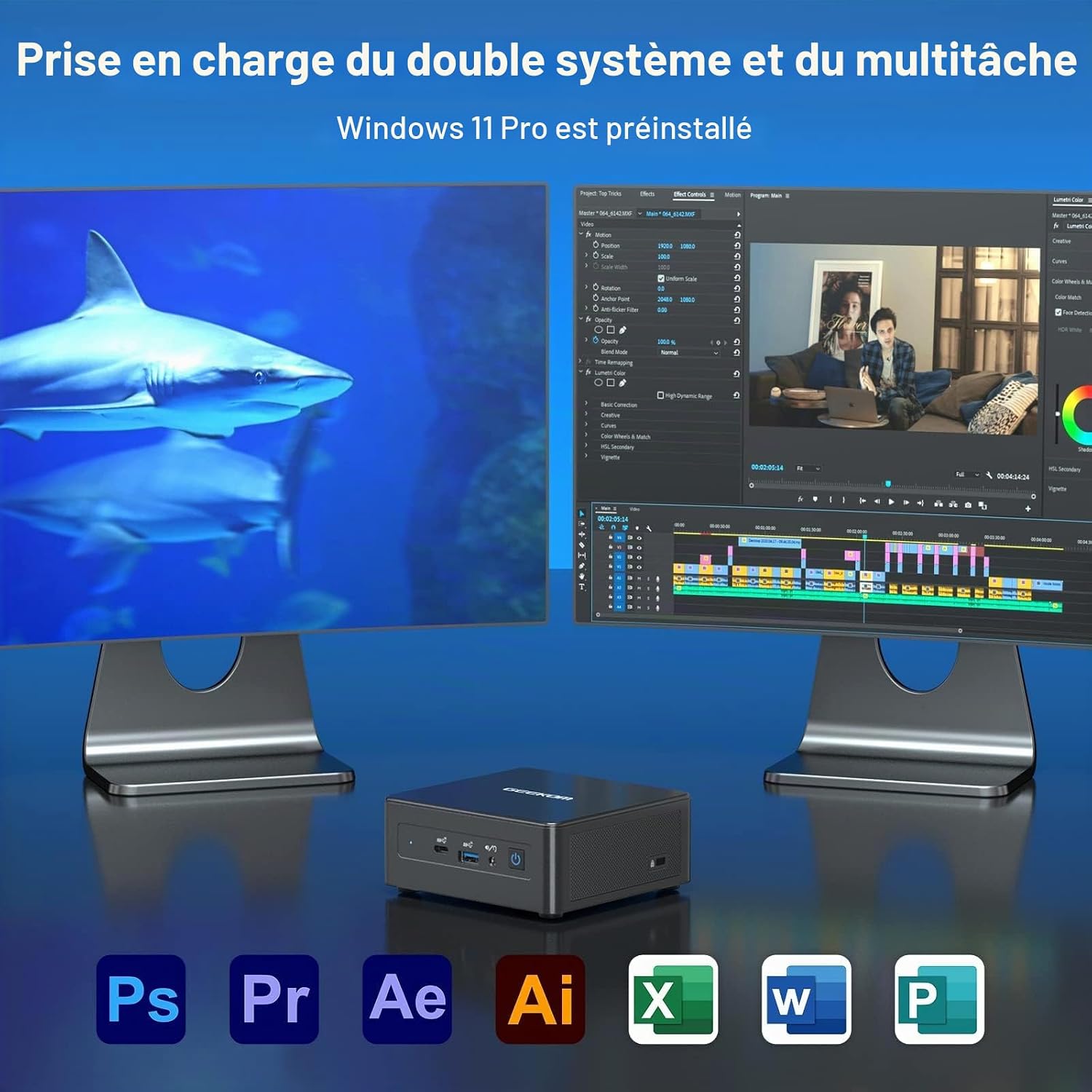
Image: The GEEKOM Mini PC IT8 SE demonstrating dual system and multitasking support, suitable for various applications.
With its Intel Core i3-8109U processor and 8GB DDR4 RAM, the Mini PC is capable of handling multiple applications simultaneously, making it suitable for office tasks, content consumption, and light creative work.
6.5 Bluetooth Connectivity
The Mini PC features Bluetooth 4.2 for connecting wireless peripherals such as headphones, speakers, or input devices. To pair a device, go to Windows Settings > Bluetooth & devices, turn on Bluetooth, and select 'Add device'.
7. Maintenance
7.1 Cleaning the Device
Use a soft, dry cloth to clean the exterior of the Mini PC. For stubborn dirt, slightly dampen the cloth with water. Do not use harsh chemicals or abrasive cleaners. Regularly clean the ventilation openings to prevent dust buildup, which can affect cooling performance.
7.2 Software Updates
Ensure your Windows 11 Pro operating system and drivers are kept up to date. Go to Windows Settings > Windows Update to check for and install available updates. Regular updates improve system stability, security, and performance.
7.3 Storage Management
Periodically check your 256GB M.2 SSD storage usage. Delete unnecessary files, uninstall unused applications, and consider using cloud storage for large files to maintain optimal system speed.
8. Troubleshooting
- No Power: Ensure the power adapter is securely connected to both the Mini PC and a working power outlet. Try a different outlet if necessary.
- No Display: Check that the HDMI or Mini DisplayPort cable is firmly connected to both the Mini PC and the monitor. Ensure the monitor is powered on and set to the correct input source.
- No Internet Connection: For Wi-Fi, verify your network password and ensure the Wi-Fi adapter is enabled. For Ethernet, check the cable connection and your router status.
- Slow Performance: Close unnecessary applications, check for background processes, and ensure sufficient free storage space. Consider running a system diagnostic or antivirus scan.
- Peripheral Not Detected: Try connecting the peripheral to a different USB port. Ensure drivers are installed if required.
If issues persist, refer to the GEEKOM support resources or contact customer service.
9. Specifications
Below are the technical specifications for the GEEKOM Mini PC IT8 SE:
| Feature | Detail |
|---|---|
| Brand | GEEKOM |
| Model Name | GEEKOM Mini PC IT8 SE |
| CPU Model | Intel Core i3-8109U |
| CPU Speed | 3.6 GHz (Max Turbo Frequency) |
| CPU Cores / Threads | 2 Cores / 4 Threads |
| Cache Size | 4 MB |
| Operating System | Windows 11 Pro |
| RAM Installed Size | 8 GB DDR4 SDRAM |
| Storage Capacity | 256 GB M.2 SSD (PCIE x 4) |
| Graphics Coprocessor | Intel UHD Graphics 620 (Integrated) |
| Video Output Interface | HDMI, Mini DisplayPort |
| Max Display Resolution | 3840 x 2160 (4K) |
| Connectivity Technology | Ethernet, HDMI, Mini DisplayPort, USB, Wi-Fi, Bluetooth |
| USB Ports | USB 3.2 Gen 1, USB-C |
| Bluetooth | 4.2 |
| VESA Support | Yes |
| GTIN / UPC | 810190721292 |
10. Warranty and Support
GEEKOM provides comprehensive support for your Mini PC IT8 SE.
10.1 Return Policy
The product is eligible for a refund or replacement within 14 days of purchase, subject to the seller's return policy.
10.2 Customer Support

Image: GEEKOM's warranty and support details, outlining methods for contacting customer service.
For any inquiries or technical assistance, please use the following methods:
- Contact Seller on Amazon: Log in to your Amazon account, find your order, and click 'Get Help' to contact the seller directly.
- Email Support: Send an email to the GEEKOM After-Sales Team at pan.he@geekom.tw.
GEEKOM offers 3 years of support for this product.


