
1. Introduction
This manual provides detailed instructions for the setup, operation, and maintenance of your FULLJA 10.1-inch Digital Picture Frame. Please read this manual thoroughly before using the device to ensure proper functionality and to maximize your user experience. Keep this manual for future reference.
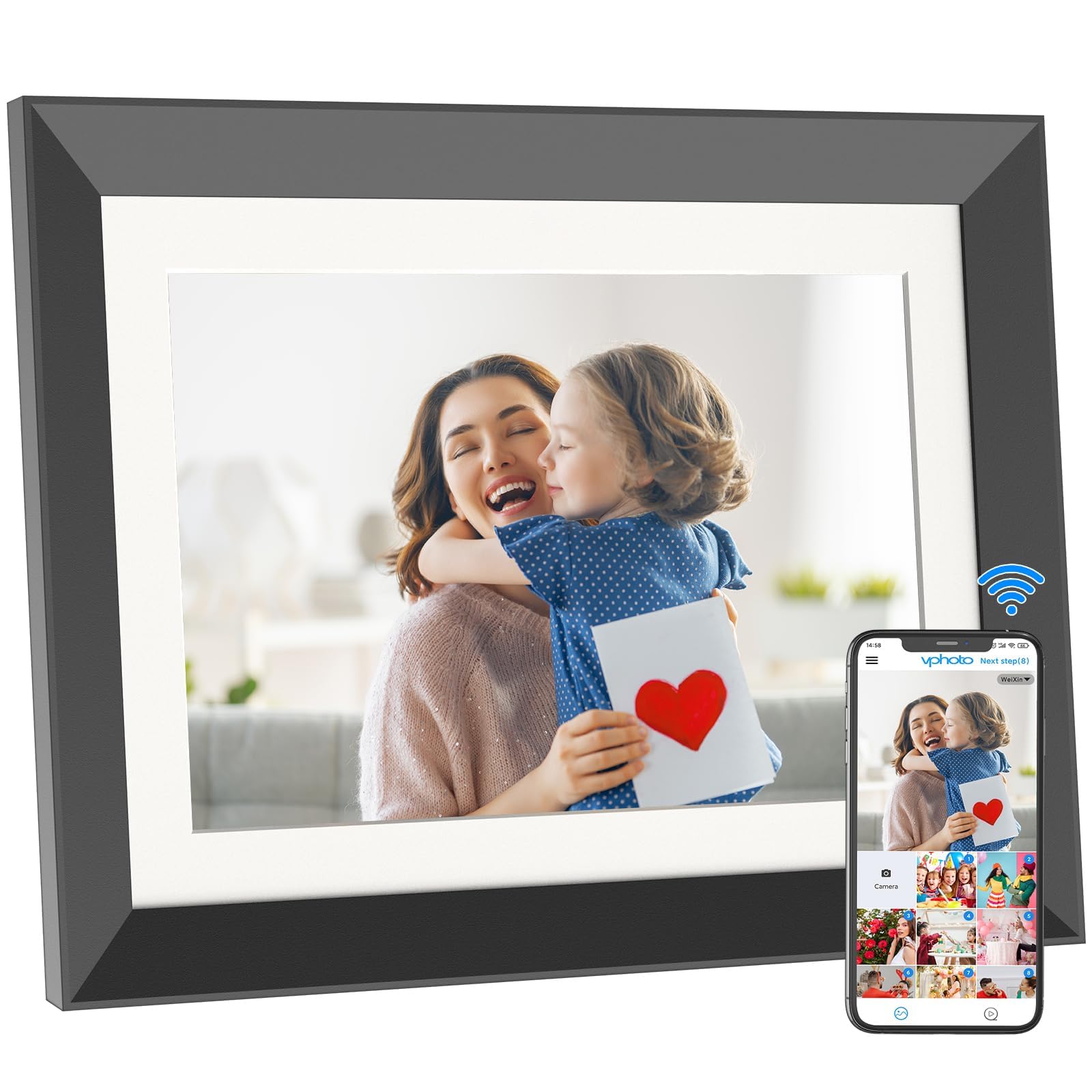
The FULLJA 10.1-inch Digital Picture Frame is designed to display your cherished photos and videos with ease.
2. Package Contents
Please check the package for the following items:
- FULLJA 10.1-inch Digital Picture Frame
- Power Adapter
- User Manual
- Stand (if applicable)
3. Product Overview
Familiarize yourself with the components of your digital picture frame.

The 10.1-inch IPS Touch Screen offers a 1920x1200 FHD display for clear image presentation.
Key Features:
- 10.1-inch Full HD IPS Touchscreen: Provides a wide viewing angle and vivid picture quality with 1920x1200 resolution.
- 32GB Internal Storage: Capable of storing over 80,000 photos.
- SD Card Slot: Supports up to 64GB for expanded storage.
- Dual-WiFi Connectivity: Enables convenient photo and video sharing via the VPhoto APP or email.
- Motion Sensor: Automatically turns the frame on or off based on proximity, conserving energy.
- Integrated Speakers: For audio playback with videos and music.
4. Setup
- Unpack the Frame: Carefully remove all components from the packaging.
- Attach the Stand: Securely attach the provided stand to the back of the digital picture frame.
- Power On: Connect the power adapter to the frame and then plug it into a power outlet. The frame will automatically power on.
- Initial Setup: Follow the on-screen prompts to select your language, time zone, and connect to a Wi-Fi network. Ensure you have your Wi-Fi password ready.
5. Operating Instructions
5.1 Navigating the Touchscreen Interface
The frame features a responsive touchscreen. Tap icons to open applications or settings, and swipe to navigate through photos or menus.
5.2 Sharing Photos and Videos via VPhoto App or Email
The VPhoto app allows you to easily upload photos and videos to your frame from anywhere.

Instantly share photos and videos to your frame using the VPhoto app or email.
- Download VPhoto App: Search for "VPhoto" in your smartphone's app store (Google Play or Apple App Store) and install it.
- Create an Account: Open the VPhoto app and follow the instructions to create a new account or log in.
- Bind Your Device: On your digital picture frame, navigate to the binding section (usually in settings or a dedicated app icon) to generate a connection code. Enter this code into the VPhoto app on your smartphone to link the devices.
- Share Content: From the VPhoto app, select photos or videos from your phone's gallery and choose your linked frame as the destination to upload them. You can also send content to the frame's unique email address (found in the frame's settings).

Binding your smartphone to the digital picture frame for content sharing.
5.3 Motion Sensor Function
The frame is equipped with a motion sensor to save energy.
- Automatic On/Off: The frame will automatically turn on when motion is detected nearby and turn off after a period of inactivity.
- Adjust Settings: You can customize the motion sensor's sensitivity and auto-off time in the frame's settings menu. This feature can also be disabled if preferred.
5.4 Storage Management
The frame has 32GB of built-in storage and supports external SD cards.
- Internal Storage: Use the frame's internal memory for storing a large volume of photos and videos.
- SD Card: Insert an SD card (up to 64GB, not included) into the designated slot to expand storage capacity. You can manage content between internal and external storage through the frame's file manager.
5.5 Additional Features

The frame supports various functions including wireless sharing, alarm, music, weather, video playback, and calendar display.
- Alarm: Set alarms directly from the frame's interface.
- Music Playback: Play background music during slideshows or as a standalone feature.
- Weather Display: View current weather conditions (requires internet connection).
- Video Playback: Play videos directly on the frame.
- Calendar: Access a digital calendar.

Enjoy high-quality stereo sound for videos and music playback.
6. Maintenance
- Cleaning: Use a soft, dry cloth to clean the screen and frame. Avoid abrasive cleaners or solvents.
- Storage: When not in use for extended periods, store the frame in a cool, dry place away from direct sunlight.
- Software Updates: Periodically check for and install software updates through the frame's settings menu to ensure optimal performance and access to new features.
7. Troubleshooting
| Problem | Possible Cause | Solution |
|---|---|---|
| Frame does not power on. | Power adapter not connected or faulty. | Ensure the power adapter is securely connected to the frame and a working power outlet. Try a different outlet. |
| Cannot connect to Wi-Fi. | Incorrect password, weak signal, or router issue. | Verify the Wi-Fi password. Move the frame closer to the router. Restart your router. |
| Photos/Videos not uploading via VPhoto app. | Frame not bound, internet connection issue, or app error. | Ensure the frame is successfully bound to your VPhoto account. Check both frame and phone's internet connection. Restart the VPhoto app. |
| Motion sensor not working. | Sensor disabled or settings misconfigured. | Check the motion sensor settings in the frame's menu to ensure it is enabled and configured correctly. |
| Screen is unresponsive. | Temporary software glitch. | Perform a soft reset by disconnecting and reconnecting the power adapter. If the issue persists, contact support. |
8. Specifications
| Feature | Detail |
|---|---|
| Brand | FULLJA |
| Model | F12 |
| Screen Size | 10.1 inches |
| Resolution | 1920x1200 FHD IPS Display |
| Aspect Ratio | 16:10 |
| Memory Storage Capacity | 32 GB (Internal) |
| External Storage | SD Card (max. 64GB) |
| Connectivity Technology | Wi-Fi |
| Control Method | Touch |
| Power Source | DC |
| Frame Material | Plastic |
| Item Weight | 1.8 pounds |
| UPC | 607601289539 |
9. Warranty and Support
9.1 Warranty Information
This FULLJA Digital Picture Frame comes with a 1 Year Manufacturer Warranty from the date of purchase. This warranty covers manufacturing defects and workmanship under normal use. It does not cover damage caused by misuse, accidents, unauthorized modifications, or improper installation.
9.2 Customer Support
For technical assistance, troubleshooting, or warranty claims, please contact FULLJA customer support. Refer to the contact information provided on the product packaging or the official FULLJA website.
10. Product Videos
Watch these official videos for a visual guide on setting up and using your FULLJA Digital Picture Frame.
FULLJA F12 10.1 inch Digital Frame Overview
This video provides a general overview of the FULLJA F12 10.1-inch Digital Picture Frame, demonstrating its design and basic functions. Duration: 0:44.
FULLJA F12 10.1 inch Digital Photo Frame Features
This video highlights key features of the FULLJA F12 10.1-inch Digital Photo Frame, including its touchscreen interface and sharing capabilities. Duration: 0:29.