
Introduction
Thank you for choosing the Rii RK211 Wireless Keyboard and Mouse Combo. This product provides a reliable 2.4G wireless connection for your computer, laptop, or other compatible devices. This manual will guide you through the setup, operation, maintenance, and troubleshooting of your new wireless keyboard and mouse.
Setup Instructions
Follow these steps to set up your Rii RK211 Wireless Keyboard and Mouse Combo:
- Install Batteries: The keyboard requires 1 AAA battery, and the mouse requires 1 AA battery. Open the battery compartments on both devices and insert the batteries, ensuring correct polarity.
- Locate the USB Receiver: The tiny nano USB receiver is stored in the compartment next to the mouse battery slot. Open the mouse battery cover to find it.
- Connect the Receiver: Plug the USB receiver into an available USB port on your computer or laptop.
- Power On: Turn on the mouse using the ON/OFF switch located on its underside. The keyboard does not have a separate power switch and will activate upon battery installation and key press.
- Automatic Connection: The keyboard and mouse will automatically connect to your device. No additional drivers are required for most operating systems.
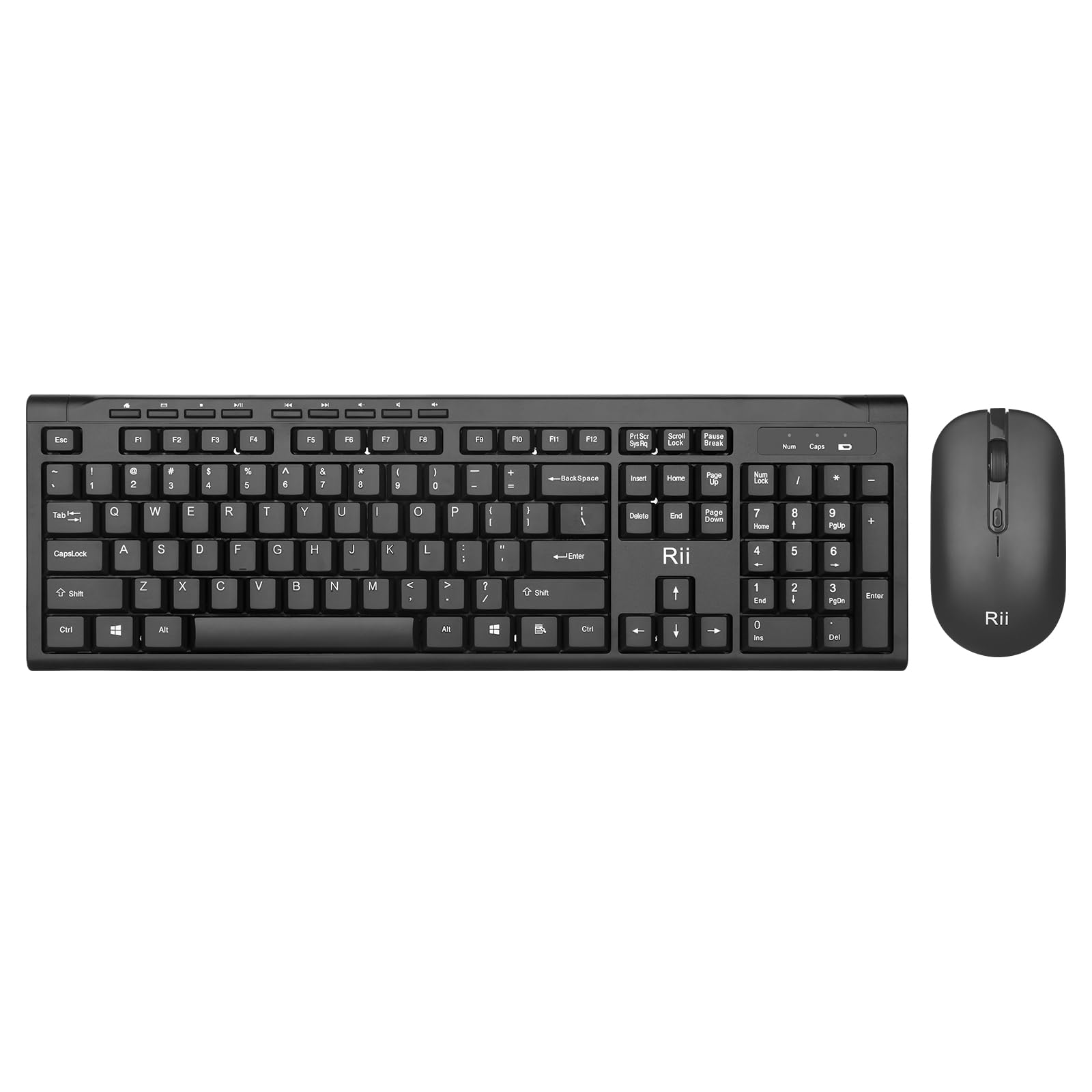
Image: The Rii RK211 wireless keyboard and mouse connected to a laptop using a single unifying nano receiver for plug-and-play functionality.

Image: The USB receiver is conveniently stored inside the mouse's battery compartment for safekeeping.
Operating Instructions
This section details the usage of your Rii RK211 Wireless Keyboard and Mouse Combo.
Keyboard Features:
- Full-Sized Layout: The keyboard features a standard US QWERTY layout with a numeric keypad for efficient typing.
- Adjustable Tilt Angle: Utilize the adjustable legs on the underside of the keyboard to set a comfortable typing position and reduce wrist fatigue.
- Multimedia Hotkeys: Access 9 dedicated multimedia hotkeys for quick control over media playback, email, internet browser, volume, and more. Note: These shortcuts may have limited compatibility with Mac operating systems.

Image: The keyboard features an ergonomic design with adjustable legs to enhance typing comfort.
Mouse Features:
- Ergonomic Design: The mouse is contoured to fit comfortably in your hand, supporting extended use.
- Adjustable DPI: Cycle through DPI settings of 800, 1000, 1200, and 1600 to adjust cursor sensitivity and precision on various surfaces. The DPI button is typically located near the scroll wheel.

Image: The mouse features an ergonomic design for comfortable use.
Maintenance
Proper maintenance ensures the longevity and optimal performance of your wireless combo.
- Battery Replacement: Replace batteries when performance degrades. The keyboard uses 1 AAA battery, and the mouse uses 1 AA battery.
- Cleaning: Use a soft, dry cloth to clean the surfaces of the keyboard and mouse. For stubborn dirt, a slightly damp cloth can be used, ensuring no moisture enters the internal components. Avoid harsh chemicals.
- Storage: When not in use for extended periods, turn off the mouse to conserve battery life. Store the USB receiver in the mouse's battery compartment to prevent loss.
- Automatic Power Saving: Both devices feature an automatic sleep function. If inactive for more than 10 minutes, they will enter sleep mode. To reactivate, simply click any mouse button or press any key on the keyboard.
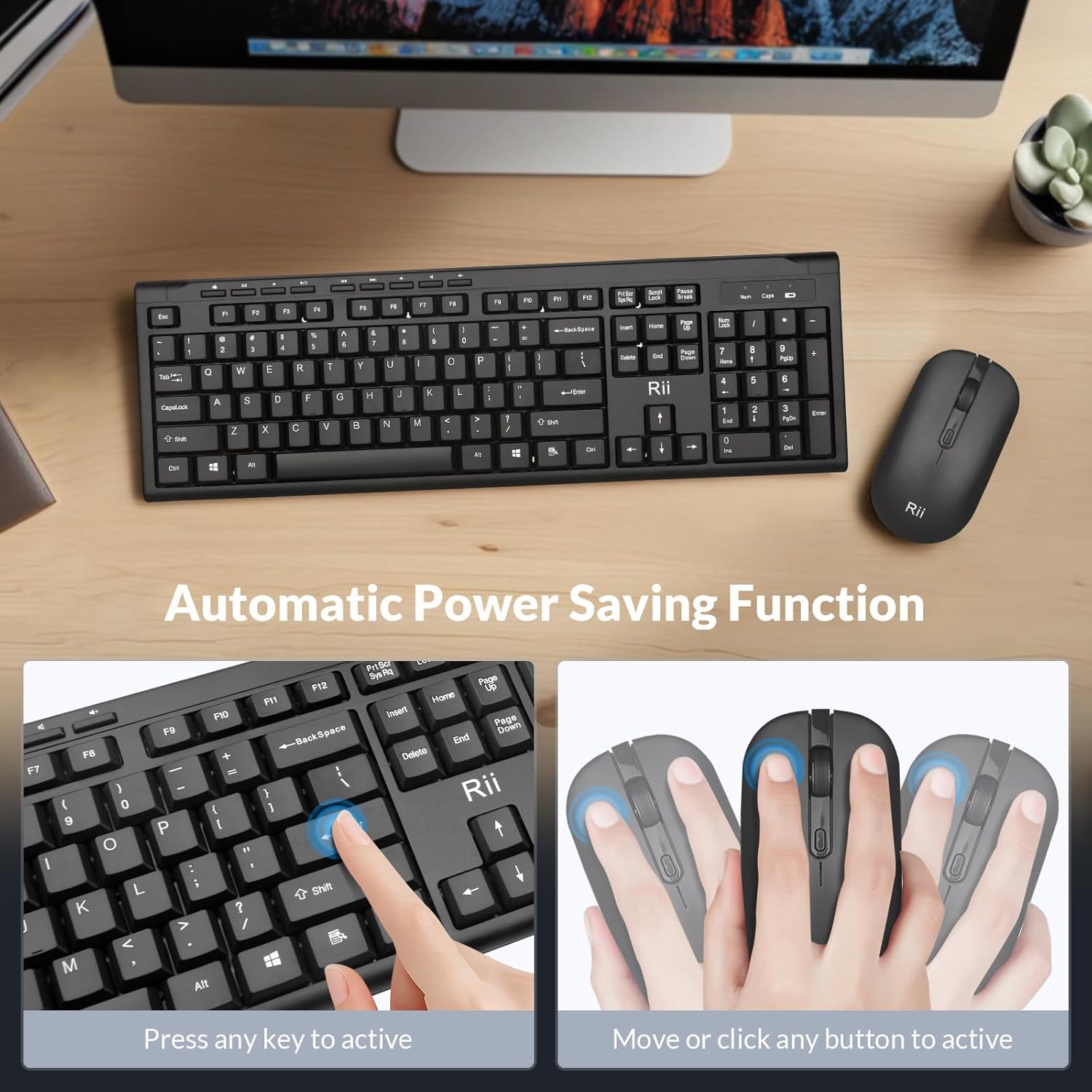
Image: The keyboard and mouse feature an automatic power saving function, activated by pressing any key or moving/clicking the mouse.
Troubleshooting
If you encounter issues, refer to the following troubleshooting tips:
- No Connection/Lag:
- Ensure the USB receiver is securely plugged into a working USB port.
- Check if the mouse is turned ON.
- Replace batteries in both the keyboard and mouse.
- Move the devices closer to the USB receiver to rule out range issues (max 33 ft).
- Try plugging the USB receiver into a different USB port on your computer.
- Mouse Cursor Jumps/Inaccurate:
- Change the DPI setting using the DPI button on the mouse.
- Ensure the mouse is used on a suitable surface (not highly reflective or transparent).
- Clean the optical sensor on the underside of the mouse.
- Keyboard Not Typing:
- Press any key to wake the keyboard from sleep mode.
- Replace the AAA battery in the keyboard.
- Ensure the USB receiver is connected.
- Multimedia Keys Not Working on Mac:
- Some multimedia shortcuts may not be fully compatible with Mac OS. This is expected behavior.
Specifications
| Brand | Rii |
| Model Number | RK211 |
| Color | Black |
| Connectivity Technology | 2.4G Wireless |
| Special Feature | Ergonomic Design |
| Compatible Devices | Laptop, Desktop, PC, Chromebook, Notebook (Windows 11/10/8/7/Vista/XP, Chrome OS, Linux, Mac OS) |
| Batteries Required | Yes (1 AAA for keyboard, 1 AA for mouse - Not Included) |
| Item Weight | 0.7 Kilograms |
| Keyboard Description | Multimedia |
| Mouse DPI Settings | 800-1000-1200-1600 DPI |

Image: Detailed dimensions of the Rii RK211 keyboard and mouse.
Warranty Information
The Rii RK211 Wireless Keyboard and Mouse Combo comes with a 365-day warranty from the date of purchase. This warranty covers manufacturing defects and ensures the product functions as intended under normal use. Please retain your proof of purchase for warranty claims.
Support
For further assistance, technical support, or warranty inquiries, please refer to the contact information provided with your product packaging or visit the official Rii website. You can also visit the Rii Store on Amazon for more information and product resources.


