
1. Introduction
Thank you for choosing the KUIIYER U2-B Bluetooth Wireless Barcode Scanner. This device is designed for efficient and accurate scanning of both 1D and 2D barcodes, featuring a customizable keypad, LCD screen, and AI voice prompts for enhanced usability. It offers versatile connectivity options including 2.4G wireless, Bluetooth, and USB wired connections, making it compatible with a wide range of devices and operating systems. This manual provides detailed instructions for setup, operation, maintenance, and troubleshooting to ensure optimal performance of your scanner.
2. Package Contents
Please check the package to ensure all items are present:
- KUIIYER U2-B Barcode Scanner
- 2.4G Wireless USB Dongle
- USB-A to USB-C Charging Cable
- User Manual

Image: The KUIIYER U2-B Bluetooth Wireless Barcode Scanner, accompanied by its 2.4G wireless USB dongle and a USB-A to USB-C charging cable.
3. Product Overview
Familiarize yourself with the components and features of your KUIIYER U2-B barcode scanner.

Image: A detailed diagram illustrating the various parts of the KUIIYER U2-B scanner, including its 800x600 pixel CMOS scanning window, built-in auxiliary light, AI voice output, 2.4G wireless USB port, Type-C charging port, scan button, and a 1.5-inch LCD display showing wireless status, Bluetooth status, storage mode, battery indicator, barcode content, total number of stores, and total number of scans. The image also provides physical dimensions of the device.
Key Features:
- 1.5-inch LCD Screen: Displays settings, wireless/Bluetooth status, battery level, scanning status, and storage information.
- Setting Keypad: Allows direct configuration of various functions without scanning setup barcodes.
- AI Voice: Provides audio prompts for usage status.
- CMOS Image Sensor (800x600 pixels): Supports 1D, 2D, QR, and screen codes with 360° scanning capability.
- Built-in Auxiliary Light: Enhances scanning performance in diverse lighting conditions.
- 2000mAh Battery: Provides 6-7 hours of continuous operation.
- Durable Design: IP54 dust and waterproof rating, ABS+PC material for 1.5m/5ft drop resistance.
4. Setup
4.1 Charging the Scanner
Before first use, fully charge the scanner. Connect the provided USB-A to USB-C cable to the scanner's Type-C charging port and a power source (e.g., computer USB port, USB wall adapter, power bank). A full charge typically takes 4 hours and provides 6-7 hours of continuous scanning (scanning every 5 seconds) or up to 3 days of standby time.
4.2 Connecting to Devices
The KUIIYER U2-B scanner supports three connection modes:

Image: Visual guide to the 2.4Ghz Wireless, Bluetooth, and USB Wired connection options, detailing their respective transmission distances (up to 262 ft for 2.4Ghz, 66 ft for Bluetooth, and 4.92 ft for USB cable) and showing compatibility with laptops, tablets, and smartphones.
- 2.4Ghz Wireless Connection:
- Insert the 2.4G wireless USB dongle into an available USB port on your computer or POS system.
- The scanner will automatically connect to the dongle. The LCD screen will indicate a successful wireless connection.
- No driver or software installation is required.
- Bluetooth Connection:
- Ensure Bluetooth is enabled on your device (iPad, iPhone, Android tablet/phone, computer).
- On the scanner, navigate to the 'Settings' menu using the keypad and select 'Bluetooth' to ensure it is enabled.
- On your device, search for Bluetooth devices and select 'BARCODE SCANNER' to pair.
- The LCD screen will show the Bluetooth icon when connected.
- USB Wired Connection:
- Connect the scanner directly to your computer or POS system using the provided USB-A to USB-C cable.
- The scanner will function as a wired device, and data will be transmitted directly.
- No driver or software installation is required.
5. Operating Instructions
5.1 Power On/Off
- Power On: Press and hold the scan button (trigger) for a few seconds until the LCD screen lights up.
- Power Off: The scanner will automatically power off after a period of inactivity (configurable in settings). Alternatively, you can manually power it off via the settings menu.
5.2 Scanning Modes
The scanner offers three distinct scanning modes, configurable via the settings keypad:

Image: Depicts the three scanning modes: Manual Trigger Mode (requires pressing the button for each scan), Auto-sensing Scan Mode (scans automatically when a barcode is detected), and Continuous Scan Mode (scans continuously without manual trigger).
- Manual Trigger Mode: Press the scan button once for each barcode you wish to scan.
- Auto-sensing Scan Mode: The scanner will automatically detect and scan barcodes when they are presented within its scanning range.
- Continuous Scan Mode: The scanner continuously emits a scanning beam, reading any barcode that passes through it.
5.3 Data Uploading Modes
Choose how your scanned data is transferred to your connected device:

Image: A visual explanation of Instant Upload Mode, where scanned barcodes are immediately transmitted to a connected device, and Storage Mode, which enables the scanner to store up to 50,000 barcodes internally for batch upload at a later time.
- Instant Upload Mode (Normal Mode): Barcodes are transmitted to the connected device immediately after scanning.
- Inventory Mode (Storage Mode): Scanned barcodes are stored in the scanner's internal memory (up to 50,000 barcodes). You can upload the stored data to your device later. This mode is useful for inventory management without a constant connection.
5.4 Customizable Menu & LCD Display
The 1.5-inch LCD screen and setting keypad allow for easy configuration of scanner functions.

Image: A detailed view of the scanner's LCD menu, showing options like Wireless RF, Bluetooth, Dormancy time, Transport mode (Normal mode, Inventory mode, Don't lose mode, Data upload, Data TotalCount, Clear CountData), Sound settings (Decode beep, Start up tone, Shut down voice, Sound volume, Voice settings), and Keyboard language settings (American, Spanish, French, German, Italian, British English, Japanese). The image also indicates how to navigate the menu using the 'Move up' and 'Move down' buttons and how to confirm/exit using the scan button.
Use the up/down arrow buttons on the keypad to navigate through menu options. Press the scan button to enter a submenu or confirm a selection. Key settings include:
- Wireless RF / Bluetooth: Manage connection settings.
- Dormancy Time: Adjust auto-sleep duration.
- Transport Mode: Switch between Instant Upload and Inventory modes.
- Sound Settings: Configure beep, voice prompts, and volume.
- Keyboard: Select from 30 multi-language keyboard layouts (e.g., American, Spanish, French, German, Italian, British English, Japanese).
- Barcode End: Add a suffix (e.g., Enter, Tab) to scanned data.
- Restore Default: Reset all settings to factory defaults.
5.5 Supported Barcode Types
The KUIIYER U2-B scanner is capable of reading a wide variety of 1D and 2D barcodes, including those that are fuzzy, damaged, curved, or displayed on screens.
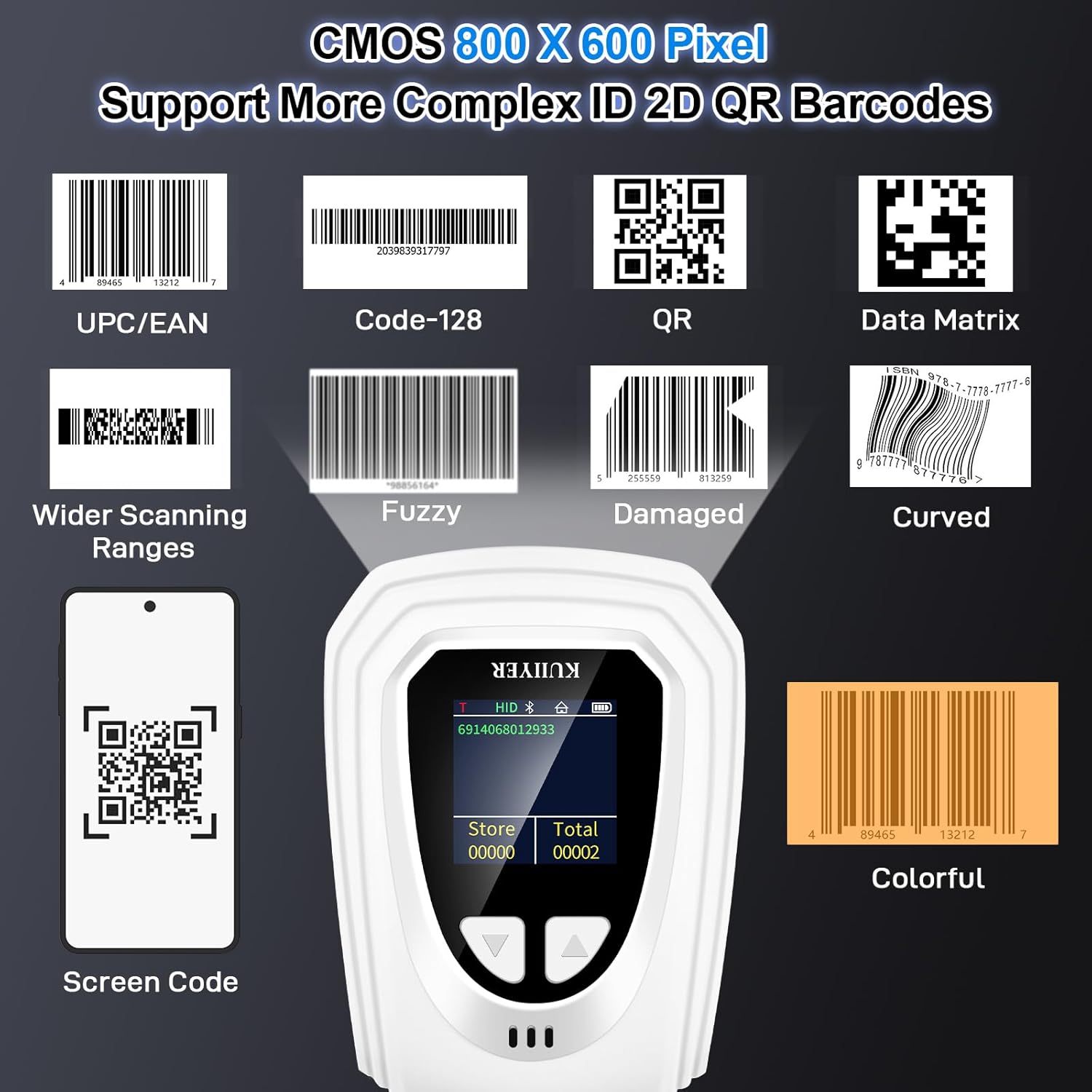
Image: Examples of various barcode types that the scanner can read, such as UPC/EAN, Code-128, QR Code, Data Matrix, and also demonstrates its ability to scan barcodes with wider ranges, fuzzy, damaged, curved, screen-displayed, and colorful characteristics.
- 1D Codes: EAN-13, EAN-8, UPC-A, UPC-E, Code 128, Code 39, Code93, Interleaved 2 of 5, Industrial 2 of 5, Matrix 2 of 5, Code 11, CodaBar, MSI-Plessey, GS1 Databar (RSS), etc.
- 2D Codes: QR Code, Data Matrix, PDF417, Micro QR, Aztec, etc.
Note: This scanner is not compatible with Square POS systems.
6. Maintenance
6.1 Cleaning
- Use a soft, dry cloth to clean the scanner's exterior.
- For the scanning window, use a lens cleaning cloth or a soft cloth lightly dampened with a mild, non-abrasive cleaner. Avoid harsh chemicals.
- Ensure no liquid enters the device.
6.2 Storage
- Store the scanner in a cool, dry place away from direct sunlight and extreme temperatures.
- When not in use, ensure the scanner is powered off to preserve battery life.
- The 2.4G wireless USB dongle can be stored magnetically in the scanner's handle when not in use.
7. Troubleshooting
| Problem | Possible Cause | Solution |
|---|---|---|
| Scanner does not power on. | Low battery. | Charge the scanner for at least 4 hours. |
| Cannot connect via 2.4G wireless. | USB dongle not properly inserted or out of range. | Ensure dongle is fully inserted. Move scanner closer to the dongle (within 262 ft/80m). |
| Cannot connect via Bluetooth. | Bluetooth not enabled on scanner or device; device not paired. | Enable Bluetooth on both scanner (via menu) and device. Ensure device is searching for 'BARCODE SCANNER' and pair. Move scanner closer to the device (within 66 ft/20m). |
| Scanner not reading barcodes. | Incorrect scanning mode; barcode damaged/unreadable; scanner lens dirty. | Check scanning mode (Manual, Auto-sensing, Continuous). Ensure barcode is clear. Clean the scanning window. |
| Scanned data is incorrect or garbled. | Incorrect keyboard language setting. | Adjust the keyboard language setting in the scanner's menu to match your computer's keyboard layout. |
| AI Voice is too loud/quiet or unwanted. | Voice settings need adjustment. | Navigate to 'Sound settings' in the menu to adjust volume or disable voice prompts. |
8. Specifications
| Feature | Detail |
|---|---|
| Model Number | U2-B |
| Scanning Technology | CMOS Image Sensor (800 x 600 pixels) |
| Supported Barcodes | 1D: EAN-13, EAN-8, UPC-A, UPC-E, Code 128, Code 39, Code93, Interleaved 2 of 5, Industrial 2 of 5, Matrix 2 of 5, Code 11, CodaBar, MSI-Plessey, GS1 Databar (RSS), etc. 2D: QR Code, Data Matrix, PDF417, Micro QR, Aztec, etc. |
| Connectivity | 2.4G Wireless, Bluetooth, USB Cable |
| Wireless Transmission Distance | 2.4G Wireless: Up to 262 ft (80m) Bluetooth: Up to 66 ft (20m) |
| Battery Capacity | 2000mAh Lithium Ion |
| Working Time | 6-7 hours (continuous scanning every 5 seconds) |
| Charging Time | Approx. 4 hours |
| Data Storage Capacity | Over 50,000 barcodes (in Inventory Mode) |
| Durability | IP54 Dust and Waterproof, 1.5m/5ft Drop Resistance |
| Product Dimensions | 3.5 x 2.83 x 6.97 inches |
| Item Weight | 6.6 ounces |
| Compatible OS | Windows, macOS, Linux, iOS, Android (Note: Not Compatible with Square POS system) |
| Keyboard Support | 30 Multi-languages |
9. Warranty and Support
KUIIYER is committed to providing high-quality products and excellent customer service.
- 90-Day Unconditional Return: Enjoy a 90-day period for unconditional returns.
- 24-Month Promise: The product is covered by a 24-month promise for any quality-related issues.
- Customer Support: Our professional customer support team is available to assist you with any issues or questions within 12 hours. Please refer to the product packaging or KUIIYER's official website for contact information.

