
1. Introduction
The NGTeco NG-MB1 4-in-1 APP-Based Time Clock is a versatile attendance management system designed for small businesses. It offers multiple verification methods including facial recognition, fingerprint scanning, RFID card, and PIN entry to accurately track employee work hours. This manual provides detailed instructions for setting up, operating, maintaining, and troubleshooting your device.
2. Safety Information
- Ensure the device is installed indoors and away from direct sunlight, heat sources, and moisture.
- Use only the provided power adapter to prevent damage.
- Do not attempt to disassemble or repair the device yourself. Contact customer support for assistance.
- Keep the device clean and free from dust and debris.
3. Package Contents
Verify that all items are present in the package:
- NGTeco NG-MB1 Time Clock Unit
- Power Adapter
- Wall Mounting Bracket
- Mounting Hardware (screws, anchors)
- RFID Cards (multiple)
- USB Drive (for data transfer)
- Quick Start Guide
- Contact Information Card
4. Product Overview
The NGTeco NG-MB1 Time Clock features a compact design with multiple input options for employee verification.
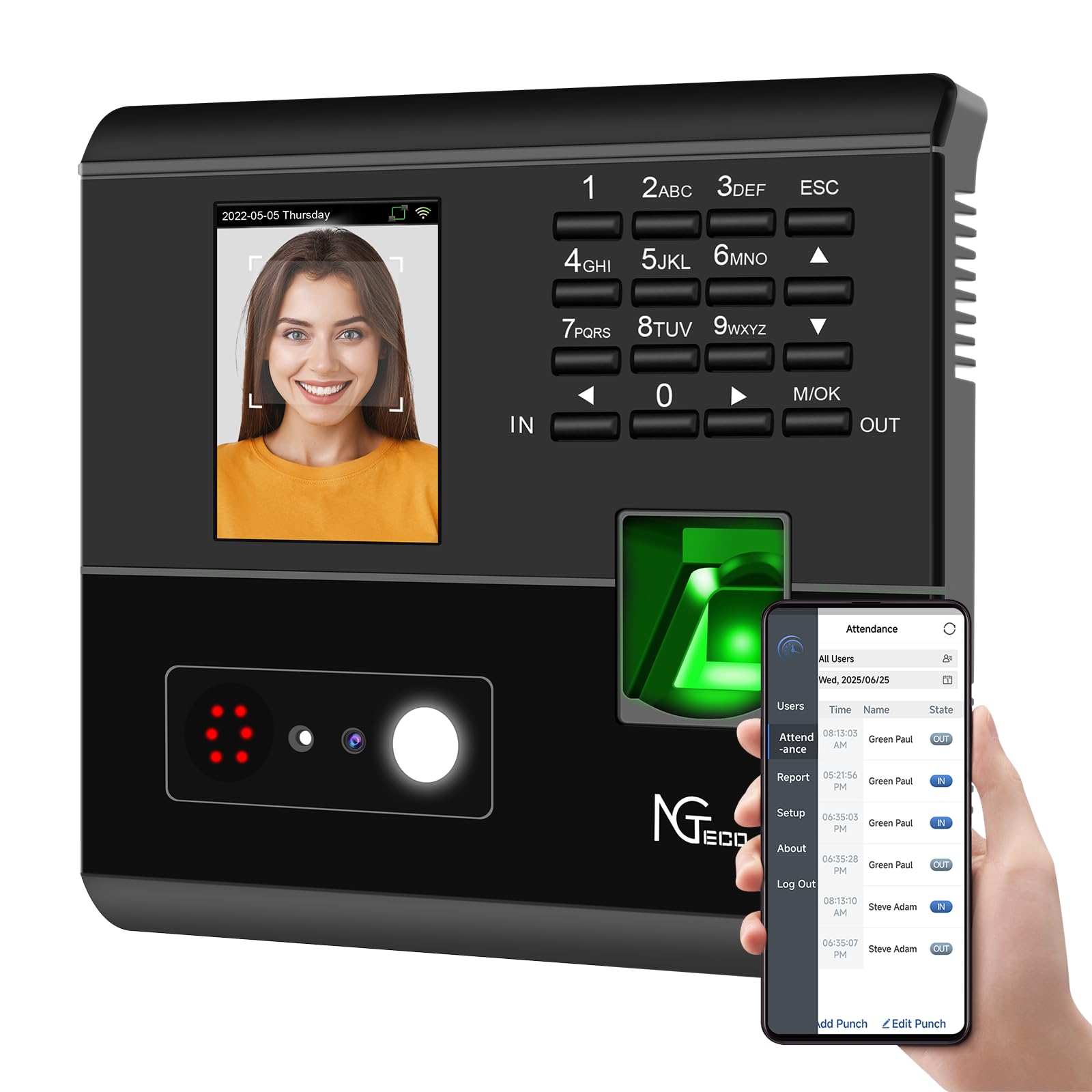
Figure 1: Front view of the NGTeco NG-MB1 Time Clock highlighting its four verification methods: Face Scan, Fingerprint, RFID Card, and Password.
Front Panel Features:
- Display Screen: Shows time, date, user information, and menu options.
- Keypad: Numeric keys for PIN entry and navigation.
- Fingerprint Reader: For biometric fingerprint verification.
- Face Recognition Camera: For facial recognition verification.
- RFID/Card Reading Area: For scanning RFID cards.
Side and Back Panel Features:

Figure 2: Rear view of the NGTeco NG-MB1 Time Clock, illustrating the power input, Ethernet port, and USB port for connectivity and data transfer.
- USB Port: For direct data transfer using a USB drive.
- Power Port: Connects to the provided power adapter.
- Ethernet Port: For wired network connection.
5. Setup
5.1 Device Installation
- Choose a suitable indoor location for mounting the time clock, ensuring it is at an appropriate height for all users.
- Use the provided mounting template to mark drill holes on the wall.
- Secure the wall mounting bracket using the supplied screws and anchors.
- Connect the power adapter and, if desired, an Ethernet cable to the device.
- Attach the time clock unit to the mounted bracket.
5.2 App Download
Download the NGTeco Time App from your mobile device's app store (Apple App Store for iOS or Google Play Store for Android). This app is essential for managing users, attendance records, and generating reports.
Video 1: This video demonstrates the two methods for registering employee information on the NGTeco Time Clock, including using the device directly and through the NGTeco Time App.
5.3 Wi-Fi Connection
To connect your device to a Wi-Fi network:
- On the device, navigate to the [Comm] menu.
- Select [Wireless Network].
- Choose your desired Wi-Fi network from the list.
- Enter the Wi-Fi password using the keypad and confirm.
- The device will attempt to connect to the network. A successful connection will be indicated on the screen.
Video 2: This video provides a step-by-step guide on how to configure the Wi-Fi settings on your NGTeco Time Clock device.
6. Operating Instructions
6.1 Adding Users
Employees can be added directly on the device or through the NGTeco Time App.
Adding Users via Device:
- Press and hold the M/OK button to access the main menu.
- Navigate to [Users] and select [Add User].
- Enter the User ID, First Name, Last Name, and set the User Role (e.g., Employee, Admin).
- Select a Verification Mode (Password, Fingerprint, Card, or Face).
- Follow the on-screen prompts to enroll the chosen verification method(s).
Adding Users via NGTeco Time App:
- Open the NGTeco Time App on your smartphone.
- Navigate to the Users section and tap Add User.
- Enter the employee's details including First Name, Last Name, PIN, and Permission level.
- Save and sync the data with the device.
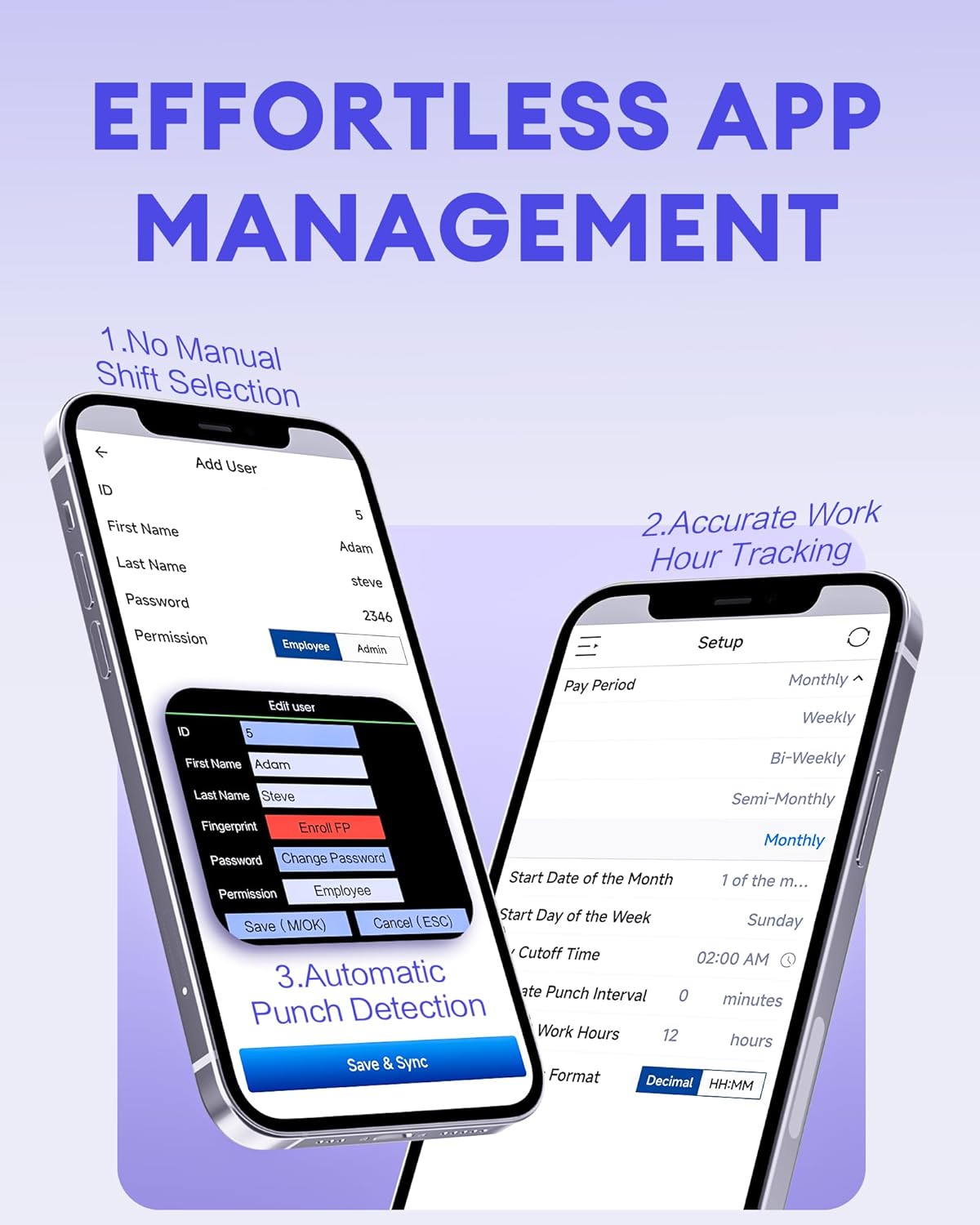
Figure 3: The NGTeco Time App interface for effortless management, including adding users, setting up work hour tracking, and automatic punch detection.
6.2 Enrolling Biometrics and Cards
Fingerprint Enrollment:
For optimal fingerprint recognition:
- Always use clean fingers and avoid angled or tilted finger positions during enrollment.
- Place your finger belly completely in the middle of the reader.
- Do not slide the finger while enrolling. Apply some pressure for 1 second until the result is shown.
- If a finger is dry, gently breathe on it to moisten it before scanning.

Figure 4: Visual representation of the high-precision fingerprint module, emphasizing reliable, fast, and secure access.
Face Enrollment:
Follow the on-screen instructions to position your face correctly in front of the camera for enrollment.
RFID Card Enrollment:
When prompted, hold the RFID card near the designated reading area on the device until it is successfully registered.
6.3 Clocking In and Out
The NGTeco NG-MB1 supports automatic detection for clocking in and out, eliminating the need to press specific 'IN' or 'OUT' keys. Simply present your chosen verification method (face, fingerprint, RFID card, or enter your PIN) to the device.
Video 3: This video demonstrates the four recognition methods (Face, Fingerprint, RFID, PIN) for clocking in on the NGTeco Time Clock.
6.4 Managing Attendance Records
Attendance records can be modified directly on the device or through the NGTeco Time App.
Adding/Editing Missing Punches:
- Via Device: Access the menu, navigate to [Time Data], then [Add Missing Punch]. Select the user, date, time, and punch state (Check In/Check Out).
- Via App: In the NGTeco Time App, go to the Attendance section. You can add a new punch or edit an existing one by selecting the user, date, time, and punch state.

Figure 5: The NGTeco Time App's punch record correction feature, allowing easy fixes for errors or missing punches.
Video 4: This video illustrates how to modify attendance records directly on the NGTeco Time Clock device and through the mobile application.
6.5 Generating Reports
The NGTeco Time Clock supports various payroll cycles and offers multiple ways to download attendance reports.

Figure 6: The NGTeco Time Clock supports various payroll cycles, including Monthly, Semi-Monthly, Bi-Weekly, and Weekly, for flexible attendance management.
Report Download Options:
- App Email Download: Use the NGTeco Time App to email detailed reports directly to your inbox.
- USB Drive Download: Insert the provided USB drive into the device's USB port to download attendance data.

Figure 7: Illustration of the two convenient methods for downloading attendance reports: directly to a USB drive or via email through the NGTeco Time App.
7. Maintenance
- Cleaning: Regularly wipe the device's screen, keypad, and fingerprint sensor with a soft, dry cloth. Avoid using abrasive cleaners or liquids.
- Software Updates: Check the NGTeco Time App or website for any available firmware or software updates to ensure optimal performance and security.
- Data Backup: Periodically back up your attendance data using the USB drive or through the app to prevent data loss.
8. Troubleshooting
- Device Not Powering On: Ensure the power adapter is securely connected to both the device and a working power outlet.
- Wi-Fi Connectivity Issues: Verify your Wi-Fi password and ensure the device is within range of your router. Restarting the device or router may help.
- Fingerprint/Face Recognition Failure: Ensure the sensor/camera is clean. For fingerprints, ensure fingers are clean and placed correctly with adequate pressure. Re-enrollment may be necessary if issues persist.
- App Sync Issues: Check your device's internet connection and ensure the time clock is connected to the same Wi-Fi network as your phone.
- Missing Punches: Refer to Section 6.4 for instructions on adding or editing missing punches.
For further assistance, consult the Quick Start Guide or contact NGTeco customer support.
9. Specifications
| Feature | Detail |
|---|---|
| Brand | NGTeco |
| Model Number | NG-MB1 |
| Color | Black |
| Display Type | Digital |
| Special Feature | Face/Fingerprint/Card/PIN |
| Product Dimensions | 5"W x 4"H |
| Power Source | Corded Electric |
| Connectivity Technology | WiFi |
| Item Weight | 0.79 Kilograms |
| Material Type | Premium ABS Plastic |
10. Warranty and Support
- Warranty: The NGTeco NG-MB1 comes with a 1-year manufacturer's warranty.
- Technical Support: Enjoy free lifetime technical support from NGTeco's U.S.-based service team. Support is available Monday to Friday, 6 AM to 6 PM EST.
- For support, refer to the contact information provided in your Quick Start Guide or visit the official NGTeco website.


