1. Introduction
This manual provides detailed instructions for the ADESSO EasyTouch 1500 Ergonomic Mechanical Keyboard. Designed for comfort and efficiency, this keyboard features Cherry Red mechanical switches, versatile connectivity, customizable RGB illumination, and multi-OS compatibility. Please read this manual thoroughly to ensure proper setup and optimal use of your device.

Figure 1: Top-down view of the ADESSO EasyTouch 1500 Ergonomic Mechanical Keyboard.
2. Setup
2.1 Package Contents
- ADESSO EasyTouch 1500 Ergonomic Mechanical Keyboard
- USB-C to USB-A Cable
- 2.4GHz Wireless USB Dongle
- Keycap Puller Tool
- Switch Puller Tool
2.2 Connectivity Options
The EasyTouch 1500 offers three primary connection methods:
- 2.4GHz Wireless: Insert the 2.4GHz USB dongle into an available USB-A port on your computer. The keyboard should connect automatically.
- Bluetooth: Activate Bluetooth on your device. On the keyboard, switch to one of the Bluetooth modes (BT1 or BT2, typically indicated by a switch or key combination). Search for "EasyTouch 1500" in your device's Bluetooth settings and pair.
- Wired USB-C: Connect the provided USB-C to USB-A cable from the keyboard's USB-C port to a USB-A port on your computer. This also charges the keyboard.

Figure 2: Side view illustrating the USB-C port and connectivity switch.
2.3 Ergonomic Adjustment
The keyboard features integrated wrist rests and adjustable feet on the underside to customize the typing angle for optimal comfort and reduced strain.

Figure 3: Angled view of the keyboard's ergonomic design.
3. Operating Instructions
3.1 Key Features
- Cherry Red Switches: Experience smooth, linear keypresses with a quiet tactile feel, rated for 50 million keystrokes.
- Ergonomic Design: Split key layout and integrated wrist rest promote natural hand and wrist positioning.
- RGB Illumination: Customizable backlighting with adjustable brightness levels and lighting effects.
- Multi-OS Compatibility: Easily switch between Windows and Mac layouts using the Fn + M key combination.
- VIA Programmable: Full customization of key layouts, shortcuts, and backlight effects via open-source VIA software.
- Hot-Swappable Keys: Personalize your typing experience by changing keycaps and switches with the included tools.
- Gasket Structure: Reduces noise and enhances typing feel.
- Copilot AI Hotkey: Dedicated key for instant access to AI assistance.

Figure 4: Detail of a Cherry Red mechanical switch.
3.2 Switching Operating Systems
To switch between Windows and Mac layouts, press and hold the Fn + M keys for 3 seconds. The keyboard will adapt to the selected operating system.

Figure 5: OS switching using Fn+M keys.
3.3 RGB Backlighting Control
The keyboard features adjustable RGB backlighting. Use the dedicated function keys or VIA software to customize brightness levels and lighting effects. Refer to the VIA software section for advanced customization.

Figure 6: RGB LED backlit keys with function controls.
3.4 VIA Software Customization
The EasyTouch 1500 is VIA programmable, allowing for extensive customization. Download the VIA software from the official ADESSO website to remap keys, create macros, and fine-tune backlight effects.
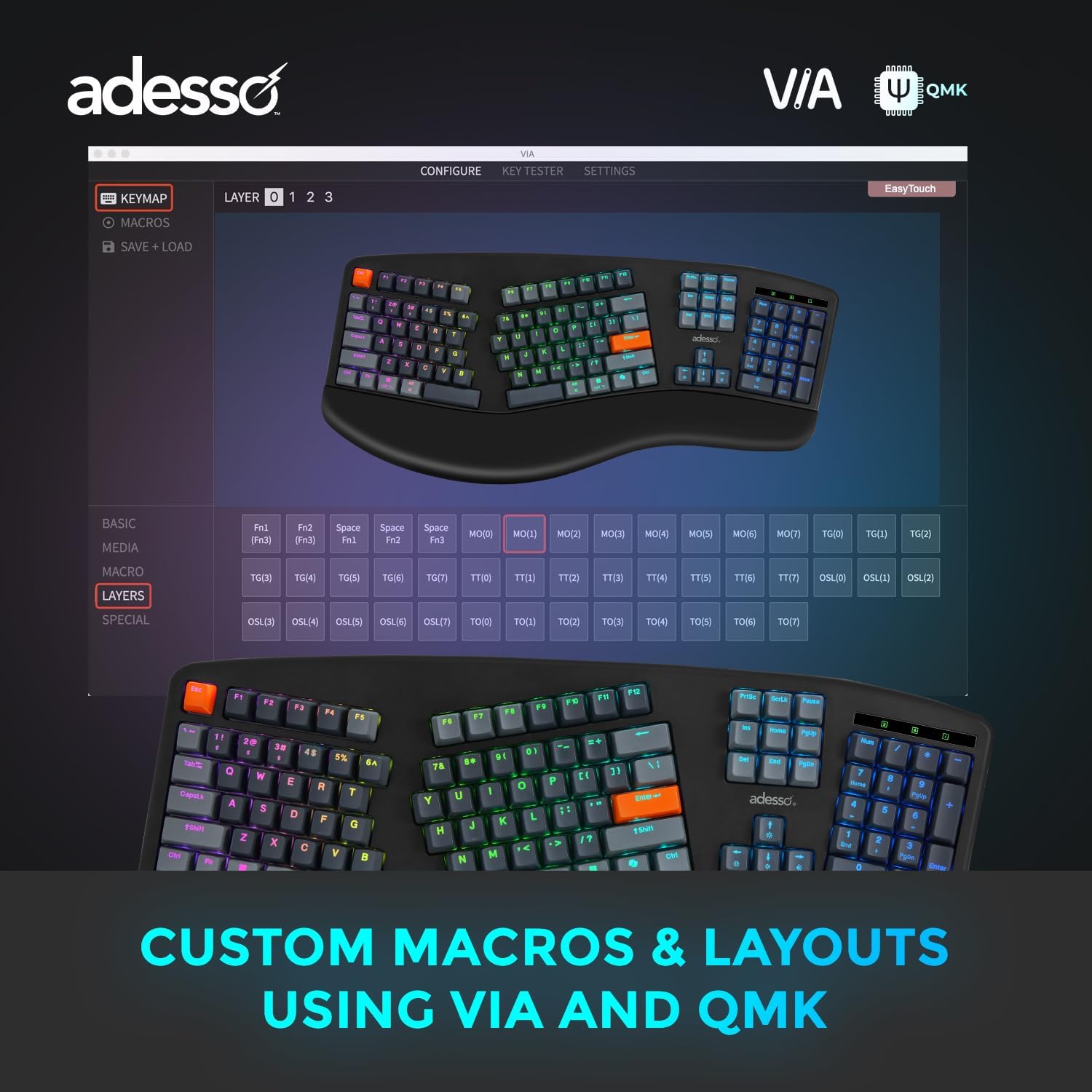
Figure 7: VIA software interface for custom macros and layouts.
3.5 Copilot AI Hotkey
Utilize the dedicated Copilot AI hotkey for quick access to AI assistance features on compatible systems.

Figure 8: Dedicated Copilot AI hotkey.
4. Maintenance
4.1 Cleaning
To clean your keyboard, gently wipe the surface with a soft, damp cloth. Avoid using harsh chemicals or abrasive materials. For deeper cleaning, remove keycaps using the provided keycap puller and clean underneath.
4.2 Keycap and Switch Replacement
The EasyTouch 1500 features hot-swappable switches. Use the included keycap puller to carefully remove keycaps and the switch puller to replace switches. Ensure proper alignment when reinserting components.

Figure 9: Hot-swappable keycaps and switches for customization.
5. Troubleshooting
- Keyboard Not Responding: Check the connectivity mode (2.4GHz, Bluetooth, Wired) and ensure the keyboard is charged. For wireless connections, verify the dongle is securely inserted or Bluetooth is paired correctly.
- Keys Not Lighting Up: Note that only indicator lights for Caps Lock, Number Lock, and F-Lock are present. Individual keys are RGB backlit but do not have constant illumination unless configured via VIA software.
- Fading Key Labels: Over extended use, some key labels may show minor fading, particularly on frequently used keys. This is normal wear and tear.
- VIA Software Issues: Ensure you have downloaded the correct VIA software and JSON definition file for the EasyTouch 1500 model from the official ADESSO website.
6. Specifications
| Model Name | EasyTouch 1500 |
| Product Dimensions | 9 x 21 x 2 inches |
| Item Weight | 6.49 pounds |
| Material | Plastic |
| Connectivity Technology | Bluetooth, RF (2.4GHz), USB-A (Wired) |
| Keyboard Description | Mechanical (Cherry Red Switches) |
| Special Features | Copilot AI hotkey, Hot-Swappable, Long-lasting battery (4000mAh), Multi OS Layout for Mac, VIA support |
| Number of Batteries | 1 |
7. Warranty
The ADESSO EasyTouch 1500 keyboard comes with a 12-month manufacturer's warranty against defects in materials and workmanship. Please retain your proof of purchase for warranty claims. This warranty does not cover damage caused by misuse, accident, modification, or unauthorized repair.
8. Support
For technical support, troubleshooting assistance, or further inquiries regarding your ADESSO EasyTouch 1500 keyboard, please visit the official ADESSO website or contact their customer service department.


