1. Introduction
This manual provides detailed instructions for the safe and effective use of your Samsung NX20 Mirrorless Wi-Fi Digital Camera. The NX20 combines a 20.3MP APS-C CMOS sensor with a compact design, offering high-quality imaging and advanced features. Please read this manual thoroughly before operating your camera to ensure optimal performance and longevity.
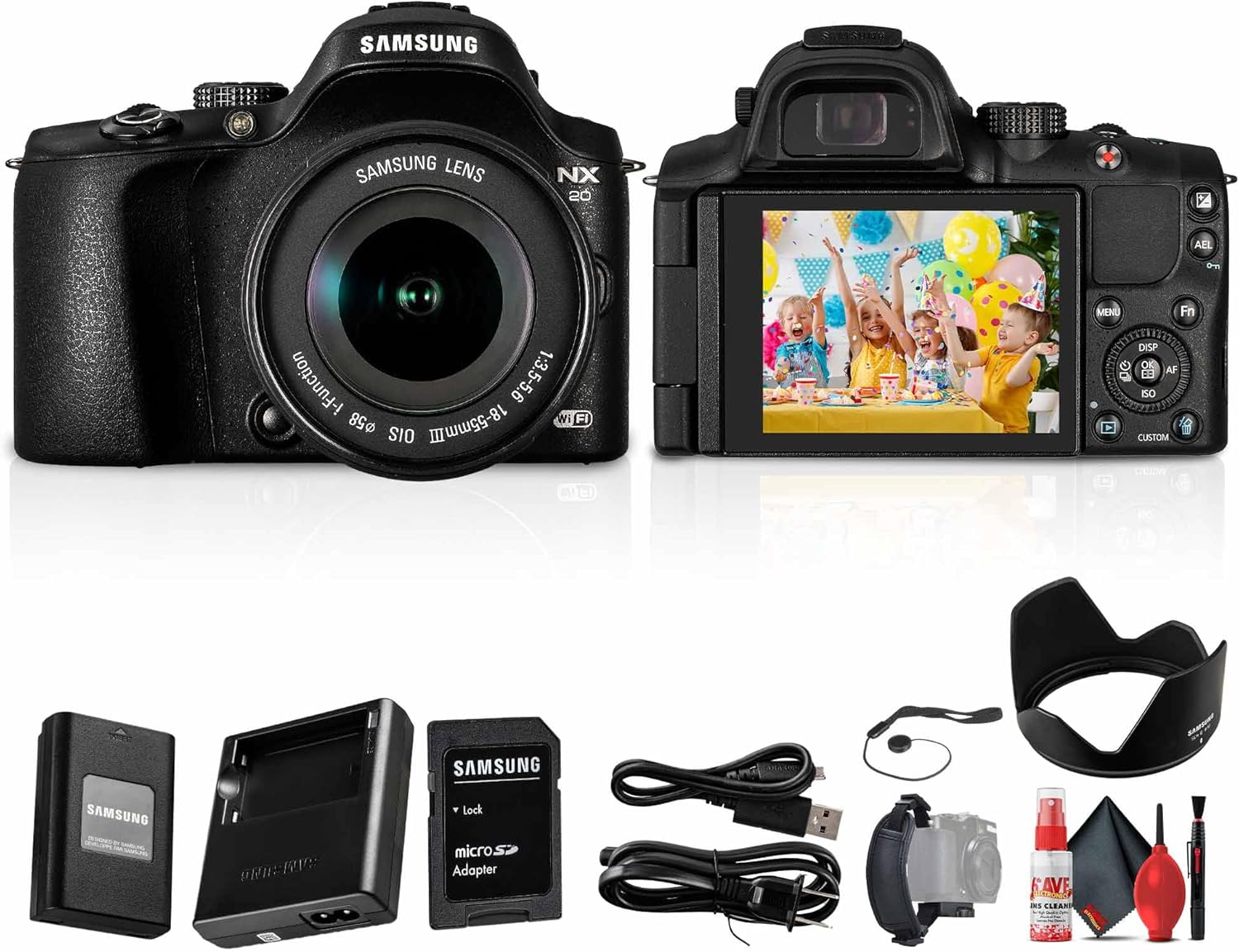
Image 1.1: The Samsung NX20 Mirrorless Wi-Fi Digital Camera with the included 18-55mm lens and various accessories such as battery, charger, hand strap, cleaning kit, and cap keeper.
2. Package Contents
Verify that all items listed below are included in your package:
- Samsung NX20 Camera Body
- Samsung 18-55mm f/3.5-5.6 OIS II Lens
- Rechargeable Battery
- Battery Charger
- Hand Strap
- Cleaning Kit
- Lens Cap Keeper
3. Camera Components
3.1 Front View

Image 3.1: Front view of the Samsung NX20 camera with the 18-55mm lens attached. Key features visible include the lens, lens release button, and Wi-Fi indicator.
- Lens: Interchangeable Samsung NX-mount lens.
- Lens Release Button: Press to detach the lens.
- Wi-Fi Indicator: Shows Wi-Fi connection status.
3.2 Rear View

Image 3.2: Rear view of the Samsung NX20 camera, highlighting the electronic viewfinder, tilting AMOLED display, and control buttons.
- Electronic Viewfinder (EVF): For precise framing.
- Tilting AMOLED Display: 3.0-inch screen for live view and menu navigation.
- Control Buttons: Menu, Fn (Function), DISP (Display), AF (Autofocus), ISO, Custom, Playback, Delete.
3.3 Top View
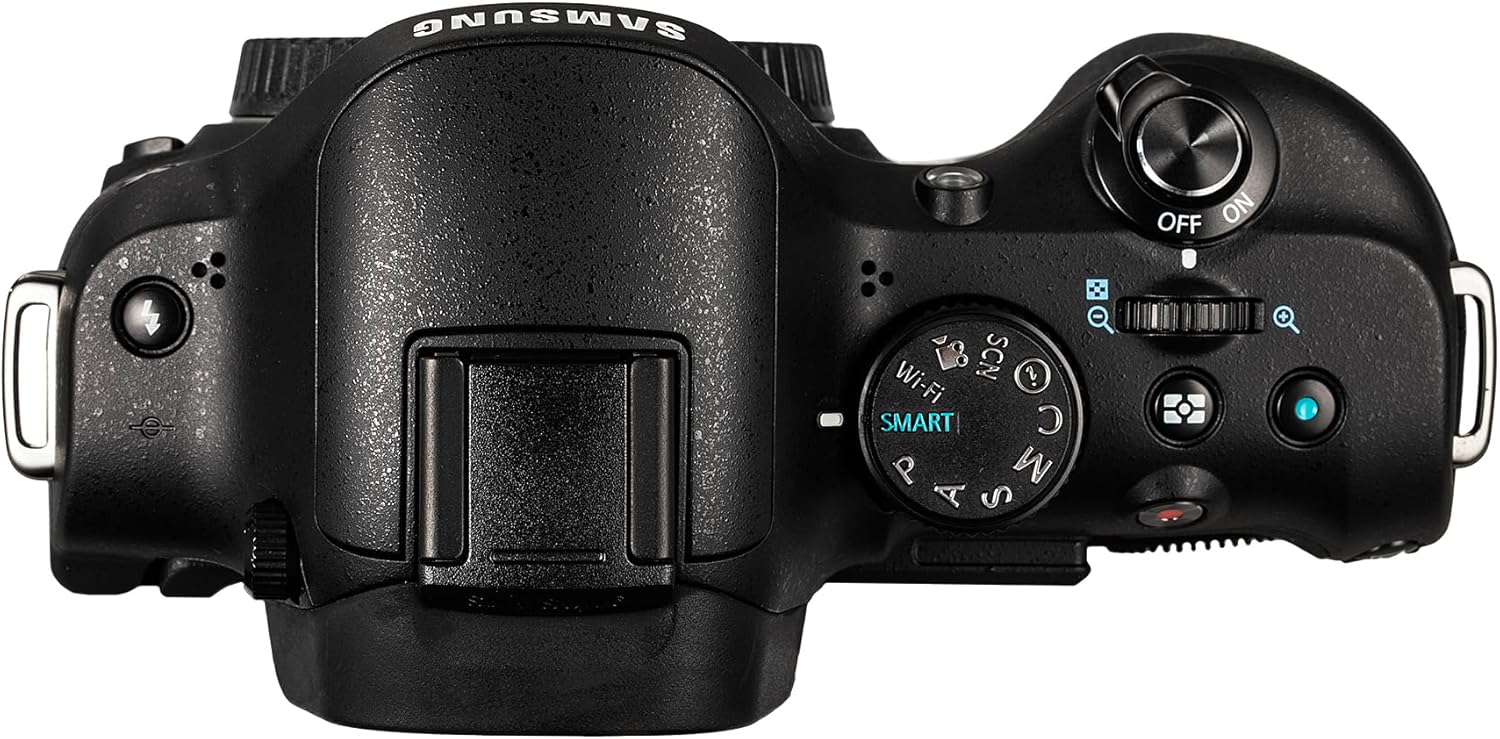
Image 3.3: Top view of the Samsung NX20 camera, showing the mode dial, shutter button, and hot shoe.
- Mode Dial: Select shooting modes (Smart, Program, Aperture Priority, Shutter Priority, Manual, Custom, Scene, Wi-Fi).
- Shutter Button: Press halfway to focus, fully to capture.
- Hot Shoe: For external flash units or accessories.
3.4 Side View

Image 3.4: Side view of the Samsung NX20 camera, showing the battery/memory card compartment door and tripod mount.
- Battery/Memory Card Compartment: Houses the battery and SD card slot.
- Tripod Mount: Standard thread for tripod attachment.
4. Setup
4.1 Battery Installation and Charging
- Open the battery compartment cover located on the bottom of the camera.
- Insert the rechargeable battery, ensuring the correct orientation as indicated inside the compartment.
- Close the battery compartment cover securely.
- To charge the battery, remove it from the camera and place it in the provided battery charger. Connect the charger to a power outlet. The charging indicator light will show the charging status.
4.2 Lens Attachment
- Remove the body cap from the camera and the rear lens cap from the lens.
- Align the white index mark on the lens with the white index mark on the camera body.
- Mount the lens by rotating it clockwise until it clicks into place. Do not force the lens.
- Remove the front lens cap.
4.3 Memory Card Insertion
- Open the battery/memory card compartment cover.
- Insert a compatible SD/SDHC/SDXC memory card into the slot with the label facing the correct direction until it clicks.
- Close the compartment cover.
4.4 Initial Power On
Turn the power switch to the "ON" position. The camera will power on, and the display will activate. Follow any on-screen prompts for initial setup, such as setting the date and time.
5. Operating the Camera
5.1 Basic Photography Modes
Rotate the mode dial on the top of the camera to select your desired shooting mode:
- Smart Auto: Camera automatically analyzes the scene and selects optimal settings.
- Program (P): Camera sets aperture and shutter speed, while you control other settings.
- Aperture Priority (A): You set the aperture, camera sets shutter speed.
- Shutter Priority (S): You set the shutter speed, camera sets aperture.
- Manual (M): You control both aperture and shutter speed.
- Scene Modes: Pre-set modes for specific situations (e.g., Landscape, Portrait).
5.2 Wi-Fi Connectivity
The NX20 features built-in Wi-Fi for various functions:
- MobileLink: Transfer photos and videos to a smartphone or tablet.
- Remote Viewfinder: Control the camera remotely from a smart device.
- Social Sharing: Directly upload images to social media platforms.
- Email: Send photos via email.
- Auto Backup: Automatically save images to a computer.
To access Wi-Fi features, turn the mode dial to the Wi-Fi setting and follow the on-screen instructions to connect to a network or device.
5.3 Video Recording
To record video:
- Select a video recording mode from the mode dial or within the menu.
- Press the dedicated video record button (usually marked with a red dot) to start and stop recording.
- The camera supports Full HD 1080p video at 30 fps, with options for slow-motion and fast-motion recording.
5.4 i-Function System
The i-Function button on compatible Samsung lenses allows for quick adjustment of key camera settings directly from the lens. Press the i-Function button and rotate the focus ring to change parameters like ISO, aperture, shutter speed, or white balance, depending on the selected mode.
5.5 Display and Viewfinder Usage

Image 5.1: The tilting AMOLED display of the Samsung NX20 showing a captured image, demonstrating its utility for reviewing photos and videos.
- Tilting AMOLED Display: Use the 3.0-inch display for live view, reviewing images, and navigating menus. It can be tilted for shooting from various angles.
- Electronic Viewfinder (EVF): Provides a clear, real-time view of your scene, especially useful in bright conditions or for precise manual focusing. The camera automatically switches between the display and EVF when you bring your eye to the viewfinder.
6. Maintenance
6.1 Cleaning the Camera and Lens
- Camera Body: Use a soft, dry cloth to wipe the camera body. For stubborn dirt, slightly dampen the cloth with water. Avoid harsh chemicals.
- Lens: Use a lens brush or blower to remove dust. For smudges, use a specialized lens cleaning solution and a microfiber lens cloth. Never touch the lens surface with your fingers.
- Sensor: Sensor cleaning should only be performed by authorized service personnel or with extreme caution using specialized tools.
6.2 Battery Care
- Store batteries in a cool, dry place when not in use.
- Avoid fully discharging the battery frequently.
- Do not expose batteries to extreme temperatures.
6.3 Storage
When storing the camera for extended periods, remove the battery and memory card. Store the camera in a dry, dust-free environment, preferably in a camera bag or case to protect it from impacts.
7. Troubleshooting
| Problem | Possible Cause | Solution |
|---|---|---|
| Camera does not power on. | Battery is depleted or incorrectly inserted. | Charge the battery fully and ensure it is inserted correctly. |
| Images are blurry. | Incorrect focus, camera shake, or dirty lens. | Ensure proper focus, use a faster shutter speed or image stabilization, clean the lens. |
| Wi-Fi connection fails. | Incorrect password, out of range, or network issue. | Verify Wi-Fi password, move closer to the access point, restart camera and router. |
| Memory card error. | Card is full, corrupted, or incompatible. | Delete unnecessary files, format the card (will erase all data), or try a different card. |
8. Specifications
| Feature | Detail |
|---|---|
| Model Name | EV-NX20ZZBSBUS |
| Sensor Type | APS-C CMOS |
| Effective Pixels | 20.3 MP |
| Lens Mount | Samsung NX Mount |
| Included Lens | 18-55mm f/3.5-5.6 OIS II |
| Image Stabilization | Yes (Lens-based OIS) |
| Display | 3.0-inch Tilting AMOLED |
| Viewfinder | Electronic Viewfinder (EVF) |
| Video Recording | Full HD 1080p at 30 fps |
| Connectivity | Wi-Fi |
| Continuous Shooting | Up to 8 fps |
| Storage Media | SD/SDHC/SDXC Card |
| Battery Type | Rechargeable Lithium-Ion |
| Dimensions (Approx.) | 3.8 inches (Height) |
| Weight (Approx.) | 16 ounces (Body only) |
9. Warranty and Support
For warranty information and technical support, please refer to the warranty card included with your product or visit the official Samsung support website. Keep your proof of purchase for warranty claims.
Online Support: www.samsung.com/us/support/


