
Product Overview
The Dpofirs E Book Reader is a portable electronic device designed for reading and writing, featuring a 5-inch inkless touch screen. It operates on Android 5.1, offering 1GB RAM and 8GB ROM, allowing for third-party applications and seamless internet browsing via Wi-Fi and Bluetooth.

Image: The Dpofirs E Book Reader, shown with its protective cover, displaying an e-book on its screen.
This device supports multiple document formats and includes features such as night mode, bookmarking, and adjustable font sizes for a personalized reading experience. It also boasts a 5MP camera with flash and built-in speakers for multimedia functions like taking photos, video calls, and playing sounds.
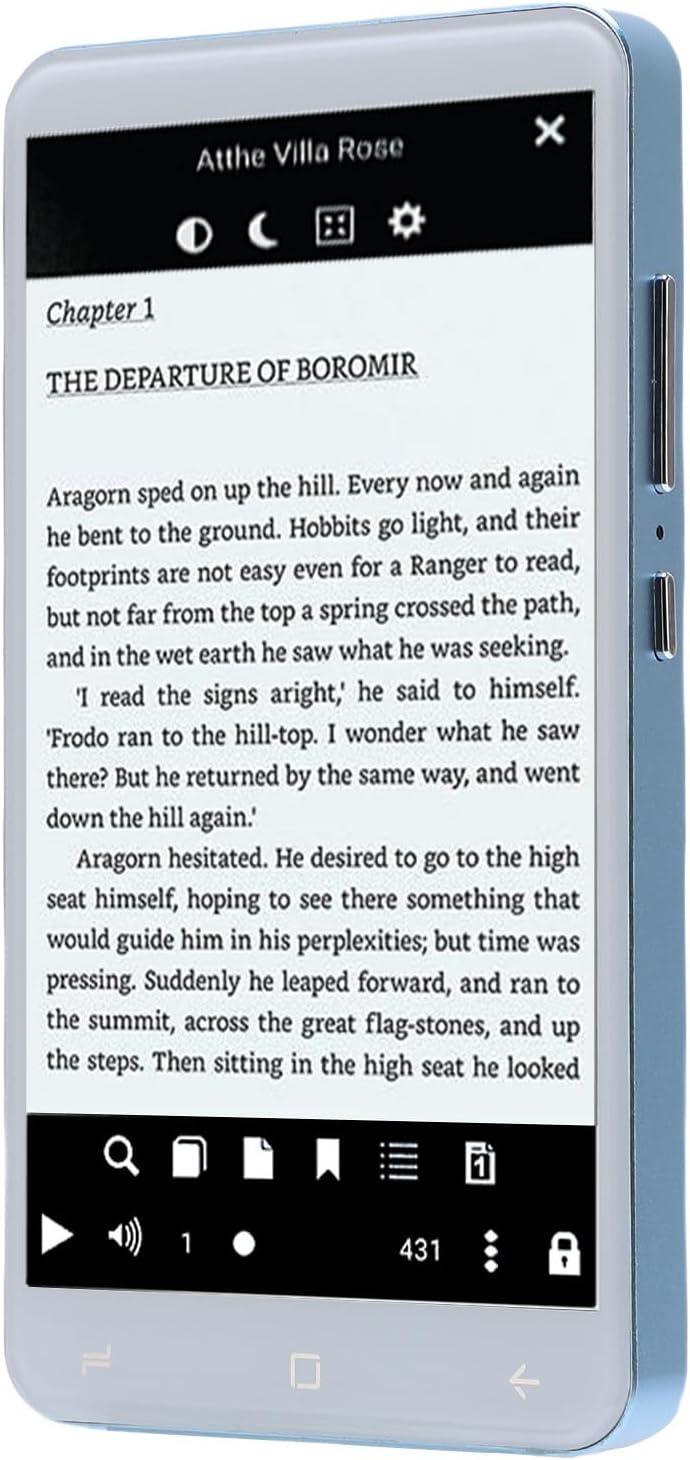
Image: The Dpofirs E Book Reader without its cover, highlighting the device's sleek design and physical buttons on the side.
Package Contents
Upon unboxing, verify that all items listed below are present:
- 1 x Electronic Book Reader
- 1 x Protective Cover
- 1 x Charging Cable (Type C)
- 1 x Earphone (3.5mm)
- 1 x Stylus Pen
- 1 x Screen Protector
- 1 x Writing Board
- 1 x Writing Board Stylus Pen
- 1 x Instruction Manual (this document)

Image: A flat lay showing all components included in the Dpofirs E Book Reader package: the e-reader, protective cover, charging cable, earphones, stylus pen, screen protector, writing board, and writing board stylus pen.
Setup
- Initial Charge: Before first use, fully charge the e-reader using the provided Type C charging cable. Connect the cable to the device's USB Type C port and a compatible USB power adapter (not included). The battery indicator will show charging status.
- Power On: Press and hold the On/Off key (one of the 4 physical keys) until the screen illuminates.
- Screen Protector Application: Carefully apply the included screen protector to the device's screen to prevent scratches. Ensure the screen is clean and dust-free before application.
- Protective Cover: Place the e-reader into the protective cover for enhanced durability and protection.
- Stylus Pen: The stylus pen can be used for navigation and writing on the inkless touch screen.
- Writing Board: The separate writing board and its stylus pen are for note-taking and drawing, independent of the e-reader's screen.
Operating Instructions
Basic Navigation and Controls
- Touch Screen: Navigate the interface by tapping, swiping, and pinching on the 5-inch inkless touch screen.
- Physical Keys: The device features 4 physical keys: Volume Up, Volume Down, Photo, and On/Off. These keys provide quick access to their respective functions.
- Stylus Pen Usage: Use the provided stylus pen for precise input on the touch screen, especially for writing or drawing functions.
Reading and Document Management
The Dpofirs E Book Reader supports a wide range of document formats. It can automatically scan user-specified folders for easy management of your library.
- Opening Documents: Tap on a document icon from your library to open and begin reading.
- Page Turning: Swipe left or right on the screen, or use designated physical keys (if applicable) to turn pages.
- Personalized Settings:
- Night Mode: Activate night mode for comfortable reading in low-light conditions.
- Bookmarks: Add bookmarks to easily return to specific pages.
- Font Adjustment: Change font sizes to suit your preference.

Image: The Dpofirs E Book Reader showcasing its flat e-ink screen, designed to provide a reading experience similar to a physical book.

Image: A user holding the Dpofirs E Book Reader outdoors, illustrating the screen's anti-reflection properties for barrier-free reading even under strong light.
Connectivity and Multimedia
- Wi-Fi: Connect to Wi-Fi networks for internet browsing, downloading content, and accessing online features.
- Bluetooth: Pair with Bluetooth-enabled devices such as headphones or speakers for audio playback.
- Camera: Use the built-in 5MP camera to take photos. The Photo physical key can be used for quick access.
- Audio Playback: The device supports various sound formats. Connect the provided 3.5mm earphones or Bluetooth audio devices for private listening.
- Video Playback: The e-reader supports various video formats, allowing for multimedia consumption.

Image: The Dpofirs E Book Reader positioned alongside its accompanying writing board, showcasing its dual functionality for reading and note-taking.

Image: The Dpofirs E Book Reader and writing board arranged with a coffee cup, suggesting a comfortable and immersive reading experience.
Maintenance
- Cleaning: Use a soft, lint-free cloth to clean the screen and body of the device. Avoid abrasive cleaners or solvents.
- Storage: Store the e-reader in a cool, dry place away from direct sunlight and extreme temperatures. Use the protective cover when not in use.
- Battery Care: To prolong battery life, avoid fully discharging the battery frequently. Charge the device regularly, especially if it will be stored for an extended period.
- Software Updates: Periodically check for and install any available software updates to ensure optimal performance and access to new features.

Image: The Dpofirs E Book Reader with a visual representation of its high-capacity battery, emphasizing its super long range and extended reading time on a single charge.
Troubleshooting
- Device Not Turning On: Ensure the battery is charged. Connect the device to a power source and try turning it on again. If unresponsive, perform a hard reset by holding the power button for an extended period (e.g., 10-15 seconds).
- Screen Unresponsive: If the touch screen is not responding, try restarting the device. Ensure the screen is clean and free of debris.
- Cannot Connect to Wi-Fi/Bluetooth: Verify that Wi-Fi/Bluetooth is enabled in the device settings. Check your network connection or try restarting your router/Bluetooth device.
- Slow Performance: Close unnecessary applications running in the background. Clear cache or temporary files if available in settings.
- Audio Issues: Check volume settings. Ensure earphones are properly connected or Bluetooth audio device is paired correctly.
Specifications
| Feature | Specification |
|---|---|
| Item Type | Electronic Book Reader |
| Material | Aluminum Alloy |
| Screen Size | 5 inch, 480x854 resolution |
| TP Specification | 6PIN |
| Camera | 5MP with Flash |
| Number of Keys | 4 Physical Keys (Volume Up, Volume Down, Photo, On/Off) |
| Battery Type | Li Battery (Built-in) |
| Battery Capacity | 2500mAh |
| USB Port | Type C Port |
| Headset Specifications | 3.5mm Headset |
| Operating System | Android 5.1 |
| RAM | 1GB |
| ROM | 8GB |
| Package Dimensions | 8.27 x 5.51 x 1.18 inches |
| Item Weight | 14.5 ounces |
| Model Number | Dpofirsgkmuqz3xce |
| Manufacturer | Dpofirs |
Support
For further assistance, technical support, or warranty inquiries, please contact Dpofirs customer service. Refer to the product packaging or the official Dpofirs website for contact information.
Note: Specific warranty terms and conditions may vary by region and retailer. Please retain your proof of purchase for warranty claims.