
1. Introduction
This manual provides comprehensive instructions for the installation, operation, maintenance, and troubleshooting of your NEWFAST 1200Mbps Dual Band WiFi Extender, model RE523. Please read this manual carefully before using the device to ensure proper setup and optimal performance.
2. Product Overview
The NEWFAST RE523 WiFi Extender is designed to expand your existing wireless network coverage and eliminate Wi-Fi dead zones. It supports dual-band operation, offering speeds up to 1200Mbps (300Mbps on 2.4GHz and 867Mbps on 5.8GHz) for a stable and fast internet connection.
2.1 Key Features
- High-Speed Dual-Band WiFi: Up to 1200Mbps (300Mbps 2.4GHz + 867Mbps 5.8GHz).
- Extended Coverage: Equipped with 4 external 3dBi high-gain antennas, rotatable 180° for optimal signal reception and coverage.
- LCD Smart Display: Provides real-time status information for easy monitoring.
- Multiple Operating Modes: Supports Repeater, Bridge, AP, Router, and Client modes.
- Easy Setup: One-click WPS setup or web-based configuration.
- Wide Compatibility: Compatible with 802.11 ac/a/b/g/n routers.
- High Device Capacity: Can connect up to 35 wireless devices simultaneously.
2.2 Package Contents
- NEWFAST 1200Mbps WiFi Extender (RE523)
- User Manual (this document)
- Ethernet Cable (may vary by region)
2.3 Physical Components
Below is an image of the NEWFAST RE523 WiFi Extender, highlighting its main components.
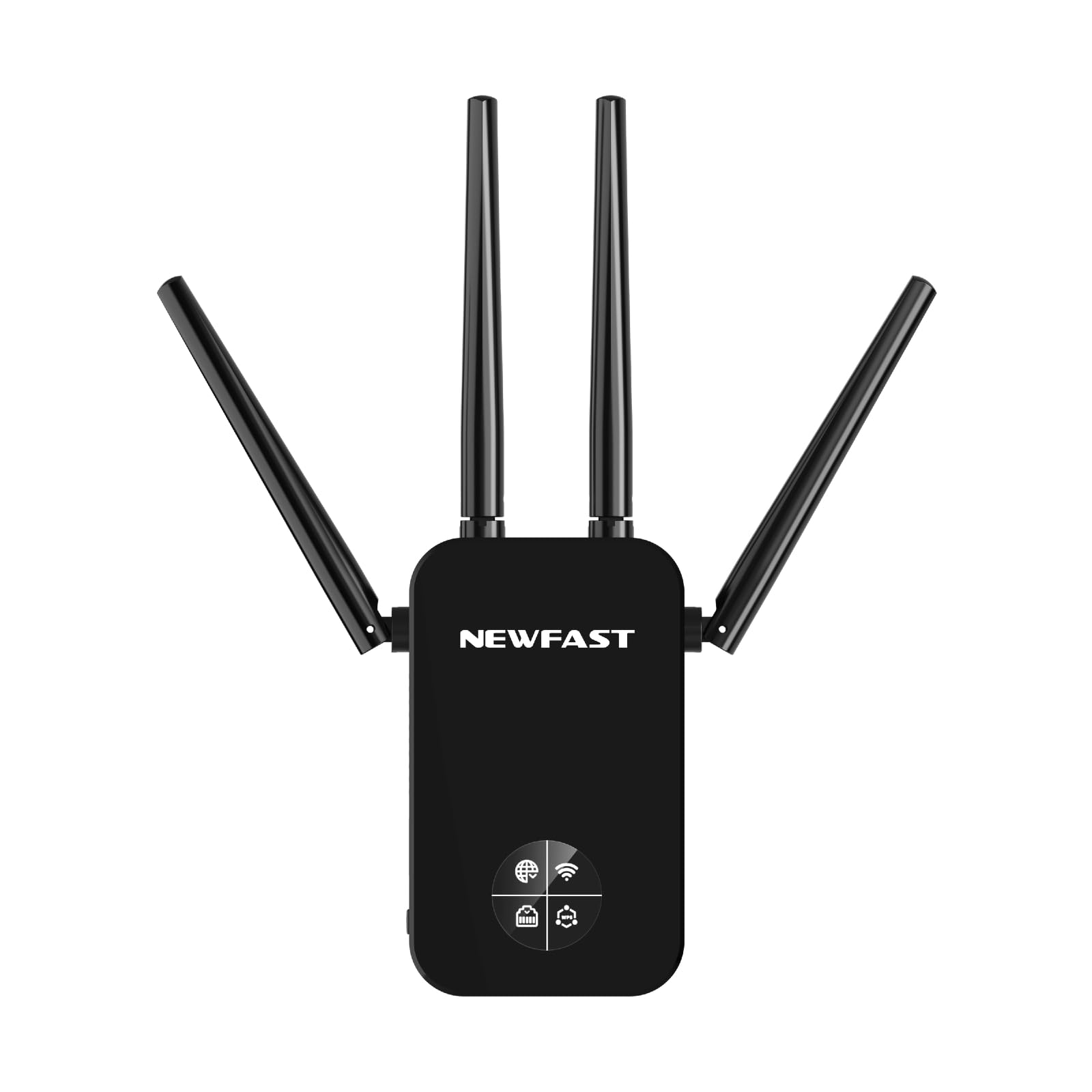
Figure 1: NEWFAST RE523 WiFi Extender. The device features four adjustable external antennas, an LCD screen on the front, and an Ethernet port on the side.
- Antennas: Four external antennas for signal transmission and reception.
- LCD Display: Shows connection status, signal strength, and operating mode.
- WPS Button: For quick and secure connection to a router.
- Ethernet Port: For wired connections in various operating modes.
- Power LED: Indicates power status.
3. Setup Instructions
The NEWFAST RE523 offers two primary methods for setup: WPS (Wi-Fi Protected Setup) and Web UI (Web User Interface).
3.1 WPS Setup (Recommended for quick setup)
- Power On: Plug the RE523 extender into an electrical outlet near your main router. Wait for the Power LED to turn solid.
- Activate WPS on Router: Press the WPS button on your main Wi-Fi router. Refer to your router's manual for the exact location and timing.
- Activate WPS on Extender: Within 2 minutes of pressing the WPS button on your router, press the WPS button on the NEWFAST RE523 extender. The WPS LED on the extender will blink.
- Wait for Connection: The extender will automatically connect to your router. Once connected, the Signal LED on the extender will turn solid, indicating a successful connection.
- Relocate Extender: Unplug the extender and move it to a location halfway between your router and the Wi-Fi dead zone. Ensure the Signal LED indicates a good signal strength from your router.
3.2 Web UI Setup
- Power On: Plug the RE523 extender into an electrical outlet near your main router. Wait for the Power LED to turn solid.
- Connect to Extender's Network: On your computer or mobile device, connect to the Wi-Fi network broadcast by the extender (e.g., "NEWFAST_EXT_2.4G" or "NEWFAST_EXT_5G"). No password is required initially.
- Access Web Interface: Open a web browser and enter the default IP address or domain name (usually found on a sticker on the device or in a quick start guide, e.g.,
http://192.168.1.254orhttp://newfastwifi.net). - Login: Enter the default username and password (e.g., admin/admin).
- Follow On-Screen Instructions: The setup wizard will guide you through selecting your main Wi-Fi network, entering its password, and configuring the extender's network name (SSID) and password.
- Complete Setup: After configuration, the extender will restart. Once the Signal LED turns solid, the setup is complete.
- Relocate Extender: Unplug the extender and move it to a location halfway between your router and the Wi-Fi dead zone. Ensure the Signal LED indicates a good signal strength from your router.
4. Operating Modes
The NEWFAST RE523 supports five operating modes to suit various network requirements.
- Repeater Mode: Extends the existing Wi-Fi coverage of your main router. This is the most common mode for eliminating dead zones.
- AP (Access Point) Mode: Converts a wired network connection into a wireless one. Connect the extender to your router via an Ethernet cable, and it will broadcast a new Wi-Fi network.
- Router Mode: Functions as a primary router, creating a new private network. This mode is typically used when you have a modem but no router.
- Bridge Mode: Connects two separate networks, allowing devices on one network to communicate with devices on another.
- Client Mode: Allows wired-only devices (e.g., smart TVs, gaming consoles) to connect to a wireless network. The extender receives Wi-Fi and provides an Ethernet connection to the device.
You can switch between these modes via the web management interface after initial setup.
5. Maintenance
- Cleaning: Use a soft, dry cloth to clean the device. Do not use liquid or aerosol cleaners.
- Placement: Place the extender in a well-ventilated area, away from direct sunlight, heat sources, and moisture. Avoid placing it near large metal objects or electrical appliances that may cause interference.
- Firmware Updates: Periodically check the NEWFAST official website for firmware updates to ensure optimal performance and security.
- Reset: If the device malfunctions or you forget the login credentials, you can perform a factory reset by pressing and holding the reset button (usually a small pinhole button) for about 5-10 seconds while the device is powered on.
6. Troubleshooting
- No Internet Access After Setup:
- Ensure the extender is receiving a strong signal from your main router (check the Signal LED).
- Verify that your main router has internet access.
- Re-run the setup process, ensuring you enter the correct Wi-Fi password for your main router.
- Try relocating the extender closer to your main router.
- Slow Speed or Frequent Disconnections:
- Relocate the extender to an optimal position, ideally halfway between your router and the desired coverage area, where it receives a good signal.
- Minimize physical obstructions (walls, large appliances) between the extender, router, and client devices.
- Check for interference from other electronic devices.
- Ensure your router's firmware is up to date.
- Cannot Access Web Management Page:
- Ensure your device is connected to the extender's Wi-Fi network.
- Verify the IP address or domain name entered in the browser is correct.
- Try clearing your browser's cache or using a different browser.
- If you've changed the extender's IP address, use the new one. If forgotten, perform a factory reset.
7. Specifications
| Brand | NEWFAST |
| Model | RE523 |
| Wireless Communication Standard | 802.11a/b/g/n/ac |
| Data Transfer Rate | 1200 Megabits per second (Mbps) |
| Frequency Band Class | Dual Band (2.4GHz & 5.8GHz) |
| Antennas | 4 External 3dBi Antennas |
| Ethernet Port | 1x LAN/WAN Port |
| Color | Black |
8. Warranty and Support
NEWFAST products come with a standard manufacturer's warranty. For specific warranty terms and conditions, please refer to the warranty card included with your product or visit the official NEWFAST website. For technical support, troubleshooting assistance, or to download the latest drivers and firmware, please visit the NEWFAST support page or contact their customer service directly.
Official NEWFAST Website: NEWFAST Store on Amazon (Please check the product packaging or official documentation for the direct manufacturer website.)


