
1. Introduction
This manual provides essential instructions for the safe operation, setup, and maintenance of your Punieayi GPS Drone ZY-80 PRO. Please read this manual thoroughly before your first flight to ensure proper usage and to maximize your drone's performance and longevity. Retain this manual for future reference.
2. Package Contents
Verify that all items listed below are present in your package:
- Punieayi GPS Drone ZY-80 PRO
- Remote Control with 5-inch LCD Screen
- Flight Batteries (3 units)
- Spare Propellers (set)
- USB Charging Cables (for drone batteries and remote)
- Screwdriver
- 8G SD Card
- Carrying Case
- User Manual (this document)

Image showing the Punieayi GPS Drone ZY-80 PRO, remote controller with LCD screen, three flight batteries, spare propellers, charging cables, screwdriver, and carrying case.
3. Product Overview
3.1 Drone Components
Familiarize yourself with the main parts of your drone:
- 4K HD Camera: Adjustable 90-degree camera for photo and video capture.
- Brushless Motors: Provide stable and efficient flight.
- Foldable Arms: For compact storage and portability.
- Propellers: Generate lift and thrust.
- Battery Compartment: Houses the flight battery.
- GPS Module: Enables intelligent flight functions.

Close-up view of the drone's 4K HD camera, highlighting its 90-degree adjustable angle.
3.2 Remote Control Layout
The remote control features a 5-inch LCD screen for real-time video transmission and flight data. Key controls include:
- Left Joystick: Controls throttle (up/down) and yaw (rotate left/right).
- Right Joystick: Controls pitch (forward/backward) and roll (left/right).
- Power Switch: Turns the remote control on/off.
- GPS Switch: Toggles GPS mode on/off.
- One-Key Takeoff/Landing Button: Initiates automatic takeoff or landing.
- Return-to-Home (RTH) Button: Commands the drone to return to its takeoff point.
- Photo/Video Button: Captures images or starts/stops video recording.
- Gimbal Control Wheel: Adjusts the camera's vertical angle.

The remote control unit for the Punieayi GPS Drone ZY-80 PRO, featuring a 5-inch LCD screen for real-time video feed and flight data.

Diagram illustrating the functions of the remote control buttons and joysticks, including power switch, GPS switch, calibration, photo/video, and one-key operations.
4. Setup
4.1 Battery Charging
- Connect the drone flight batteries to the provided USB charging cable.
- Connect the USB cable to a 5V/2A USB power adapter (not included).
- Charge until the indicator lights on the battery show a full charge. Each battery provides approximately 30 minutes of flight time, totaling up to 90 minutes with all three included batteries.
- Charge the remote control using its dedicated USB cable.

Three high-capacity drone batteries, each providing approximately 30 minutes of flight time.
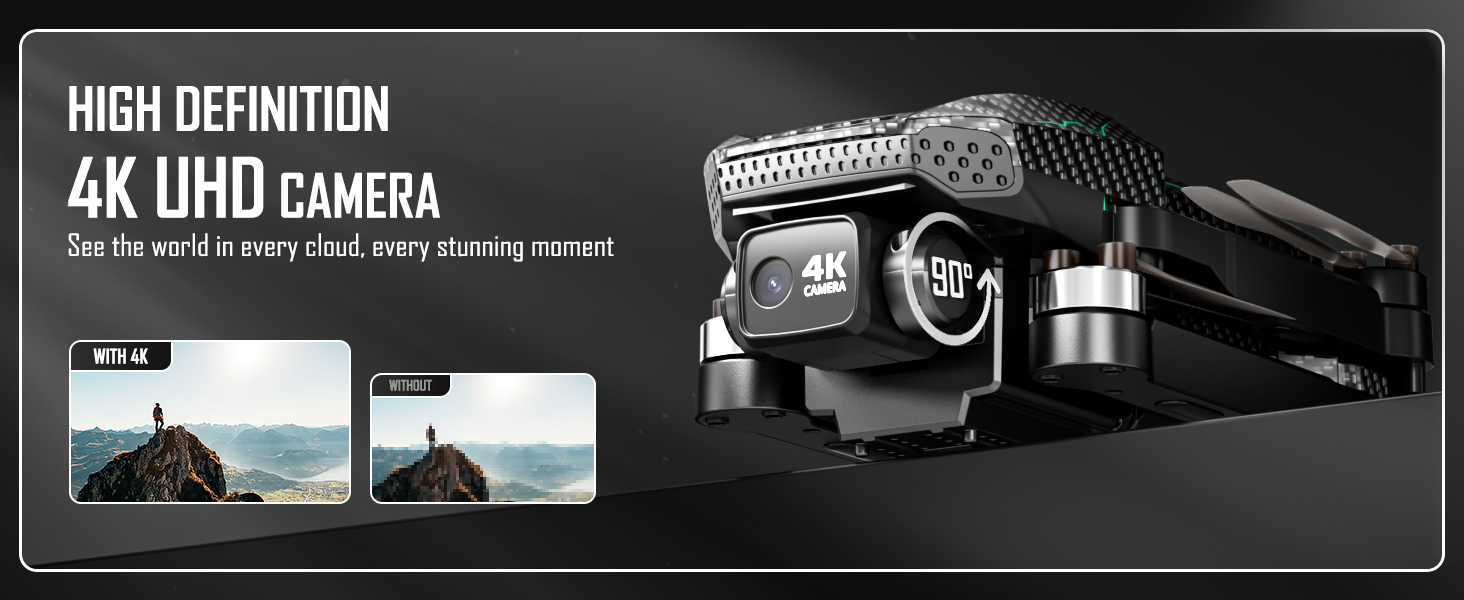
Diagram illustrating the total flight time of up to 90 minutes when utilizing all three included 30-minute batteries.
4.2 Propeller Installation
Ensure propellers are correctly attached to their respective motor shafts. Match the propeller type (A or B) to the corresponding motor arm as indicated in the drone's markings.
4.3 SD Card Insertion
Insert the provided 8G SD card into the drone's SD card slot. This card is essential for storing 4K photos and videos.
4.4 Drone and Remote Pairing
- Place the drone on a flat, open surface.
- Power on the drone, then power on the remote control.
- The drone and remote will automatically attempt to pair. Wait for the indicator lights to confirm a successful connection.
4.5 Calibration
For optimal flight stability and GPS accuracy, perform calibration outdoors in an open area, away from magnetic interference.
- Compass Calibration: Follow the on-screen prompts on the remote's LCD or refer to the quick start guide for specific rotation sequences.
- Gyroscope Calibration: Ensure the drone is on a level surface during this process.
5. Operating Instructions
5.1 Pre-Flight Checklist
- Ensure all batteries (drone and remote) are fully charged.
- Check that propellers are securely attached and undamaged.
- Confirm the SD card is inserted correctly.
- Choose an open outdoor area free from obstacles, people, and animals.
- Verify a strong GPS signal (if flying in GPS mode).
5.2 Takeoff and Landing
- One-Key Takeoff: Press the dedicated one-key takeoff button on the remote. The drone will automatically ascend to a safe altitude and hover.
- Manual Takeoff: Push both joysticks down and outwards to start the motors, then slowly push the left joystick up to ascend.
- One-Key Landing: Press the dedicated one-key landing button. The drone will descend and land automatically.
- Manual Landing: Slowly pull the left joystick down to descend.
5.3 Basic Flight Controls
Use the joysticks on the remote control to maneuver the drone:
- Left Joystick (Up/Down): Controls altitude (throttle).
- Left Joystick (Left/Right): Controls yaw (rotation).
- Right Joystick (Up/Down): Controls pitch (forward/backward movement).
- Right Joystick (Left/Right): Controls roll (sideways movement).
5.4 Advanced Flight Modes
The ZY-80 PRO features intelligent flight modes for enhanced control and creative shots:
- GPS Mode: Requires outdoor flight with a strong GPS signal. Provides stable hovering and enables intelligent functions. Switch to indoor mode for indoor flight.
- Return-to-Home (RTH): The drone will automatically return to its takeoff point if the battery is low or if the RTH button is pressed. Ensure a clear path for return.
- Follow Me: The drone will follow the remote controller, maintaining a set distance and altitude.
- Circle Fly (Surround): The drone will orbit a designated point or the remote controller.

Illustrations of the drone's intelligent GPS functions, including Return-to-Home, Follow Me, and Circle Fly modes.
5.5 Camera Operation
- Take Photo: Press the photo button on the remote control.
- Record Video: Press the video button to start recording; press again to stop.
- Adjust Camera Angle: Use the gimbal control wheel on the remote to adjust the camera's vertical tilt.
5.6 Indoor vs. Outdoor Flight
The drone supports both indoor and outdoor flight. For indoor flight, ensure GPS mode is disabled to prevent erratic behavior due to lack of satellite signals. For outdoor flight, GPS mode is recommended for enhanced stability and intelligent features.
6. Maintenance
6.1 Cleaning
- Wipe the drone body with a soft, dry cloth.
- Gently clean the camera lens with a microfiber cloth to ensure clear image quality.
- Avoid using solvents or harsh chemicals.
6.2 Battery Care
- Store batteries in a cool, dry place, away from direct sunlight and extreme temperatures.
- Do not overcharge or over-discharge batteries.
- If storing for extended periods, charge batteries to approximately 50-60% capacity.
6.3 Propeller Replacement
If a propeller is damaged, replace it immediately using the provided screwdriver and spare propellers. Ensure the correct type (A or B) is installed on the corresponding motor.
7. Troubleshooting
- Drone not powering on: Ensure the battery is fully charged and correctly inserted.
- Remote not pairing: Power cycle both the drone and remote. Ensure they are within range and no strong interference is present.
- Unstable flight: Perform gyroscope and compass calibration in an open outdoor area. Check for damaged propellers.
- No GPS signal: Ensure you are flying outdoors in an open area, away from tall buildings or dense foliage.
- Poor image/video quality: Clean the camera lens. Ensure the SD card is properly inserted and has sufficient space.
For persistent issues, please contact customer support for assistance.
8. Specifications
| Feature | Detail |
|---|---|
| Brand | Punieayi |
| Model Name | GPS Drone-ZY-80 PRO |
| Special Features | Auto Follow, Extended Flight Time, First Person View (FPV), Gyroscopic Stabilization, Integrated GPS |
| Color | BLACK |
| Video Capture Resolution | 1920*1080 |
| Effective Still Resolution | 8 MP |
| Connectivity Technology | Wi-Fi |
| Included Components | Battery, Carrying Case, Memory Card, Screwdriver, User Manual |
| Skill Level | All |
| Item Weight | 238 Grams |
| Video Capture Format | MP4 |
| Remote Control Technology | RF |
| Control Type | Remote Control |
| Maximum Range | 610 Meters |
| Material | Plastic |
| Wireless Communication Technology | Wi-Fi, RF |
| Battery Cell Composition | Lithium Polymer |
| Are Batteries Included | Yes |
| Video Output Resolution | 3840 pixels |
| Remote Control Included? | Yes |
| Optical Sensor Technology | CMOS |
| Rechargeable Battery Included | Yes |
| Product Dimensions | 13"L x 11"W x 2.3"H |
| Manufacturer | Sanzhiniao |
| Manufacturer Part Number | Drone- ZY-80 PRO |
9. Safety Guidelines
Operating a drone requires responsibility. Adhere to the following safety guidelines:
- Always fly in open areas, away from people, animals, and obstacles.
- Maintain a safe distance from power lines, buildings, and airports.
- Do not fly in strong winds, rain, or other adverse weather conditions.
- Always keep the drone within your line of sight.
- Familiarize yourself with local drone regulations and restrictions.
- Ensure all propellers are securely attached before each flight.
- Do not operate the drone under the influence of alcohol or drugs.
10. Warranty and Support
For any issues, questions, or technical support regarding your Punieayi GPS Drone ZY-80 PRO, please contact customer support. Refer to the product packaging or the official Punieayi website for contact information. Please have your model number (ZY-80 PRO) and purchase details available when contacting support.