
1. Introduction
This manual provides detailed instructions for the proper use and maintenance of your Relndoo P80 Android 15 Tablet. Please read this manual thoroughly before operating the device to ensure optimal performance and longevity. The Relndoo P80 is an 11-inch tablet featuring the Android 15 operating system, an Octa-core processor, and a comprehensive set of accessories for versatile use.
2. Package Contents
Verify that all items are present in the package:
- 1 x 11-inch Relndoo Android Tablet
- 1 x Bluetooth Keyboard
- 1 x Wireless Mouse
- 1 x Stylus Pen
- 1 x Foldable Protective Case
- 1 x Screen Protector (pre-applied or separate)
- 1 x Charging Adapter
- 1 x USB-C Charging Cable
- 1 x User Manual (this document)
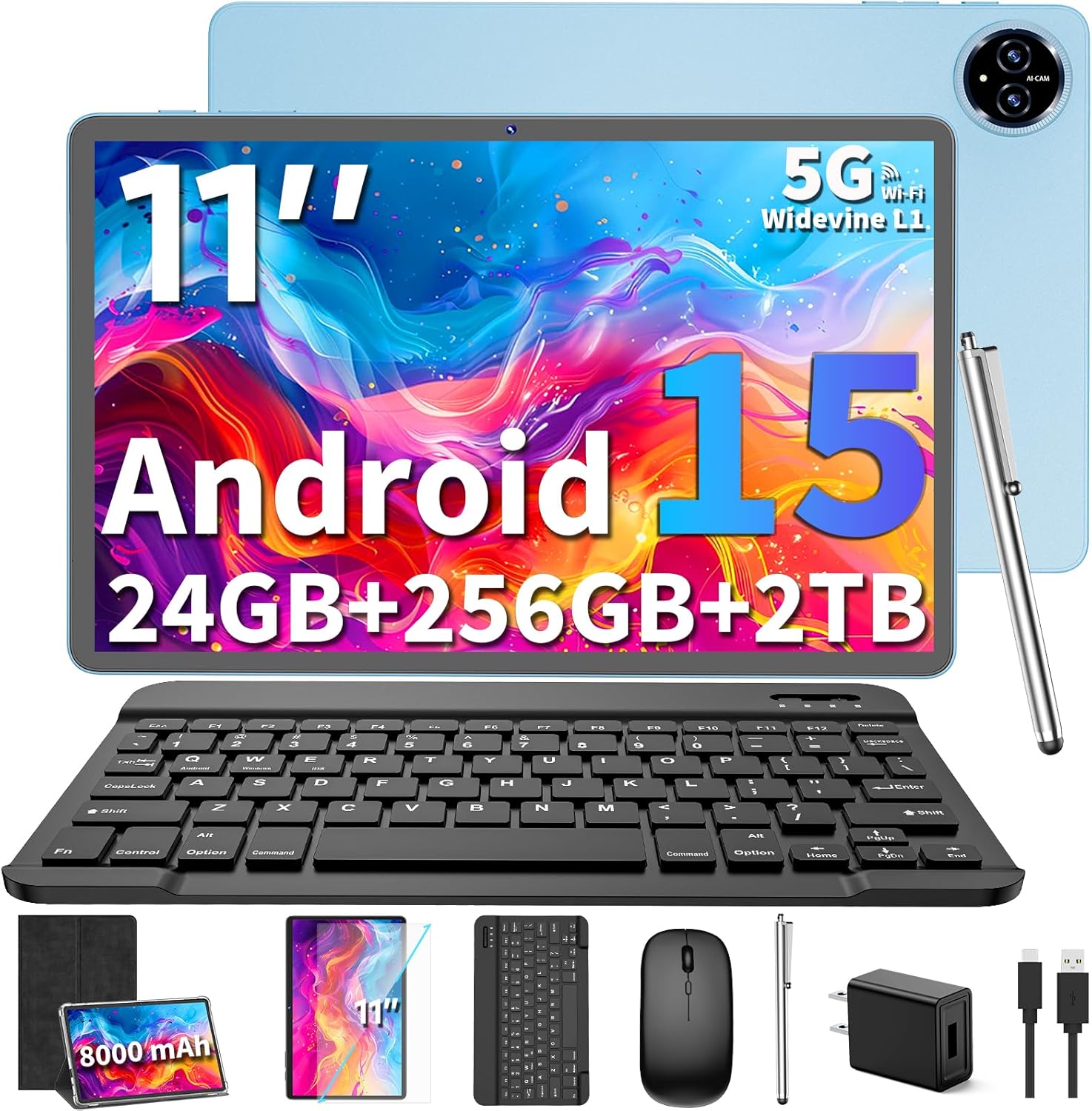
Image 2.1: The Relndoo P80 tablet shown with its full set of accessories, including the keyboard, mouse, stylus, and protective case.
3. Setup
3.1 Charging the Tablet
Before first use, fully charge the tablet. Connect the USB-C charging cable to the tablet's USB-C port and the charging adapter. Plug the adapter into a power outlet. The battery indicator on the screen will show charging status. A full charge typically takes several hours.
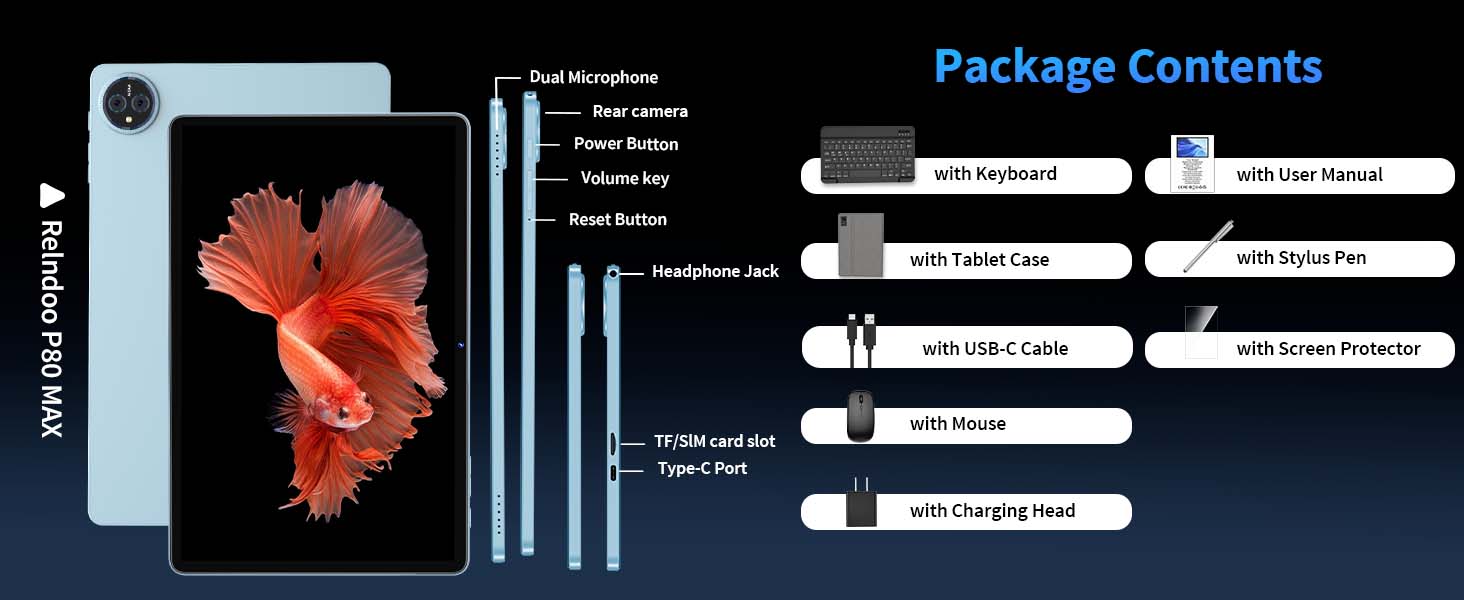
Image 3.1: The tablet connected to its 18W fast charger, illustrating the charging process and the 8000mAh battery capacity.
3.2 Powering On/Off
- To Power On: Press and hold the Power button (located on the side of the tablet) until the Relndoo logo appears on the screen.
- To Power Off: Press and hold the Power button until the power options menu appears. Select 'Power off' and confirm.
- To Restart: From the power options menu, select 'Restart' and confirm.
3.3 Initial Setup
Upon first power-on, follow the on-screen prompts to complete the initial setup:
- Select your preferred language.
- Connect to a Wi-Fi network.
- Sign in with your Google account or create a new one. This is necessary to access the Google Play Store and other Google services.
- Review and accept the terms and conditions.
- Set up screen lock (PIN, pattern, password, or Face Unlock).
3.4 Inserting a MicroSD Card
The tablet supports MicroSD card expansion up to 2TB (FAT32 format). Locate the SIM/MicroSD card slot on the side of the tablet. Use the provided ejector tool to open the tray. Place the MicroSD card into the designated slot and reinsert the tray firmly.
3.5 Connecting Accessories
The tablet comes with a Bluetooth keyboard and wireless mouse for enhanced productivity.
- Bluetooth Keyboard/Mouse: Turn on the keyboard/mouse and put it into pairing mode (refer to the accessory's individual manual if needed). On the tablet, go to Settings > Connected devices > Bluetooth. Turn on Bluetooth and select the accessory from the list of available devices to pair.
- Protective Case: Insert the tablet into the foldable protective case for protection and to use it as a stand.
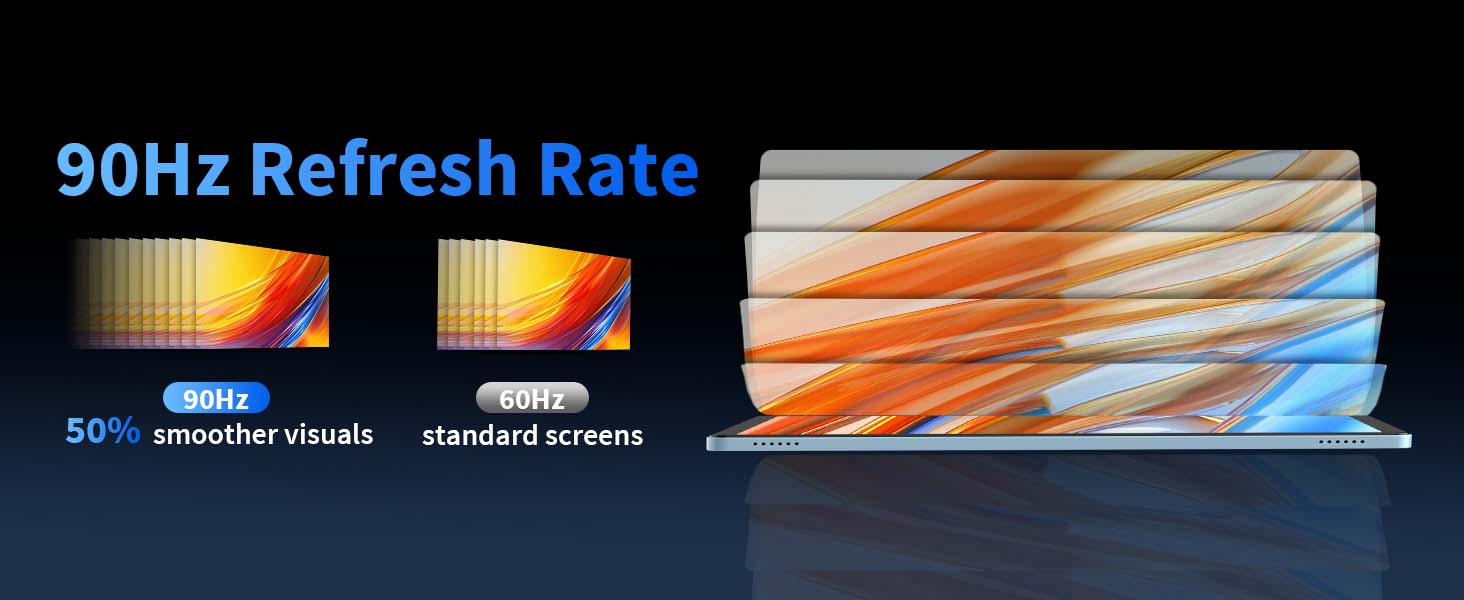
Image 3.2: The Relndoo P80 tablet configured with its Bluetooth keyboard and wireless mouse, demonstrating its laptop-like functionality.
4. Operating Instructions
4.1 Basic Operations (Android 15)
Your tablet runs on Android 15, offering enhanced features for convenience, fluency, privacy, and personalization.
- Navigation: Use touch gestures (tap, swipe, pinch) to navigate the interface.
- Widgets: Customize your home screen with widgets for quick access to information and functions.
- Split-Screen Functionality: Open two apps simultaneously for efficient multitasking. To activate, tap the square button (recent apps), then tap the app icon above the desired app and select 'Split screen'.
- Notification Management: Control which apps send notifications and how they appear.
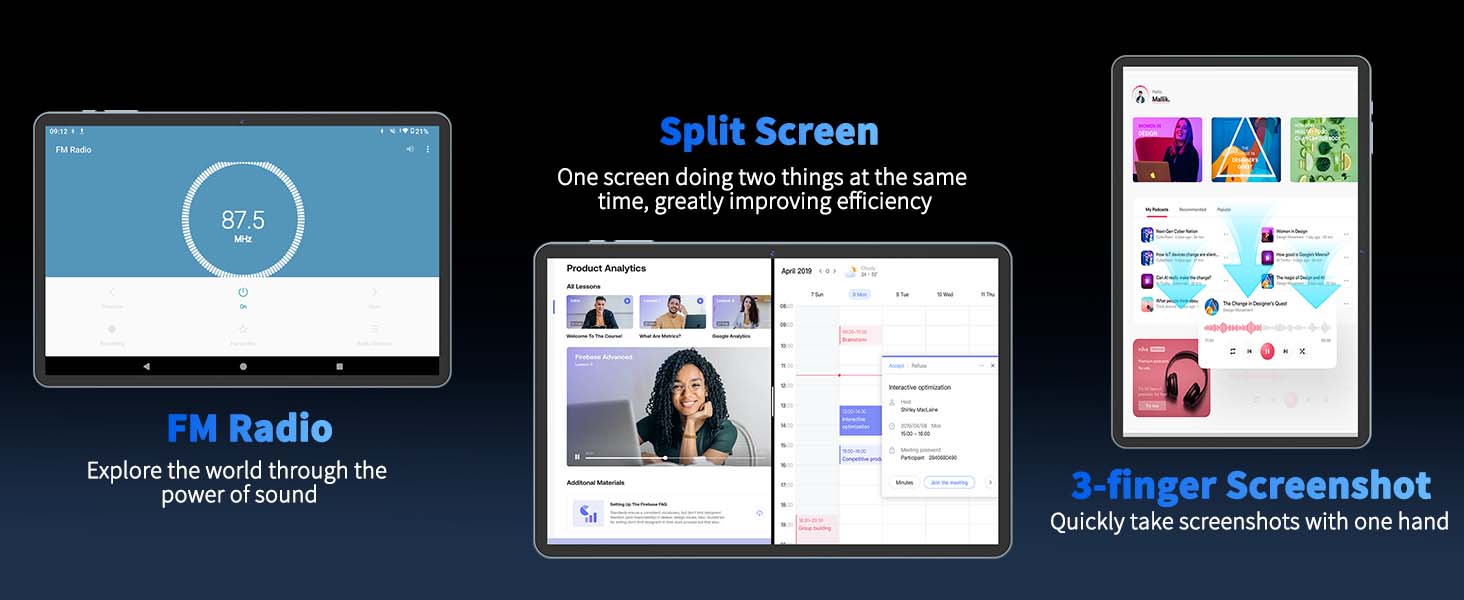
Image 4.1: Overview of Android 15 features, including split-screen, privacy protection, improved personalization, and smooth operation.
4.2 Connectivity
- Wi-Fi: Supports dual-band (2.4GHz/5GHz) Wi-Fi for stable and fast internet access. Go to Settings > Network & internet > Wi-Fi to connect to a network.
- Bluetooth 5.0: For connecting wireless peripherals like headphones, speakers, keyboards, and mice. Go to Settings > Connected devices > Bluetooth.
- Wireless Projection: Connect your tablet to a larger display (e.g., TV) wirelessly for screen mirroring. This option is usually found in Settings > Connected devices > Connection preferences > Cast.
4.3 Display Features
The 11-inch IPS display offers a resolution of 1280*800 pixels and 400 nits brightness.
- Widevine L1 Support: Enables streaming of 1080P HD content from platforms like Netflix, Hulu, and Prime Video.
- Eye-Friendly Modes: Access Night Light, Reading Mode, and Dark Mode in Settings > Display to reduce eye strain.
Image 4.2: The 11-inch IPS display showcasing Widevine L1 certification for HD streaming and various eye-friendly modes.
4.4 Camera Usage
The tablet is equipped with a 13MP rear camera and a 5MP front camera.
- Taking Photos/Videos: Open the Camera app. Select photo or video mode and tap the shutter button.
- Video Calls: The 5MP front camera is suitable for clear video conferencing.
- Smart Google Lens: Utilize Google Lens for scanning, searching, and exploring by pointing your camera at objects or text.
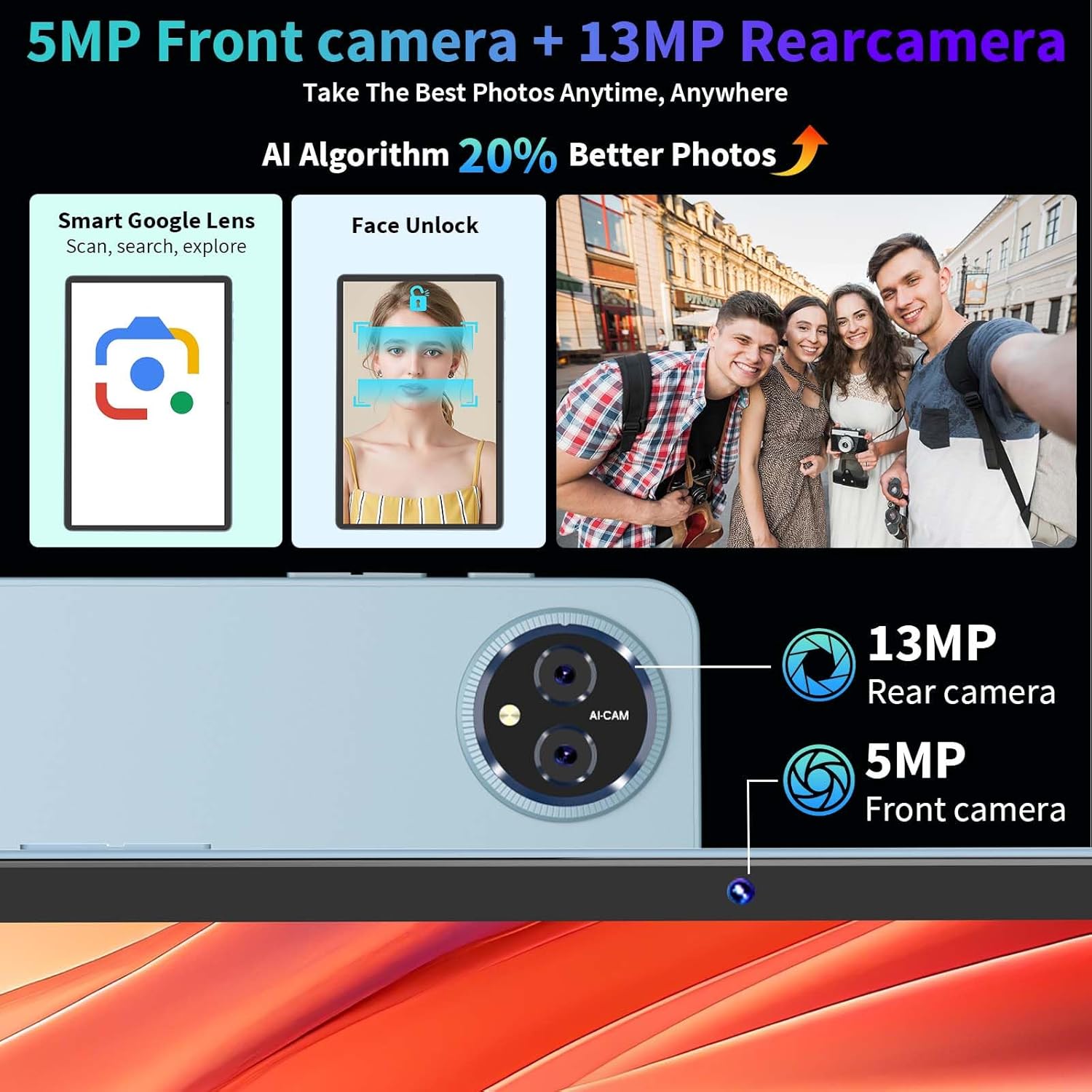
Image 4.3: Details of the 13MP rear camera and 5MP front camera, highlighting their use for capturing moments and video calls.
4.5 Productivity Features
- WPS Office: Pre-installed for document, spreadsheet, and presentation creation and editing.
- Multi-tasking: The Octa-core processor and 24GB (6GB physical + 18GB virtual) RAM ensure smooth performance for multiple applications.
4.6 Security Features
- Face Unlock: Use advanced depth-sensing technology to unlock your device quickly and securely. Set up in Settings > Security & privacy > Device unlock.
- Data Encryption: Android 15 provides enhanced data encryption to protect your personal information.
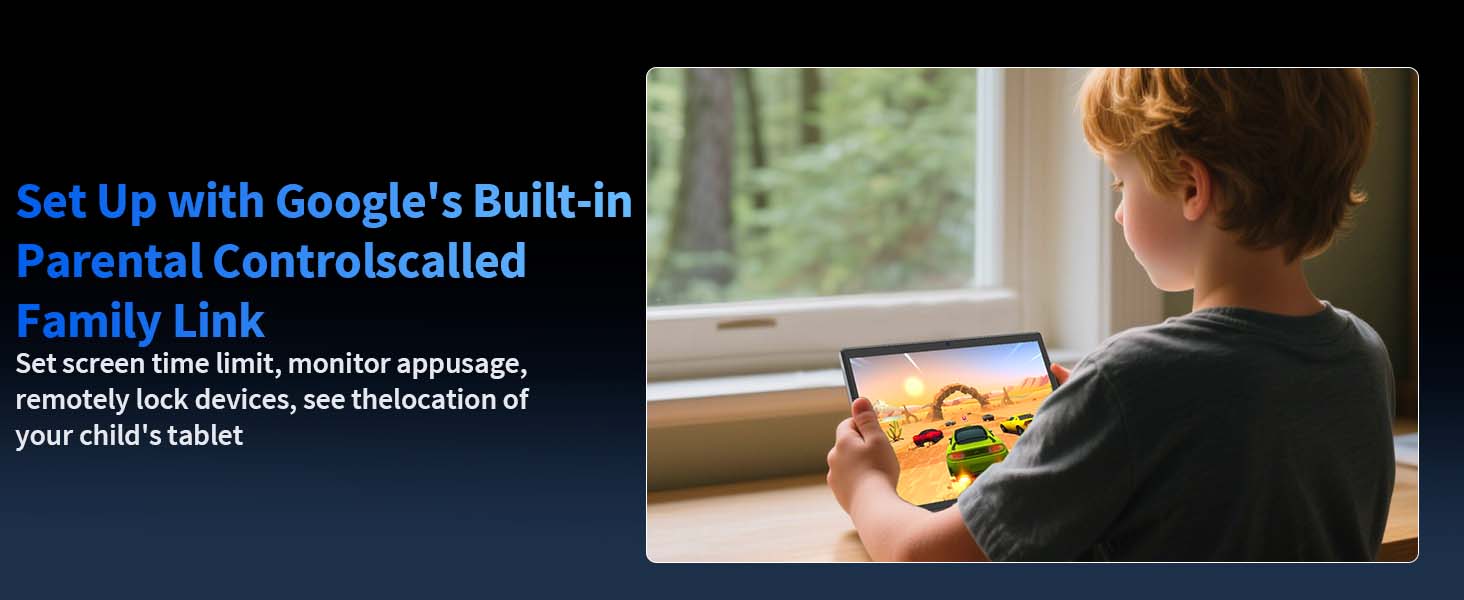
Image 4.4: A user demonstrating the Face Unlock feature for convenient and secure device access.
4.7 Accessibility Features
- Parental Controls (Family Link): Set screen time limits, monitor app usage, and remotely lock the device. Access via Settings > Digital Wellbeing & parental controls.
- Multi-user System: Create separate user profiles for different individuals, each with their own apps and settings.
- Elderly-Friendly System: Simplified interface options for ease of use.
Image 4.5: Illustration of Google's built-in Parental Controls (Family Link) for managing device usage for children.
5. Maintenance
5.1 General Care
- Keep the tablet away from extreme temperatures, direct sunlight, and moisture.
- Clean the screen with a soft, lint-free cloth. Avoid harsh chemicals.
- Protect the screen with the provided screen protector and use the protective case to prevent physical damage.
5.2 Battery Care
- Avoid completely draining the battery frequently.
- Use only the original charging adapter and cable.
- If the tablet will not be used for an extended period, charge it to about 50% before storing.
6. Troubleshooting
This section addresses common issues you might encounter.
| Problem | Possible Solution |
|---|---|
| Tablet does not turn on | Ensure the battery is charged. Connect to the charger for at least 30 minutes. If still unresponsive, press and hold the power button for 10-15 seconds to force a restart. |
| Slow performance/lag | Close unnecessary background applications. Clear cache for frequently used apps. Restart the tablet. Ensure sufficient storage space is available. |
| Wi-Fi connection issues | Restart your Wi-Fi router. Forget the network on the tablet and reconnect. Ensure the tablet is within range of the Wi-Fi signal. |
| Accessories (keyboard/mouse) not connecting | Ensure Bluetooth is enabled on the tablet. Put the accessory in pairing mode. Remove previous pairings and try reconnecting. Check accessory battery levels. |
| Screen unresponsive | Restart the tablet. If the issue persists, a factory reset might be necessary (back up data first). |
7. Specifications
Key technical specifications for the Relndoo P80 Android 15 Tablet:
| Feature | Detail |
|---|---|
| Model | P80 |
| Operating System | Android 15 |
| Processor | Unisoc T615 Octa-core (2*A75@1.8GHz + 6*A55@1.6GHz) |
| Display | 11-inch IPS, 1280*800 Pixels, 400 nits brightness, Widevine L1 |
| RAM | 24GB (6GB Physical + 18GB Virtual) |
| Internal Storage (ROM) | 256GB |
| Expandable Storage | Up to 2TB via MicroSD card (FAT32 format) |
| Battery | 8000mAh, 18W Fast Charging |
| Cameras | Rear: 13MP, Front: 5MP |
| Connectivity | Dual-band Wi-Fi (2.4G/5G), Bluetooth 5.0 |
| Ports | USB-C, 3.5mm Headphone Jack |
| Dimensions | 26 x 17 x 0.8 cm (11 x 6.69 x 0.31 inches) |
| Weight | 538g (1.18 lbs) |
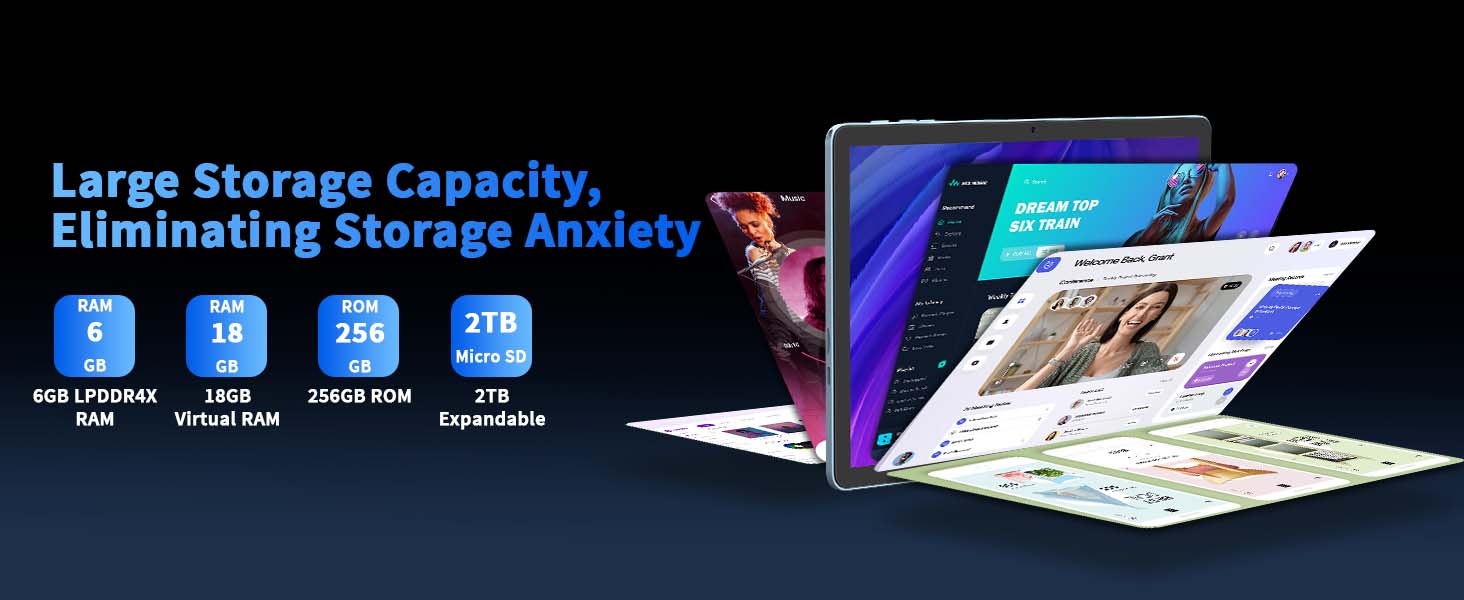
Image 7.1: Diagram illustrating the physical layout of the Relndoo P80 tablet, including the dual microphone, rear camera, power button, volume keys, reset button, headphone jack, TF/SIM card slot, and Type-C port.
8. Warranty and Support
For warranty information and customer support, please refer to the warranty card included in your package or visit the official Relndoo website. You may also contact the seller directly through the platform where the purchase was made.
For additional assistance, please visit the Relndoo Store on Amazon.