
Introduction
This manual provides essential instructions for setting up, operating, and maintaining your Agreago Projector V3. Please read it thoroughly before use to ensure proper functionality and to maximize your viewing experience.
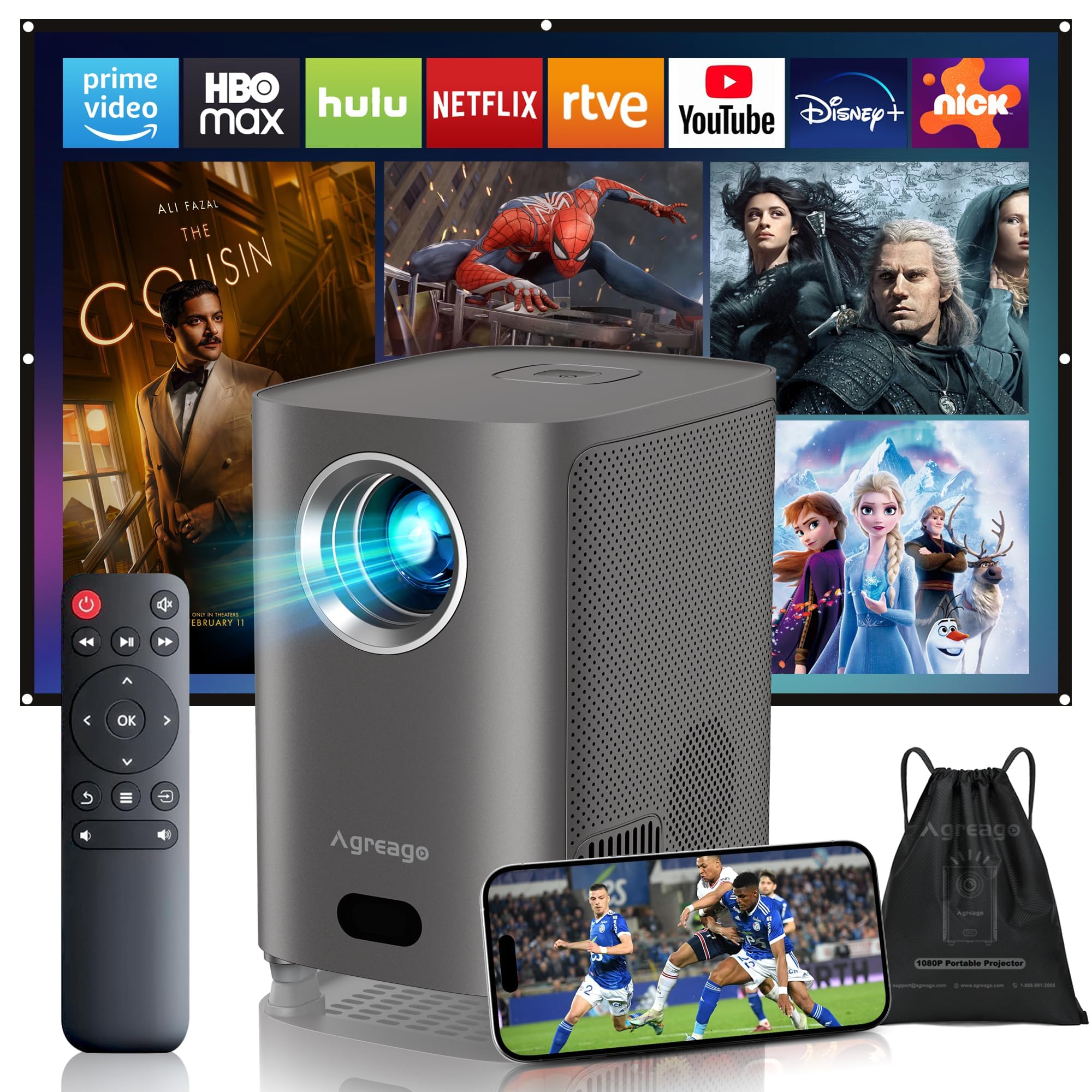
Figure 1: Agreago Projector V3 and accessories.
What's in the Box
Upon unboxing, verify that all components are present:
- Agreago Projector V3
- Remote Control
- Power Cable
- HDMI Cable
- AV Cable
- User Manual
- Drawstring Carry Bag
Video 1: Unboxing the Agreago Projector V3, showing included accessories.
Product Overview
Familiarize yourself with the projector's components and connection ports.
Connection Ports

Figure 2: Rear panel with audio, AV, HDMI, and USB ports.
- Audio Out (3.5mm): Connect external speakers or headphones.
- AV Input: Connect older devices using the provided AV cable.
- HDMI (x2): Connect devices like TV sticks, laptops, gaming consoles (Xbox, PS5).
- USB (x2): Connect USB drives for media playback.
- IR Receiver: For remote control signals.
Remote Control

Figure 3: Remote control for easy navigation and function access.
The remote control provides convenient access to all projector functions, including power, navigation, volume, focus adjustment, and direct access to popular streaming applications.
Video 2: An overview of the Agreago Projector V3's features and design.
Setup
Placement
Position the projector on a stable, flat surface. The integrated stand allows for flexible angle adjustments. For larger screen sizes, increase the distance between the projector and the projection surface.

Figure 4: Recommended projection distances for various screen sizes.
Power On
Connect the power cable to the projector and a power outlet. Press the power button on the projector or the remote control to turn it on.
Focus Adjustment
The projector features electric focus. Use the dedicated focus buttons on the remote control (F+ / F-) to achieve a clear and sharp image. The auto-focus feature will also assist in initial setup.

Figure 5: Adjusting electric focus using the remote control.
Keystone Correction
The projector supports automatic keystone correction to ensure a rectangular image even when projected at an angle. Manual adjustments can also be made via the settings menu if needed.
Network Connection (WiFi & Bluetooth)
Connect the projector to your home Wi-Fi network for online streaming and screen mirroring. Use Bluetooth 5.2 to pair with external audio devices for enhanced sound.
Video 3: Demonstrating Wi-Fi and Bluetooth connectivity for the Agreago Projector V3.
Connecting Devices
The projector offers multiple connectivity options:
- HDMI: Connect TV sticks, laptops, gaming consoles (Xbox, PS5).
- USB: Insert USB drives for direct media playback.
- AV: Use the provided AV cable for older devices.
- Screen Mirroring (iOS/Android): Wirelessly display content from your smartphone or tablet.
Operating Instructions
Navigation
Use the remote control's directional buttons and 'OK' button to navigate the projector's interface. Dedicated buttons for streaming services provide quick access.
Media Playback
Select the desired input source (HDMI, USB, Screen Mirroring) from the home screen. Navigate to your media files or streaming app to begin playback.
Sound Settings
The projector features built-in dual stereo speakers. Adjust volume using the remote. For a private listening experience, connect headphones via the 3.5mm audio jack or pair Bluetooth headphones.
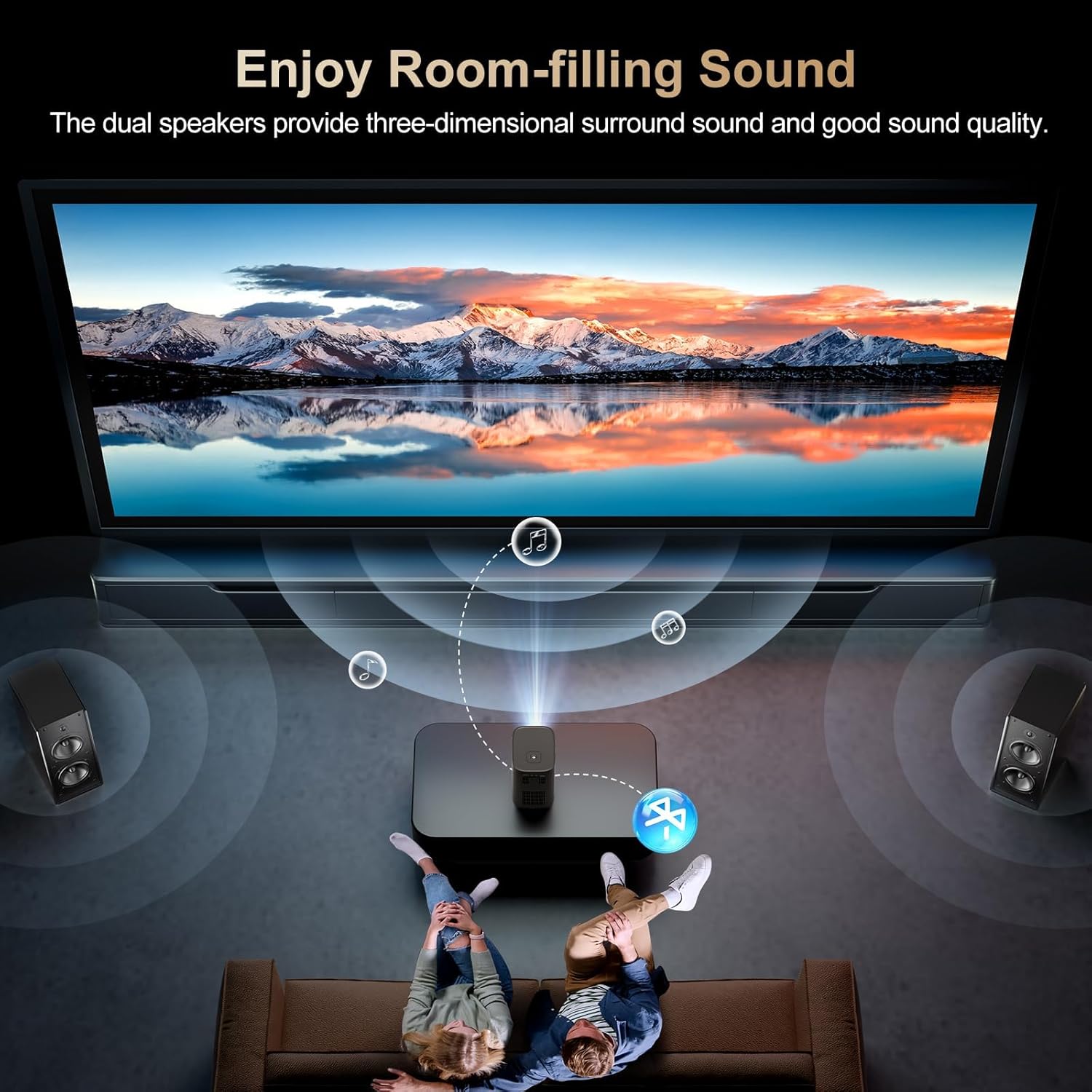
Figure 6: Dual stereo speakers provide immersive sound.
Image Settings
Access the settings menu to adjust image parameters such as brightness, contrast, color temperature, and projection mode for optimal viewing conditions.
Maintenance
Cleaning the Lens
Gently wipe the projector lens with a soft, lint-free cloth. Avoid abrasive materials or harsh chemicals that could damage the lens coating.
Dust Filter
Regularly check and clean the dust filter to maintain optimal airflow and prevent overheating. Refer to the full user manual for specific instructions on accessing and cleaning the filter.
Troubleshooting
- No Image: Ensure the power cable is securely connected and the projector is turned on. Verify the input source is correctly selected.
- Blurry Image: Adjust the electric focus using the remote control. Ensure the projection surface is flat and the projector is stable.
- No Sound: Check the volume settings on the projector and the connected device. Ensure external speakers/headphones are properly connected or paired via Bluetooth.
- Screen Mirroring Issues: Confirm both the projector and your device are connected to the same Wi-Fi network. Ensure your device supports the mirroring protocol (iOS/Android).
Specifications
| Brand | Agreago |
| Model Number | V3 |
| Display Resolution | 1920 x 1080 (Native 1080P) |
| Brightness | 15,000 Lumens |
| Contrast Ratio | 15,000:1 |
| Connectivity Technology | HDMI, USB, AV, 3.5mm Audio, WiFi 6, Bluetooth 5.2 |
| Special Features | Auto Focus, Electric Focus, 50%-100% Zoom, Dual Stereo Speakers |
| Product Dimensions | 5.5 x 6.1 x 4.2 inches |
| Item Weight | 2.94 pounds |
Warranty and Support
For warranty information and customer support, please refer to the contact details provided in the included user manual or visit the official Agreago website. Protection plans are available for extended coverage.
