
1. Introduction
This manual provides essential information for the installation, operation, and maintenance of the Red Lion Controls CR3000 Series Human Machine Interface (HMI), model CR30001000000420. The CR3000 Series HMI is designed for advanced industrial automation, offering a robust and versatile interface for monitoring and controlling industrial processes.
Key features include a 10.4-inch touchscreen display with 800x600 resolution and 16 million colors, dual Ethernet ports, multiple serial and USB ports, and IP66/NEMA 4X rated construction for harsh environments. It supports over 300 industrial protocols and integrates with Crimson 3.1 software for comprehensive control and data management.
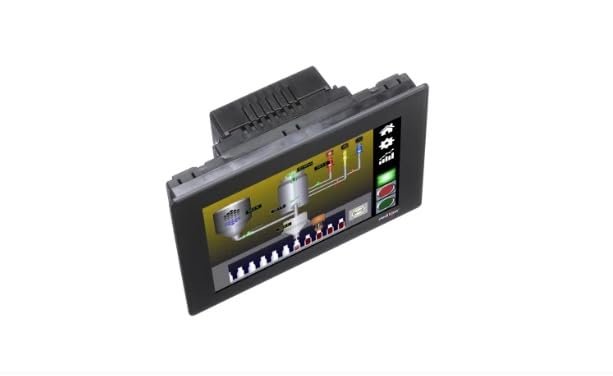
Figure 1: Front view of the Red Lion Controls CR3000 Series HMI, showing the 10.4-inch touchscreen display.
2. Safety Information
Read all instructions carefully before installing, operating, or performing maintenance on the CR3000 Series HMI. Failure to follow these instructions may result in equipment damage, personal injury, or death.
- Electrical Safety: Ensure all power is disconnected before making any electrical connections or performing maintenance. Only qualified personnel should perform electrical work.
- Environmental Conditions: The device is rated IP66 and NEMA 4X for protection against dust and water jets. However, avoid exposing the unit to extreme temperatures, corrosive substances, or excessive vibration beyond its specified operating limits.
- Mounting: Mount the HMI securely to prevent accidental dislodgement. Refer to the installation guide for specific mounting instructions.
- Servicing: Do not attempt to service the unit beyond routine cleaning. Refer all servicing to authorized Red Lion Controls service personnel.
3. Setup
3.1 Unpacking
Carefully remove the HMI from its packaging. Inspect the unit for any signs of damage during transit. Retain the packaging materials for future transport or storage.
3.2 Mounting
The CR3000 Series HMI is designed for panel mounting. Ensure adequate clearance for ventilation and cable connections. Refer to the separate installation manual for detailed panel cut-out dimensions and mounting procedures.
3.3 Wiring and Connections
The HMI offers various connectivity options. Ensure all connections are secure and correctly polarized before applying power.
- Power Connection: Connect the 10-30 VDC power supply to the designated power terminals. Observe correct polarity.
- Ethernet Ports: Use standard Ethernet cables to connect to the dual 10/100Base-T(X) Ethernet ports for network communication.
- Serial Ports: Connect serial devices (e.g., PLCs, drives) to the available serial ports (up to 4 ports, depending on configuration) using appropriate cables.
- USB Ports: Connect USB devices such as keyboards, mice, or USB storage devices to the USB host ports.
3.4 Initial Power On
After all connections are made, apply power to the unit. The HMI will initiate its boot sequence. The display will show the Red Lion Controls logo, followed by the operating system and application interface.
4. Operating Instructions
4.1 Touchscreen Interaction
The CR3000 HMI features a resistive touchscreen. Use a finger or a non-sharp stylus for interaction. Avoid using sharp objects that could damage the screen surface.
4.2 Software Interface (Crimson 3.1)
The HMI operates using applications developed with Red Lion's Crimson 3.1 software. This software allows for configuration, protocol conversion, and creation of custom user interfaces. Refer to the Crimson 3.1 software manual for detailed programming and configuration instructions.
4.3 Data Logging
The CR3000 Series HMI supports real-time data logging. Data can be stored internally or on an SD card (if installed). Configure data logging parameters, including logging intervals and data points, using the Crimson 3.1 software.
4.4 Web Server Access
The built-in web server enables remote monitoring and control of the HMI via a standard web browser. Access the web server by entering the HMI's IP address into a web browser. User authentication may be required, as configured in Crimson 3.1.
5. Maintenance
5.1 Cleaning the HMI
To clean the display and enclosure, use a soft, lint-free cloth dampened with a mild, non-abrasive cleaning solution. Do not use harsh chemicals, solvents, or abrasive materials, as these can damage the screen or enclosure. Ensure no liquid enters the unit.
5.2 Firmware Updates
Periodically check the Red Lion Controls website for firmware updates. Keeping the HMI's firmware up-to-date ensures optimal performance, security, and access to new features. Follow the instructions provided with the firmware update package carefully.
5.3 Regular Inspection
Regularly inspect the HMI for any signs of physical damage, loose connections, or environmental ingress. Address any issues promptly to prevent further damage or operational disruption.
6. Troubleshooting
| Problem | Possible Cause | Solution |
|---|---|---|
| HMI does not power on. | No power supply, incorrect wiring, faulty power supply. | Verify power connections and voltage. Check power supply unit. |
| Touchscreen unresponsive. | Calibration issue, software freeze, physical damage. | Restart the HMI. Recalibrate the touchscreen (if applicable). Contact support if physical damage is suspected. |
| Communication error with connected device. | Incorrect protocol settings, faulty cable, incorrect IP address. | Verify communication settings in Crimson 3.1. Check cable integrity. Confirm IP addresses and network configuration. |
| Display issues (e.g., flickering, distorted image). | Environmental interference, internal hardware issue. | Ensure proper grounding. Isolate from strong electromagnetic fields. If problem persists, contact technical support. |
If you encounter issues not listed here or if the suggested solutions do not resolve the problem, please contact Red Lion Controls technical support.
7. Specifications
| Feature | Detail |
|---|---|
| Model Number | CR30001000000420 |
| Display Size | 10.4 Inches |
| Resolution | 800 x 600 pixels |
| Color Depth | 16 Million Colors |
| Display Type | TFT LCD, Backlit |
| Touchscreen Type | Resistive |
| Ethernet Ports | Dual 10/100Base-T(X) |
| Serial Ports | Up to 4 (configuration dependent) |
| USB Ports | 2 (Host) |
| Power Supply | 10-30 VDC |
| Environmental Rating | IP66, NEMA 4X |
| Product Dimensions | 5 x 2 x 3 inches (approximate) |
8. Warranty and Support
Red Lion Controls products are backed by a standard manufacturer's warranty. For specific warranty terms and conditions, please refer to the warranty statement included with your product or visit the official Red Lion Controls website.
For technical assistance, troubleshooting, or service inquiries, please contact Red Lion Controls technical support. Contact information can be found on the Red Lion Controls website or in the product documentation.


