Introduction
Welcome to your AONBOY 5L WiFi Automatic Pet Feeder with Dual Bowls. This manual provides detailed instructions for the proper setup, operation, and maintenance of your new pet feeder. Please read this manual thoroughly before use to ensure optimal performance and the safety of your pets.
Product Overview
The AONBOY 5L WiFi Automatic Pet Feeder is designed to provide scheduled meals for your pets. It features a large food capacity, dual feeding bowls, and smart app control.

Figure 1: Feeder Components. This image shows the disassembled parts of the feeder, including the twist-lock lid, desiccant bag compartment, food bucket, main unit with control panel, and the double bowl design.
Components List:
- Main Feeder Unit: Contains the motor, control panel, and food dispensing mechanism.
- Food Bucket: The transparent container for dry pet food.
- Lid with Desiccant Bag Compartment: Secures the food bucket and keeps food fresh.
- Dual Feeding Bowls: Two separate bowls for simultaneous feeding of multiple pets.
- Power Adapter: For connecting the feeder to a power outlet.
- USB Cable: For power connection.
Setup
Proper setup ensures your pet feeder functions correctly.
1. Unpacking and Assembly
- Remove all components from the packaging.
- Ensure all parts listed in the 'Components List' are present.
- Assemble the food bucket onto the main feeder unit.
- Place the dual feeding bowls onto the designated slots at the base of the feeder.
- Insert the desiccant bag into its compartment in the lid and secure the lid onto the food bucket.
2. Power Supply
The feeder supports dual power supply options: AC adapter and D-cell batteries (not included).

Figure 2: Dual Power Supply. The feeder can be powered by the included AC adapter or by D-cell batteries for backup.
- AC Adapter: Connect the USB cable to the feeder and plug the adapter into a standard wall outlet. This is the primary power source.
- Battery Backup: For uninterrupted feeding during power outages, install three D-cell batteries (not included) into the battery compartment at the bottom of the feeder. Ensure correct polarity.
3. Filling the Food Bucket
- Open the lid of the food bucket.
- Fill the bucket with dry pet food. The feeder has a 5L capacity, holding approximately 2kg of dry food.
- Close the lid securely to maintain food freshness and prevent pets from accessing the food prematurely. The feeder features a pet-proof lock.
4. App Download and Connection
The feeder operates via a 2.4GHz WiFi connection. Download the companion app to control and program your feeder.

Figure 3: App Control Interface. The smartphone app allows for remote control and scheduling of feeding times.
- Scan the QR code in the product packaging or search for the 'AONBOY Pet' app in your device's app store (iOS/Android).
- Install and open the app. Register an account if you are a new user.
- Follow the in-app instructions to add your new pet feeder. Ensure your smartphone is connected to a 2.4GHz WiFi network during the pairing process.
- Once connected, the feeder will appear in your app, ready for programming.
Operating Instructions
Once set up, you can program and control your feeder using the app or manually.
1. Setting Feeding Schedules (App Control)
The app allows for precise control over your pet's feeding routine.
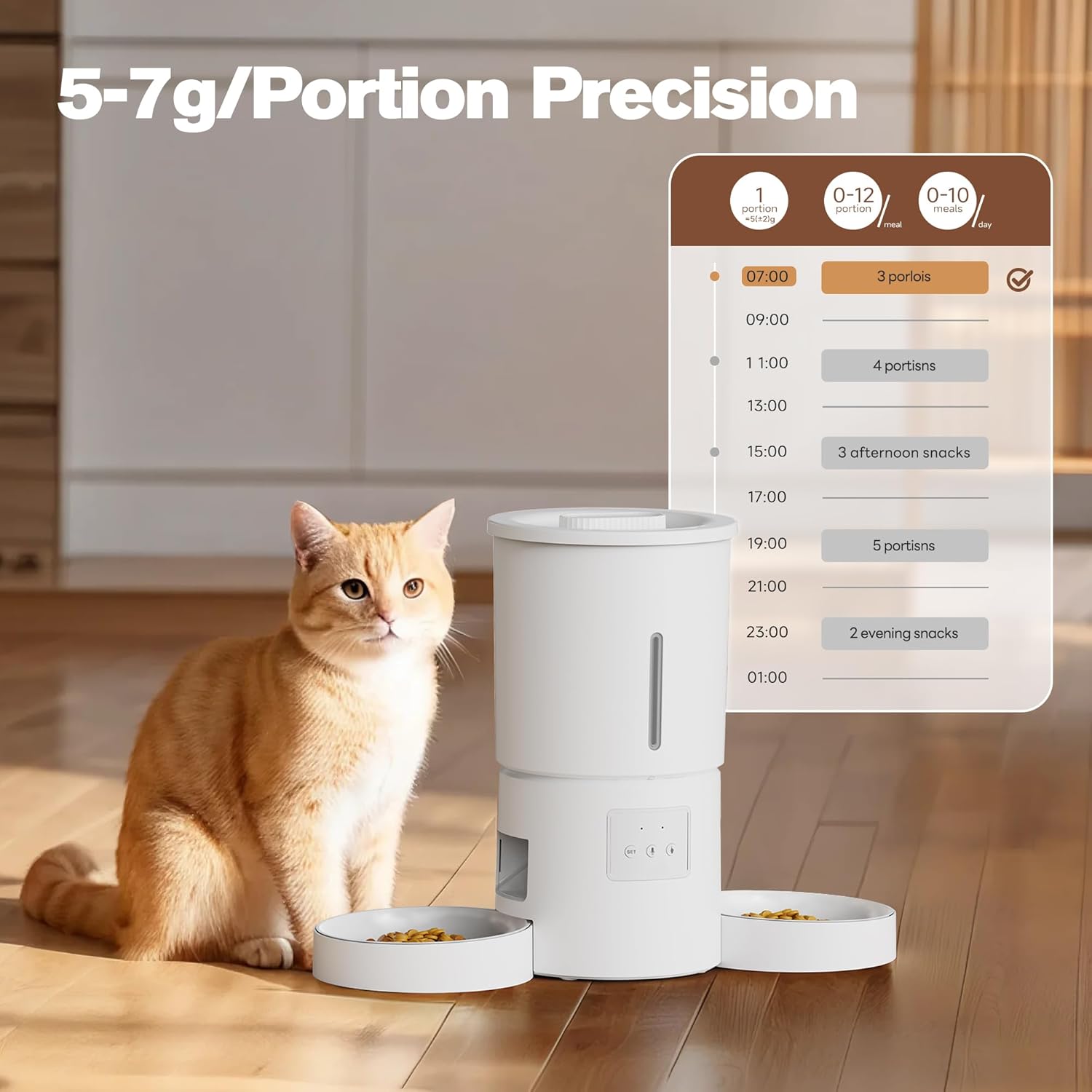
Figure 4: Precise Portion and Meal Scheduling. The app allows setting up to 10 meals per day with 1-12 portions per meal, each portion being 5-7 grams.
- Open the AONBOY Pet app and select your feeder.
- Navigate to the 'Feed Plan' or 'Schedule' section.
- Set the desired feeding times. You can schedule up to 10 meals per day.
- For each meal, specify the number of portions (1-12 portions). Each portion dispenses approximately 5-7 grams of dry food.
- Save your feeding plan. The feeder will automatically dispense food according to your schedule.
2. Custom Voice Recording
Record a personalized message to call your pets at meal times.

Figure 5: 10-Second Custom Voice Call. Record a short message that plays before each scheduled meal to alert your pets.
- In the app, find the 'Voice Recording' or 'Voice Message' option.
- Press and hold the record button to record a message up to 10 seconds long (e.g., "Time to eat!").
- The recorded message will play automatically before each scheduled feeding.
3. Manual Feeding
To dispense food immediately, use the manual feed button on the feeder or in the app.
- On the Feeder: Press the manual feed button (usually labeled with a food icon) on the control panel. Each press will dispense one portion.
- Via App: In the app, select the 'Feed Now' or 'Manual Feed' option and choose the number of portions to dispense.
Maintenance and Cleaning
Regular cleaning ensures hygiene and extends the life of your pet feeder.
1. Disassembly for Cleaning
- Unplug the feeder from the power outlet and remove any backup batteries.
- Empty any remaining food from the food bucket.
- Remove the lid, food bucket, and dual feeding bowls from the main unit.
2. Cleaning Instructions
- Food Bucket and Bowls: Wash these parts with mild soap and water. Rinse thoroughly and dry completely before reassembly. These parts are generally dishwasher safe, but hand washing is recommended for longevity.
- Main Feeder Unit: Wipe the exterior of the main unit with a soft, damp cloth. Do not submerge the main unit in water, as it contains electronic components.
- Desiccant Bag: Replace the desiccant bag every 1-2 months to ensure food freshness.
3. Reassembly
Once all parts are clean and dry, reassemble the feeder in reverse order of disassembly. Ensure all connections are secure.
Troubleshooting
If you encounter issues with your AONBOY pet feeder, refer to the following common problems and solutions.
| Problem | Possible Cause | Solution |
|---|---|---|
| Feeder not powering on. | No power from AC adapter; batteries drained or incorrectly installed. | Check AC adapter connection. Ensure batteries are fresh and installed with correct polarity. |
| Food not dispensing. | Food jammed; low food level; dispensing mechanism blocked; incorrect schedule. | Check food level and refill if necessary. Clear any food blockages. Verify feeding schedule in the app. |
| App cannot connect to feeder. | Incorrect WiFi network (not 2.4GHz); feeder too far from router; incorrect pairing process. | Ensure your router is broadcasting a 2.4GHz network. Move feeder closer to the router. Re-attempt pairing process following app instructions. |
| Voice recording not playing. | Recording not saved; volume too low. | Ensure the voice message was successfully recorded and saved in the app. Check app settings for volume control. |
| Pets knocking over the feeder. | Feeder not stable. | Ensure the feeder is placed on a flat, stable surface. The feeder has an anti-tip design and anti-slip feet for stability. |
Specifications
Detailed specifications for the AONBOY 5L WiFi Automatic Pet Feeder.
- Model: 5L WiFi Feeder
- Capacity: 5 Liters (approximately 2 kg / 4.4 lbs of dry pet food)
- Power Supply: DC 5V/1A via AC adapter (primary); 3 x D-cell batteries (backup, not included)
- Connectivity: 2.4GHz WiFi
- Feeding Schedule: Up to 10 meals per day
- Portion Size: 1-12 portions per meal (approx. 5-7 grams per portion)
- Voice Recording: 10-second custom message
- Target Species: Cats, small to medium-sized dogs
- Special Features: Dual feeding bowls, transparent food level window, anti-tip design, pet-proof lock, desiccant bag compartment.
- Color: White
Warranty and Support
For warranty information or technical support, please contact AONBOY customer service. Refer to the product packaging or the AONBOY official website for contact details. Please have your product model number and purchase date available when contacting support.