
1. Introduction
This manual provides essential information for the safe and efficient operation of your Bnegynng Android 15 Tablet. Please read it thoroughly before using your device and retain it for future reference.
2. Package Contents
Verify that all items are present in your product packaging:
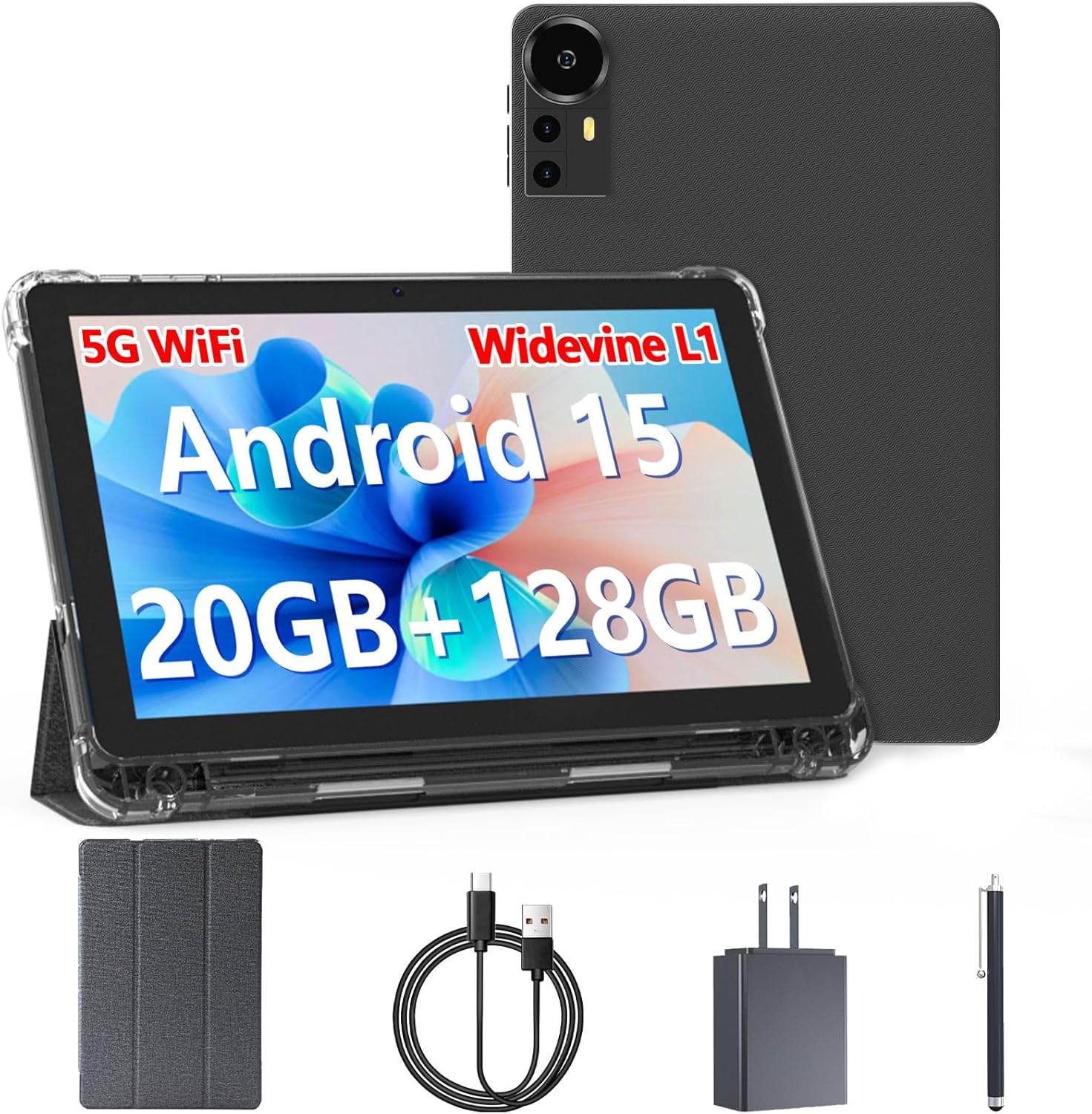
- Bnegynng Android 15 Tablet (CP31M)
- Protective Leather Case
- Stylus
- USB-C Charging Cable
- Power Adapter
- User Manual (this document)
3. Device Overview
Familiarize yourself with the physical components of your tablet.

- Power On/Off Button: Press and hold to power on/off or restart the device.
- Volume Buttons: Adjust the audio volume.
- Headphone Jack: Connect 3.5mm audio headphones.
- Reset Pinhole: Use a thin pin to reset the device if it becomes unresponsive.
- Front Camera: For video calls and selfies.
- Rear Camera & Flash: For taking photos and videos.
- Type-C Port: For charging and data transfer.
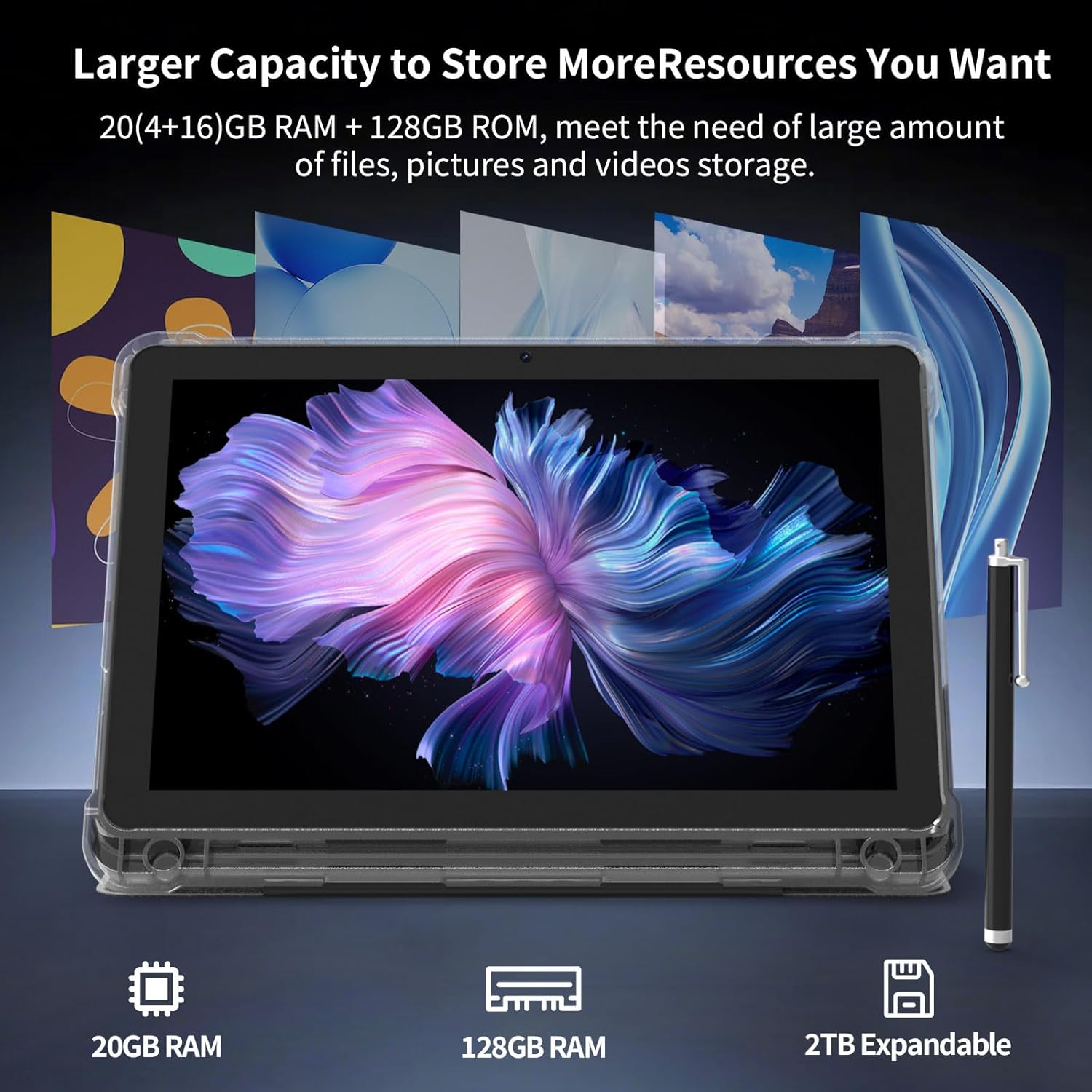
- TF Card Slot: Insert a microSD card for expandable storage (up to 2TB).
- Speakers: Audio output.
4. Initial Setup
4.1 Charging the Tablet
Before first use, fully charge your tablet. Connect the USB-C cable to the tablet's Type-C port and the power adapter, then plug the adapter into a wall outlet.
4.2 Powering On/Off
To power on, press and hold the Power On/Off button until the screen lights up. To power off, press and hold the Power On/Off button, then select "Power off" from the options.
4.3 Initial Configuration
Follow the on-screen prompts to complete the initial setup, including:
- Language selection
- Wi-Fi network connection
- Google account sign-in
- Date and time settings
5. Operating Instructions
5.1 Navigating the Android 15 Interface
Your tablet runs on Android 15, offering an intuitive user experience. Use touch gestures for navigation:
- Tap: Select an item.
- Swipe: Scroll through screens or lists.
- Pinch-to-Zoom: Enlarge or reduce content.
- Long Press: Access contextual menus or move icons.
5.2 Connecting to Wi-Fi
- Go to Settings > Network & internet > Wi-Fi.
- Toggle Wi-Fi On.
- Select your desired network and enter the password if prompted.
5.3 Using the Stylus
The included stylus can be used for precise input, drawing, and note-taking. Simply touch the stylus tip to the screen as you would with your finger.

5.4 Expanding Storage
Insert a microSD (TF) card into the designated slot to expand storage up to 2TB. Ensure the tablet is powered off before inserting or removing the card.

6. Maintenance and Care
- Cleaning: Use a soft, lint-free cloth to clean the screen and body. Avoid abrasive cleaners or solvents.
- Battery Care: To prolong battery life, avoid extreme temperatures and do not allow the battery to fully discharge frequently.
- Software Updates: Regularly check for and install system updates to ensure optimal performance and security.
- Storage Management: Periodically clear unnecessary files and apps to maintain performance.
7. Troubleshooting
| Problem | Solution |
|---|---|
| Tablet does not power on. | Ensure the tablet is fully charged. Press and hold the Power On/Off button for 10-15 seconds. If unresponsive, use a thin pin to press the Reset pinhole. |
| Wi-Fi connection issues. | Restart the tablet and your Wi-Fi router. Verify the Wi-Fi password. Ensure you are within range of the Wi-Fi signal. |
| Applications are slow or crashing. | Close background applications. Clear app caches (Settings > Apps > [App Name] > Storage & cache > Clear cache). Restart the tablet. Ensure sufficient free storage space. |
| Screen is unresponsive. | Restart the tablet. If the issue persists, perform a factory reset (Note: This will erase all data). |
8. Specifications
| Feature | Detail |
|---|---|
| Model | CP31M |
| Operating System | Android 15 |
| Processor | 2.0 GHz Quad-Core CPU |
| RAM | 20GB (4GB physical + 16GB virtual) |
| Internal Storage (ROM) | 128GB |
| Expandable Storage | Up to 2TB via TF (microSD) card |
| Display | 10.1-inch HD IPS (1280x800 pixels) |
| Wireless Connectivity | 5G WiFi 6, Bluetooth 5.0 |
| Battery | 6000mAh |
| Cameras | 2MP Front, 8MP Rear with Flash |
| Dimensions (LxWxH) | 10 x 5 x 0.3 inches |
| Weight | 2.33 pounds |
| Certifications | Widevine L1, Google GMS |
9. Warranty and Support
For warranty information or technical support, please refer to the contact details provided with your purchase or visit the official Bnegynng website. If you have any questions, please feel free to contact us, we will give you a satisfactory answer within 24 hours.
10. Product Videos
Bnegynng Android 15 Tablet Overview
Video 10.1: An official overview of the Bnegynng Android 15 Tablet, showcasing its design, features, and various color options. This video highlights the tablet's quad-core CPU, vibrant display, and overall aesthetic.