
Introduction
This manual provides comprehensive instructions for the setup, operation, and maintenance of your Gigaset pro P810B IP Desk Phone. Please read this manual carefully to ensure proper use and to maximize the features of your device.
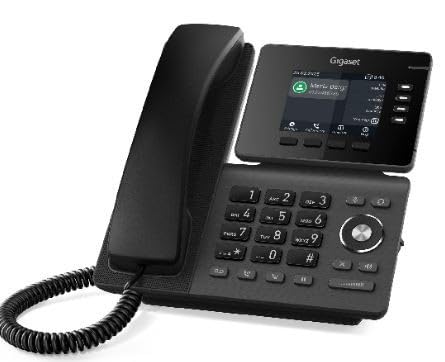
Figure 1: Front view of the Gigaset pro P810B IP Desk Phone, showing the color display and programmable function keys.
1. Setup
1.1 Unpacking and Contents
Carefully remove all components from the packaging. Verify that all items are present:
- Gigaset pro P810B IP Desk Phone unit
- Handset and coiled cord
- Ethernet cable
- Stand (if applicable)
- Quick Start Guide (this manual serves as the full guide)
1.2 Connecting the Phone
- Attach the Stand: If not pre-attached, secure the stand to the base of the phone.
- Connect the Handset: Plug one end of the coiled cord into the handset and the other end into the handset port on the phone base.
- Connect to Network (PoE or Power Adapter):
- Power over Ethernet (PoE): Connect an Ethernet cable from your PoE-enabled network switch or router to the "LAN" port on the back of the phone. The phone will power on automatically.
- Standard Power (if PoE not available): If not using PoE, connect a compatible power adapter (sold separately) to the power port and then to a wall outlet. Connect an Ethernet cable from your network to the "LAN" port.
- Connect to PC (Optional): If you wish to connect a computer through the phone, use another Ethernet cable to connect your PC to the "PC" port on the back of the phone.
Note: Ensure all cables are securely connected.
2. Operating the Phone
2.1 Display and Navigation
The Gigaset pro P810B IP features a 3.36-inch (320x240) TFT color display. Use the navigation keys (up, down, left, right, OK) to browse menus and select options.
2.2 Programmable Function Keys
The phone is equipped with 4 (expandable to 12 with expansion module) self-labeling, multi-colored LED function keys. These keys can be configured for various functions such as speed dial, line appearance, or feature access. Refer to your system administrator for specific key assignments.
2.3 Making and Receiving Calls
- To Make a Call: Lift the handset, press a line key, or press the speakerphone button. Dial the number and press the "Dial" soft key or wait for automatic dialing.
- To Answer a Call: Lift the handset, press the flashing line key, or press the speakerphone button.
- To End a Call: Replace the handset or press the "End Call" soft key.
2.4 Bluetooth Connectivity (P810B IP PRO only)
The P810B IP PRO model includes an integrated Bluetooth 5.2 interface.
- Pairing a Bluetooth Headset:
- Access the phone's Bluetooth settings menu.
- Enable Bluetooth and set the phone to discoverable mode.
- Put your Bluetooth headset into pairing mode.
- Select your headset from the list of discovered devices on the phone's display and confirm pairing.
- Using a Paired Headset: Once paired, you can typically answer/end calls using the headset's controls or by selecting the Bluetooth audio path on the phone.
3. Maintenance
3.1 Cleaning the Phone
To clean your phone, use a soft, damp cloth. Do not use abrasive cleaners or solvents, as these can damage the surface. Ensure the phone is disconnected from power before cleaning.
3.2 Software Updates
Your phone's firmware may receive updates to improve performance and add features. These updates are typically managed by your network administrator. Do not attempt to update the firmware yourself unless instructed by your administrator.
4. Troubleshooting
If you encounter issues with your Gigaset pro P810B IP Desk Phone, refer to the following common problems and solutions.
| Problem | Possible Cause | Solution |
|---|---|---|
| Phone does not power on. | No power or faulty connection. | Check Ethernet cable connection (for PoE) or power adapter connection. Ensure power source is active. |
| No dial tone. | Network issue or registration problem. | Verify network cable is securely connected. Contact your network administrator to check phone registration status. |
| Poor call quality (echo, static). | Network congestion or faulty cables. | Ensure a stable internet connection. Try replacing the Ethernet cable. If using a headset, check its connection. |
| Bluetooth headset not pairing. | Headset not in pairing mode or out of range. | Ensure headset is in pairing mode and within close proximity to the phone. Check phone's Bluetooth settings. |
If the problem persists, contact your IT support or Gigaset customer service for further assistance.
5. Specifications
| Feature | Detail |
|---|---|
| Model Number | S30853-H4107-R101 |
| Display | 3.36" (320x240) TFT Color Display |
| Programmable Keys | 4 (12) self-labeling, multi-colored LED buttons |
| USB Port | 1 x USB port |
| Ethernet Ports | 2-Port Gigabit Ethernet Switch (RJ45) with PoE |
| Bluetooth | Bluetooth 5.2 (P810B IP PRO only) |
| Dimensions (Package) | 9.06 x 9.06 x 4.13 inches |
| Item Weight | 2.75 pounds |
| Manufacturer | Gigaset |


