
1. Introduction
Thank you for choosing the EZVIZ CB8 Pro 4K Solar Camera. This manual provides essential information for the safe and effective use of your device, including setup, operation, maintenance, and troubleshooting. Please read this manual thoroughly before using the product and retain it for future reference.
2. Package Contents
Ensure all items listed below are present in your package. If any items are missing or damaged, please contact your retailer.
- EZVIZ CB8 Pro 4K Camera
- 5W Solar Panel
- Mounting Template
- Screw Kit
- Power Adapter (for initial charging)
- USB Cable
- Quick Start Guide
- Instruction Manual (this document)
3. Product Overview
The EZVIZ CB8 Pro 4K Solar Camera is a wireless outdoor security camera designed for comprehensive surveillance. It features 4K resolution, a 360° pan-and-tilt design, color night vision, human and vehicle detection, auto-tracking, two-way audio, and a built-in sound and light siren. The included 5W solar panel ensures continuous power for its 10400mAh battery.
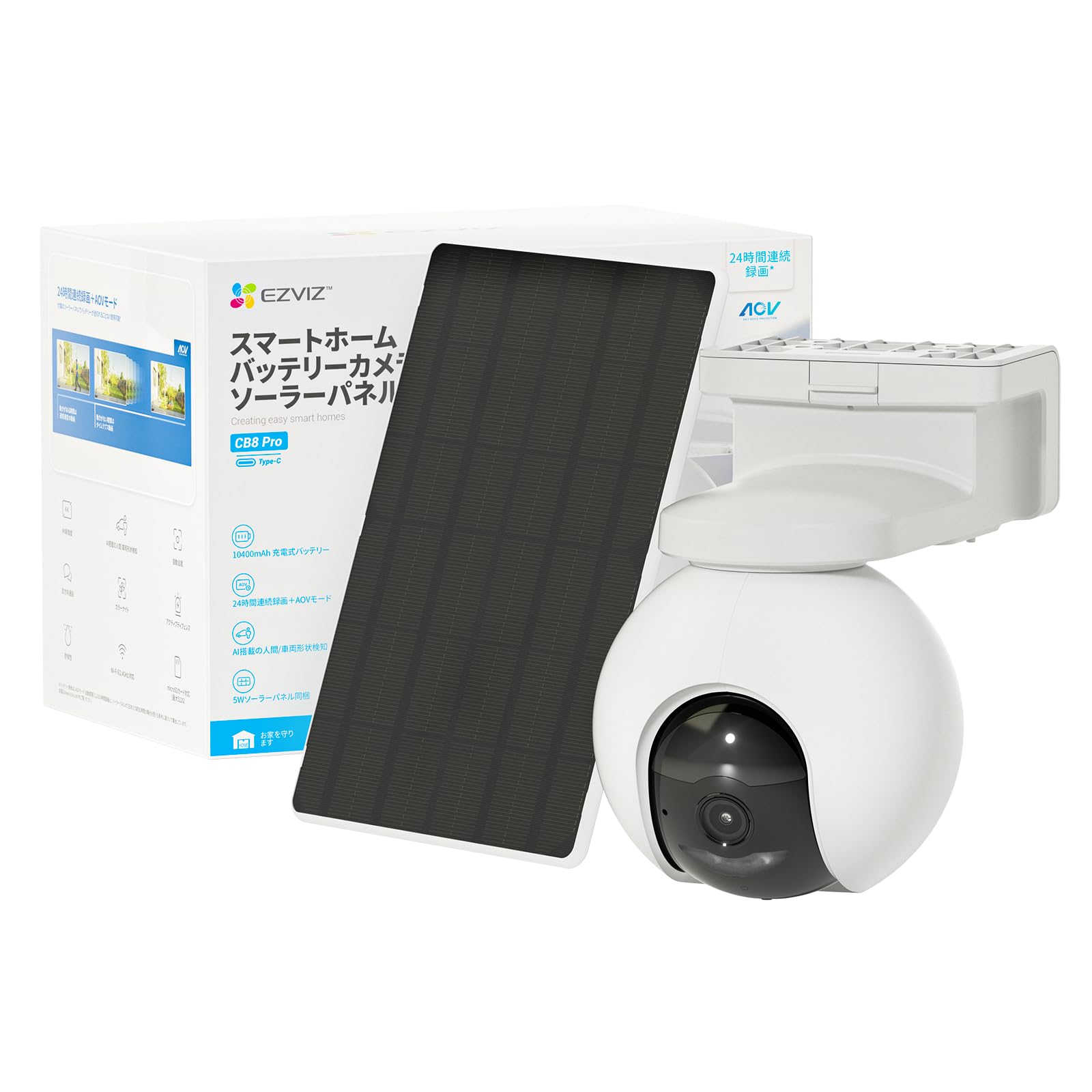
Image: EZVIZ CB8 Pro 4K Solar Camera and its accompanying 5W solar panel, illustrating the complete kit for outdoor surveillance.
Key Features:
- 4K Video Resolution: Provides clear and detailed video footage.
- 360° Pan & Tilt: Offers a wide field of view with remote control.
- Color Night Vision: Enhanced visibility in low-light conditions.
- Human & Vehicle Detection: Intelligent algorithms reduce false alarms.
- Auto-Tracking: Follows detected subjects within its field of view.
- Two-Way Audio: Allows for communication through the camera.
- Sound & Light Siren: Deters intruders with an audible alarm and flashing light.
- 100% Wire-Free: Easy installation without power cables.
- 5W Solar Panel: Provides continuous charging for the built-in 10400mAh battery.
- IP66 Weatherproof: Designed for outdoor use in various weather conditions.
4. Setup
4.1 Initial Charging
Before installation, fully charge the camera using the provided power adapter and USB cable. Connect the USB cable to the camera's charging port and the adapter to a power outlet. The charging indicator will show the charging status.
4.2 EZVIZ App Installation and Account Setup
- Download the EZVIZ app from the App Store (iOS) or Google Play Store (Android).
- Open the app and create an EZVIZ account if you don't have one, or log in to your existing account.
- Tap the '+' icon on the app's home screen to add a new device.
- Scan the QR code located on the camera or its packaging.
- Follow the in-app instructions to connect the camera to your Wi-Fi network. Ensure your Wi-Fi signal is strong at the installation location.
4.3 Mounting the Camera and Solar Panel
The camera and solar panel are designed for wall mounting. Choose a location that provides optimal surveillance coverage and receives ample sunlight for the solar panel.
- Select a Location: Identify a suitable mounting spot, ideally 2-3 meters (7-10 feet) above the ground, with a clear view and good Wi-Fi signal. Ensure the solar panel can receive direct sunlight for several hours daily.
- Drill Holes: Use the provided mounting template to mark and drill pilot holes for the camera and solar panel brackets.
- Secure Brackets: Attach the mounting brackets to the wall using the screws and wall anchors provided.
- Attach Camera and Solar Panel: Mount the camera onto its bracket and adjust its angle. Attach the solar panel to its bracket and connect its cable to the camera's charging port.
- Final Adjustments: Use the EZVIZ app to view the live feed and make final adjustments to the camera's angle for optimal coverage.
5. Operating the Camera
5.1 Live View and Playback
Access the EZVIZ app to view the live feed from your camera. You can also review recorded footage stored on the microSD card (if installed) or in the EZVIZ CloudPlay service (subscription required).
5.2 Pan, Tilt, Zoom (PTZ) Control
In the live view interface of the EZVIZ app, use the directional controls to pan (rotate horizontally) and tilt (rotate vertically) the camera lens. The 360° pan and tilt functionality allows you to cover a wide area.
5.3 Night Vision Modes
The camera offers multiple night vision options:
- Color Mode: Provides full-color video even in low light.
- Infrared Mode: Standard black-and-white night vision.
- Smart Night Vision: Automatically switches from black-and-white to full color upon motion detection.
You can select your preferred mode in the camera settings within the EZVIZ app.
5.4 Human & Vehicle Detection and Auto-Tracking
The camera uses advanced algorithms to distinguish between humans, vehicles, and other moving objects, reducing false alarms. When a human or vehicle is detected, the camera can automatically track its movement across the monitored area. Enable these features in the EZVIZ app's detection settings.
5.5 Two-Way Audio
Use the microphone and speaker built into the camera to communicate with visitors or deter intruders. Tap the microphone icon in the live view to speak, and listen through the camera's speaker.
5.6 AOV (Always on Video) Mode
The AOV mode enables continuous recording by capturing images at preset time intervals and compiling them into a time-lapse video. When activity is detected, it switches to normal speed video. Note that AOV mode requires an SD card for storage and is not supported for cloud storage.
5.7 Local Storage (MicroSD Card)
The camera supports a microSD card up to 512 GB (sold separately) for local video storage. Insert the microSD card into the designated slot on the camera. This allows for recording without a monthly subscription fee. You can access recorded footage directly from the EZVIZ app.
6. Maintenance
6.1 Cleaning the Camera
Regularly clean the camera lens and solar panel with a soft, dry cloth to ensure optimal performance. Avoid using harsh chemicals or abrasive materials that could damage the surfaces.
6.2 Battery Care
The camera's 10400mAh battery is designed for long life. Ensure the solar panel is positioned to receive maximum sunlight to maintain battery charge. In prolonged periods of low sunlight, you may need to manually charge the camera using the power adapter.
7. Troubleshooting
| Problem | Possible Cause | Solution |
|---|---|---|
| Camera offline in app | Weak Wi-Fi signal, camera battery low, network issue | Check Wi-Fi signal strength, ensure solar panel is charging, restart camera and router. |
| Poor video quality | Dirty lens, low bandwidth, poor lighting | Clean the lens, ensure stable internet connection, adjust camera position for better lighting. |
| Motion detection not working | Detection settings incorrect, obstructions | Verify detection settings in the app, clear any obstructions in the camera's view. |
| Solar panel not charging | Insufficient sunlight, panel dirty, cable disconnected | Relocate panel for more sun, clean panel, check cable connection. |
8. Specifications
| Feature | Detail |
|---|---|
| Brand | EZVIZ |
| Model Name | CB8 Pro Kit |
| Video Capture Resolution | 4K |
| Effective Still Resolution | 4 MP |
| Indoor/Outdoor Usage | Outdoor |
| Connectivity Protocol | Wi-Fi |
| Special Features | 2 Way Audio, Built In Light, HD Resolution, Night Vision, PTZ Technology |
| Mounting Type | Wall Mount |
| Waterproof Rating | IP66 |
| Voltage | 5 Volts (DC) |
| Wattage | 10 Watts |
| Batteries Required | Yes (Built-in 10400mAh) |
| Video Capture Format | MPEG-4 |
| Item Dimensions | 18.3 x 11.6 x 16.6 Centimeters |
| Item Weight | 803 Grams |
9. Warranty and Support
Your EZVIZ CB8 Pro 4K Solar Camera is covered by a limited warranty provided by the manufacturer. Please refer to the warranty card included in your package or visit the official EZVIZ website for detailed warranty terms and conditions.
For technical support, product inquiries, or service requests, please contact EZVIZ customer support through their official website or the contact information provided in your product documentation. Ensure you have your product model number (CB8 PRO 4K Kit) and serial number ready when contacting support.


