1. Introduction
This manual provides detailed instructions for the installation, operation, and maintenance of your Inefala Car Stereo. Please read this manual thoroughly before using the product to ensure proper function and safety. This car stereo is designed specifically for Honda CRV models from 2012 to 2016.

Image 1.1: Inefala Car Stereo with backup camera, microphone, and connectivity icons.
2. Package Contents
Verify that all items listed below are included in your package:
- 1 x Inefala Android Car Radio (9-inch HD Touchscreen)
- 1 x Power Cable
- 1 x GPS Antenna
- 1 x Radio Antenna
- 1 x Backup Camera Input Cable
- 1 x RCA Cable
- 2 x USB Cables
- 1 x Installation Tool
- 1 x Instruction Manual (this document)
- 1 x External Microphone
- 1 x Backup Camera
- 1 x Canbus Decoder

Image 2.1: Visual representation of the package contents and product dimensions.
3. Installation
3.1. Pre-Installation Check
Before beginning installation, ensure your vehicle's original CD player has the correct power cord port. This product supports option 'A' based on the CD back of your original car stereo. If your vehicle requires option 'B' or 'C', please contact customer service for appropriate advice.

Image 3.1: Compatibility check for Honda CRV 2012-2016 models, showing the correct original CD player back panel (Option A).
3.2. Wiring Diagram
Refer to the wiring diagram for proper connection of all components. Ensure all cables are securely connected to their respective ports.

Image 3.2: Stereo wiring diagram for connecting the main unit to vehicle systems and accessories.
3.3. Amplifier Connection Note
If your vehicle's amplifier is not functioning after installation, connect the amplifier cable (AMP-CONT) to the red ACC cable on the power harness. This provides the necessary power signal to activate the amplifier.

Image 3.3: Amplifier wiring instruction.
4. Features Overview
4.1. Display and User Interface
- 9-inch HD Touchscreen: Features 2.5D HD technology for optimized sharpness, color, and contrast with a resolution of 1024*600.
- Customizable UI: Choose from 26 distinct user interface themes to personalize your experience.
- Split Screen Functionality: Run two applications simultaneously, such as navigation and music playback.

Image 4.1: The 9-inch 2.5D HD Touch Screen.

Image 4.2: Examples of 26 UI themes and split-screen operation.
4.2. Connectivity
- Wireless/Wired Carplay & Android Auto: Seamlessly integrate your smartphone for navigation, calls, messages, and music.
- Mirror Link: Display your phone's screen directly on the car stereo for access to maps, videos, and other applications.
- WiFi Connection: Built-in WiFi allows for downloading various applications and accessing online content.
- Bluetooth 4.0: Enables hands-free calling and audio streaming from Bluetooth-enabled devices.

Image 4.3: Wireless/Wired Carplay, Android Auto, and Mirror Link capabilities.
4.3. Navigation
- GPS Navigation: Built-in GPS provides online and offline map support.
- Positioning Chip: Supports GPS/QZSS/SBAS for accurate location tracking.

Image 4.4: GPS Navigation and WiFi connectivity features.
4.4. Audio
- EQ Settings: Advanced audio technology with customizable Equalizer settings for a personalized sound experience. Equipped with a YD7388 amplifier chip.
- FM/RDS Radio: Built-in FM/RDS feature allows storing preferred radio stations and displays station information.
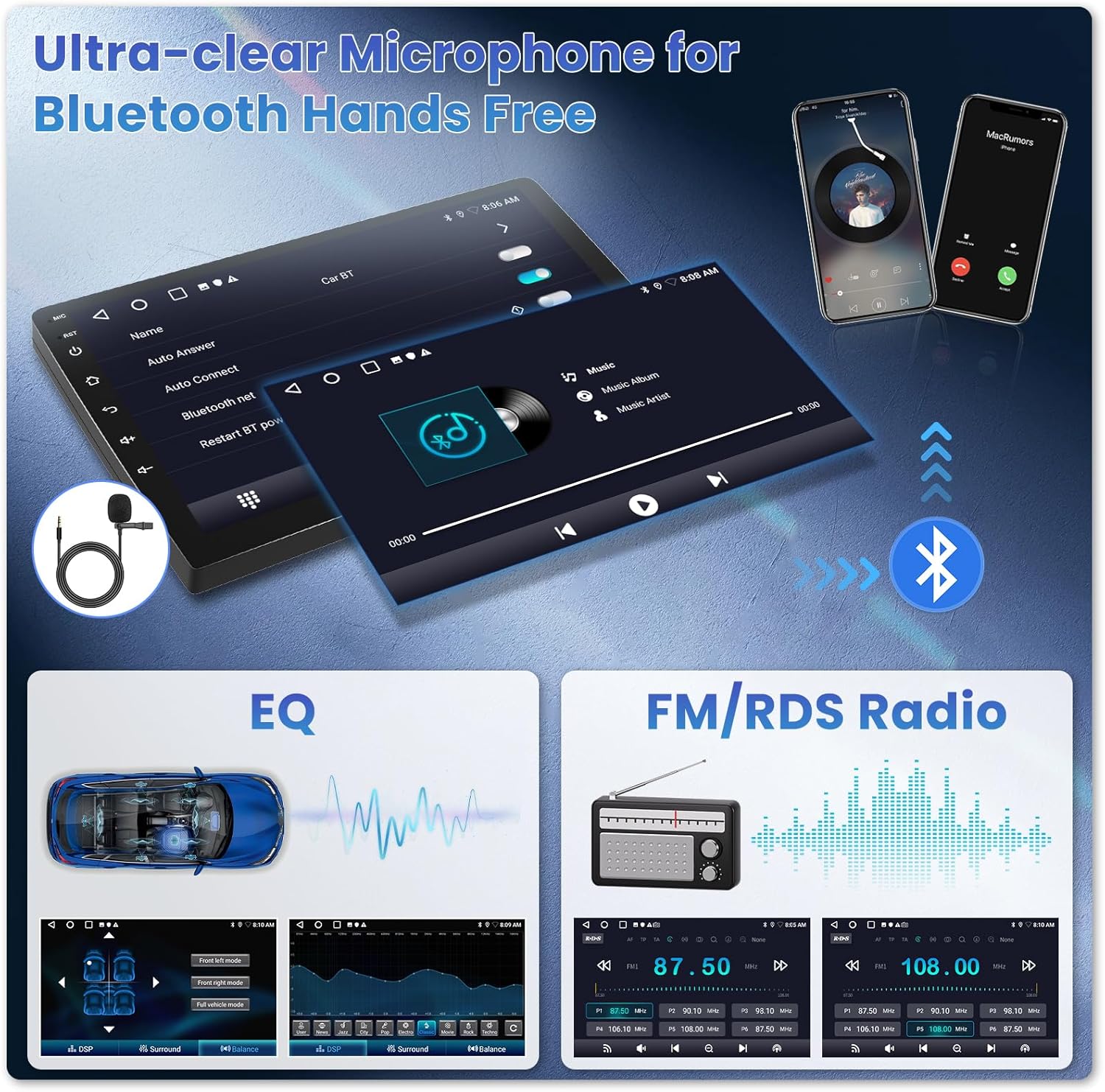
Image 4.5: Microphone for Bluetooth hands-free, EQ settings, and FM/RDS Radio.
4.5. Safety and Convenience
- Steering Wheel Control (SWC): Allows control of stereo functions directly from your vehicle's steering wheel for safer operation.
- Backup Camera: Includes a free backup camera for enhanced safety when reversing, featuring HD rear view, night vision, and waterproof design.

Image 4.6: Steering Wheel Control functionality.

Image 4.7: Backup Camera features and display.
5. Operating Instructions
5.1. Basic Operation
- Power On/Off: Press and hold the power button on the unit or use the vehicle's ignition.
- Volume Control: Adjust using the physical buttons on the unit or steering wheel controls.
- Touchscreen Navigation: Tap icons to open applications, swipe to navigate menus.
- Changing UI Themes: Access settings to select from the 26 available themes.
- Split Screen Mode: Activate from the multi-tasking menu to run two apps side-by-side.
5.2. Carplay / Android Auto
- Wireless Connection: Enable Bluetooth and Wi-Fi on your smartphone. On the car stereo, select the Carplay or Android Auto application. Follow the on-screen prompts to pair your device.
- Wired Connection: Connect your smartphone to the car stereo using a USB cable. The system should automatically detect and launch Carplay or Android Auto.
5.3. Mirror Link
- Connection: Connect your smartphone via USB or Wi-Fi. Select the Mirror Link application on the car stereo and follow the instructions to cast your phone's screen.
5.4. GPS Navigation
- Online Maps: Ensure the stereo is connected to Wi-Fi or a mobile hotspot. Open the navigation app and search for your destination.
- Offline Maps: Download map data for your region in advance via a Wi-Fi connection. This allows navigation without an internet connection.
5.5. Wi-Fi and App Downloads
- Connecting to Wi-Fi: Go to Settings > Network > Wi-Fi. Select your desired network and enter the password.
- Downloading Apps: Once connected to Wi-Fi, open the pre-installed app store (e.g., Google Play Store) to download and install additional applications.
5.6. Bluetooth
- Pairing: Enable Bluetooth on your smartphone. On the car stereo, go to Settings > Bluetooth. Search for available devices and select your phone. Confirm the pairing code.
- Hands-Free Calling: Once paired, you can make and receive calls directly through the car stereo.
- Audio Streaming: Play music from your phone via Bluetooth.
5.7. FM/RDS Radio
- Scanning for Stations: Open the FM/RDS Radio app. Use the scan function to automatically find and save available stations.
- Saving Presets: Tune to your preferred station and use the save function to store it as a preset.
5.8. Steering Wheel Control (SWC) Setup
- Configuration: Go to Settings > Steering Wheel Control. Follow the on-screen instructions to map your vehicle's steering wheel buttons to the stereo's functions.
5.9. Backup Camera Display
- Automatic Activation: When the vehicle is shifted into reverse gear, the backup camera display will automatically appear on the screen.
6. Troubleshooting
- No Power: Check all power connections, especially the ACC cable. Ensure the vehicle's ignition is on.
- No Sound: Verify speaker connections. Check EQ settings. If an external amplifier is used, ensure it is properly connected and powered (refer to Section 3.3).
- Carplay/Android Auto Not Connecting: Ensure Bluetooth and Wi-Fi are enabled on your phone. Try connecting with a different USB cable. Restart both the phone and the car stereo.
- GPS Signal Issues: Ensure the GPS antenna is properly installed and has a clear view of the sky.
- Backup Camera Not Displaying: Check the camera's power and video input cable connections. Ensure the vehicle is in reverse gear.
- Steering Wheel Controls Not Working: Re-enter the SWC learning mode in settings and re-map the buttons. Ensure the Canbus decoder is correctly installed if applicable.
7. Specifications
| Feature | Specification |
|---|---|
| Model Number | A7079A3796A4MI2-60CA |
| Display Size | 9 Inches |
| Display Resolution | 1024x600 |
| Operating System | Android |
| Memory (RAM + Storage) | 2GB RAM + 64GB Storage |
| Connectivity | Bluetooth 4.0, USB, Wi-Fi |
| Special Features | Wireless/Wired Carplay, Android Auto, Mirror Link, GPS Navigation, FM/RDS Radio, EQ, SWC, Backup Camera Support |
| Audio Output Mode | Stereo (YD7388 amplifier chip) |
| Mounting Type | Dashboard Mount |
| Product Dimensions | 43 x 16.5 x 5 cm (17.0 x 6.5 x 2.0 inches) |
| Weight | 2.58 kg |
| Country of Origin | China |
8. Maintenance
- Cleaning: Use a soft, dry cloth to clean the screen and unit. Avoid abrasive cleaners or solvents.
- Software Updates: Periodically check for software updates via the system settings to ensure optimal performance and access to new features.
- Environmental Conditions: Avoid exposing the unit to extreme temperatures, direct sunlight for prolonged periods, or excessive moisture.
9. Warranty and Support
Inefala provides a 24-month warranty for this product, covering manufacturing defects and malfunctions under normal use. Online consultation support is available, with responses typically provided within 24 hours.
For technical assistance, warranty claims, or any questions regarding your Inefala Car Stereo, please contact us directly:
- Email: Inefalatech@163.com

Image 9.1: Information on how to contact customer support.


