
1. Introduction
The POTTMACEE 14.2" Laptop Screen Extender (Model S8) is designed to enhance your productivity by providing an additional Full HD 1080P IPS display for your laptop. Its ultra-thin (0.17 inches) and lightweight (1.3 pounds) design makes it highly portable, ideal for professionals, students, and remote workers who require expanded screen real estate on the go. This plug-and-play device offers multiple display modes and wide compatibility with various operating systems and laptop sizes.
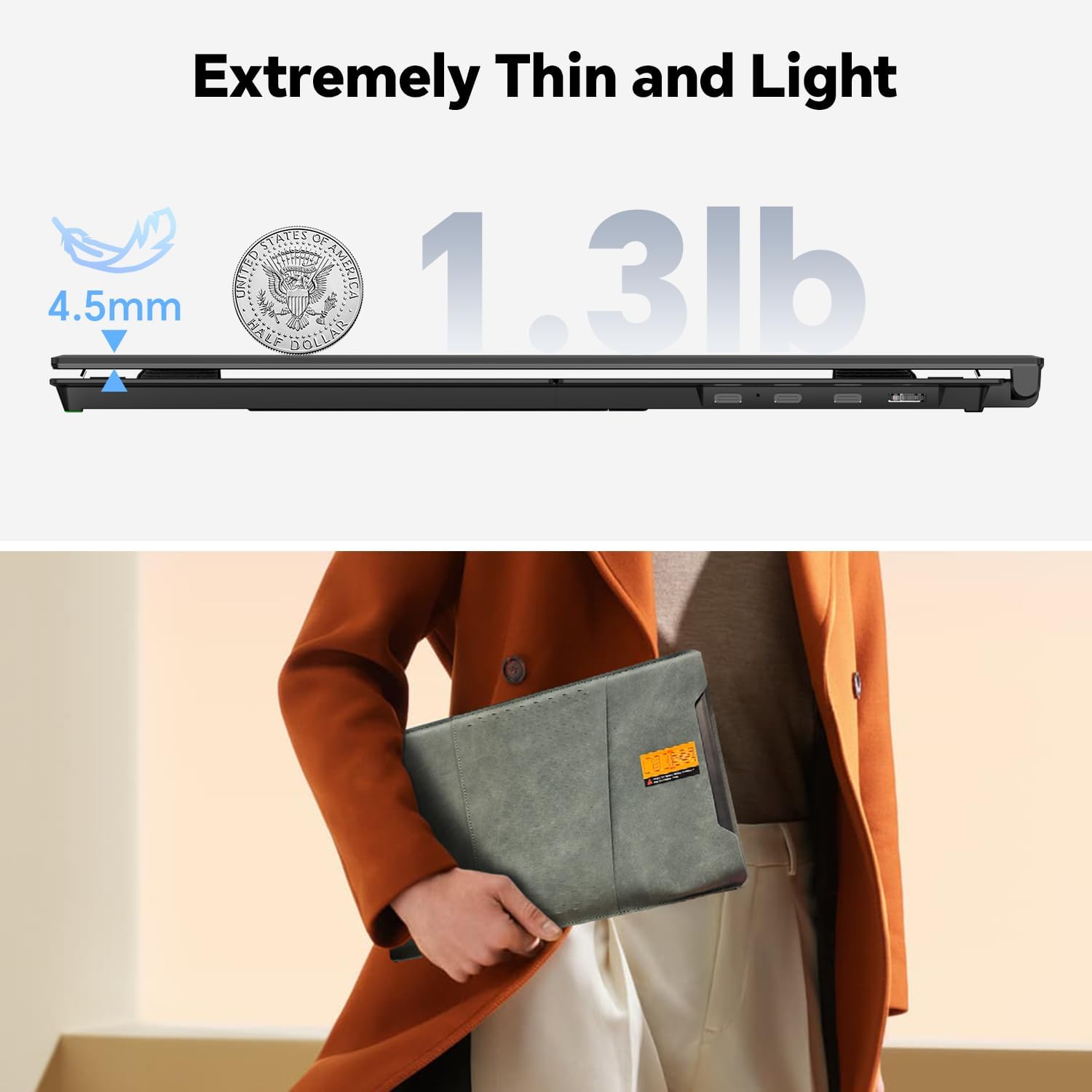
Image: The POTTMACEE 14.2" Laptop Screen Extender in use, providing an additional display.
2. What's in the Box
Please ensure all items are present upon unboxing:
- Laptop Screen Extender (Model S8) x 1
- USB-C to USB-C Cable x 1
- USB-A to USB-C Cable x 1
- HDMI to USB-C Cable x 1
- Travel Bag x 1
- User Manual x 1
Video: An unboxing video demonstrating the contents of the POTTMACEE S8 Laptop Screen Extender package.
3. Product Overview
The POTTMACEE S8 features a sleek, durable design crafted from aircraft-grade aluminum alloy. It includes an integrated adjustable stand for stability and flexible viewing angles. The device is equipped with multiple ports for versatile connectivity.
Key Components:
- 14.2" FHD 1080P IPS Display: Provides vibrant colors and wide viewing angles.
- Adjustable Cradle/Stand: Securely attaches to laptops ranging from 13" to 17.3" and offers a 90-degree rotating bracket for optimal viewing.
- Connectivity Ports: Includes Power, Type-C1, Type-C2, and Type-C3 (USB-C with DisplayPort) for power and video transmission.

Image: The adjustable stand and rotation capabilities of the screen extender.
4. Setup Instructions
The POTTMACEE S8 is designed for quick and easy setup. Follow these steps to connect your screen extender:
Step 1: Attach the Extender to Your Laptop
- Gently open the screen extender.
- Extend the adjustable cradle to fit the top edge of your laptop screen (compatible with 13" to 17.3" laptops).
- Ensure the rubberized grips securely hold your laptop screen without obstructing the display.
Step 2: Connect the Cables
Choose the appropriate connection method based on your laptop's available ports:
- Option 1: Single USB-C Connection (Full-Featured USB-C Port)
If your laptop has a full-featured USB-C port (supporting both power and video), use the provided USB-C to USB-C cable to connect the extender's Type-C3 port to your laptop's USB-C port.
- Option 2: USB-A and HDMI Cable Connection
For laptops without a full-featured USB-C port, connect the provided HDMI to USB-C cable from your laptop's HDMI port to the extender's Type-C3 port. Then, connect the provided USB-A to USB-C cable from your laptop's USB-A port to the extender's Type-C1 or Type-C2 port for power.

Image: Visual guide for connecting the screen extender using either a single USB-C cable or a combination of USB-A and HDMI cables.
5. Operating Modes
The POTTMACEE S8 supports various display modes to suit your workflow:
- Extended Mode: Expand your desktop across both screens, allowing you to multitask efficiently with different applications open on each display.
- Mirror Mode: Duplicate your laptop's display onto the extender, ideal for presentations or sharing content with others.
- Presentation Mode: Similar to mirror mode, but often used in professional settings for sharing content.
- Portrait Mode: The screen can be rotated 90 degrees for vertical viewing, beneficial for coding, reading long documents, or viewing social media feeds.

Image: Examples of the screen extender operating in Mirroring Mode, Extended Mode, and Portrait Mode.
6. Compatibility
The POTTMACEE S8 is broadly compatible with a range of devices and operating systems:
- Operating Systems: Windows, macOS, ChromeOS, Linux, Android, Dex.
- Devices: Compatible with most laptops from 13" to 17.3" screen sizes. Also supports gaming consoles like PS5.

Image: Visual representation of the screen extender's wide compatibility with different operating systems and devices.
7. Specifications
| Feature | Detail |
|---|---|
| Brand | POTTMACEE |
| Model Number | S8 |
| Screen Size | 14.2 Inches |
| Resolution | FHD 1080p (1920 x 1080 Pixels) |
| Display Type | IPS LCD |
| Aspect Ratio | 16:9 |
| Brightness | 300 candela_per_square_meter |
| Contrast Ratio | 1000:1 |
| Refresh Rate | 60 Hz |
| Response Time | 1 Milliseconds |
| Viewing Angle | 180 Degrees |
| Color Gamut | 72% NTSC |
| Thickness | 0.17 inches (4.5mm) |
| Item Weight | 1.3 Pounds |
| Connectivity Technology | USB Type C, USB-A + HDMI |
| Hardware Connectivity | HDMI, USB 3.0 Type C |
| Additional Features | Built-In Speakers, Portable, Ultra-Thin, HDR, FreeSync |
Video: A short comparison video highlighting the ultra-thin and lightweight design of the S8 model versus the S2 model.
8. Maintenance
- Cleaning: Use a soft, lint-free cloth to gently wipe the screen. Avoid using harsh chemicals or abrasive materials.
- Storage: When not in use, store the screen extender in its provided travel bag to protect it from dust, scratches, and impacts.
- Handling: Always handle the device with care. Avoid dropping it or applying excessive force to the screen or hinges.
9. Troubleshooting
- No Signal/Screen Flicker:
- Ensure all cables are securely connected to both the extender and your laptop.
- If using USB-A + HDMI, confirm the USB-A cable is providing sufficient power. An external power source may be required for optimal brightness or if your laptop's USB-A port does not provide enough power.
- Check your laptop's display settings to ensure the external monitor is detected and configured correctly (e.g., Extended or Mirror mode).
- Insufficient Brightness:
- Connect an external power source to the extender's power port if your laptop's USB-C or USB-A port cannot supply enough power.
- Adjust the brightness settings on the extender itself.
- Screen Not Turning On:
- Verify that the extender is receiving power.
- Try connecting with a different cable or port on your laptop.
10. Warranty & Support
The POTTMACEE 14.2" Laptop Screen Extender comes with a 12-month warranty from the date of purchase. This warranty covers manufacturing defects and workmanship issues under normal use.
For technical assistance, troubleshooting, or warranty claims, please contact our customer support team. We offer 24-hour fast-response customer support to ensure your satisfaction.
Please refer to the contact information provided in your user manual or visit the official POTTMACEE website for further details.
