
1. Introduction
This manual provides detailed instructions for the eppfun DX08 Pro Wireless Bluetooth Neckband Headphones. Please read this manual thoroughly before using the product to ensure proper operation and to maximize its performance and lifespan. The DX08 Pro features advanced Bluetooth 5.4 technology, supporting high-fidelity audio codecs such as LDAC, aptX Lossless, aptX Adaptive, and aptX-HD, powered by the QCC3095 chip.
2. Package Contents
Verify that all items listed below are present in your product package:
- eppfun DX08 Pro Wireless Bluetooth Neckband
- MMCX Earphone Cable (pre-attached or separate)
- USB Charging Cable
- User Manual (this document)
- (Assumed: Various sizes of ear tips for optimal fit)

Image: The eppfun DX08 Pro neckband with its detachable MMCX earphone cables.
3. Setup
3.1. Charging the Device
- Connect the USB charging cable to the charging port on the neckband.
- Connect the other end of the USB cable to a compatible USB power source (e.g., computer USB port, wall adapter).
- The LED indicator on the neckband will illuminate to show charging status. Refer to the LED indicator section for details.
- A full charge typically takes approximately 2 hours.
- Disconnect the charging cable once fully charged.

Image: Close-up of the eppfun DX08 Pro neckband, showing the control panel and charging port area.
3.2. Connecting MMCX Earphones
The eppfun DX08 Pro neckband uses standard MMCX connectors, allowing you to attach compatible earphones.
- Identify the left (L) and right (R) connectors on both the neckband and your MMCX earphones.
- Align the MMCX connector on the earphone cable with the corresponding port on the neckband.
- Gently push the earphone connector into the neckband port until you feel a secure click. Do not force the connection.
- To disconnect, firmly grasp the earphone connector (not the cable) and pull it straight out from the neckband port.

Image: The eppfun DX08 Pro neckband with its MMCX connectors, ready for earphone attachment.
3.3. Bluetooth Pairing
- Power On: Press and hold the Power button on the neckband until the LED indicator flashes, indicating it is in pairing mode.
- Activate Bluetooth: On your device (smartphone, tablet, computer), enable Bluetooth.
- Search for Devices: In your device's Bluetooth settings, search for available devices.
- Select "eppfun DX08 Pro": From the list of found devices, select "eppfun DX08 Pro" to initiate pairing.
- Confirmation: Once successfully paired, the LED indicator on the neckband will change, and you may hear an audio prompt.
- Reconnect: The headphones will automatically attempt to reconnect to the last paired device when powered on.
4. Operating Instructions
4.1. Basic Controls
| Button/Action | Function |
|---|---|
| Power Button (Long Press) | Power On/Off |
| Power Button (Short Press) | Play/Pause music, Answer/End call |
| Volume + Button (Short Press) | Increase Volume |
| Volume - Button (Short Press) | Decrease Volume |
| Volume + Button (Long Press) | Next Track |
| Volume - Button (Long Press) | Previous Track |
| Power Button (Double Press) | Activate Voice Assistant |
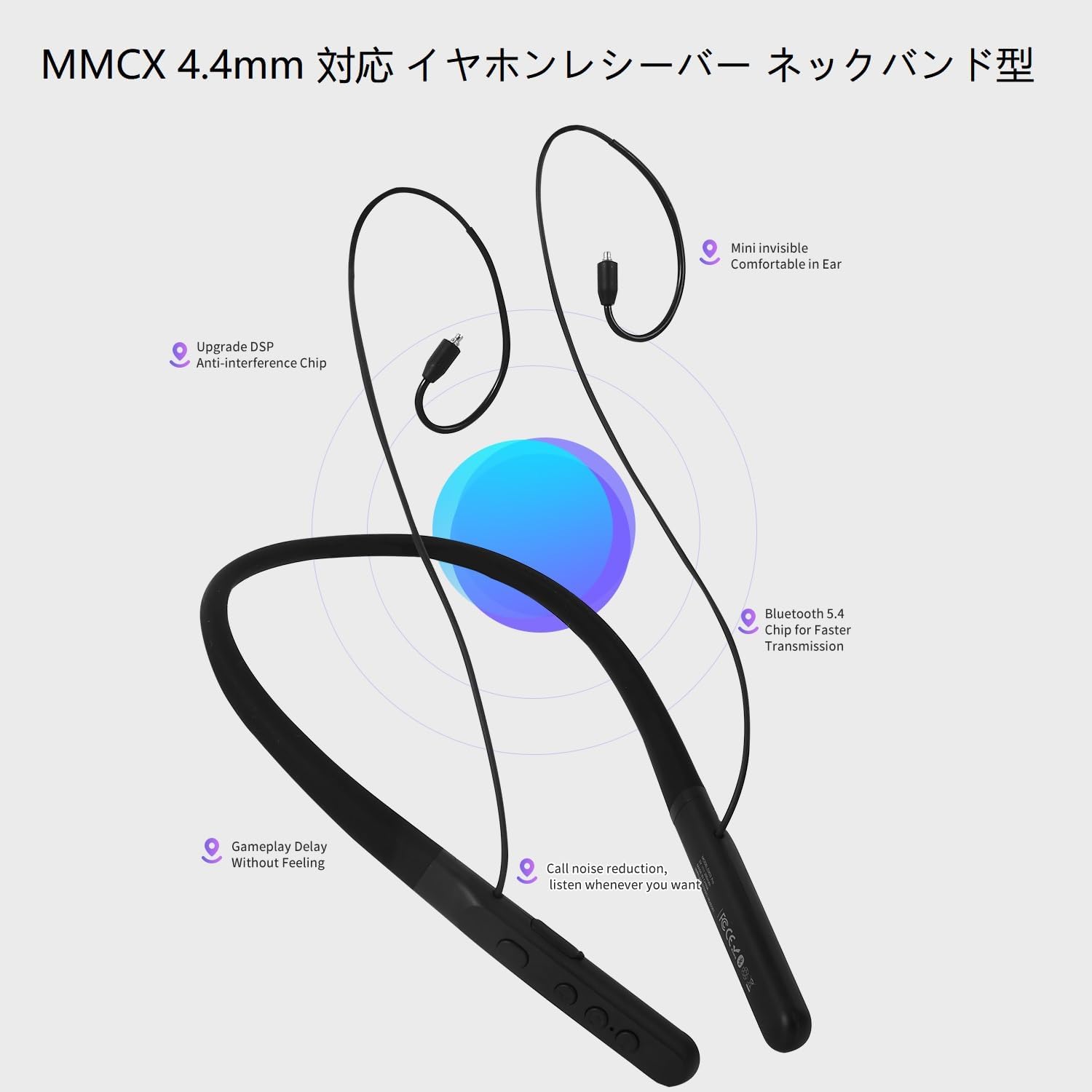
Image: The control panel on the eppfun DX08 Pro neckband, showing the various buttons for operation.
4.2. Advanced Audio Features
The DX08 Pro supports multiple high-quality audio codecs for an enhanced listening experience:
- LDAC: Sony's high-resolution audio codec, enabling high-quality wireless audio transmission.
- aptX Lossless: Qualcomm's latest codec for bit-perfect CD-quality audio over Bluetooth.
- aptX Adaptive: Dynamically adjusts audio quality and latency based on environmental factors.
- aptX-HD: Delivers 24-bit high-resolution audio over Bluetooth.
- SBC/AAC: Standard Bluetooth audio codecs for broad compatibility.
Ensure your connected device also supports these codecs to utilize their full potential. The headphones will automatically select the best available codec.
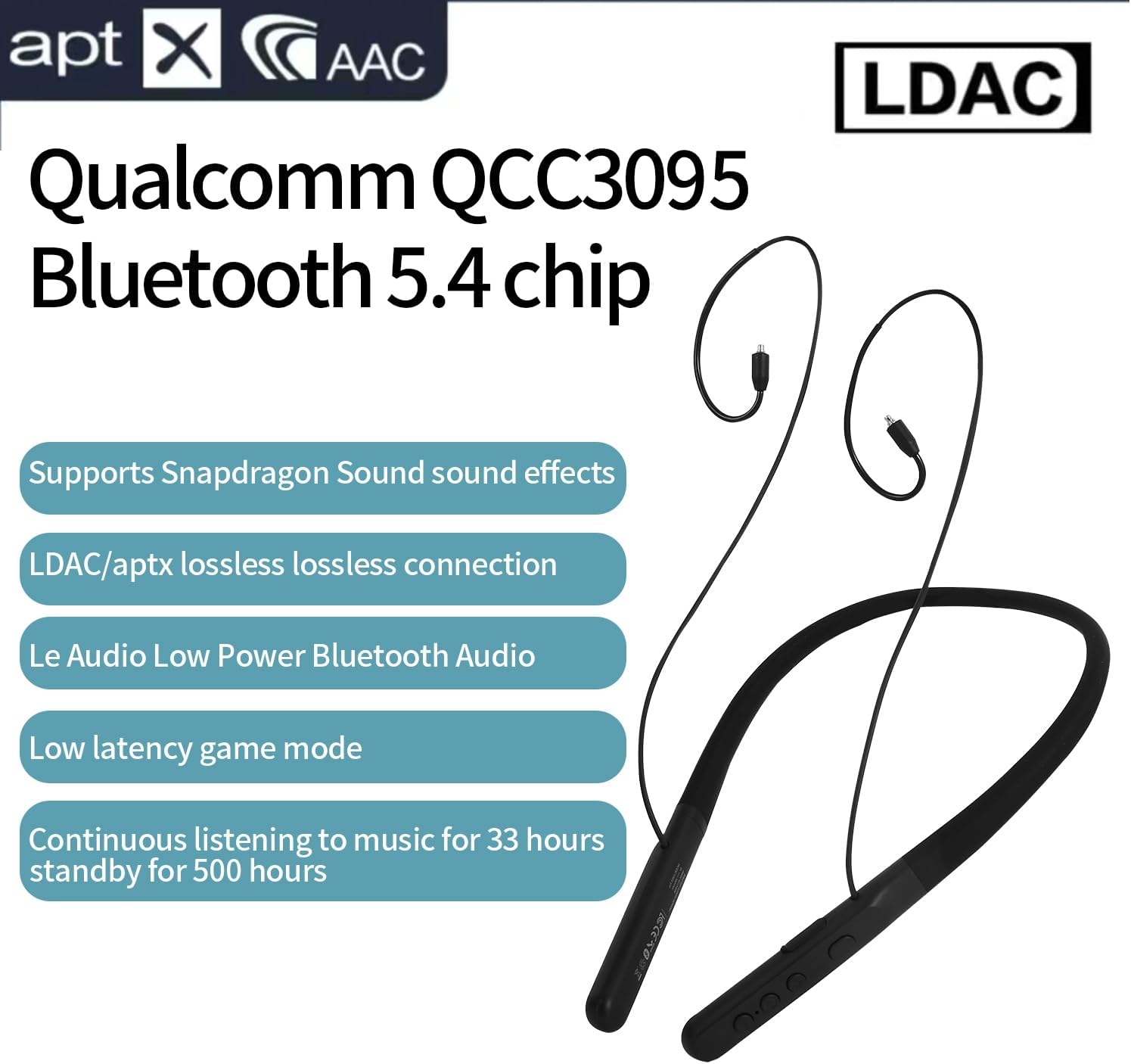
Image: Visual representation of the eppfun DX08 Pro's QCC3095 chip and supported audio codecs like LDAC, aptX HD, and AAC.
4.3. Low Latency Game Mode
The DX08 Pro features a low-latency mode, optimized for gaming and video playback, to minimize audio delay. This mode is automatically engaged when supported by the connected device and content, or can be manually activated if available through specific button combinations (refer to future firmware updates or product website for specific activation methods if not automatic).
5. Maintenance
5.1. Cleaning
- Wipe the neckband and earphone cables with a soft, dry, lint-free cloth.
- For stubborn dirt, slightly dampen the cloth with water. Avoid using harsh chemicals, solvents, or abrasive cleaners.
- Ensure all ports are dry before charging or connecting.
- Regularly clean ear tips to prevent wax buildup, which can affect sound quality.
5.2. Storage
- Store the headphones in a cool, dry place, away from direct sunlight and extreme temperatures.
- Avoid placing heavy objects on the headphones.
- If storing for an extended period, charge the battery to approximately 50% to preserve battery health.
5.3. Battery Care
- Do not expose the battery to excessive heat, such as direct sunlight or fire.
- Avoid fully discharging the battery frequently.
- Charge the battery regularly, even if the headphones are not in use, to maintain optimal performance.
6. Troubleshooting
If you encounter issues with your eppfun DX08 Pro headphones, refer to the following common problems and solutions:
6.1. No Power
- Ensure the headphones are fully charged. Connect them to a power source and check the charging indicator.
- Press and hold the Power button for at least 5 seconds to ensure it's not just in standby.
6.2. Cannot Pair with Device
- Ensure the headphones are in pairing mode (LED flashing).
- Turn off and on Bluetooth on your device.
- Move the headphones closer to your device.
- Clear the Bluetooth pairing history on your device and attempt to pair again.
- Ensure no other devices are actively connected to the headphones.
6.3. No Sound or Low Volume
- Check the volume levels on both the headphones and your connected device.
- Ensure the MMCX earphones are securely connected to the neckband.
- Verify that the headphones are correctly paired and connected to your device.
- Try playing audio from a different application or device.
6.4. Intermittent Connection or Audio Dropouts
- Reduce the distance between the headphones and your device.
- Avoid obstacles (walls, large metal objects) between the headphones and your device.
- Minimize interference from other wireless devices (Wi-Fi routers, other Bluetooth devices).
- Ensure your device's Bluetooth drivers are up to date.
7. Specifications
| Feature | Detail |
|---|---|
| Model Name | DX08 Pro |
| Bluetooth Version | 5.4 |
| Bluetooth Chipset | Qualcomm QCC3095 |
| Supported Audio Codecs | SBC, AAC, aptX HD, aptX Adaptive, aptX Lossless, LDAC |
| Connectivity Technology | Bluetooth |
| Headphones Jack | MMCX |
| Battery Life (Music Playback) | Up to 33 hours |
| Standby Time | Up to 500 hours |
| Control Type | Button Control |
| Item Weight | 0.16 Kilograms (approx. 5.6 ounces) |
| Manufacturer | eppfun |
| Impedance | 32 Ohms |
8. Warranty and Support
eppfun products are designed and manufactured to the highest quality standards. For specific warranty information, please refer to the warranty card included with your product or visit the official eppfun website. Keep your proof of purchase for warranty claims.
For technical support, troubleshooting assistance, or general inquiries, please contact eppfun customer service through the contact information provided on the official eppfun website or your purchase platform.
Online Resources:
- Official eppfun Website: www.eppfun.com (Example link, actual link not provided in data)
- Product Support Page: (Refer to official website for specific product support pages)
