
R QIDI TECHNOLOGY Q2
QIDI Q2 3D Printer User Manual
Model: Q2 | Brand: R QIDI TECHNOLOGY
Introduction
This manual provides essential information for the safe and efficient operation of your QIDI Q2 3D Printer. Please read this guide thoroughly before using the printer to ensure proper setup, operation, and maintenance. The QIDI Q2 is designed for a wide range of users, from beginners to experts, offering advanced features for precise and reliable 3D printing.

Image: The QIDI Q2 3D Printer, an enclosed FDM printer, showcasing a multi-color 3D printed house on its build plate.
Safety Information
Always observe the following safety precautions to prevent injury or damage to the printer:
- Ensure the printer is placed on a stable, level surface.
- Do not touch the hotend or heated bed during operation or immediately after printing, as they can reach high temperatures.
- Keep hands and loose clothing away from moving parts.
- Operate the printer in a well-ventilated area.
- Use only recommended filaments and power supplies.
- In case of emergency, immediately disconnect the power cable.
The QIDI Q2 features a flame-retardant chamber and multi-sensor closed-loop temperature control for enhanced safety during operation.

Image: Illustration of the QIDI Q2's safety features, including multi-sensor closed-loop temperature control and a flame-retardant chamber.
Package Contents
Verify that all items listed below are included in your package:

Image: A visual representation of the accessory package contents for the QIDI Q2 3D Printer.
- QIDI Q2 3D Printer
- Filament Extension Rack and Pneumatic Head
- Filament Spool Holder
- Holder Cover
- Touch Screen
- Power Cord
- Ethernet Cable
- USB 2.0 Flash Drive
- Lubricant Oil
- 7mm Spanner
- Scraper
- Flat Head Screwdriver
- Glue Stick
- Allen Key Set (H1.27, H1.5, H2, H2.5, H3)
Setup
1. Unpacking and Placement
Carefully remove the printer from its packaging. Place the printer on a stable, level surface with adequate space around it for ventilation and access.
2. Power Connection
Connect the power cord to the printer and then to a grounded electrical outlet. Ensure the power switch is in the OFF position before connecting.
3. Initial Power On and Screen Setup
Turn on the printer. Follow the on-screen instructions to complete the initial setup, including language selection and network configuration.
4. Automatic Leveling
The QIDI Q2 features an advanced automatic leveling system where the nozzle itself acts as the sensor. This ensures precise first-layer accuracy without manual adjustments.
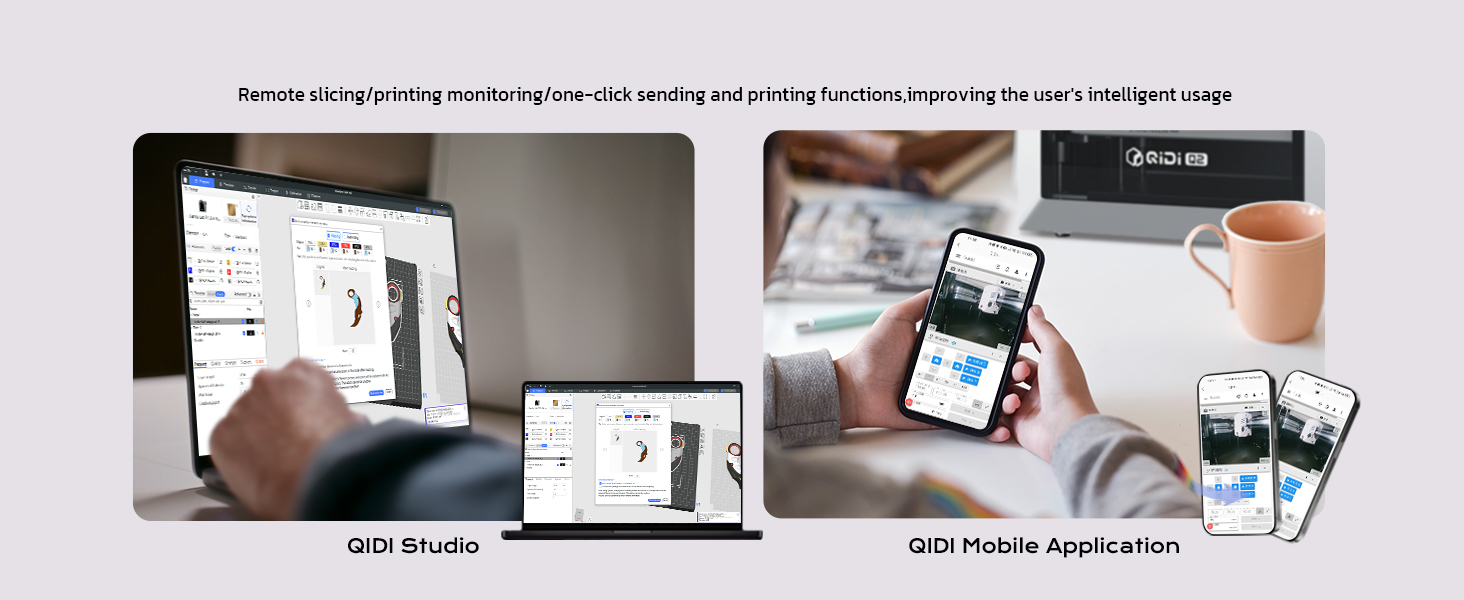
Image: A detailed view of the QIDI Q2's innovative leveling sensor, which uses the nozzle for unmatched first-layer accuracy.
Initiate the auto-leveling process through the printer's touch screen interface. The printer will automatically calibrate the print bed.
Operating Instructions
1. Loading Filament
- Ensure the hotend is preheated to the appropriate temperature for your filament type.
- Insert the filament into the designated loading port.
- Follow the on-screen prompts to feed the filament until it extrudes smoothly from the nozzle.
2. Preparing a Print Job
Use QIDI Studio or another compatible slicer software (e.g., Orca Slicer, Prusa Slicer) to prepare your 3D model (.STL, .OBJ, .3MF, .STEP, .STP files). Configure print settings such as layer height, infill, and supports.

Image: Remote slicing and printing monitoring capabilities via QIDI Studio on a computer and the QIDI Mobile Application on a smartphone.
3. Starting a Print
Transfer the sliced G-code file to the printer via USB, Wi-Fi, or Ethernet. Select the file from the printer's touch screen and initiate the print. The AI camera monitors the print for malfunctions like 'spaghetti' detection.

Image: The AI camera feature of the QIDI Q2 detecting a printing malfunction, specifically 'spaghetti' formation, to ensure print safety.
4. Advanced Printing Features
- Heated Chamber: The second-generation heated chamber can reach up to 65°C, reducing warping and improving layer adhesion for materials like ABS, PC, and carbon/glass-fiber composites.
- High-Temperature Hotend: The maximum 370°C hotend allows for printing with high-performance filaments, including PPS-CF.
- Multi-Color & Multi-Material Printing: When paired with the QIDI BOX (sold separately), the Q2 supports up to 16-color multi-material 3D printing with dry-while-print technology.

Image: The QIDI Q2's 65°C heated chamber, designed to prevent layer chapping and ensure perfect surface finishes by improving layer adhesion.

Image: An illustration of the QIDI Q2's 370°C high-temperature hotend, enabling the use of advanced filaments like PPS-CF.

Image: A chart demonstrating the QIDI Q2's expanded material compatibility (Basic, Advance, Expert) when used with the QIDI BOX, including various carbon/glass-fiber composites.
Maintenance
1. Air Filtration System
The QIDI Q2 is equipped with a triple filtration system (G3 pre-filter + H12 HEPA + activated carbon) to reduce odors and harmful particles. Regularly check and replace filters as needed to maintain optimal air quality.

Image: An exploded view of the QIDI Q2's 3-in-1 air filtration system, highlighting its components for effective air purification.
2. General Cleaning
- Regularly clean the build plate with isopropyl alcohol to ensure good adhesion.
- Wipe down the exterior of the printer with a soft, dry cloth.
- Periodically inspect the linear rails and belts for debris and apply lubricant as necessary (refer to the included lubricant oil).
3. Belt Inspection
The Q2 features upgraded 1.5GT synchronous belts designed to reduce vibration artifacts. Periodically inspect belts for wear or damage and ensure they are properly tensioned.

Image: A visual comparison highlighting the smoother surfaces achieved with the QIDI Q2's new 1.5GT custom belts compared to other printers.
Troubleshooting
This section addresses common issues you might encounter. For more complex problems, refer to the official QIDI TECHNOLOGY support resources.
| Problem | Possible Cause | Solution |
|---|---|---|
| First layer not adhering | Dirty build plate, incorrect Z-offset, warped bed | Clean build plate with isopropyl alcohol. Re-run auto-leveling. Ensure proper bed temperature. |
| Filament not extruding | Clogged nozzle, tangled filament, filament run-out | Clear nozzle. Check filament path for tangles. Replace filament if empty (filament run-out detection helps prevent this). |
| Print quality issues (e.g., layer shifts, rough surfaces) | Loose belts, incorrect print speed, vibration | Check belt tension. Adjust print speed in slicer. Ensure printer is on a stable surface. The 1.5GT belts and CoreXY structure minimize vibration. |
| Printer stops mid-print | Power loss, filament run-out | The Q2 features power-loss recovery; resume print if power is restored. Check filament status. |
Specifications

Image: A comprehensive table detailing the technical parameters and specifications of the QIDI Q2 3D Printer.
| Feature | Detail |
|---|---|
| Printer Dimensions | 15.83 x 17.24 x 19.45 inches (402 x 438 x 494 mm) |
| Build Volume | 270x270x256mm |
| Item Weight | 39.8 pounds (18.1 Kilograms) |
| Print Head Temperature | Max 370°C |
| Hot Bed Temperature | ≤ 120°C |
| Chamber Temperature | 2nd Gen Up to 65°C |
| Travel Speed and Acceleration | 600mm/s and 20000mm/s² |
| Printing Accuracy | ±0.1mm/100mm |
| Nozzle | Bimetal Nozzle |
| Extruder Gear | Direct Extruder Hardened Steel Gears |
| Supported Filament | PLA, ABS, ASA, PETG, TPU, PA, PC, Carbon/Glass Fiber Reinforced Polymer, etc. |
| Automatic Leveling | Yes |
| Filament Detection | Run Out Sensor, Tangle Detection (with QIDI BOX) |
| Power Loss Recovery | Yes |
| AI Camera | 1080P, Timelapse, AI Detection |
| Connectivity | 2.4 GHz Wi-Fi, Ethernet, USB |
| Slicer | QIDI Studio, Orca Slicer, Prusa Slicer, etc. |
| Multi-Color Printing | Compatible with QIDI Box |
Warranty and Support
The QIDI Q2 3D Printer is backed by responsive customer service and lifetime technical support from R QIDI TECHNOLOGY. For warranty claims, technical assistance, or any inquiries, please contact QIDI TECHNOLOGY customer support through their official website or the contact information provided with your purchase.
For additional resources and community support, visit the R QIDI TECHNOLOGY Store on Amazon.
Ask a question about this manual
Ask about setup, troubleshooting, compatibility, parts, safety, or missing instructions. Manuals+ will review the question and use this page’s manual context to help answer it.