Introduction
This manual provides detailed instructions for the assembly, operation, and maintenance of your Itaar 79-inch Gaming Desk. Please read this manual thoroughly before beginning assembly or use to ensure proper setup and safe operation. Keep this manual for future reference.

Image: The Itaar 79-inch Gaming Desk featuring LED lighting, multiple monitor setup, and integrated storage solutions.
Safety Information
Observe the following safety guidelines to prevent injury or damage to the product:
- Careful Handling: Exercise caution around sharp edges during assembly and use.
- Assembly: Follow all assembly instructions precisely. Ensure all fasteners are securely tightened before use.
- Weight Capacity: Do not overload the desk beyond its specified weight capacity. Refer to the specifications section for details.
- Electrical Safety: When using the integrated power strip, ensure that connected devices do not exceed the strip's maximum electrical rating. Avoid spilling liquids near electrical components.
- Placement: Place the desk on a level, stable surface to prevent tipping.
Package Contents
Verify that all components are present before beginning assembly. If any parts are missing or damaged, contact customer support.
- Desk Panels (Carbon Fiber Black)
- Metal Frame Components
- 2 Fabric Drawers
- Monitor Stand
- LED Light Strip
- Power Strip (2-Outlet & 2 USB Ports)
- Storage Shelf Components
- Keyboard Tray
- Large Mouse Pad
- Cup Holder
- 2 Headphone Hooks
- CPU Holder
- Assembly Hardware (screws, bolts, tools)
- Instruction Manual
Assembly Instructions
Before You Begin
- Clear a spacious area for assembly.
- Unpack all components and verify against the package contents list.
- Familiarize yourself with the included hardware and tools.
- It is recommended to have two people for assembly.
Step-by-Step Assembly
Refer to the separate detailed assembly diagram and hardware guide included in your package for specific part identification and fastening instructions. The general steps are as follows:
- Assemble the Main Frame: Connect the metal frame components using the provided screws and bolts. Ensure all connections are stable.
- Attach Desk Panels: Secure the carbon fiber desk panels to the assembled frame. Pay attention to alignment for the U-shaped configuration.
- Install Storage Unit: Assemble and attach the side storage unit, including the shelves and the runners for the fabric drawers.
- Insert Fabric Drawers: Place the two fabric drawers into their designated slots in the storage unit.
- Mount Monitor Stand: Secure the monitor stand to the main desk surface.
- Install Keyboard Tray: Attach the keyboard tray sliders and the tray itself beneath the central desk section. Ensure smooth operation.
- Attach Accessories: Install the cup holder, headphone hooks, and CPU holder in their desired locations.
- Integrate Power Strip: Secure the power strip into its designated cutout on the desk surface.
- Apply LED Lights: Adhere the LED light strip to the underside of the monitor stand or other preferred locations as per the LED light instructions.
- Place Mouse Pad: Position the large mouse pad on the main desktop area.

Image: Technical drawing illustrating the dimensions of the Itaar 79-inch Gaming Desk, including height, width, depth, and component measurements.

Image: An overhead view of the desk, highlighting various storage and accessory features with numbered callouts for easy identification.
Operating Instructions
LED Lighting System
The integrated RGB LED light strip offers customizable ambiance for your gaming or work environment.
- Control Methods: The LED lights can be controlled via a remote control (Key Control) or a dedicated smartphone application (APP Control).
- Color and Modes: Choose from over 60,000 colors and 29 flashing modes to suit your preference.
- Music Sync: Utilize the built-in sensitivity-adjustable microphone for music synchronization. The light color will change with the rhythm of sound and music.
- Timer Function: Set a timer for automatic light operation.
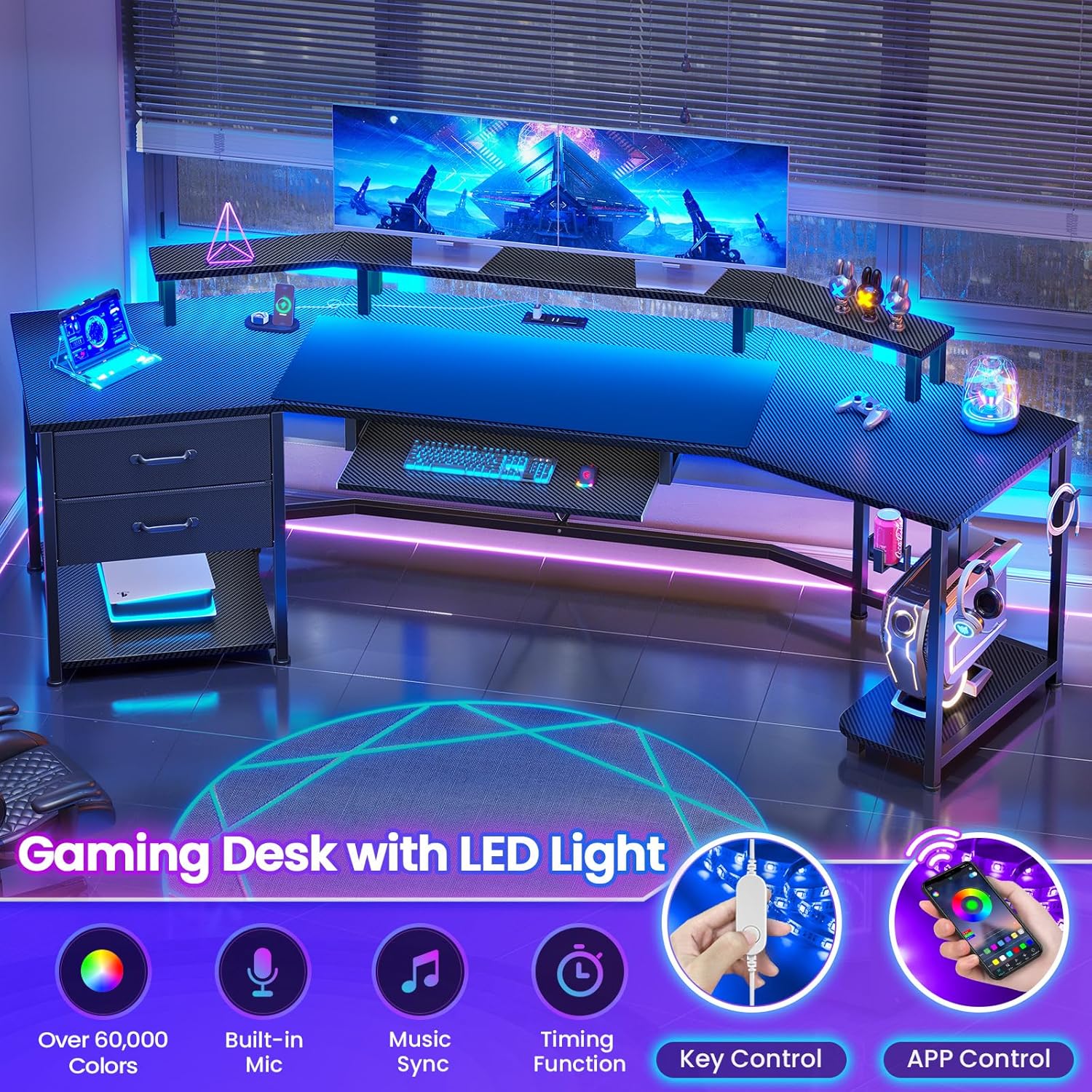
Image: The gaming desk illuminated by LED lights, with icons indicating features like over 60,000 colors, built-in mic, music sync, timing function, key control, and app control.
Integrated Power Strip
The desk includes a power strip for convenient device charging and power access.
- Outlets: Features 2 AC outlets (125V/12A) for powering larger devices.
- USB Ports: Includes 2 USB ports (5V/2A) for charging mobile devices such as phones, tablets, and Bluetooth speakers.
- Power Cord: The power strip is connected via a 5-foot power cord.

Image: A close-up view of the desk's integrated power strip, showing two AC outlets and two USB ports, with a tablet and smartphone charging.
Storage Features
The desk is designed with multiple storage options to keep your workspace organized.
- Fabric Drawers: Two large fabric drawers provide concealed storage for accessories, controllers, or personal items. Dimensions: 19.3" (depth) x 15" (width) x 5.9" (height).
- Open Storage Shelves: Dedicated shelves are available for larger items like a CPU tower, gaming consoles, or books.
- Cup Holder: A convenient cup holder helps prevent spills.
- Headphone Hooks: Two hooks are provided for hanging headphones, keeping them accessible and off the desktop.
- CPU Holder: A dedicated stand keeps your CPU off the floor, improving airflow and protecting it from dust.
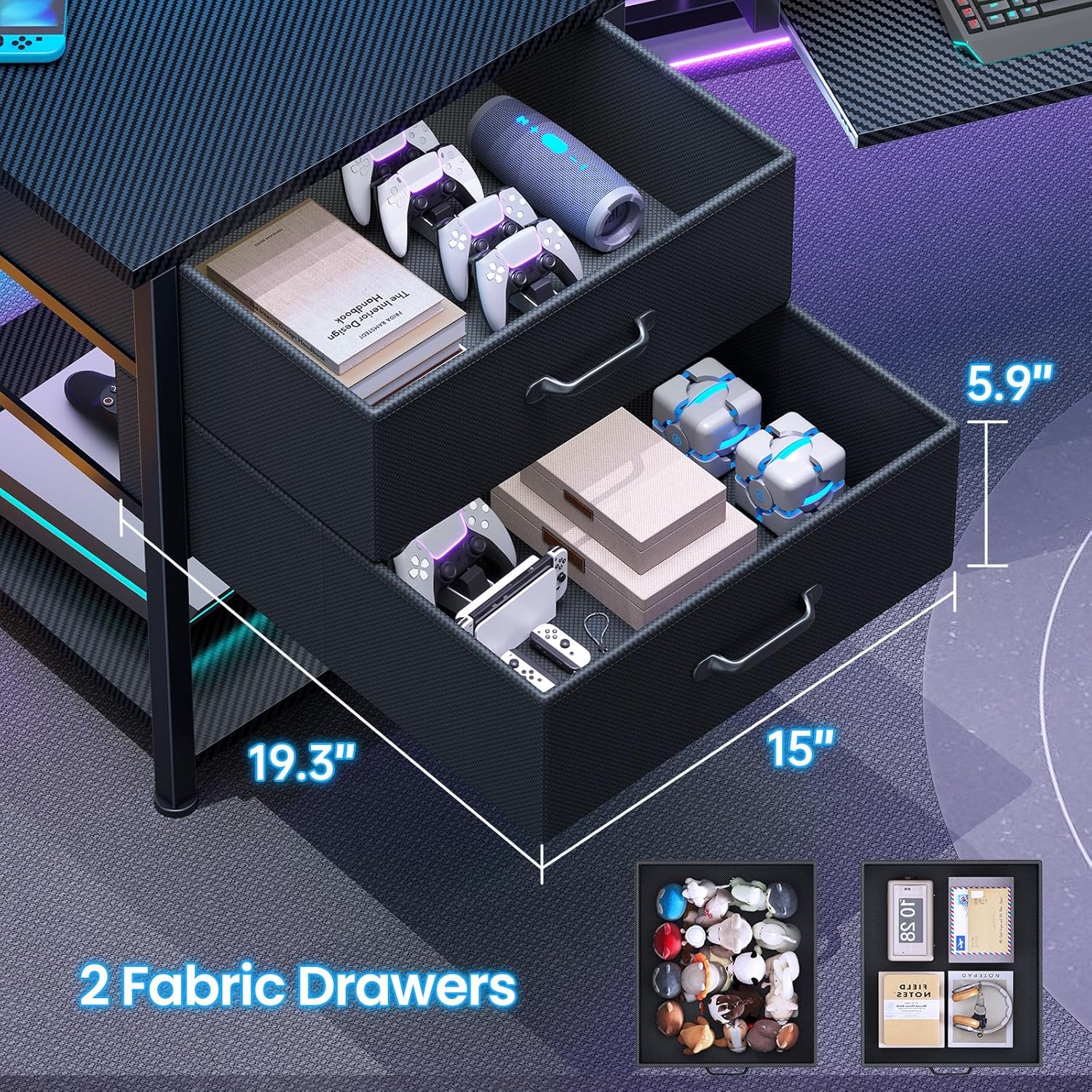
Image: A detailed view of the two fabric drawers, illustrating their dimensions and capacity for storing various items like game controllers and small boxes.
Ergonomic Features
- Monitor Stand: The integrated monitor stand elevates your screens to an ergonomic height, reducing neck and eye strain.
- Keyboard Tray: An extra-large 21.7-inch keyboard tray accommodates most 108-key or 87-key keyboards plus a mouse, freeing up desktop space.

Image: A person seated at the desk, demonstrating the ergonomic benefits of the elevated monitor stand and the spacious keyboard tray for comfortable use.
Maintenance
Proper care will extend the life and appearance of your desk.
- Cleaning: The desktop is waterproof and scratch-proof. Wipe surfaces with a soft, damp cloth. Avoid abrasive cleaners or harsh chemicals.
- Spills: Promptly clean any spills to prevent damage, especially near electrical components.
- Fasteners: Periodically check and retighten all screws and bolts to ensure the desk remains stable.
- LED Lights: Ensure the LED light strip and power connections are free from dust and obstructions.
Troubleshooting
If you encounter issues with your desk, refer to the following common problems and solutions:
- Desk is Unstable/Wobbly:
- Ensure all assembly screws and bolts are fully tightened.
- Verify the desk is placed on a level surface. Adjust any leveling feet if present.
- LED Lights Not Working:
- Check if the power cord for the LED strip is securely plugged into a working outlet.
- Ensure the remote control or app is properly paired and has fresh batteries (if applicable).
- Inspect the LED strip for any visible damage.
- Power Strip Not Supplying Power:
- Confirm the desk's main power cord is plugged into a functional wall outlet.
- Check if the power strip has an on/off switch and if it is in the 'on' position.
- Ensure devices are correctly plugged into the outlets/USB ports.
- Difficulty During Assembly:
- Refer to the detailed assembly instructions and diagrams provided in the package.
- Ensure you are using the correct hardware for each step. Some screws may require more force to align with pre-drilled holes.
- If a part seems misaligned, gently adjust before forcing.
Specifications
| Feature | Detail |
|---|---|
| Brand | Itaar |
| Model Name | gaming desk |
| Product Dimensions | 78.7"W x 27.5"D x 30"H |
| Color | Carbon Fiber Black |
| Material | Engineered Wood (Top), Metal (Base) |
| Item Weight | 61 Pounds |
| Special Features | Built-In USB Outlet, Monitor Stand, LED Lights, Fabric Drawers, Keyboard Tray, Cup Holder, Headphone Hooks, CPU Holder |
| Power Strip | 2 AC Outlets (125V/12A), 2 USB Ports (5V/2A), 5-foot power cord |
| Number of Drawers | 2 |
| Number of Shelves | 2 |
| Assembly Required | Yes (Tools Included) |
Warranty and Support
Itaar is committed to customer satisfaction. While a specific warranty period is not detailed, we offer support for product issues.
If your item arrives damaged, scratched, or with missing parts, please contact Itaar customer service immediately. We will arrange for free replacement parts or offer a partial refund as appropriate.
For any questions regarding assembly, operation, or troubleshooting not covered in this manual, please reach out to our support team through the retailer where you purchased the product or visit the official Itaar website for contact information.