
1. Introduction
The UGREEN 2-in 7-Out USB 3.2 Switch (Model 75087) allows two host computers to share up to seven USB peripherals. This device is designed to streamline your workspace by enabling seamless switching between two systems without the need to constantly re-plug devices. It supports high-speed data transfer up to 10Gbps, making it suitable for various USB devices including keyboards, mice, printers, and external storage.
Important Note: This is a USB switch, not a KVM switch. It does not support video output to monitors.
2. Package Contents
Please verify that all items are present in your package:
- 1 x UGREEN 2-in 7-Out USB 3.2 Switch
- 2 x USB-C to USB-C/USB-A Cables (for host connection)
- 1 x Remote Control Button
- 1 x DC 12V/2A Power Adapter

Image: Contents of the UGREEN USB Switch package, including the main unit, cables, remote, and power adapter.
3. Product Overview
The UGREEN USB 3.2 Switch features a robust design with multiple ports for versatile connectivity.
3.1 Device Layout
- Input Ports (Rear): 2 x USB-C 3.2 Gen 2 ports for connecting to host computers (PC1 and PC2).
- Output Ports (Front):
- 3 x USB-C 3.2 Gen 2 ports (10Gbps) for peripherals.
- 4 x USB-A 3.2 Gen 2 ports (10Gbps) for peripherals.
- Power Input (Rear): DC 12V/2A port for the included power adapter.
- Control Port (Front): For connecting the external remote control button.
- Switch Button (Top): Manual button to switch between host computers.
- LED Indicators (Top): Lights to show which host computer is currently active (1 or 2).

Image: Front and rear views of the UGREEN USB Switch, highlighting input (2x USB-C) and output (3x USB-C, 4x USB-A) ports, power input, and remote control port.
4. Setup Instructions
Follow these steps to set up your UGREEN USB 3.2 Switch:
- Connect Power: Plug the included DC 12V/2A power adapter into the power input port on the rear of the switch, then connect it to a power outlet. This ensures stable performance, especially for high-power USB devices.
- Connect Host Computers: Use the provided USB-C to USB-C/USB-A cables to connect your two host computers (PC1 and PC2) to the two USB-C input ports on the rear of the switch. The cables are versatile, allowing connection to either a USB-C or USB-A port on your computer.
- Connect Peripherals: Connect your USB devices (keyboard, mouse, printer, external hard drives, flash drives, etc.) to the available USB-A and USB-C output ports on the front of the switch.
- Connect Remote Control (Optional): If desired, plug the external remote control button into the 'Control' port on the front of the switch. This allows for convenient switching without reaching the main unit.

Image: A diagram illustrating the connection of two computers and multiple USB peripherals (keyboard, mouse, printer, microphone) to the UGREEN USB Switch.

Image: The UGREEN USB Switch connected to its power adapter, demonstrating how additional power supports high-performance devices like RGB keyboards, printers, and hard drives.
5. Operating Instructions
The UGREEN USB 3.2 Switch offers two methods for switching between connected host computers:
5.1 Manual Button Switching
Press the large circular button located on the top surface of the switch. Each press will toggle between Host Computer 1 and Host Computer 2. The LED indicators (1 and 2) on the top panel will illuminate to show which computer is currently active and has control over the connected USB peripherals.
5.2 Remote Control Switching
If you have connected the external remote control button, simply press the button on the remote. This will also toggle between Host Computer 1 and Host Computer 2. The remote provides flexibility for switching when the main unit is not easily accessible.

Image: Depicts both the manual button on the main switch unit and the external remote control button as methods for switching between connected computers.
6. Maintenance
To ensure the longevity and optimal performance of your UGREEN USB 3.2 Switch, follow these maintenance guidelines:
- Keep the device in a dry, dust-free environment.
- Avoid exposing the switch to extreme temperatures or direct sunlight.
- Clean the exterior with a soft, dry cloth. Do not use liquid cleaners or abrasive materials.
- Ensure proper ventilation around the device to prevent overheating.
7. Troubleshooting
If you encounter issues with your UGREEN USB 3.2 Switch, refer to the following common problems and solutions:
- No Power/Indicators Off:
- Ensure the power adapter is securely connected to both the switch and a working power outlet.
- Verify the power outlet is functional.
- Peripherals Not Detected:
- Confirm the correct host computer is selected (check LED indicator).
- Ensure all USB cables are securely connected to both the switch and the peripherals.
- Try connecting the peripheral directly to the computer to rule out a device issue.
- For high-power devices, ensure the external power adapter is connected to the switch.
- Slow Data Transfer:
- Ensure both your host computer's USB ports and your peripherals support USB 3.2 Gen 2 (10Gbps) speeds.
- Verify that the cables used are rated for 10Gbps data transfer.
- Switching Issues:
- Press the switch button firmly.
- If using the remote, ensure it is properly connected to the 'Control' port.
- No Video Output:
- This device is a USB data switch and does not support video transmission. It cannot be used to share a monitor.
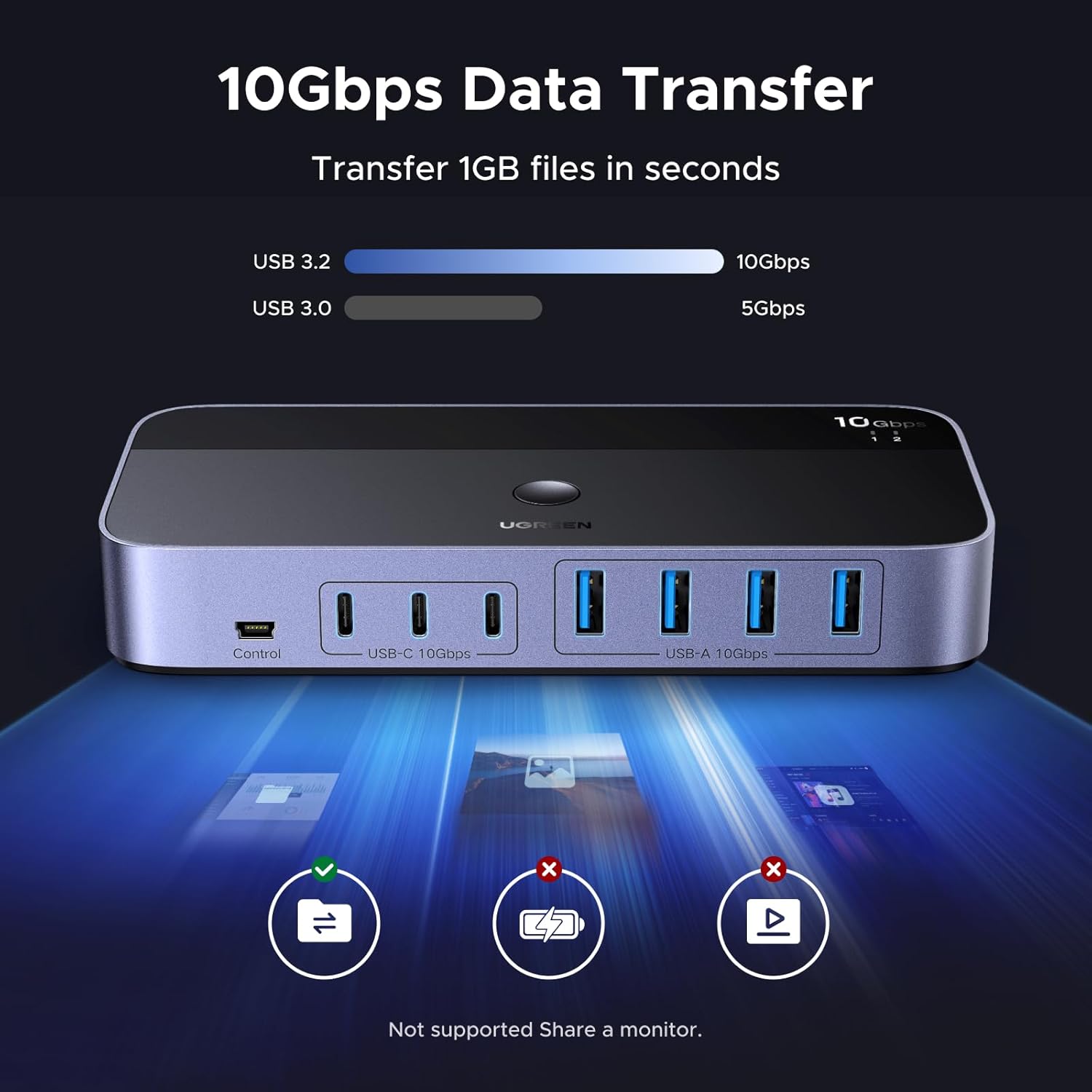
Image: Illustrates 10Gbps data transfer speed and explicitly states that sharing a monitor is not supported by this USB switch.
8. Specifications
| Feature | Specification |
|---|---|
| Model Number | 75087 |
| Brand | UGREEN |
| Input Ports | 2 x USB-C 3.2 Gen 2 (10Gbps) |
| Output Ports | 3 x USB-C 3.2 Gen 2 (10Gbps), 4 x USB-A 3.2 Gen 2 (10Gbps) |
| Data Transfer Speed | Up to 10Gbps |
| Power Supply | DC 12V/2A Power Adapter (included) |
| Switching Method | Manual button or external remote control |
| Compatibility | Windows, macOS, Linux (Host Devices: PC, Laptop) |
| Dimensions | 7.83 x 6.93 x 2.17 inches |
| Item Weight | 1.5 pounds |

Image: Illustrates wide compatibility with various host devices (PC, Laptop) and operating systems (Windows, macOS, Linux).
9. Warranty and Support
UGREEN products come with a standard manufacturer's warranty. For detailed warranty information, technical support, or customer service, please visit the official UGREEN website or contact their customer support directly. Keep your purchase receipt for warranty claims.