
Introduction
This manual provides comprehensive instructions for the ORICO 6646C3 USB-C 4-Bay Hard Drive Docking Station. This device is designed for efficient data management, offering both direct computer connectivity and standalone offline cloning capabilities for 2.5-inch and 3.5-inch SATA SSDs and HDDs.
Package Contents
Please verify that all items listed below are included in your package:
- 1 x Aluminum 4-Bay Hard Drive Docking Station
- 1 x 2-in-1 USB Type-C to Type-A/C Cable
- 1 x 12V Power Adapter
- 1 x User Manual

Image: Contents of the ORICO 6646C3 package, showing the docking station, cables, power adapter, and manual.
Product Features
- 1:3 Offline Hard Drive Duplicator: Supports duplicating three copies simultaneously via one button without connecting to a computer.
- 80TB Capacity Expansion: Accommodates 2.5-inch and 3.5-inch SATA SSD/HDD with a maximum capacity of 4x20TB.
- Aluminum-Alloy Heat Dissipation: Constructed from durable aluminum alloy with a vertical design for efficient heat management.
- USB 3.2 Gen 1 Interface: Features a USB 3.2 Type-C to C interface, supporting transfer speeds up to 5Gbps, S.M.A.R.T, and TRIM functionalities.
- Wide Compatibility: Includes a USB C-C/C-A data cable for compatibility with various USB-C and USB-A devices (laptops, PCs, Xbox, desktops, routers) and operating systems (Windows XP/7/8/10/11, Mac OS 10 or later).
- User-Friendly Design: Equipped with a dust-proof shield for the SATA interface and shock-absorbing pads to minimize vibration.

Image: The ORICO 6646C3 docking station with multiple drives, highlighting its 80TB capacity expansion capability.

Image: The docking station connected to a computer, demonstrating its 5Gbps data transfer rate.

Image: Close-up of the ORICO 6646C3, showcasing its aluminum alloy construction for durability and heat dissipation.

Image: The docking station connected to its 12V/6.5A power adapter, highlighting safety features like overcurrent and overvoltage protection.

Image: The ORICO 6646C3 demonstrating its broad compatibility with laptops, MacBooks, PCs, TVs, tablets, phones, routers, and gaming consoles via Type-C and USB-A connections.
Setup
- Connect Power: Connect the provided 12V power adapter to the docking station and then to a power outlet.
- Insert Drives: Gently insert your 2.5-inch or 3.5-inch SATA SSD/HDD into the drive bays. Ensure the drives are fully seated into the SATA connectors. The dust-proof shield will retract as the drive is inserted.
- Connect to Computer (Optional): If using the docking station with a computer, connect the USB C-C/C-A data cable from the docking station to an available USB port on your computer.
- Power On: Press the power button on the docking station. The power indicator light will illuminate.
Operating Instructions
A. PC Connection Mode
When connected to a computer via the USB cable, the docking station functions as an external drive enclosure. Insert your drives, power on the device, and they will appear as removable storage on your computer. You can then access, transfer, and manage files as with any other external drive.
B. Offline Clone Function (1:3 Duplication)
The offline clone function allows you to duplicate data from a source disk to up to three target disks without requiring a computer connection. Important: Ensure all target disks have equal or greater capacity than the source disk. Data on the target disks will be overwritten during the cloning process. Back up any important data on target disks before proceeding.
- Prepare Drives: Insert the source disk into the 'Source Disk' bay (usually marked 'A' or 'Disk 1'). Insert the target disks into the 'Target Disk' bays (usually marked 'B', 'C', 'D' or 'Disk 2', 'Disk 3', 'Disk 4').
- Disconnect from PC: Ensure the docking station is not connected to any computer via the USB cable.
- Power On: Connect the power adapter and turn on the docking station.
- Initiate Clone: Press and hold the 'Clone' button for approximately 3-5 seconds until the clone progress indicator lights begin to flash.
- Confirm Clone: Release the button, then quickly press and release the 'Clone' button again to confirm. The progress indicator lights (25%, 50%, 75%, 100%) will illuminate sequentially, indicating the cloning process has started.
- Monitor Progress: The LED indicators will show the cloning progress. Each light represents a 25% completion increment. When all lights are solid, the cloning process is complete.
- Power Off: Once cloning is complete, power off the docking station before removing the drives.
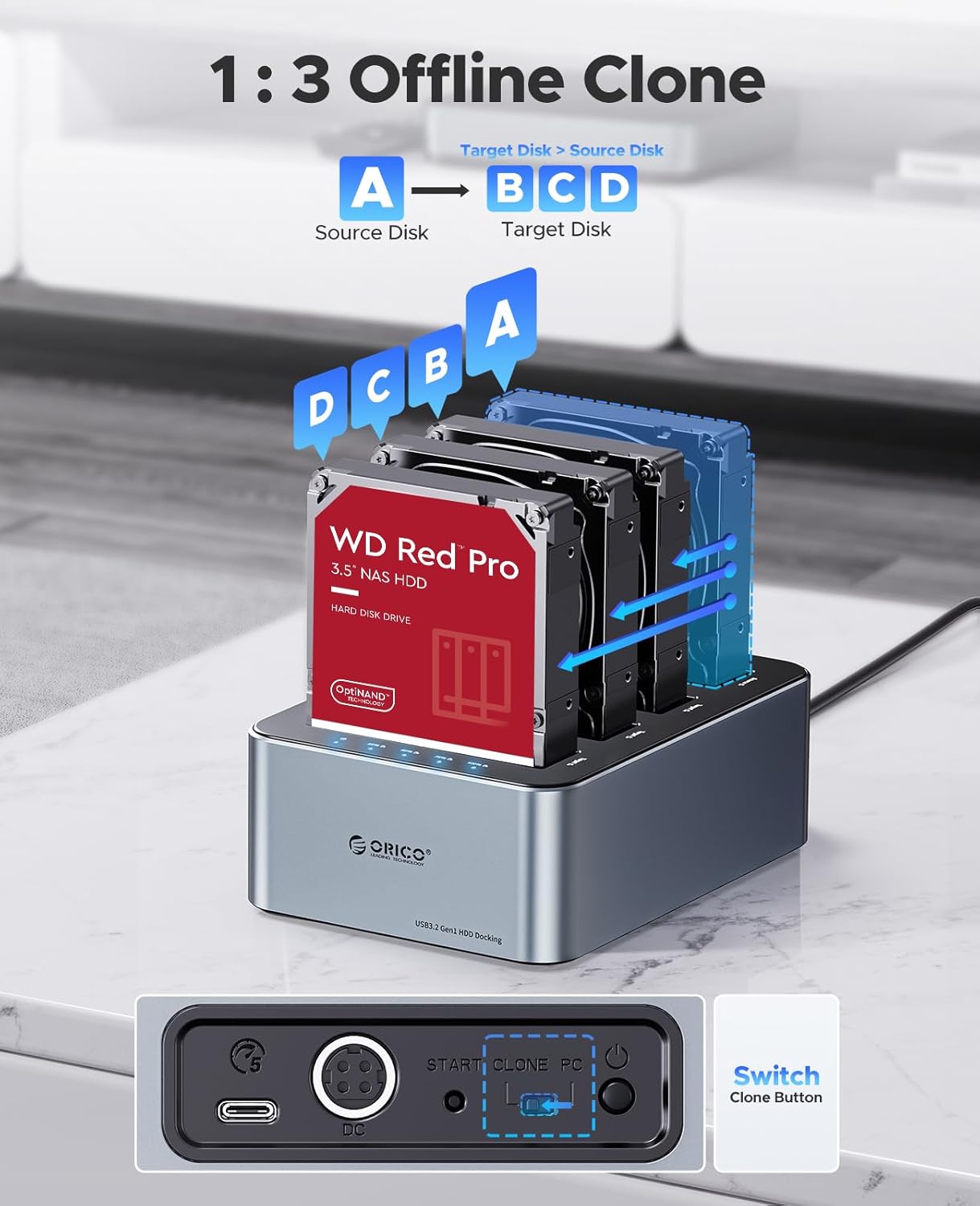
Image: Diagram showing the ORICO 6646C3 performing a 1:3 offline clone, with data flowing from one source disk to three target disks.
Maintenance
- Keep the device in a dry, well-ventilated area, away from direct sunlight and heat sources.
- Clean the exterior with a soft, dry cloth. Avoid using liquid cleaners or solvents.
- Ensure the SATA interface dust-proof shield is clean and free of debris when no drives are inserted.
- Always power off the device before inserting or removing drives to prevent data corruption or damage.
Troubleshooting
- Drives not recognized by computer:
- Ensure the USB cable is securely connected to both the docking station and the computer.
- Verify the docking station is powered on.
- Check if the drives are properly seated in their bays.
- For new drives, they may need to be initialized and formatted in your computer's disk management utility.
- Try a different USB port or cable.
- Offline clone fails or does not start:
- Confirm the docking station is disconnected from the computer.
- Ensure the target disk(s) capacity is equal to or greater than the source disk.
- Verify all drives are properly inserted.
- Follow the clone initiation steps precisely (press and hold, then quick press).
- If the issue persists, try using different drives to rule out drive-specific problems.
- Slow data transfer speeds:
- Ensure you are using a USB 3.0/3.2 compatible port on your computer.
- The actual speed can be affected by the performance of the hard drives themselves.
- Avoid connecting the docking station through a USB hub if possible, connect directly to the computer.
Specifications
| Feature | Detail |
|---|---|
| Model Number | 6646C3 |
| Brand | ORICO |
| Material | Aluminum |
| Drive Bays | 4 |
| Compatible Drive Types | 2.5" / 3.5" SATA SSD/HDD |
| Max Capacity per Drive | 20TB |
| Total Max Capacity | 80TB (4 x 20TB) |
| Interface | USB 3.2 Gen 1 Type-C |
| Data Transfer Rate | Up to 5Gbps |
| Offline Clone | 1:3 Duplication |
| Compatible OS | Windows XP/7/8/10/11, Mac OS 10 or later |
| Power Adapter | 12V |
| Item Weight | 2.72 pounds |
| Package Dimensions | 10.24 x 9.13 x 3.19 inches |
Warranty and Support
For warranty information and technical support, please refer to the documentation included with your product or visit the official ORICO website. Keep your purchase receipt for warranty claims.


