1. Introduction
This manual provides detailed instructions for the setup, operation, maintenance, and troubleshooting of your GravaStar Mercury V75 Pro Gaming Keyboard. Please read this manual thoroughly to ensure optimal performance and longevity of your device.

Figure 1: GravaStar Mercury V75 Pro Gaming Keyboard.
2. Package Contents
Upon unboxing, please verify that all items listed below are present and in good condition:
- GravaStar Mercury V75 Pro Gaming Keyboard
- USB-C Cable
- Keycap Puller
- Switch Puller
- Additional Keycaps (if applicable to your model)
- User Manual (this document)

Figure 2: Included accessories and packaging.
3. Setup
3.1 Connecting the Keyboard
- Locate the USB-C port on the back of the keyboard.
- Connect the provided USB-C cable to the keyboard.
- Connect the other end of the USB-C cable to an available USB port on your computer.
- The keyboard will automatically power on and the RGB lighting will illuminate.

Figure 3: Keyboard connected to a PC setup.
3.2 System Compatibility
The GravaStar Mercury V75 Pro supports both Windows and Mac operating systems. A toggle switch is located on the back of the keyboard to select the appropriate mode.
- Windows Mode: Slide the switch to the 'WIN' position.
- Mac Mode: Slide the switch to the 'MAC' position.

Figure 4: System compatibility overview.
3.3 Adjustable Feet
The keyboard features two-level adjustable feet on the underside, allowing you to customize the typing angle for ergonomic comfort.
4. Operating the Keyboard
4.1 Basic Functions
The keyboard operates as a standard 75% layout keyboard. All standard keys function as expected. The integrated knob on the top right controls volume (rotate) and mute (press).
4.2 RGB Lighting Control
The keyboard features dual-zone RGB lighting with 16+ backlight modes. Lighting effects can be customized via the GravaStar software.

Figure 5: RGB backlighting in action.
4.3 Software Configuration
For advanced customization of key functions, RGB lighting, and performance settings, download and install the official GravaStar software from the official website. The software allows for:
- Actuation Point Adjustment
- Rapid Trigger Mode Configuration
- Dead Zone Settings
- Polling Rate Adjustment
- Custom Key Bindings
- RGB Lighting Effects Customization
Figure 6: GravaStar software interface for customization.
5. Key Features
5.1 Hall Effect Magnetic Switches
The keyboard is equipped with Hall Effect magnetic switches, co-engineered with Gateron, offering precise and adjustable actuation. Key features include:
- Sensitivity: 0.005mm
- Actuation Range: 0.1mm–3.5mm (adjustable)
- Switch Type: Linear
- Lifespan: 100 Million Clicks
- Hot-Swappable: Switches can be easily replaced without soldering.
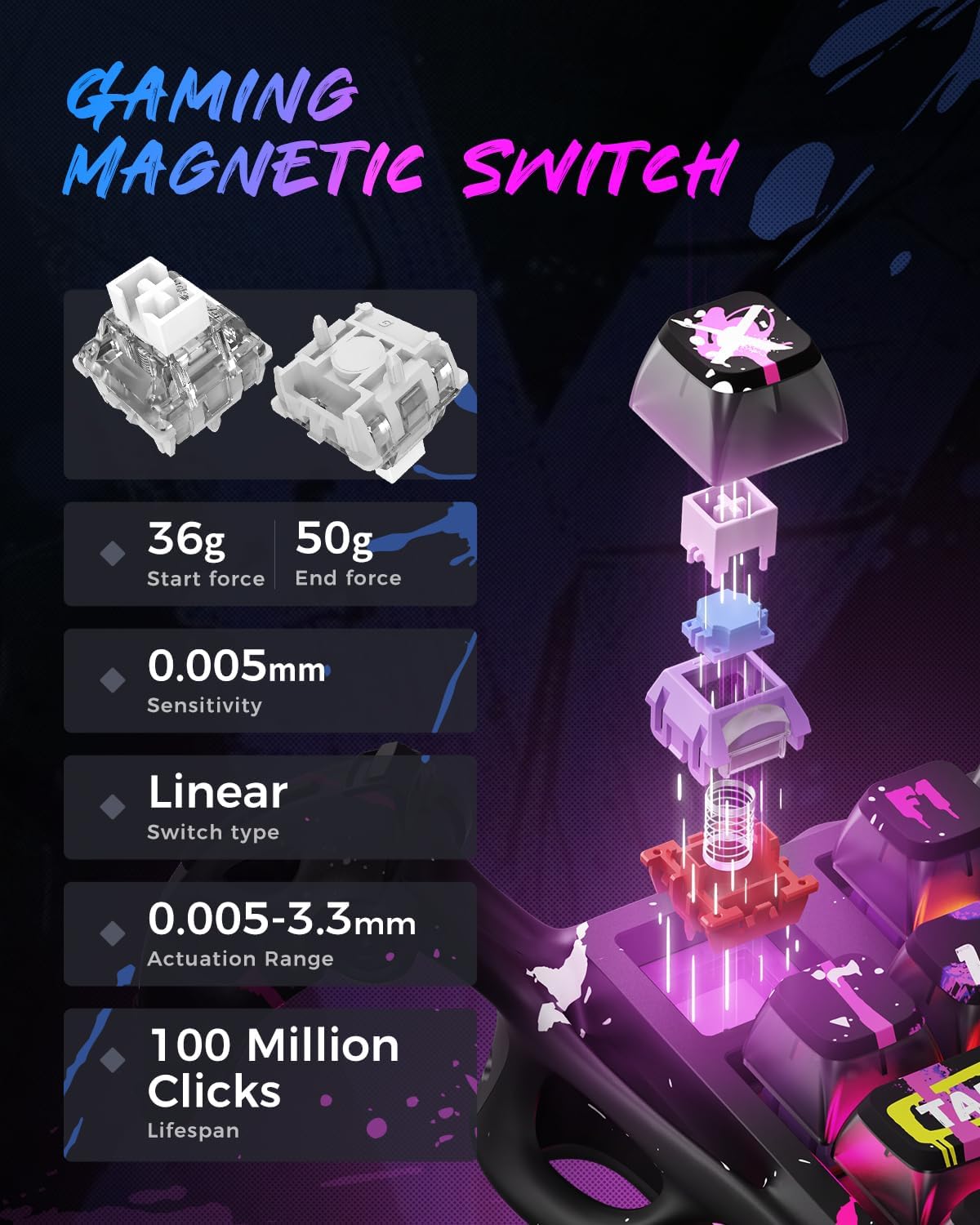
Figure 7: Gaming Magnetic Switch details.

Figure 8: Hot-swappable design for easy customization.
5.2 8000Hz Polling Rate
Experience ultra-low latency with an 8000Hz polling rate, ensuring lightning-fast response times for competitive gaming.

Figure 9: 8KHz Polling Rate for rapid response.
5.3 Dynamic Rapid Trigger
This feature eliminates key
Related Documents - V75 PRO
 |
GravaStar Mercury M1 Pro Wireless Gaming Mouse User Manual User manual for the GravaStar Mercury M1 Pro Wireless Gaming Mouse, detailing its features, setup, button functions, specifications, and warranty. |
 |
GravaStar Mercury M1 Pro Wireless Gaming Mouse User Manual Comprehensive user manual for the GravaStar Mercury M1 Pro Wireless Gaming Mouse, detailing features, setup, specifications, and warranty information. Learn how to connect, customize, and maintain your gaming mouse. |
 |
GravaStar Mercury M2 Wireless Gaming Mouse User Manual Comprehensive user manual for the GravaStar Mercury M2 Wireless Gaming Mouse, detailing setup, button functions, technical specifications, warranty, and compliance information. |
 |
GravaStar Mercury M2 Wireless Gaming Mouse User Manual | Features, Specs, Setup Comprehensive user manual for the GravaStar Mercury M2 Wireless Gaming Mouse. Learn about its features, specifications, setup, buttons, and warranty information. |
 |
GravaStar Mercury X Pro Wireless Gaming Mouse User Manual User manual for the GravaStar Mercury X Pro Wireless Gaming Mouse, including setup, features, and specifications. |
 |
Gravastar Mercury K1 Pro 75% Wireless Mechanical Gaming Keyboard User Manual User manual for the Gravastar Mercury K1 Pro, a 75% wireless mechanical gaming keyboard. Includes specifications, connection methods, lighting effects, and system compatibility. |