1. Introduction
This manual provides detailed instructions for the setup, operation, and maintenance of your Portta HDMI Video Capture Card (Model HCC101-BK). This device is designed to capture HDMI video signals up to 1080p at 60Hz via USB 3.0, while supporting 4K@60Hz HDMI input and loop-out. It is suitable for various applications including game streaming, live broadcasts, and content creation.

Image 1.1: The Portta HDMI Video Capture Card with its accompanying USB and HDMI cables, and a USB-C adapter.
2. Package Contents
Verify that all items listed below are included in your package:
- Portta HDMI Video Capture Card x1
- USB-C Male to USB 3.0 Female Adapter x1
- USB-A to USB-A 3.0 Data Cable x1
- HDMI Cable x1
- User Manual x1
3. Product Overview
The Portta HDMI Video Capture Card features essential ports and indicators for seamless operation.

Image 3.1: Front and rear views of the capture card, highlighting the USB 3.0 port, 3.5mm audio output, microphone input, HDMI input, HDMI loop output, and IN/OUT indicator.
Front Panel:
- USB 3.0 Port: Connects to your computer for data transfer and power.
- Power Indicator: Illuminates when the device is powered on.
- 3.5mm Audio Output: For connecting headphones or speakers. Note: This port does not receive microphone audio.
- Mic In: For connecting an external microphone. Note: Microphone audio is not routed to the HDMI OUT port. Only TRS headphones are supported.
Rear Panel:
- HDMI Input: Connects to your HDMI source device (e.g., game console, camcorder). Supports up to 4K@60Hz (YUV 4:2:0), 3D, and HDCP 1.4. Note: Does not support HDR or CEC.
- HDMI Loop Output: Connects to an external display for real-time monitoring of the HDMI input.
- IN/OUT Indicator: Indicates the status of HDMI signal input and output.
4. Setup
Follow these steps to set up your Portta HDMI Video Capture Card:
- Connect HDMI Source: Use an HDMI cable to connect your source device (e.g., PS5, Xbox Series X, camcorder) to the HDMI Input port on the capture card.
- Connect Display (Optional): If you wish to monitor your input signal on a separate screen, connect an HDMI cable from the HDMI Loop Output port on the capture card to your display (TV, monitor).
- Connect to Computer: Connect the provided USB-A to USB-A 3.0 Data Cable from the USB 3.0 Port on the capture card to an available USB 3.0 port on your computer. If your computer only has USB-C ports, use the included USB-C Male to USB 3.0 Female Adapter.
- Connect Audio (Optional): If using an external microphone, connect it to the Mic In port. For audio monitoring, connect headphones (TRS only) or speakers to the 3.5mm Audio Output.

Image 4.1: Example setup for simultaneous gameplay and capture, showing connections between a game console, the capture card, a television, and a laptop.
The device is plug-and-play and does not require driver installation for most operating systems.
5. Operating
The Portta HDMI Video Capture Card is compatible with various UVC/UAC-compliant applications, including OBS Studio, Zoom, Microsoft Teams, VLC Media Player, and Google Meet. This section focuses on using OBS Studio, a popular choice for streaming and recording.

Image 5.1: The capture card is compatible with Windows, macOS, and Linux operating systems, and various software applications like OBS, Zoom, and VLC.
Using with OBS Studio:
- Launch OBS Studio: Open the OBS Studio application on your computer.
- Add Video Source: In the 'Sources' panel, click the '+' icon. Select 'Video Capture Device'.
- Create New Source: Choose 'Create new' and give your source a name (e.g., 'Portta Capture'). Click 'OK'.
- Select Device: In the properties window, select 'USB3 Video' from the 'Device' dropdown menu. Configure resolution and FPS as needed (e.g., 1920x1080, 60 FPS). Click 'OK'.
- Add Audio Source (if needed): If you are using the microphone input on the capture card, add an 'Audio Input Capture' source and select 'USB3 Digital Audio'.
- Adjust Audio Properties: For advanced audio control, right-click on your audio source in the 'Audio Mixer' panel and select 'Advanced Audio Properties'. Set 'Audio Monitoring' to 'Monitor and Output' if you want to hear the audio while streaming/recording.
- Start Recording/Streaming: Once your sources are configured, click 'Start Recording' or 'Start Streaming' in the 'Controls' panel.

Image 5.2: Step-by-step guide for adding video and audio capture devices in OBS Studio.

Image 5.3: Instructions for configuring advanced audio properties and initiating recording or streaming within OBS Studio.
macOS OBS Operation Notes:
On macOS, you may need to grant OBS Studio specific permissions for camera and microphone access. Navigate to OBS Studio settings, then 'Review App Permissions...' and ensure 'Access Granted' is shown for Camera and Microphone.

Image 5.4: Guide for enabling necessary permissions for OBS Studio on macOS to ensure proper video and audio capture.
6. Specifications
Detailed technical specifications for the Portta HDMI Video Capture Card:
| Feature | Specification |
|---|---|
| Model Number | HCC101-BK |
| Product Dimensions (L x W x H) | 4.02 x 2.72 x 0.49 inches (10.2 x 6.9 x 1.2 cm) |
| Item Weight | 2.4 ounces (68 grams) |
| HDMI Input Resolution | Up to 4K@60Hz (YUV 4:2:0) |
| HDMI Loop Output Resolution | Up to 4K@60Hz (YUV 4:2:0) |
| Capture Resolution | 1080p@60Hz via USB 3.0 |
| USB Interface | USB 3.0 |
| Audio Ports | 3.5mm Audio Out, 3.5mm Mic In |
| HDCP Support | HDCP 1.4 (input only) |
| HDR Support | Not supported |
| CEC Support | Not supported |
| Compatible Operating Systems | Windows 7/8/10/11+, macOS 10.8+, Linux (kernel 2.6.38+) |
| Recommended System Requirements | CPU: Quad-core Intel Core i5 / Ryzen 5 or higher; Memory: 8 GB RAM or more; Graphics: DirectX 10.1 or OpenGL 3.3 compatible GPU (DirectX 11 / Metal recommended); Storage: SSD recommended for high-bitrate recording. |
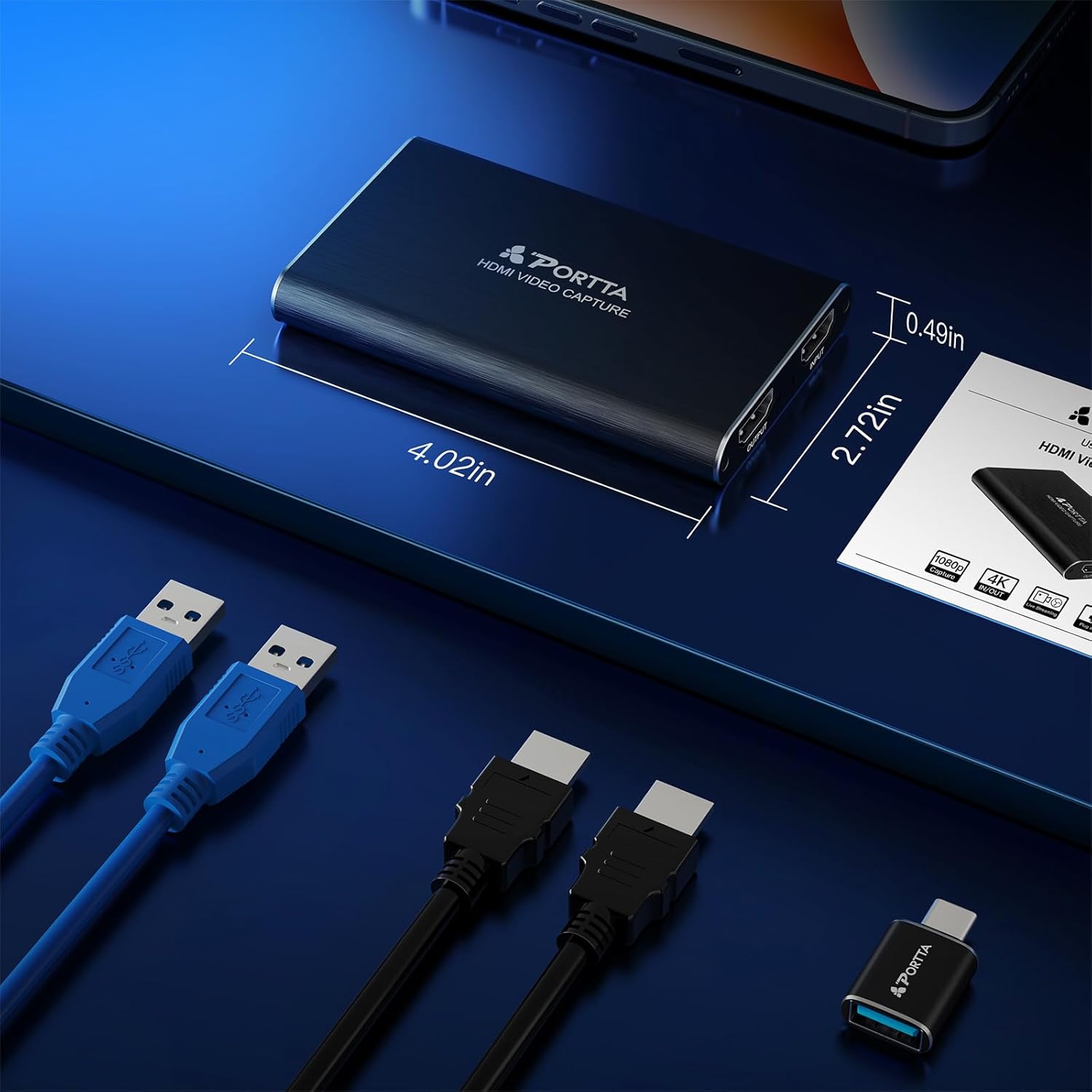
Image 6.1: Physical dimensions of the Portta HDMI Video Capture Card, measuring 4.02 inches in length, 2.72 inches in width, and 0.49 inches in height.
7. Troubleshooting
If you encounter issues with your Portta HDMI Video Capture Card, consider the following common solutions:
- No Video Signal:
- Ensure all HDMI cables are securely connected to both the source and the capture card, and the capture card to the display (if using loop-out).
- Verify the HDMI source device is powered on and outputting a signal.
- Check your capture software (e.g., OBS Studio) to ensure the correct 'Video Capture Device' is selected and configured.
- Confirm that the HDMI input resolution is supported (up to 4K@60Hz YUV 4:2:0).
- No Audio:
- Ensure the 'Audio Input Capture' source is correctly added and 'USB3 Digital Audio' is selected in your capture software.
- Check audio monitoring settings in your software (e.g., 'Monitor and Output' in OBS Advanced Audio Properties).
- If using an external microphone, ensure it is properly connected to the 'Mic In' port and that it is a TRS type.
- Remember that microphone audio is not routed to the HDMI OUT port.
- Poor Capture Quality or Lag:
- Ensure the capture card is connected to a USB 3.0 port on your computer. USB 2.0 ports will limit bandwidth and performance.
- Verify your computer meets the recommended system requirements (CPU, RAM, GPU).
- For high-bitrate recording, an SSD is recommended for storage.
- Close unnecessary applications on your computer to free up system resources.
- Device Not Recognized:
- Try connecting the capture card to a different USB port on your computer.
- Restart your computer.
- Ensure your operating system is up to date.
8. Maintenance
To ensure the longevity and optimal performance of your Portta HDMI Video Capture Card, follow these maintenance guidelines:
- Cleaning: Use a soft, dry cloth to clean the device. Avoid using liquid cleaners or solvents.
- Storage: Store the device in a cool, dry place away from direct sunlight and extreme temperatures.
- Handling: Handle the device with care. Avoid dropping it or subjecting it to strong impacts.
- Ventilation: Ensure the device has adequate ventilation during operation to prevent overheating. The metal casing helps dissipate heat, but proper airflow is still beneficial.
9. Warranty and Support
Your Portta HDMI Video Capture Card comes with a hassle-free 2-year warranty and lifetime technical support.
If you have any questions, encounter issues not covered in this manual, or require technical assistance, please do not hesitate to contact Portta customer service. Refer to the contact information provided with your product or visit the official Portta website for support details.


