
Introduction
Thank you for choosing the Sceptre 27-inch IPS Gaming Monitor (Model E275B-FPT165.A1). This monitor is designed to provide an immersive gaming and viewing experience with its 180Hz refresh rate, 1ms response time, and vibrant IPS panel. It features Full HD 1080p resolution, multiple connectivity options including DisplayPort and HDMI, and built-in speakers for convenience. This manual will guide you through the setup, operation, and maintenance of your new monitor.
Important Safety Information
- Read all instructions carefully before using the monitor.
- Keep the monitor away from water or damp areas.
- Do not place the monitor on an unstable cart, stand, or table.
- Use only the power adapter supplied with the monitor.
- Ensure proper ventilation; do not block any ventilation openings.
- Unplug the monitor during lightning storms or when unused for long periods.
- Refer all servicing to qualified service personnel.
Package Contents
Please check the package contents to ensure all items are present:
- Sceptre 27-inch IPS Gaming Monitor
- Monitor Stand (Base and Neck)
- Power Adapter and Cable
- HDMI Cable
- DisplayPort Cable
- Screwdriver
- User Manual (this document)
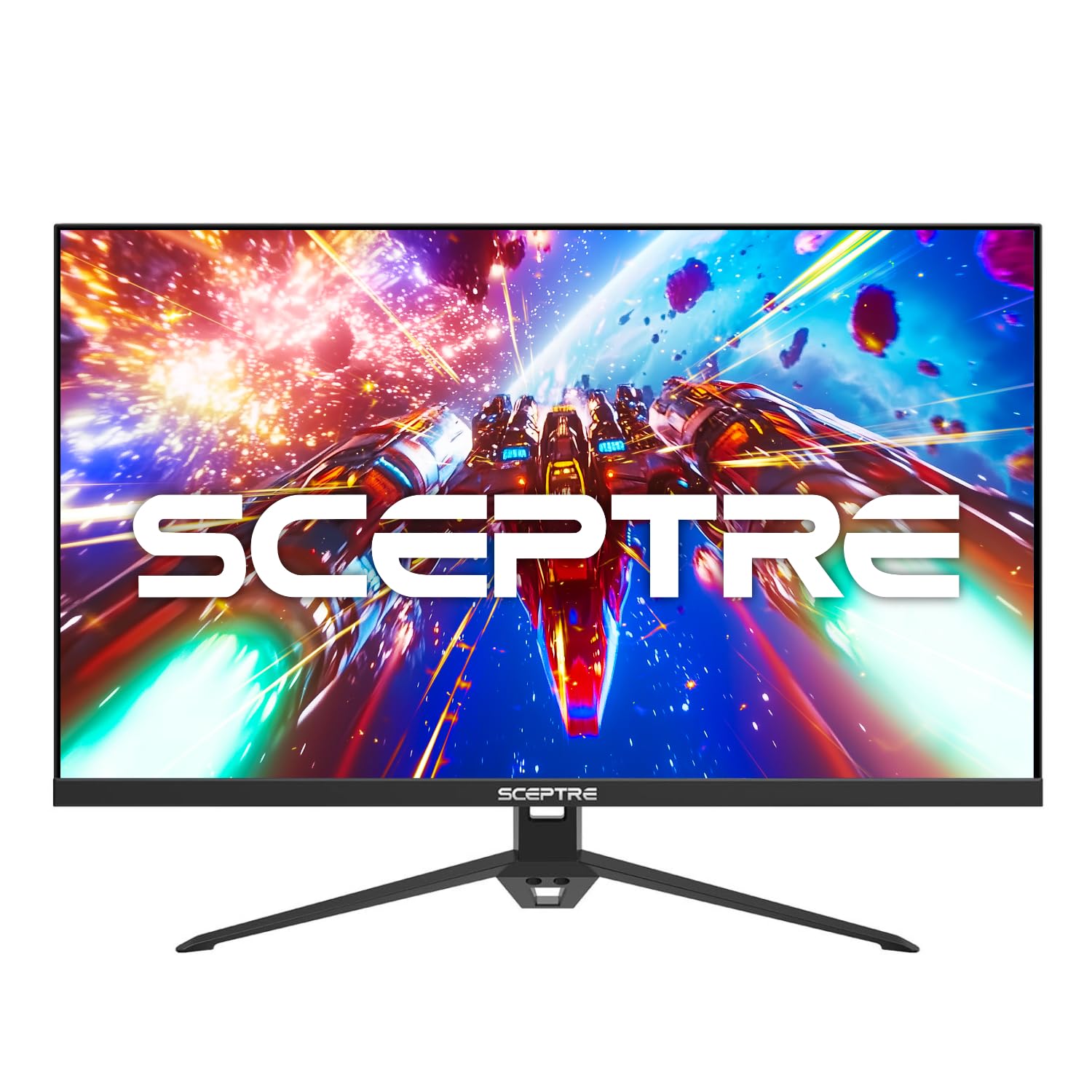
Image: The Sceptre 27-inch IPS Gaming Monitor shown with its retail packaging, indicating that a screwdriver is included for assembly.
Setup Instructions
1. Assembling the Monitor Stand
- Carefully remove the monitor from its packaging, placing it face down on a soft, clean surface to prevent scratches.
- Attach the stand neck to the monitor's rear panel. Ensure it clicks securely into place or is fastened with screws if applicable.
- Attach the stand base to the stand neck. Tighten the screw(s) at the bottom of the base using the provided screwdriver until secure.
- Carefully lift the assembled monitor and place it on a stable, flat surface.
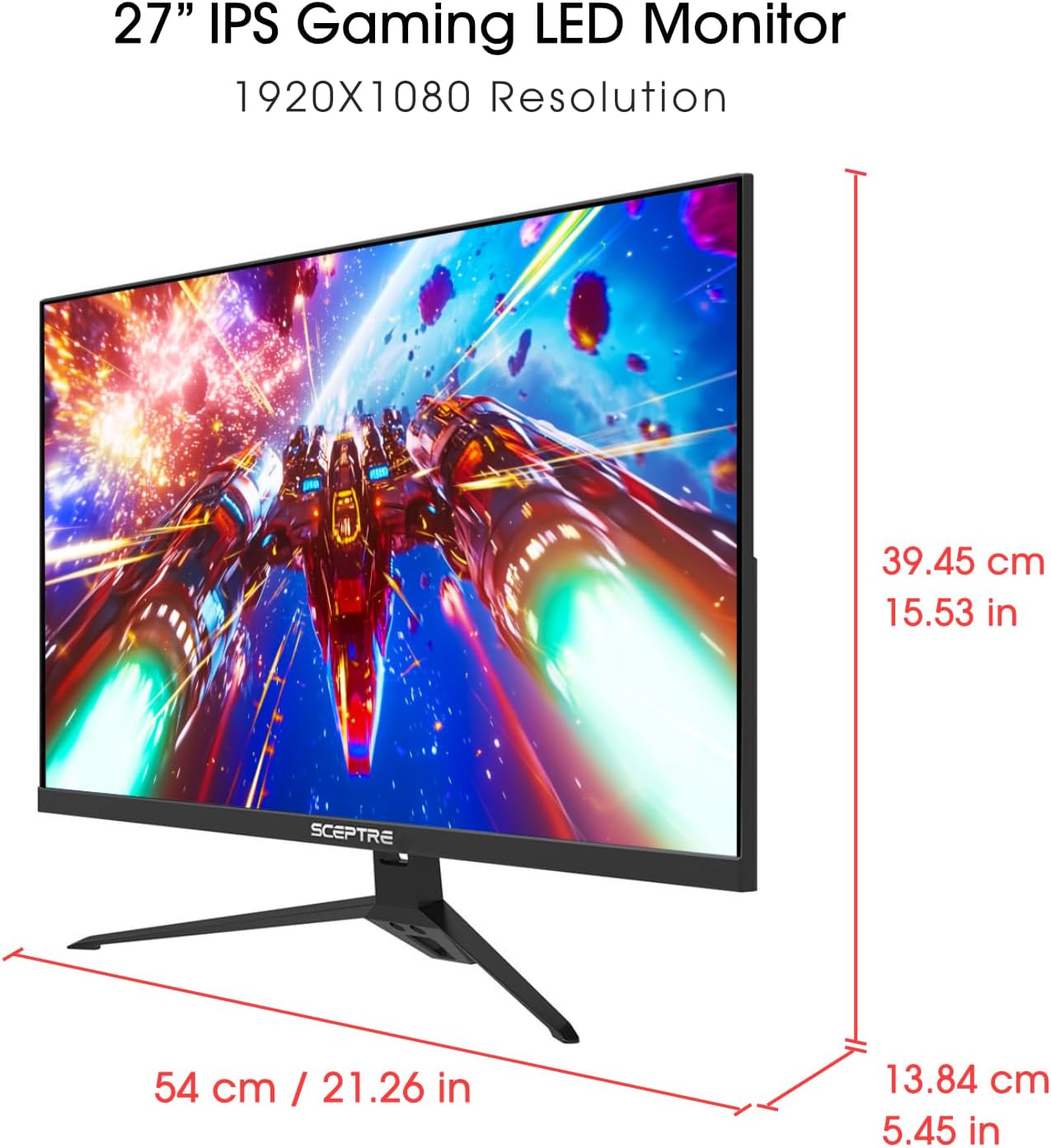
Image: Side view of the Sceptre 27-inch IPS Gaming Monitor, illustrating its physical dimensions and slim profile.
2. Connecting to a Computer
The monitor supports DisplayPort and HDMI connections. Choose the appropriate cable for your computer.
- DisplayPort Connection: Connect one end of the DisplayPort cable to the DisplayPort output on your computer and the other end to the DisplayPort input on the monitor.
- HDMI Connection: Connect one end of the HDMI cable to the HDMI output on your computer and the other end to one of the HDMI inputs on the monitor.
- Audio Output: If you are using external speakers or headphones, connect them to the 3.5mm Audio Out port on the monitor.

Image: Rear view of the Sceptre 27-inch IPS Gaming Monitor, highlighting the various input ports including HDMI, DisplayPort, and Audio Out.
3. Connecting Power
- Connect the power cable to the power adapter.
- Plug the power adapter into the monitor's power input port.
- Plug the other end of the power cable into a wall outlet.
Operating Instructions
1. Power On/Off
Press the power button, usually located on the bottom right or rear of the monitor, to turn the monitor on or off. The power indicator light will illuminate when the monitor is on.
2. On-Screen Display (OSD) Menu
The OSD menu allows you to adjust various monitor settings. Use the control buttons (joystick or individual buttons) on the monitor to navigate the menu.
- Press the Menu button to open the OSD.
- Use the navigation buttons (Up/Down/Left/Right or joystick) to select menu options.
- Press the Enter or OK button to confirm a selection.
- Press the Exit or Menu button again to close the OSD.
3. Picture Settings
Adjust image quality settings through the OSD menu:
- Brightness: Adjusts the overall luminance of the screen.
- Contrast: Adjusts the difference between light and dark areas.
- Color Temperature: Selects preset color temperatures (e.g., Warm, Cool, User).
- Aspect Ratio: Changes the display aspect ratio (e.g., 16:9, 4:3).
- Blue Light Filter: Reduces blue light emission to minimize eye strain.
- Eye Care: Activates features designed to reduce eye fatigue during prolonged use.

Image: Front view of the Sceptre 27-inch IPS Gaming Monitor, emphasizing its key features including 16:9 aspect ratio, 1ms MPRT (Moving Picture Response Time), and IPS panel technology. Note: While this image displays 165Hz, the monitor's specifications confirm a 180Hz refresh rate.
4. Audio Settings
The monitor has built-in speakers. You can adjust the volume through the OSD menu or your computer's sound settings.
- Volume: Adjusts the output level of the built-in speakers or connected headphones.
- Ensure your computer's audio output is set to the monitor if you wish to use the built-in speakers.
5. Optimizing Refresh Rate and Response Time
To experience the full 180Hz refresh rate and 1ms response time, ensure your computer's display settings are configured correctly.
- Windows: Right-click on the desktop > Display settings > Advanced display settings > Display adapter properties for Display 1 > Monitor tab. Select 180Hz from the Screen refresh rate dropdown.
- NVIDIA Control Panel / AMD Radeon Software: Access your graphics card control panel and adjust the refresh rate for the connected monitor.
- Ensure you are using a DisplayPort cable or a high-speed HDMI cable (HDMI 2.0 or higher) to support the maximum refresh rate.
Maintenance
Cleaning the Monitor
- Always unplug the monitor from the power outlet before cleaning.
- Use a soft, lint-free cloth lightly dampened with water or a non-abrasive screen cleaner.
- Do not spray cleaner directly onto the screen.
- Avoid using benzene, thinner, ammonia-based cleaners, or abrasive materials, as these can damage the screen or casing.
Troubleshooting
If you encounter issues with your monitor, refer to the following troubleshooting guide:
No Power / Power Indicator Off
- Ensure the power cable is securely connected to the monitor and the wall outlet.
- Check if the wall outlet is functioning by plugging in another device.
- Press the power button on the monitor.
No Image / "No Signal" Message
- Verify that the video cable (HDMI or DisplayPort) is securely connected to both the monitor and the computer.
- Ensure the correct input source is selected on the monitor (use the OSD menu to switch inputs).
- Check if your computer is powered on and not in sleep mode.
- Try connecting the monitor to another computer or using a different video cable to rule out cable or computer issues.
Flickering or Distorted Image
- Check the video cable for damage or loose connections.
- Adjust the refresh rate in your computer's display settings to match the monitor's supported rates (e.g., 180Hz).
- Ensure your graphics card drivers are up to date.
- Try resetting the monitor to factory default settings via the OSD menu.
No Sound from Built-in Speakers
- Increase the volume level in the monitor's OSD menu.
- Check your computer's sound settings to ensure the monitor is selected as the default playback device and the volume is not muted.
- Ensure the HDMI or DisplayPort cable is properly connected, as these carry audio signals.
Specifications
| Feature | Description |
|---|---|
| Brand | SCEPTRE |
| Model Number | E275B-FPT165.A1 |
| Screen Size | 27 Inches |
| Display Type | IPS (In-Plane Switching) |
| Resolution | FHD 1080p (1920 x 1080) |
| Refresh Rate | 180 Hz |
| Response Time | 1 Millisecond (MPRT) |
| Aspect Ratio | 16:9 |
| Contrast Ratio | 2500:1 |
| Viewing Angle | 178 Degrees (Horizontal/Vertical) |
| Connectivity | HDMI (x3), DisplayPort (x1), Audio Out (3.5mm) |
| Adaptive Sync | FreeSync Premium |
| Special Features | Blue Light Filter, Built-In Speakers, Eye Care |
| Item Weight | 3.63 kg |
| UPC | 792343327660 |
Warranty and Support
For detailed warranty information, please refer to the warranty card included with your product or visit the official Sceptre website. For technical support or further assistance, please contact Sceptre customer service through their official channels.
Official Sceptre Website: www.sceptre.com


