Introduction
This manual provides essential information for the safe and effective operation of your Vivitar Aqua Snap Underwater Digital Camera & Camcorder. Designed for use in wet conditions, this compact device allows you to capture high-definition photos and videos during various water activities. Please read these instructions thoroughly before using the camera.
Package Contents
Verify that all items listed below are included in your package:
- Vivitar Aqua Snap Digital Camera & Camcorder
- USB Cable
- User Manual (this document)
- Nonstandard Battery (pre-installed or included separately)

Image: Front view of the Vivitar Aqua Snap Digital Camera, showcasing its compact design and lens.
Camera Overview
Familiarize yourself with the camera's physical components:
- Front Lens: Captures images and video.
- Front Screen: For selfie framing and quick previews.
- Rear Screen (2.4 Inches): For viewing menus, framing shots, and playback.
- Control Buttons: Located on the top and rear for navigation, mode selection, and operation.
- Flash: Provides illumination in low-light conditions.
- Waterproof Seals: Ensure all seals are properly closed before water immersion.
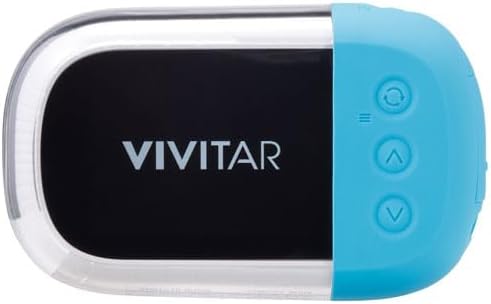
Image: Rear view of the Vivitar Aqua Snap Digital Camera, displaying the main screen and control buttons for navigation and settings.
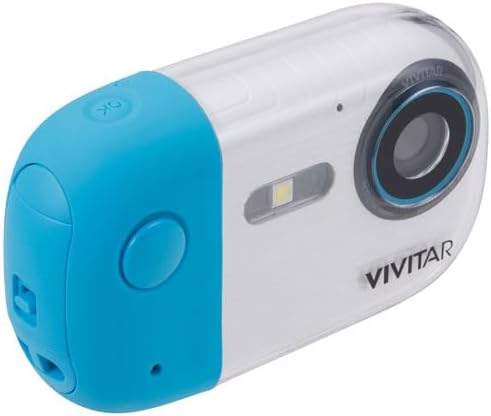
Image: Angled view of the Vivitar Aqua Snap Digital Camera, highlighting the top-mounted power and shutter buttons.
Setup
1. Battery Installation and Charging
Your camera requires one nonstandard battery, which is included. Ensure the battery is fully charged before first use.
- Locate the battery compartment.
- Open the compartment carefully, ensuring not to damage the waterproof seal.
- Insert the battery according to the polarity indicators.
- Close the battery compartment firmly until it clicks, ensuring the waterproof seal is intact.
- Connect the camera to a power source using the provided USB cable to charge. The charging indicator will illuminate.
2. Memory Card Installation
The camera uses an SD Card (Media Type: SD Card) to store photos and videos.
- Locate the SD card slot, usually near the battery compartment.
- Insert the SD card with the metal contacts facing the correct direction until it clicks into place.
- To remove, gently push the card until it springs out.
3. Initial Power On
Press and hold the Power button (usually on the top) to turn on the camera. Follow any on-screen prompts for initial setup, such as language selection.
Operating the Camera
1. Taking Photos
To take a high-resolution photo (up to 18MP):
- Ensure the camera is in Photo mode (check the icon on the screen).
- Frame your shot using the rear screen or front screen for selfies.
- Press the Shutter button firmly to capture the image.
2. Recording Videos
To record HD video (MP4 format):
- Switch the camera to Video mode.
- Press the Shutter button once to start recording. A timer or indicator will appear on the screen.
- Press the Shutter button again to stop recording.
3. Switching Between Photo and Video Modes
Use the dedicated Mode button (often labeled 'M' or with a camera/video icon) to toggle between photo and video capture modes.
4. Zoom Function
Use the 'W' (Wide) and 'T' (Telephoto) buttons to zoom in and out digitally.
5. Selfie Mode (Front Screen)
The camera features a front screen for convenient selfie capture. To activate the front screen for framing, press the designated button (refer to your camera's specific button layout, often a screen switch icon).

Image: Angled view of the Vivitar Aqua Snap Digital Camera, highlighting the front screen for selfie framing and the main lens.
6. Playback and Deleting Files
To review your captured media:
- Enter Playback mode (often via the Mode button or a dedicated playback icon).
- Use the navigation buttons to scroll through your photos and videos.
- To delete a file, select it and press the Delete button (often represented by a trash can icon). Confirm deletion when prompted.
7. Settings
Access the camera's menu to adjust various settings:
- Resolution: Adjust photo resolution (e.g., 18MP).
- Autofocus: Enable or disable autofocus.
- Scene Modes: Select pre-set modes for different environments (e.g., Beach, Night).
- Anti-shake: Stabilize your shots.
- Smile Capture: Automatically take a photo when a smile is detected.
- Exposure: Adjust brightness levels.
- White Balance: Correct color temperature.
- Date Stamp: Add date/time to photos.
- Format: Erase all data on the SD card.
- Default Settings: Restore factory settings.
8. Filter Function
The camera may include various filters to enhance your photos. To switch between filters, activate the camera and tap the "OK" button. This will cycle through available filters. To return to the original picture without a filter, continue tapping "OK" until the desired setting is reached.
Video: Demonstration of how to switch between filters on the Maxmango Underwater Camera. This feature is similar to the Vivitar Aqua Snap's filter functionality.
Waterproof Usage Guidelines
The Vivitar Aqua Snap is designed for underwater use, perfect for snorkeling, diving, and swimming. It is waterproof up to 10 meters (33 feet).
- Always ensure the battery compartment and any other ports are securely closed and sealed before immersing the camera in water.
- Avoid opening the battery or memory card compartments when the camera is wet or submerged.
- After use in saltwater, rinse the camera with fresh water and dry thoroughly with a soft cloth.
Video: A demonstration of a waterproof camera being used underwater, highlighting its functionality in aquatic environments. This illustrates the Vivitar Aqua Snap's intended use.
Maintenance & Care
- Keep the lens clean using a soft, lint-free cloth.
- Store the camera in a cool, dry place when not in use.
- Avoid exposing the camera to extreme temperatures or direct sunlight for extended periods.
- Regularly check waterproof seals for any signs of wear or damage.
Troubleshooting
Camera Not Turning On:
- Ensure the battery is fully charged and correctly inserted.
- Check if the battery compartment is securely closed.
Poor Image/Video Quality:
- Clean the camera lens.
- Adjust resolution settings to a higher quality.
- Ensure adequate lighting for your shots.
Water Leakage:
- Immediately remove the camera from water.
- Open all compartments and allow the camera to dry completely in a well-ventilated area.
- Inspect all waterproof seals for damage or debris. Do not use underwater again if seals are compromised.
Specifications
| Brand: | Vivitar |
| Model: | Aqua Snap |
| Waterproof Depth: | Up to 10 meters (33 feet) |
| Video Capture Resolution: | HD (18MP for photos) |
| Video Capture Format: | MP4 |
| Media Type: | SD Card |
| Screen Size: | 2.4 Inches (Rear) |
| Item Weight: | 12 ounces |
| Package Dimensions: | 6 x 4 x 2 inches |
| Batteries: | 1 Nonstandard Battery (included) |
Warranty and Support
Information regarding product warranty and customer support was not provided in the available data. Please refer to the product packaging or the manufacturer's official website for details on warranty coverage and how to contact customer support.


