
1. Introduction
This manual provides detailed instructions for the installation, operation, and maintenance of your ZWNAV 14.5 Inch Android 13 Car GPS Navigation Multimedia Player. Please read this manual thoroughly before using the device to ensure proper functionality and safety.
The ZWNAV multimedia player is designed to integrate advanced features such as GPS navigation, multimedia playback, and smartphone connectivity (CarPlay & Android Auto) into your Ford Mustang (2015-2021) dashboard, enhancing your driving experience.
2. Product Overview
The ZWNAV 14.5 Inch Android 13 Multimedia Player features an upgraded Android 13 operating system, an 8-core CPU, 8GB RAM, and 128GB ROM for enhanced performance. Its 14.5-inch large screen provides clear visuals and intuitive control.
Key Features:
- Operating System: Android 13
- Processor: 8-Core CPU
- Memory: 8GB RAM + 128GB ROM
- Display: 14.5-inch HD Touchscreen
- Connectivity: Built-in Wireless CarPlay & Wired Android Auto, Bluetooth 5.0, Wi-Fi, 4G Network Support
- Functions: GPS Navigation, FM/AM Radio, USB, AUX IN, Music Player, Video Player, Steering Wheel Control, Backup Camera Support, Voice Control.
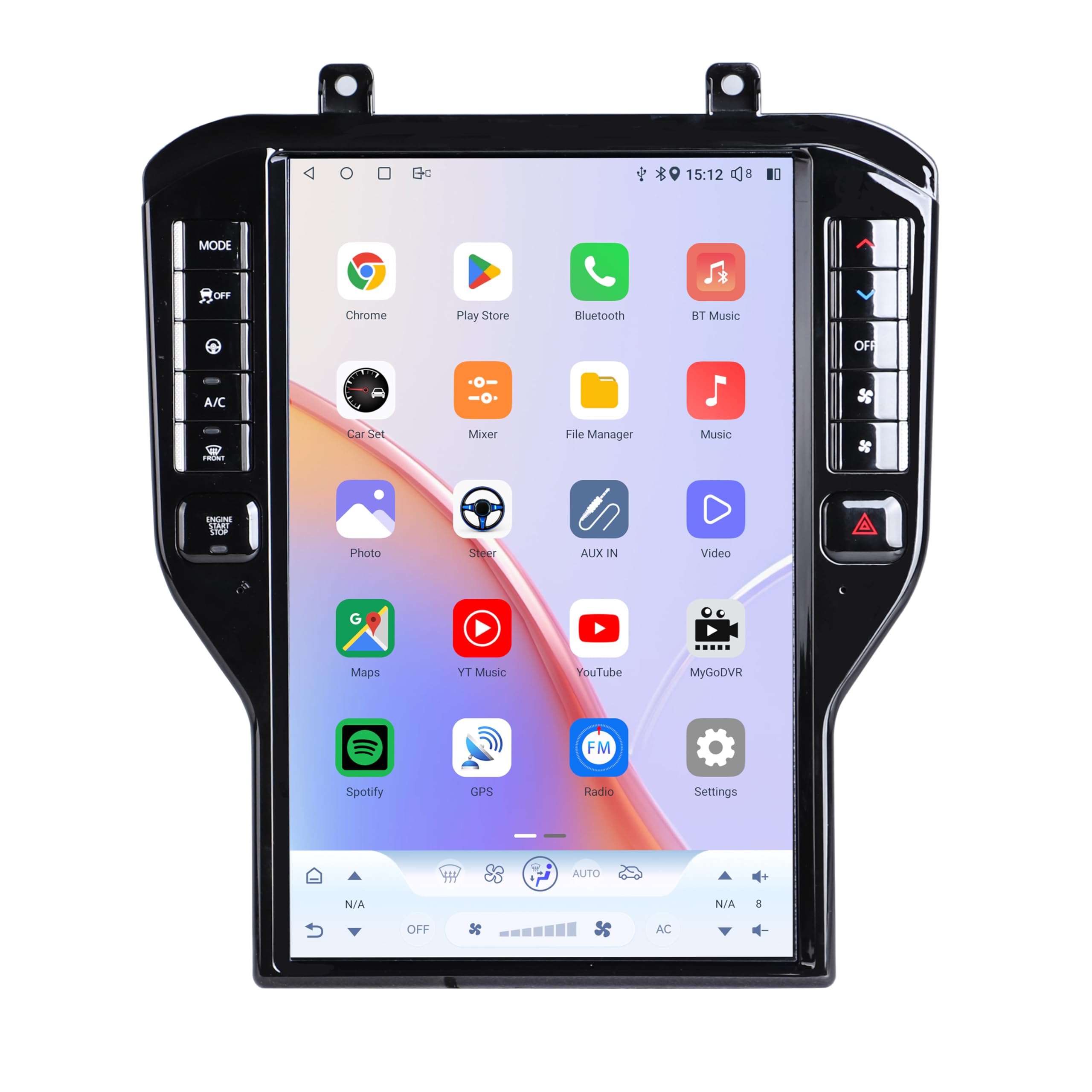
Image: The ZWNAV 14.5 Inch Multimedia Player integrated into a Ford Mustang dashboard, showing the radio interface.
3. What's in the Box
Upon unpacking, please ensure all components are present:
- ZWNAV 14.5 Inch Multimedia Head Unit
- Necessary Connection Cables
If any items are missing or damaged, please contact customer support immediately.
4. Setup and Installation
This unit is designed for direct installation in Ford Mustang models from 2015-2021. Professional installation is recommended. No additional accessories are typically required.
- Preparation: Ensure the vehicle's power is off before beginning installation.
- Removal of Old Unit: Carefully remove the existing car stereo and dashboard components as per your vehicle's service manual.
- Wiring Connections: Connect the provided cables to the corresponding ports on the ZWNAV unit and the vehicle's wiring harness. Ensure all connections are secure.
- Mounting: Securely mount the ZWNAV unit into the dashboard opening.
- Testing: Reconnect the vehicle's power and perform initial function tests before fully reassembling the dashboard.
For specific wiring diagrams or complex installations, consult a qualified automotive technician or contact ZWNAV customer support.

Image: Visual comparison of the Ford Mustang dashboard before and after the ZWNAV multimedia player installation.
5. Operating Instructions
The ZWNAV multimedia player operates on an Android 13 system, offering a user-friendly interface. Navigate through functions using the touchscreen and physical buttons.
5.1. Basic Navigation
The main screen displays common applications and widgets. Swipe left or right to access additional app pages. Tap an icon to launch an application.
5.2. A/C Control Menu
Access the A/C control menu by tapping the dedicated A/C button on the side panel or the corresponding icon on the screen. Adjust temperature, fan speed, and air distribution using the on-screen controls.
Video: Demonstration of A/C control, radio broadcasting, video playback, Bluetooth phone connection, and vehicle settings on the ZWNAV 14.5-inch screen.
5.3. Radio Broadcasting
Tap the "Radio" icon to access the FM/AM tuner. Use the on-screen arrows to change frequencies or scan for stations. Favorite stations can be saved for quick access.
5.4. Multimedia Playback
The unit supports various multimedia formats via USB or internal storage. Tap the "Music" or "Video" icon to browse and play your media files. The 14.5-inch HD screen provides a clear viewing experience.

Image: The ZWNAV multimedia player screen showing a video playing.
5.5. Bluetooth Connectivity
Pair your smartphone via Bluetooth 5.0 for hands-free calling, contact synchronization, call record access, and Bluetooth music streaming. Go to the "Bluetooth" app, enable Bluetooth on your phone, and select the unit to pair.

Image: Bluetooth 5.0 features displayed on the ZWNAV unit, highlighting hands-free calling and music streaming.
5.6. CarPlay & Android Auto
Connect your smartphone for seamless integration with Apple CarPlay (wireless) or Android Auto (wired/wireless). This allows access to navigation, phone contacts, messages, and music directly from your phone, controlled via the unit's touchscreen or voice commands (Siri/Google Assistant).

Image: The ZWNAV unit demonstrating CarPlay and Android Auto functionality with a connected smartphone.
5.7. GPS Navigation
Utilize the built-in GPS for navigation. The unit supports online navigation via Wi-Fi or 4G network. Download preferred navigation apps from the app store.

Image: The ZWNAV unit displaying a GPS navigation map.
5.8. Vehicle Settings
Access vehicle-specific settings through the "Vehicle settings" application. This menu allows customization of various car functions, such as lighting, door locks, and driver assistance features, if supported by your vehicle and the unit's integration.

Image: The ZWNAV unit's home screen showing various application icons, including settings.
6. Maintenance
To ensure the longevity and optimal performance of your ZWNAV multimedia player, follow these maintenance guidelines:
- Screen Cleaning: Use a soft, lint-free cloth to gently wipe the touchscreen. Avoid abrasive cleaners or harsh chemicals.
- Software Updates: Periodically check for and install software updates to ensure the system runs efficiently and has the latest features and security patches.
- Environmental Conditions: Avoid exposing the unit to extreme temperatures or direct sunlight for prolonged periods.
- Cable Connections: Ensure all cables remain securely connected to prevent intermittent issues.
7. Troubleshooting
If you encounter issues with your ZWNAV multimedia player, refer to the following common troubleshooting steps:
- No Power: Check all power connections. Ensure the vehicle's ignition is on.
- No Sound: Verify volume settings. Check speaker connections. Ensure the correct audio source is selected.
- Touchscreen Unresponsive: Perform a soft reset (refer to the device's specific reset procedure, often a small reset button or holding the power button). Ensure the screen is clean and free of debris.
- GPS Signal Issues: Ensure the GPS antenna is properly installed and has a clear view of the sky. Update navigation maps if necessary.
- Bluetooth Pairing Failure: Ensure Bluetooth is enabled on both the unit and your smartphone. Delete previous pairings and try again.
- CarPlay/Android Auto Not Connecting: Check USB cable connection (for wired). Ensure Wi-Fi is enabled for wireless connections. Restart both the unit and your phone.
If problems persist after attempting these steps, please contact ZWNAV customer support.
8. Specifications
| Feature | Detail |
|---|---|
| Brand | ZWNAV |
| Vehicle Service Type | Car (Ford Mustang 2015-2021) |
| Screen Size | 14.5 inches |
| Special Feature | Touchscreen |
| Connectivity Technology | Bluetooth, Wi-Fi, 4G |
| Map Type | Satellite |
| Included Components | Head unit, cables |
| Mounting Type | Dashboard Mount |
| Operating System | Android 13 |
| Memory Storage Capacity | 128 GB (ROM), 8 GB (RAM) |
| Additional Features | Wireless CarPlay, Wired Android Auto, Voice Control, Steering Wheel Control, Digital Signal Processing (DSP) |
| Human-Interface Input | Buttons, Touchscreen |
| Control Method | Touch, Voice |
| Supported Satellite Navigation System | GPS |
| Item Weight | 3.3 Kilograms |
9. Warranty and Support
Your ZWNAV multimedia player comes with a 1-year warranty from the manufacturer. For any inquiries, technical assistance, or warranty claims, please contact ZWNAV customer support.
Customer Support Email: zwnavgps@hotmail.com
You can also click "ZWNAVGPS Offical Store" on the product page and then "ask a question" to contact the seller directly for lifetime after-sales service.