
GuliKit ES
Contents
GuliKit ES Wireless E-sports Game Controller Instruction Manual
Model: ES | Brand: GuliKit
Introduction
The GuliKit ES Wireless E-sports Game Controller is engineered for competitive gaming, offering ultra-low latency and broad compatibility across multiple platforms. Featuring advanced Hall Effect joysticks and triggers for precision and durability, alongside a robust battery life, this controller provides an enhanced gaming experience. This manual provides essential information for setting up, operating, maintaining, and troubleshooting your GuliKit ES controller.

Front view of the GuliKit ES Wireless E-sports Game Controller, showcasing its ergonomic design and button layout.
Setup
Charging the Controller
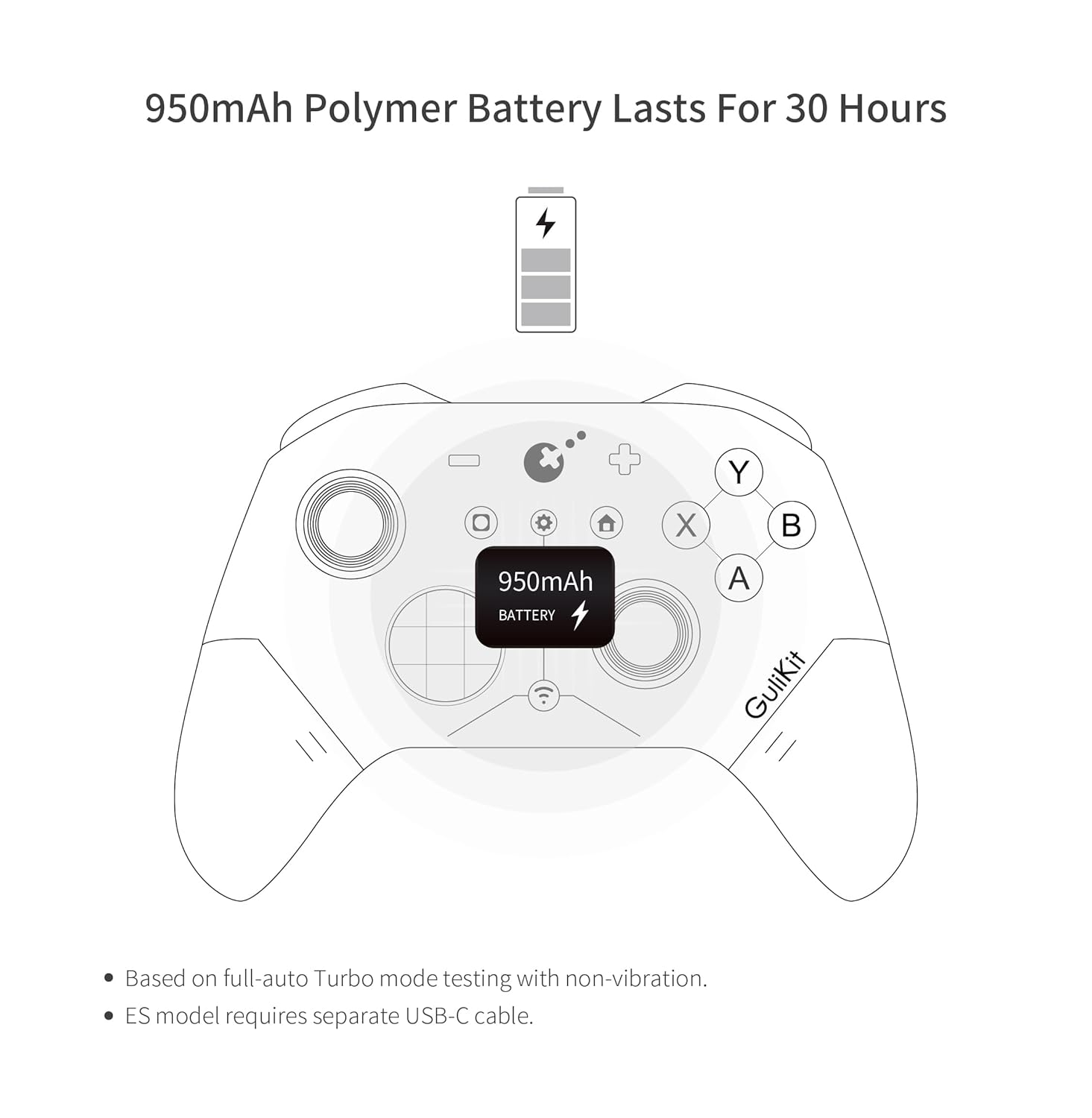
The GuliKit ES controller is equipped with a 950mAh rechargeable battery, providing up to 30 hours of usage. To charge, connect the controller to a power source using a USB-C cable (not included with ES model). The controller recharges quickly, and an auto-sleep function activates after 15 minutes of inactivity to conserve power and extend battery life.
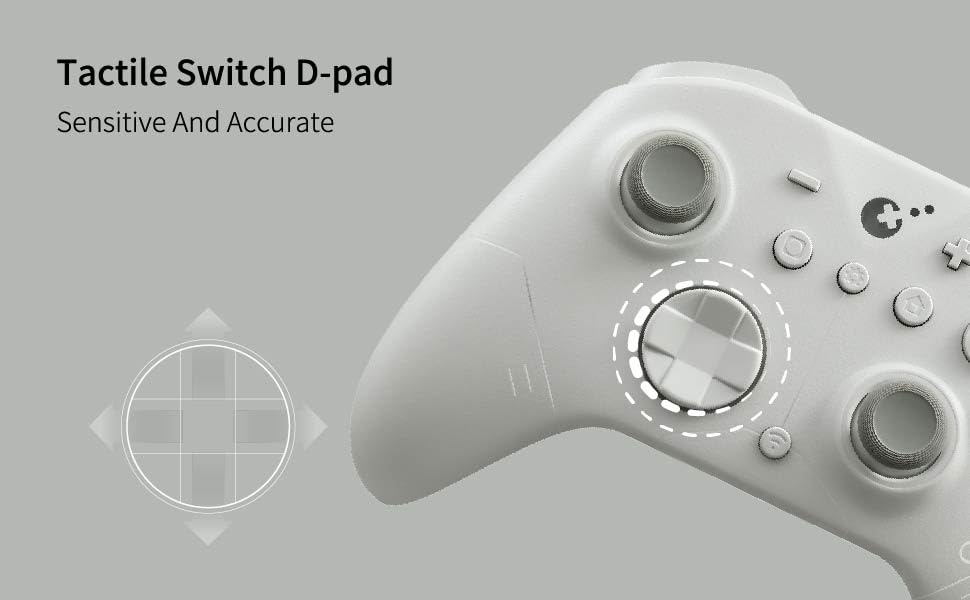
Illustration of the controller's battery indicator, highlighting the 950mAh capacity.
Initial Pairing and Connectivity
The GuliKit ES controller supports various connection modes for different devices. Ensure the controller is adequately charged before attempting to pair.
Special Pairing Method for Switch 2 Wake-up
- Set the controller to NS mode.
- Turn on the controller.
- Hold the pairing button for 2 seconds until the indicator flashes quickly, signifying pairing mode.
- Set your Switch 2 into sleep mode (black screen) first.
- Press the HOME button on a Joy-Con to wake the screen.
- Enter the controller pairing interface on your Switch 2 and complete the pairing process.
Note: Pairing by the regular method without setting Switch 2 into sleep mode first will result in pairing without Switch 2 wake-up support.

The GuliKit ES controller shown alongside Nintendo Switch and Switch 2 consoles, emphasizing its compatibility and wake-up feature.
Firmware Update
It is highly recommended to update your GuliKit ES controller to the latest firmware (V2.8 or newer) from the official GuliKit website before use. Firmware updates often include performance improvements and bug fixes, such as addressing issues with controller slowdown on iOS and Android devices in PC mode.
Operating the Controller
Compatibility and Mode Switching
The GuliKit ES controller is compatible with a wide range of devices, including PC Windows, Switch 2, Switch, Switch Lite, Switch OLED, Steam Deck, ROG Ally/ROG Ally X, Android, iOS, and macOS. For Android, iOS, and macOS, pairing should be done in PC Mode, which can be selected using the switch on the back of the controller. Easily switch between modes with a single button press.
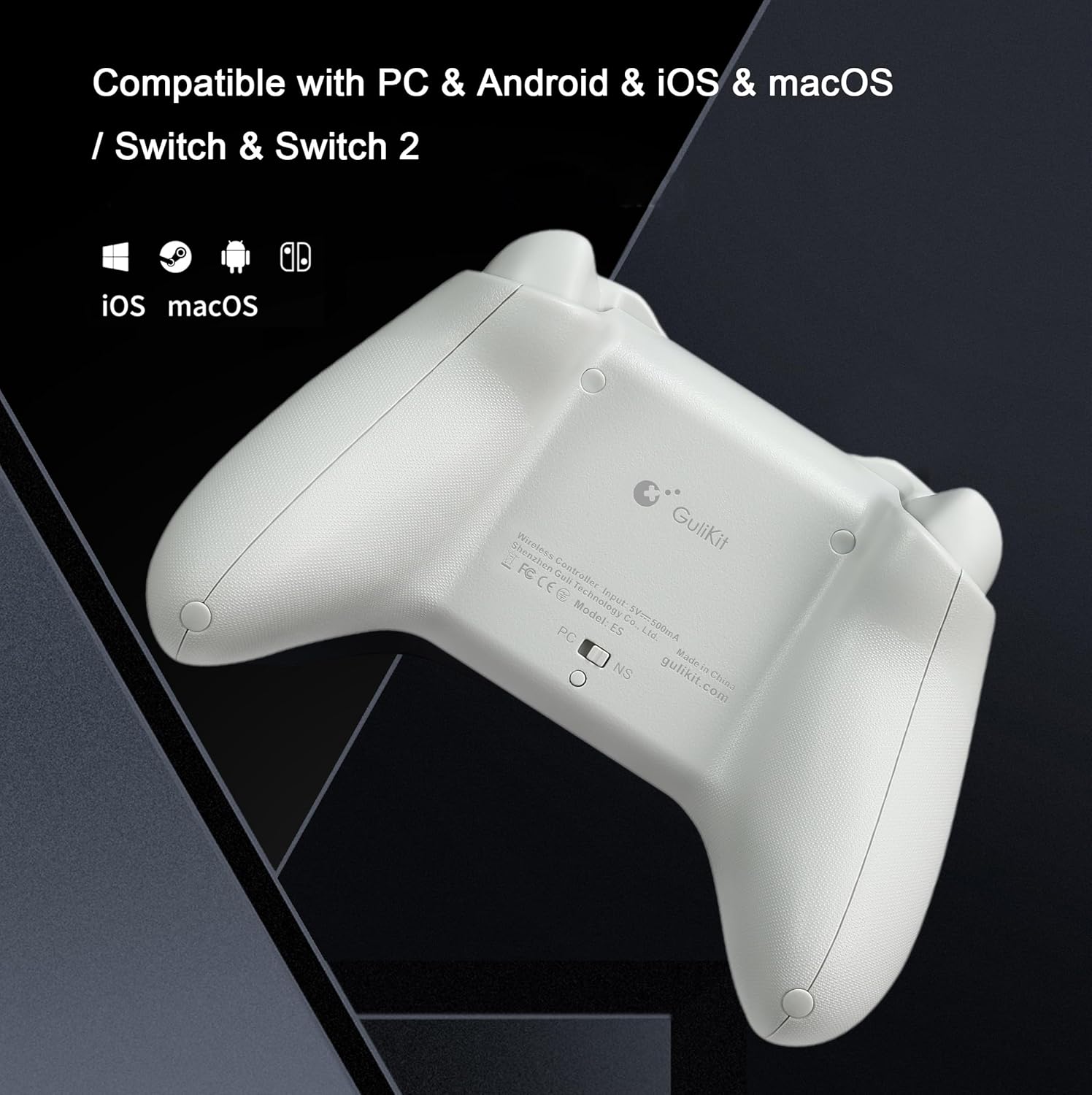
Rear view of the GuliKit ES controller, highlighting the PC/NS mode selection switch for multi-platform compatibility.
Wireless Performance
Leveraging GuliKit Hyperlink 2 revolutionary wireless dynamic channel selection technology, the controller achieves industry-leading low latency. It delivers a 3.25ms delay with a 730Hz polling rate in Bluetooth mode on PC and an even lower 1.87ms delay with a 1000Hz polling rate in wired mode, providing e-sports-level responsiveness.

Visual representation of the GuliKit ES controller's low latency performance.

Detailed chart comparing wired and Bluetooth polling rates and latency of the GuliKit ES controller against other popular game controllers.
Hall Effect Joysticks and Triggers
The GuliKit ES controller incorporates GuliKit's Hall Effect electromagnetic thumbsticks, ensuring anti-drift performance, long-lasting durability, and exceptional 2200-level high precision control. The 256-level Hall Effect triggers provide superior precise analog response for nuanced input.
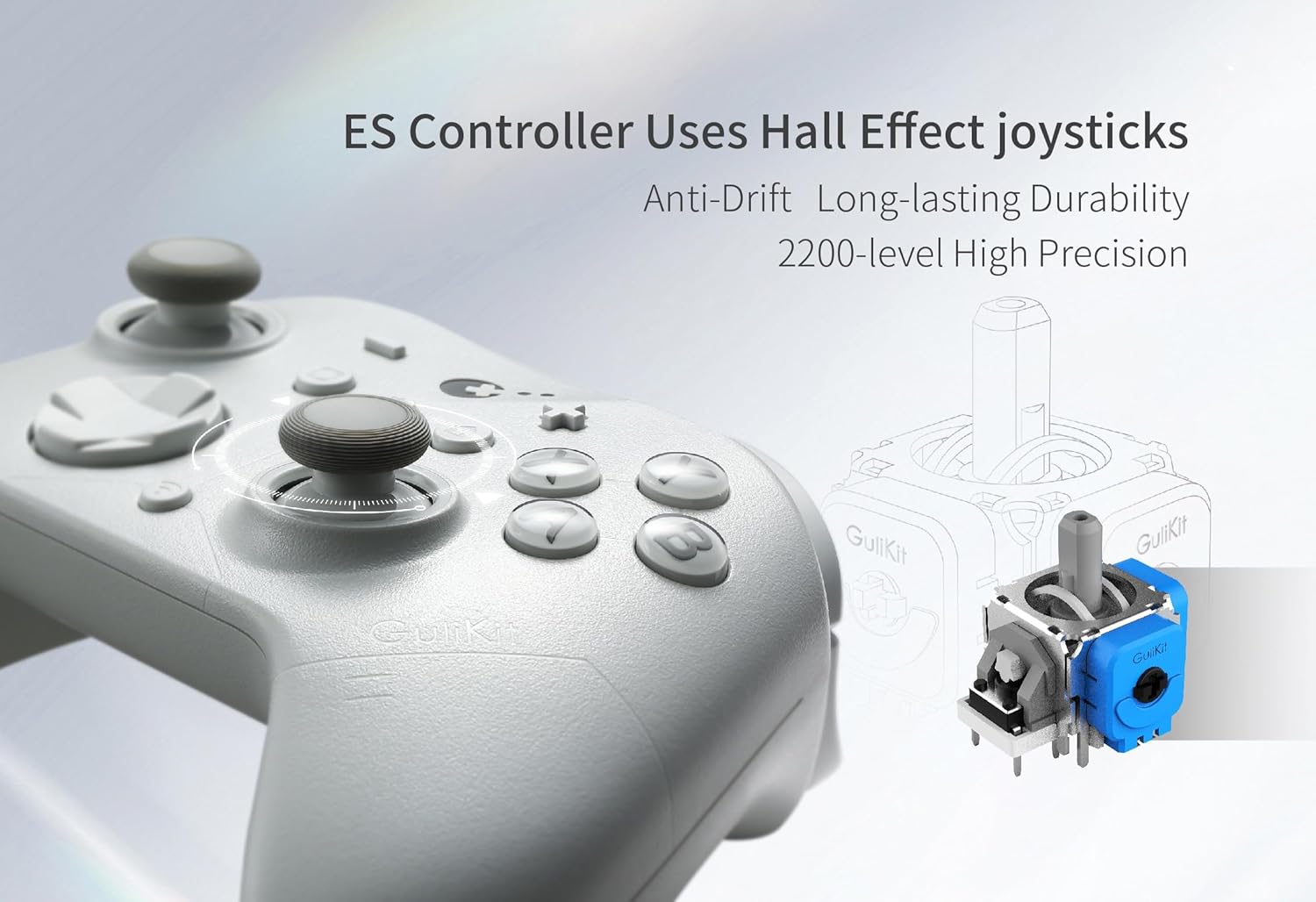
An exploded view diagram showcasing the Hall Effect joystick technology used in the GuliKit ES controller.
Tactile Switch D-pad
The controller features a tactile switch D-pad, designed for sensitive and accurate directional input, crucial for precise movements in various game genres.

Close-up illustration of the controller's D-pad, highlighting its tactile switch design for improved accuracy.
Built-in Gyroscope for Motion Controls
For Nintendo Switch games, the GuliKit ES controller includes a 6-axis gyroscope, enabling precise motion controls for an immersive gaming experience.
Graphic depicting the GuliKit ES controller's built-in gyroscope for motion controls in compatible games.
Advanced Customizable Functions
The controller offers several customizable functions to tailor your gaming experience:
- Vibration Adjustment: Modify the intensity of haptic feedback.
- Turbo Function: Enable rapid-fire for specific buttons.
- Joystick Dead-zone On/Off: Adjust or eliminate joystick dead zones for precise control.
- Physical ABXY SWAP: The controller supports physical swapping of ABXY key-caps to match different console layouts (Switch-layout key-caps are not included in the package).
Customizations can be set directly on the controller or through GuliKit's web-based tool for more advanced configurations.
Maintenance
Battery Care
To maximize battery lifespan, ensure the controller is fully charged before first use. The auto-sleep function helps conserve power during periods of inactivity. Avoid exposing the controller to extreme temperatures.
Cleaning
Use a soft, dry cloth to clean the exterior of the controller. For stubborn dirt, a slightly damp cloth can be used, but ensure no moisture enters the controller's openings. Avoid using harsh chemicals or abrasive materials.
Troubleshooting
Connection Issues
- Ensure Firmware is Updated: Always ensure your controller has the latest firmware installed from the GuliKit website.
- Re-pair the Controller: If connection is lost, try re-pairing the controller with your device. For Switch 2 wake-up, follow the specific pairing steps outlined in the Setup section.
- Check for Interference: If experiencing connection instability or reduced polling rates, especially on Windows Bluetooth, disable "Show notifications to connect using Swift Pair" in Windows Bluetooth settings. Additionally, using 5GHz Wi-Fi can help avoid 2.4GHz interference that may affect polling rates.
- Multiple Bluetooth Devices: When connecting multiple devices to one Bluetooth adapter, bandwidth sharing may lower polling rates. For optimal performance, use one adapter per controller.
Joystick Drift or Inaccuracy
While Hall Effect joysticks are designed to be anti-drift, if you experience any issues, try recalibrating the joysticks. Refer to the GuliKit support website for specific recalibration instructions for your model.
Specifications
| Model Number | ES |
| Dimensions | 5.9 x 3.9 x 1.2 inches |
| Item Weight | 9.9 ounces |
| Battery | 1 x 9V battery (included), 950mAh Polymer Battery |
| Manufacturer | GuliKit |
| Wireless Latency | 3.25ms (Bluetooth mode on PC) |
| Wired Latency | 1.87ms |
| Joystick Precision | 2200-level Hall Effect |
| Trigger Precision | 256-level Hall Effect |
| First Available Date | August 10, 2025 |
Warranty and Support
For warranty information, technical support, or further assistance with your GuliKit ES controller, please visit the official GuliKit website or contact their customer service directly. Keep your purchase receipt as proof of purchase for any warranty claims.
Official GuliKit Store: GuliKit Store on Amazon
Documents and downloads
Ask a question about this manual
Ask about setup, troubleshooting, compatibility, parts, safety, or missing instructions. Manuals+ will review the question and use this page’s manual context to help answer it.